
Admit cards for exams
Print admit cards for one class in one PDF — each student gets their own page with the papers they sit, the day, the hour and the marks.
In Pathshala, Admit cards prints one class's cards in one go. Each student gets their own page listing the papers they sit, with the day, the hour and what each paper is out of.
Where to clickAppsSchool & AcademicsExamsCards
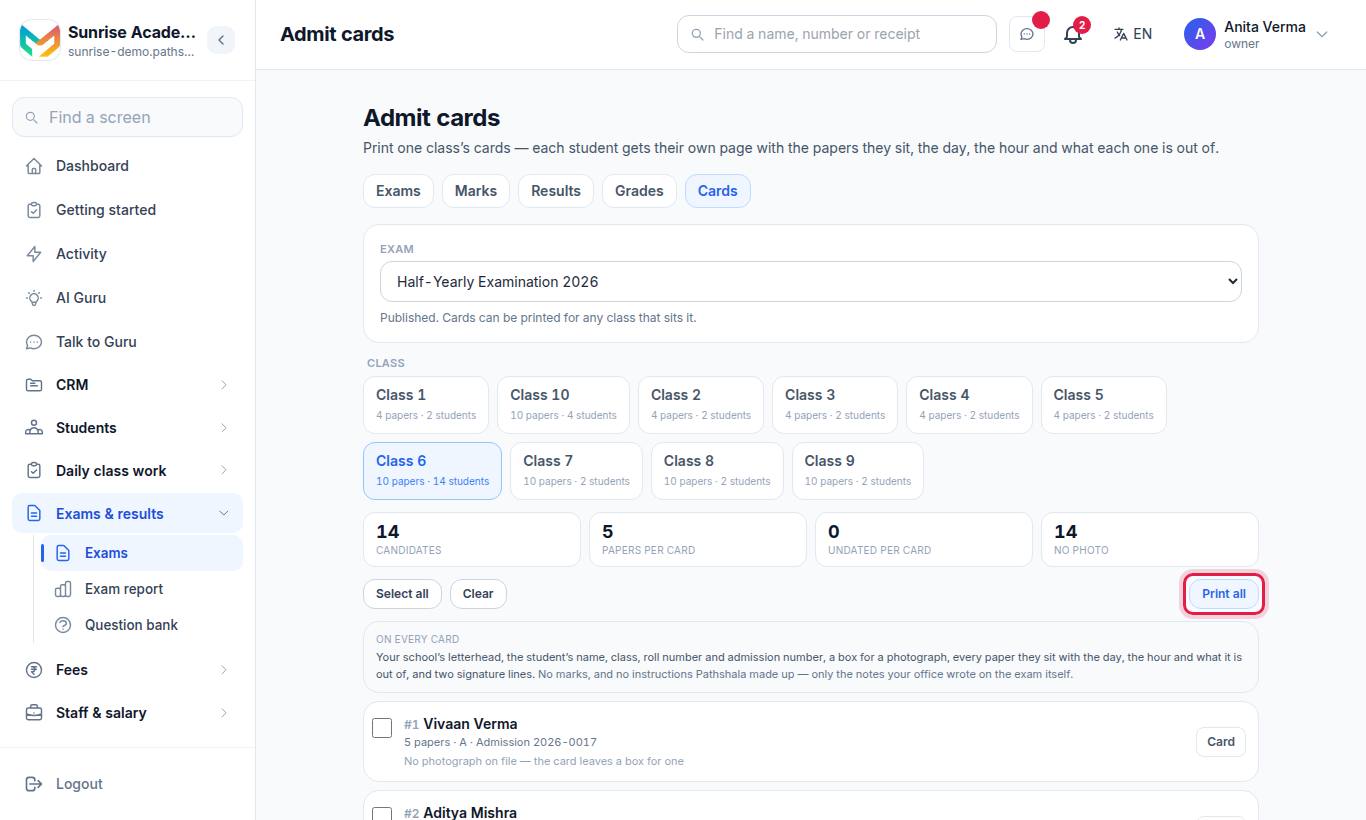
#Steps to print admit cards
- First build the exam's datesheet. See Exams and marks.
- On the exam, press Cards (or open the Cards tab).
- Choose the Exam and the Class.
- Tick the students (Select all / Clear).
- Press Print all for every ticked student, or Print for one.
#What is on every card?
- Your institution's letterhead
- The student's name, class, roll number and admission number
- A box for a photograph
- Every paper they sit, with the day, the hour and what it is out of
- Two signature lines
- Only the notes your office wrote on the exam itself
No marks are printed, and no instructions are made up by Pathshala.
#Who can print admit cards?
Owner, Admin and Staff, by default (the "issue admit cards" permission). Plan: MJX Academic Basic and above.
#Tips
- Give every paper a date and time before printing. A paper with no date still prints, but the card will have a gap.
- Write instructions such as "Bring your own geometry box" in the exam's Note so they appear on the card.
#Questions people ask
Does the admit card have a photo?
It has a box for a photograph and two signature lines.
Can I add exam instructions?
The card prints only the notes your office wrote on the exam itself. Pathshala does not add instructions of its own.
Can I print cards for only some students?
Yes. Tick the students you want before you press Print.
Does the admit card show marks?
No. It shows the papers, not marks.