
Salary structures, CTC and salary templates
Set each person's salary once — earnings, deductions, an annual CTC split, saved templates — and give increments with salary revisions.
A salary structure is what one person is paid every month: the lines paid to them (earnings) and the lines taken off (deductions), and the date it starts. In MJX Payroll you set it once and every month's payslip does the arithmetic from it.
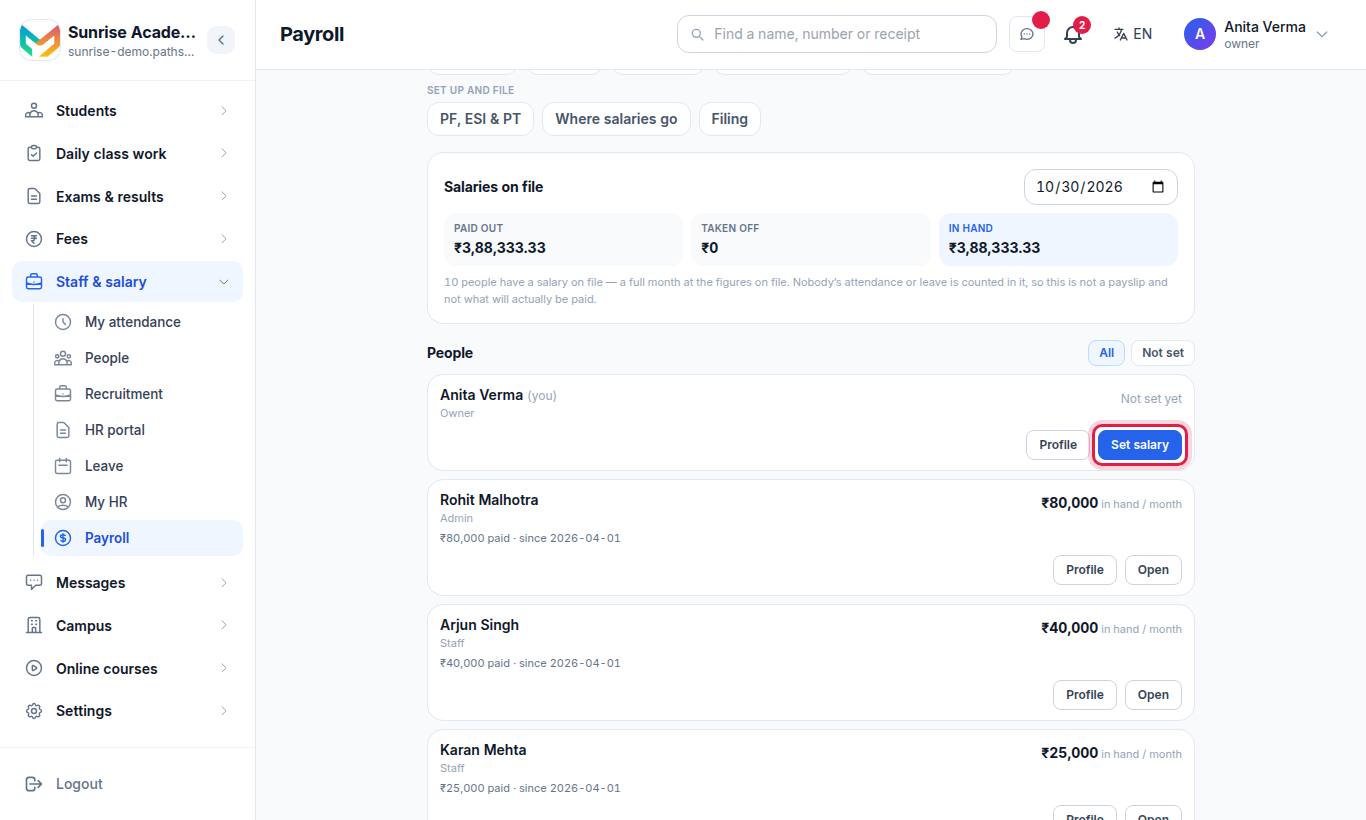
The screen says: "What each person is paid every month, and since when. Nothing here is sent to anybody — it is your own record."
#What does the Salaries screen show?
- Salaries on file — pick a date and see three totals: Paid out, Taken off and In hand. This is "a full month at the figures on file". It does not count attendance or leave, so it is not a payslip.
- People — everyone on the staff list. Filter with All or Not set. Each card shows the person's monthly in-hand figure, "Starts …" for a salary that begins later, or "Not set yet".
- On each card: Profile opens the person's payroll profile; Set salary (no salary yet) or Open opens the editor.
#How to set a salary
- On People, press Set salary beside the person.
- Paid this from — the date this salary starts.
- Why (optional) — for example "Annual increment".
- Under The lines, type each line. A new salary opens with Basic and HRA ready to fill.
- + Something paid adds an earning.
- + Something taken off adds a deduction.
- Add one of the usual lines picks a ready line: Basic, HRA, Conveyance, Special allowance, Shift allowance, Project allowance, LTA, Children education allowance.
- Check the totals at the bottom: Paid, Taken off, In hand.
- Press Save.
#How to use the CTC builder
Type a yearly figure in Annual CTC — optional and each line can fill itself. Each line then has a rule:
| Rule | Meaning |
|---|---|
| A fixed amount | You type the rupees |
| % of CTC | A percentage of the CTC, worked out for the month |
| % of Basic | A percentage of the Basic line |
| Whatever is left | The balance, so the lines add up to the CTC |
- Start with the usual split fills Basic (50% of CTC), HRA (40% of Basic) and Special allowance (whatever is left). Every figure stays editable.
- Type the lines myself clears the CTC and goes back to typing amounts.
#How to use salary templates
A template is a shape — "Basic is half the CTC, HRA is 40% of Basic" — that you put on somebody with just their yearly figure.
- Type the lines once in the editor.
- Press Save these lines as a template and give it a name (for example "Teacher Grade B" or "Executive").
- For the next person, choose it in Apply a saved template, then type their CTC.
- To delete one, pick it and press Remove this template.
Changing a template later does not change anybody's pay.
#Tax and PF settings on each line
- Tax treatment — a small picker on each earning: Tax: from the name, Tax: Basic / DA, Tax: HRA or Tax: other allowance. It tells the income-tax working which line is which (needed for the HRA exemption). Leave it on "from the name" and the line's name is read.
- Counts towards PF — shown when provident fund is switched on (MJX Payroll Pro). PF is a percentage of Basic and Dearness Allowance, not of gross, so tick the lines that are PF wages. See PF, ESI and PT.
#How to correct or remove a salary
Press Open on the person. The editor says "Paid this since …". Change the lines and press Save the correction. Remove this salary deletes the newest salary.
Under Earlier you see every older salary. "An earlier salary is the record of what this person was paid then, so it cannot be changed. Only the newest one can."
#How to give an increment (Salary revisions)
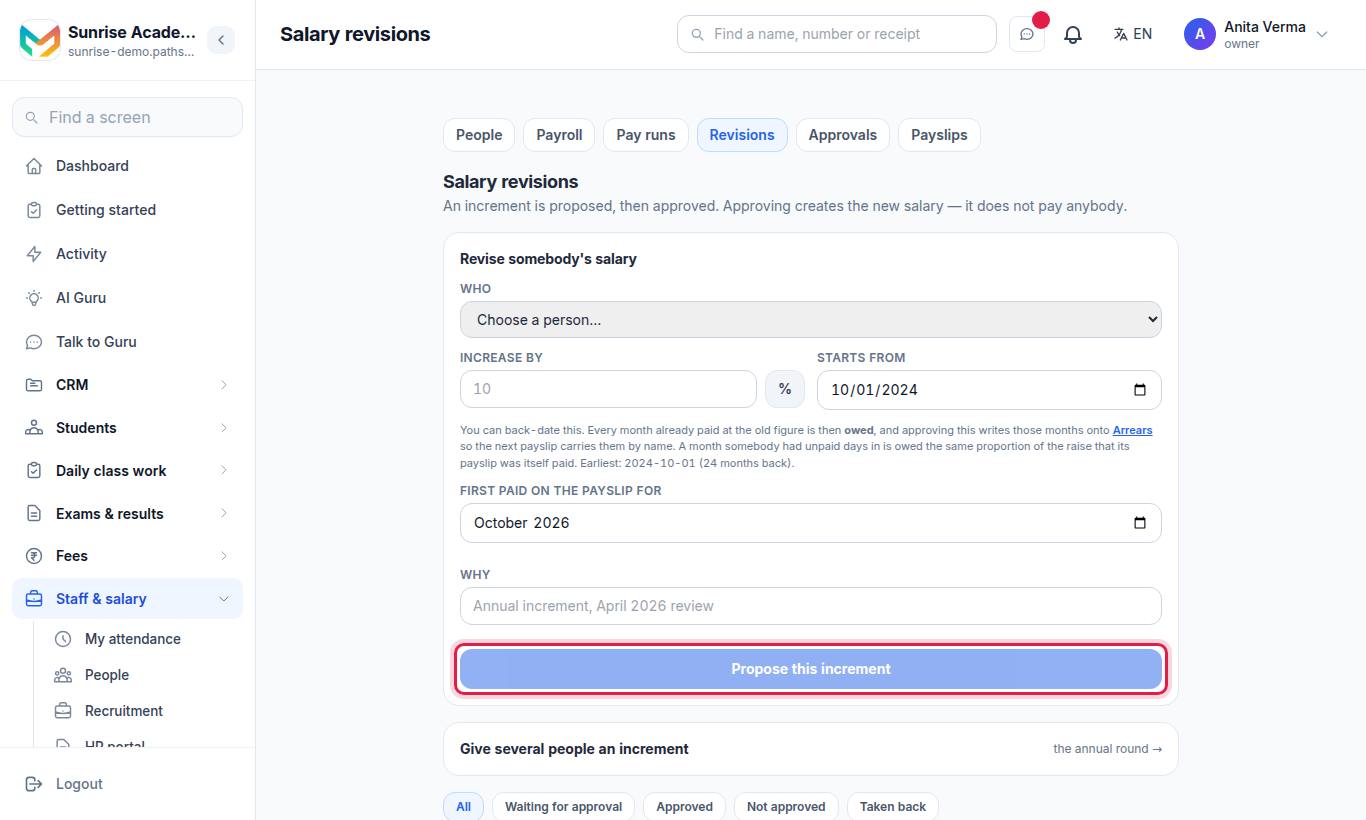
"An increment is proposed, then approved. Approving creates the new salary — it does not pay anybody."
#Steps for one person
- Under Revise somebody's salary, choose Who.
- Type Increase by and press %, or change the lines yourself.
- Starts from — the date the new salary applies. You can back-date it.
- First paid on the payslip for — the month that first pays it.
- Why — for example "Annual increment, April 2026 review".
- Press Propose this increment.
- The owner or an admin presses Approve (or Not approved). The person who proposed it can Take back a proposal still waiting.
#Steps for the annual round
- Open Give several people an increment.
- Choose By a percentage or By an amount.
- Set Starts from, First paid for and Why.
- Tick the people (or Tick everybody).
- Press Work out what this does, check the result, then Propose these increments.
- Approve them one by one, or press Approve all on the batch.
By a percentage, every line they are paid goes up by that percentage. By an amount, the amount is spread across their paid lines in the proportions they already have. Deductions are not touched.
After approval, Write the revision letter opens HR letters with the increment's own figures.
Status words: Waiting for approval, Approved, Not approved, Taken back. A change of more than 500% is refused as "not an increment — check the figure".
If your organisation uses Two people — whoever prepares it cannot approve it, the person who proposed an increment cannot approve it.
#A person's payroll profile
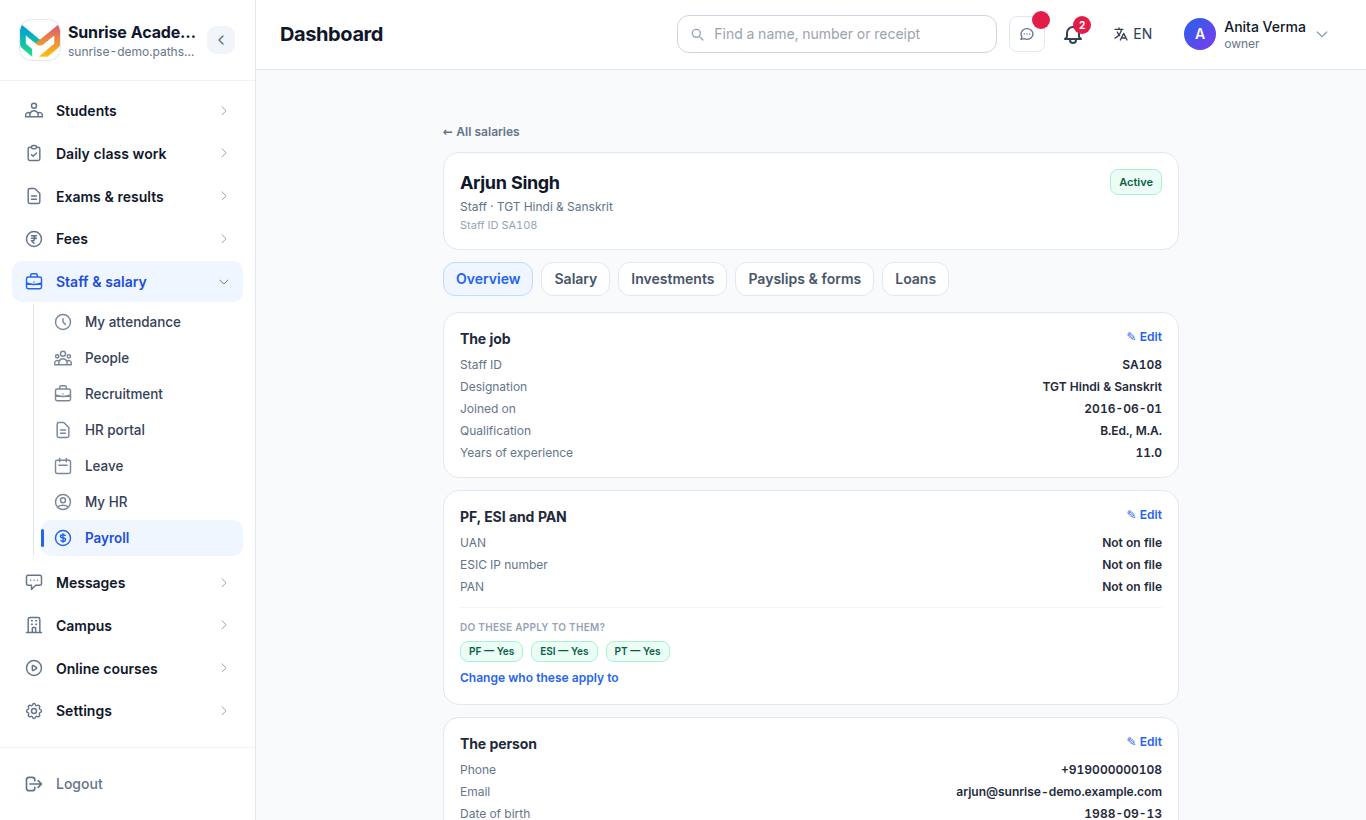
One page per person: The job, PF, ESI and PAN, The person, Where the salary goes, What they are on now, Increments, Every structure they have been on, What they declared, Proofs they sent, Payslips for the year, Tax forms and Advances and loans. Use Show this year to change the financial year. Owner and admin only.
#Who can set salaries?
- Owner and admin, or anyone given Set Salaries (salaries) or Manage Increments (revisions) in Roles & permissions.
- Only an owner can see, set or remove what an owner or an admin is paid.
- Salary structures are on every plan, including Forever Free (up to 5 employees).
#Questions people ask
Do I have to type a CTC?
No. Annual CTC is optional. Leave it empty and type every amount yourself, or type a yearly figure and let each line fill itself (50% of CTC, 40% of Basic, or whatever is left).
If I change a salary template, does everybody's pay change?
No. A salary made from a template keeps its own figures. Changing or removing the template changes nobody's pay.
How do I give somebody a raise?
Use Salary revisions. Propose the increment with a start date, then approve it. Approving creates the new salary; a back-dated start puts the owed months on Arrears.
Can an admin see the owner's salary?
No. Only an owner can see, set or remove what an owner or an admin is paid.
Why can I not edit an older salary?
An earlier salary is the record of what the person was paid then, so it cannot be changed. Only the newest one can be corrected.