
Who can do what in Fees (owner, admin, accountant, cashier)
The fee permissions in Pathshala, what the Accountant and Cashier jobs can and cannot do, and which actions only the owner or an admin can take.
In Pathshala every fee screen and button checks a permission. The owner can do everything. Admins can do almost everything. Other staff can do what their job allows — and MJX offers two jobs made for fees: Accountant and Cashier.
#How to give someone a fee job
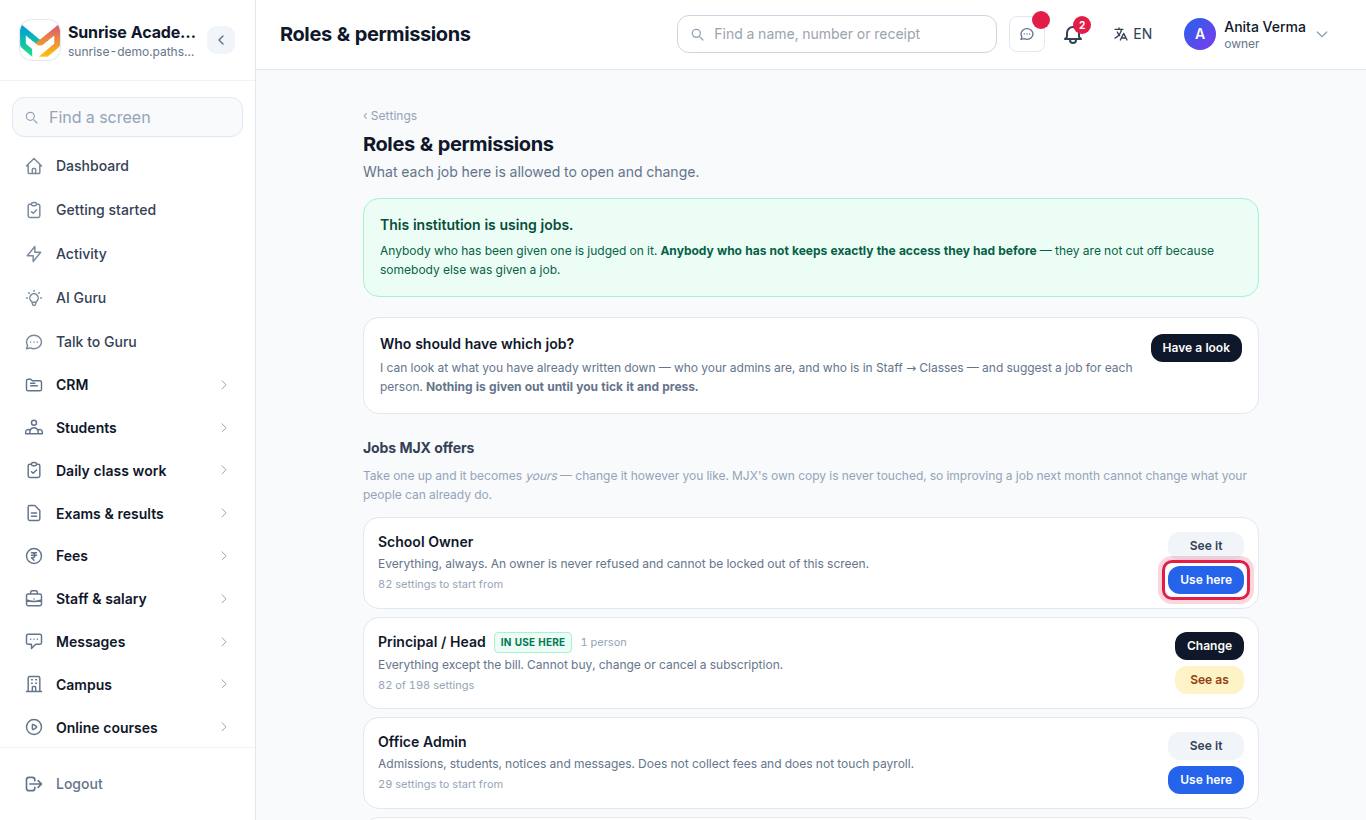
- Under Jobs MJX offers, find Accountant or Cashier and press Use here.
- Give the job to the staff member who does that work.
Giving one person a job changes only that person, never anybody else. You can also press Make a job to build your own from a starting job. For adding staff logins and the full list of jobs, see Users and roles.
#The two fee jobs
| Job | What it is for | What it cannot do |
|---|---|---|
| Accountant | Fee setup, invoices, discounts, refunds, the day-book, cheques, parent claims, reminders and reports | Mark attendance |
| Cashier | Take a payment and print the receipt; see invoices, dues, the dashboard and the day-book | Give a discount, refund, raise an invoice, change fee setup, send reminders |
The cashier's limits are deliberate: a person who can raise an invoice or give a discount can decide what a family owes, which is exactly what separating the two jobs prevents.
#Permissions and the screens they open
| Permission | Opens or allows | Accountant | Cashier | Staff with no job (older default) |
|---|---|---|---|---|
| View Fee Dashboard | Fee Collection | Yes | Yes | Yes |
| Manage Fee Setup | Fee Heads, Fee Structures, Tally ledger names | Yes | — | View only |
| Manage Instalments | Saving a collection plan | — | — | — |
| View Invoices | Invoices, Payments | Yes | Yes | Yes |
| Create Invoice | Generate, send and cancel invoices | Yes | — | — |
| Collect Fees | Record a payment, download and resend receipts | Yes | Yes | Yes |
| Manage Discounts | Discount types; give, expire or remove a student's discount | Yes | — | Open and give only |
| Approve a Discount | Approve a pending discount, auto-approve | — | — | — |
| Manage Refunds | Refund a payment | Yes | — | — |
| Cancel a Payment | Cancel a wrong payment | — | — | — |
| View Fee Reports | Collections, and Worth a look (owner and admin only) | Yes | — | Collections |
| View Day Book | Day-book and its download | Yes | Yes | Yes |
| Manage Cheques | Cheque register | Yes | — | View |
| Settle a Cheque | Mark cleared or bounced | — | — | — |
| Manage Payment Claims | Open Parent Payments | Yes | — | View |
| Accept a Payment Claim | Confirm or reject a parent's claim | — | — | — |
| Send Fee Reminders | Fee Reminders | Yes | — | View only |
| Manage Activities | The Activities screen | — | — | View only |
| Manage Payment Methods | Payment Methods | — | — | View only |
A dash means the job does not include it by default — the owner or an admin does it, or you add it to a job of your own.
#Actions kept for the owner and admins
These are done by the owner or an admin unless you add the permission to a job yourself:
- Cancel a payment, settle a cheque, approve a discount, accept a parent's payment claim, save a collection plan.
- Connect an online payment gateway and change payment methods.
- Send reminders again within 20 hours.
- Open Worth a look (owner and admin only — it names who recorded each row).
- Refunds are the owner's by default; an admin needs a job with Manage Refunds.
#Plan and module gates
A permission opens a screen only if your plan includes it. A row the plan does not carry shows a padlock (or is hidden), whatever the person's job. See the plan table on Fees management.
#Questions people ask
Can a cashier give a discount?
No. The Cashier job takes money and prints receipts. It cannot give a discount, refund, raise an invoice or change the fee setup, so it can never change what a family owes.
Who can refund a fee?
The owner, or a staff member whose job includes Manage Refunds (the Accountant job has it). Admins without that job cannot refund.
How do I give my accountant access to fees?
Open Settings, Roles & permissions, use the Accountant job MJX offers, and give it to that person. Giving a job to one person changes nobody else.
What does a staff member without a job see?
Until your institute starts using jobs, staff accounts keep the older default access shown in the last column of the table on this page.