
Staff roles, the HR job and reporting managers
What Owner, Admin and Staff can do, how to give someone the HR job, and how reporting managers approve leave and attendance corrections.
In Pathshala every person has one role — Owner, Admin or Staff — and can also be given jobs that add what they may do. Separately, each person can have a reporting manager, who answers their leave and attendance corrections.
#The three roles
These are the words a Business sees. A school sees the same three roles with school wording.
| Role | What it means |
|---|---|
| Owner | Everything, including billing, WhatsApp settings and adding people. |
| Admin | Everything day to day — people, leave, attendance and payroll. Not billing. |
| Staff | Their own work: check in, apply for leave, see their payslips. Cannot change settings. |
Only an owner can add or change an owner or another admin.
#Jobs: the HR job and others
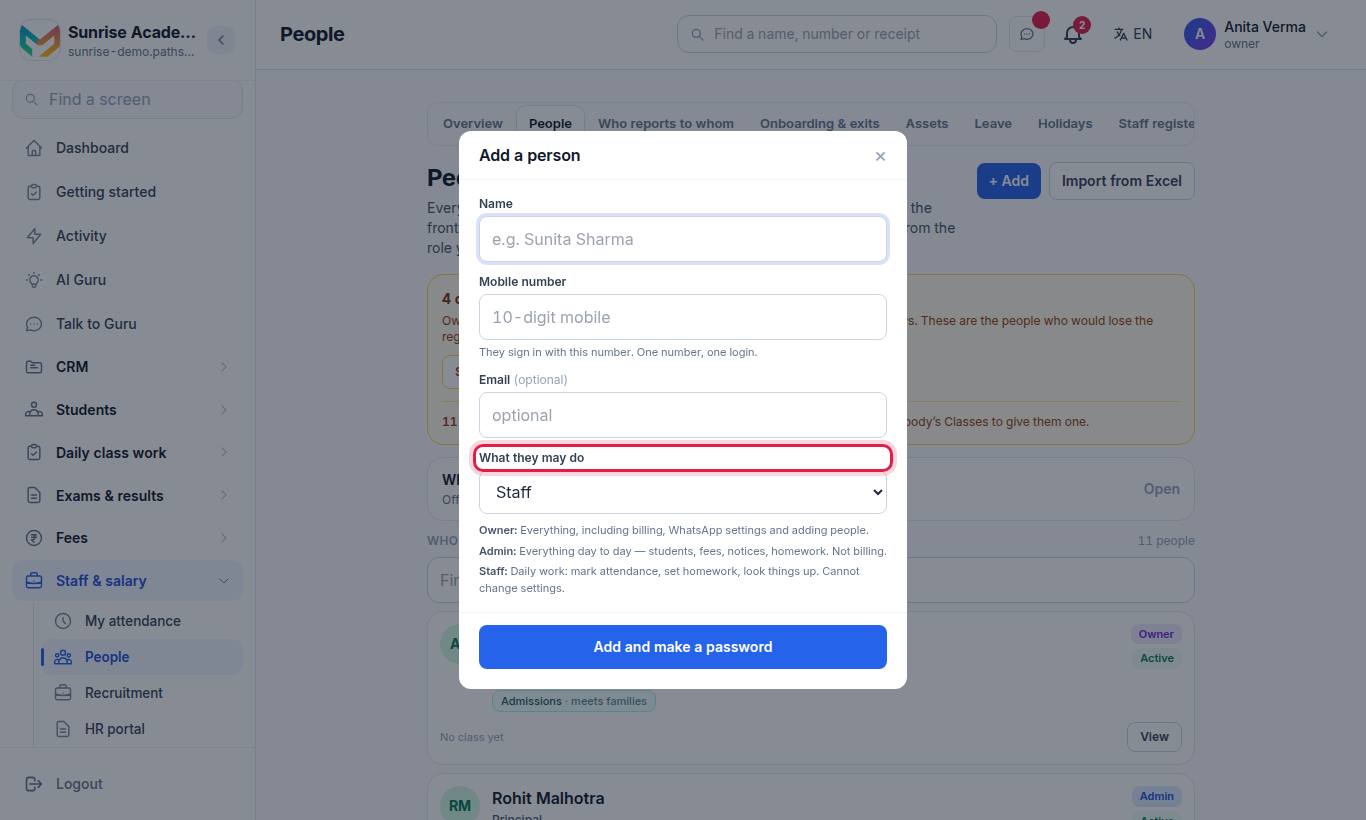
Under Their job(s) here, tick one or more jobs. Ticking more than one adds them together. The jobs offered are the ones that grant something in a product you hold, so an office on MJX HR sees the jobs about people. The one that matters most here is:
| Job | What it gives |
|---|---|
| HR | Staff records, leave and payroll. Opens the HR portal and everything in it, and — in MJX Attendance — shifts and check-in machines. |
Press Add or remove one setting to change a single permission for one person, then Save. To change a job for everybody, use Sidebar › Settings › People & roles › Roles & permissions.
#Attendance permissions you may see
| Permission | What it allows |
|---|---|
| Manage Shifts & Overtime | Create shifts, set overtime rules, put people on a shift |
| Manage Check-in Machines | Fingerprint and card machines, desks, link codes, who has which card |
| Manage Offices & Selfie Rule | Office locations and radius, and whether a check-in needs a selfie |
| See Check-in Photos | Open the selfie a colleague's check-in stored |
#Who can open the HR portal?
The HR portal (/hr) and its screens are for whoever may manage HR: the owner always, an admin where roles were never set up, and anybody given the HR job. Everybody else uses My HR.
#How to set who reports to whom
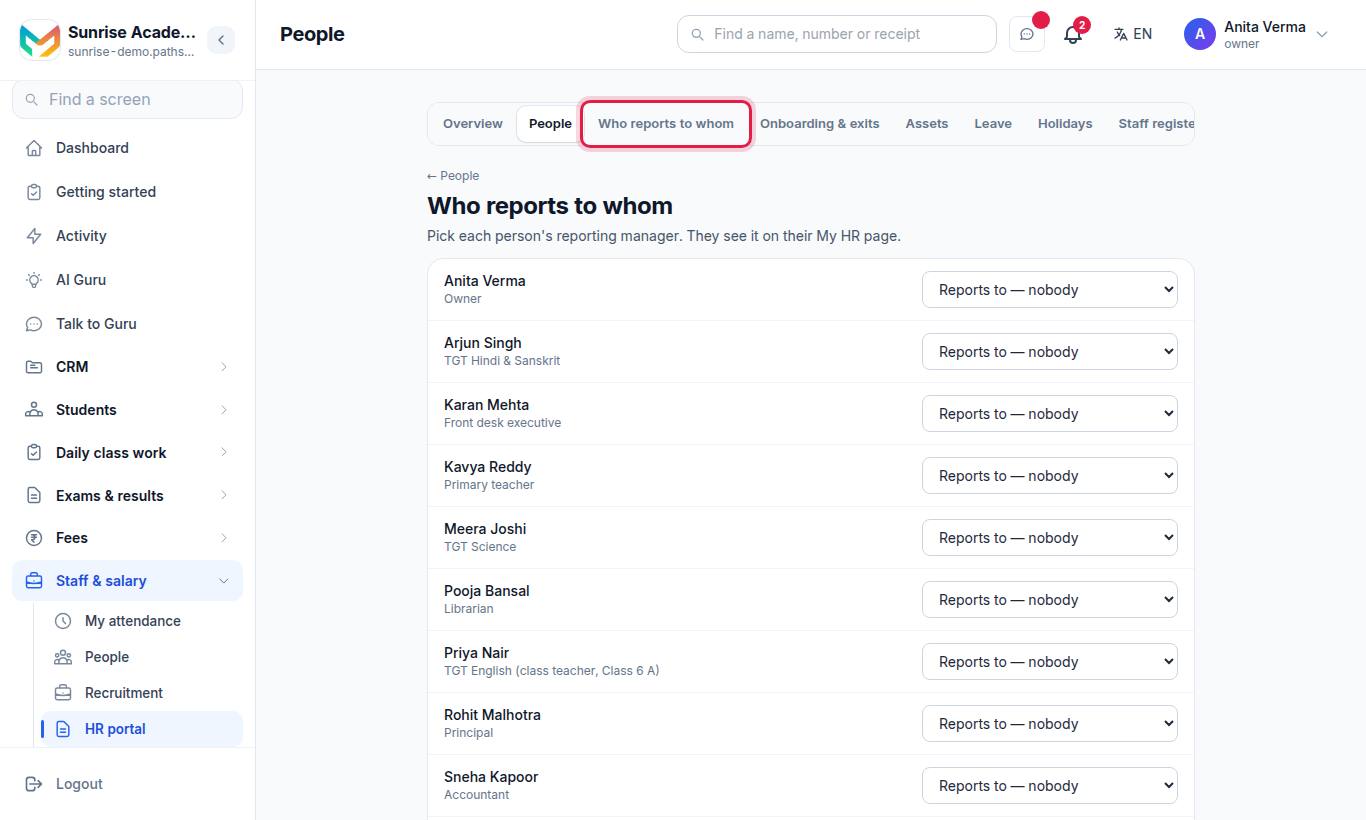
- Find the person.
- In Reports to, pick their manager — or Reports to — nobody.
- It saves when you choose. The person sees their manager on My HR.
#What a reporting manager can do
| Task | Where |
|---|---|
| Approve or turn down their team's leave | Leave › Your team's leave — Approve / Turn down |
| Approve their team's attendance corrections | Attendance corrections — Approve / Not approved |
| Hear when their team has not checked in | The daily "not checked in" message, if the office switched it on |
When an application belongs to someone with a manager, the office is told: "This goes to (manager), their reporting manager. To have somebody else answer it, change who they report to on HR → Who reports to whom."
#Who decides when there is no manager?
The owner or an admin. Nobody can answer their own application — the screen says "You cannot answer your own leave application. Ask the owner to."
#Questions people ask
Who approves a leave application?
The person's reporting manager, if they have one. If not, the owner or an admin answers it.
Can a manager approve their own leave?
No. Nobody can answer their own leave application or their own attendance correction — ask the owner to.
Can I give someone HR access without making them an admin?
Yes. Give them the HR job ("Staff records, leave and payroll.") in What they may do. They can then open the HR portal.
Does a manager see their team's payslips?
No. Being somebody's reporting manager lets you answer their leave and attendance corrections. It does not open their salary.