
School calendar, events and photo albums
Put holidays, events and meetings on the families' calendar, and share event photo albums with students and on your public page.
The Calendar is where you put holidays, events, activities and meetings for families. In Pathshala, anything you publish appears on the month grid in the parent app straight away — no message is sent and nothing is charged.
#Where to find it
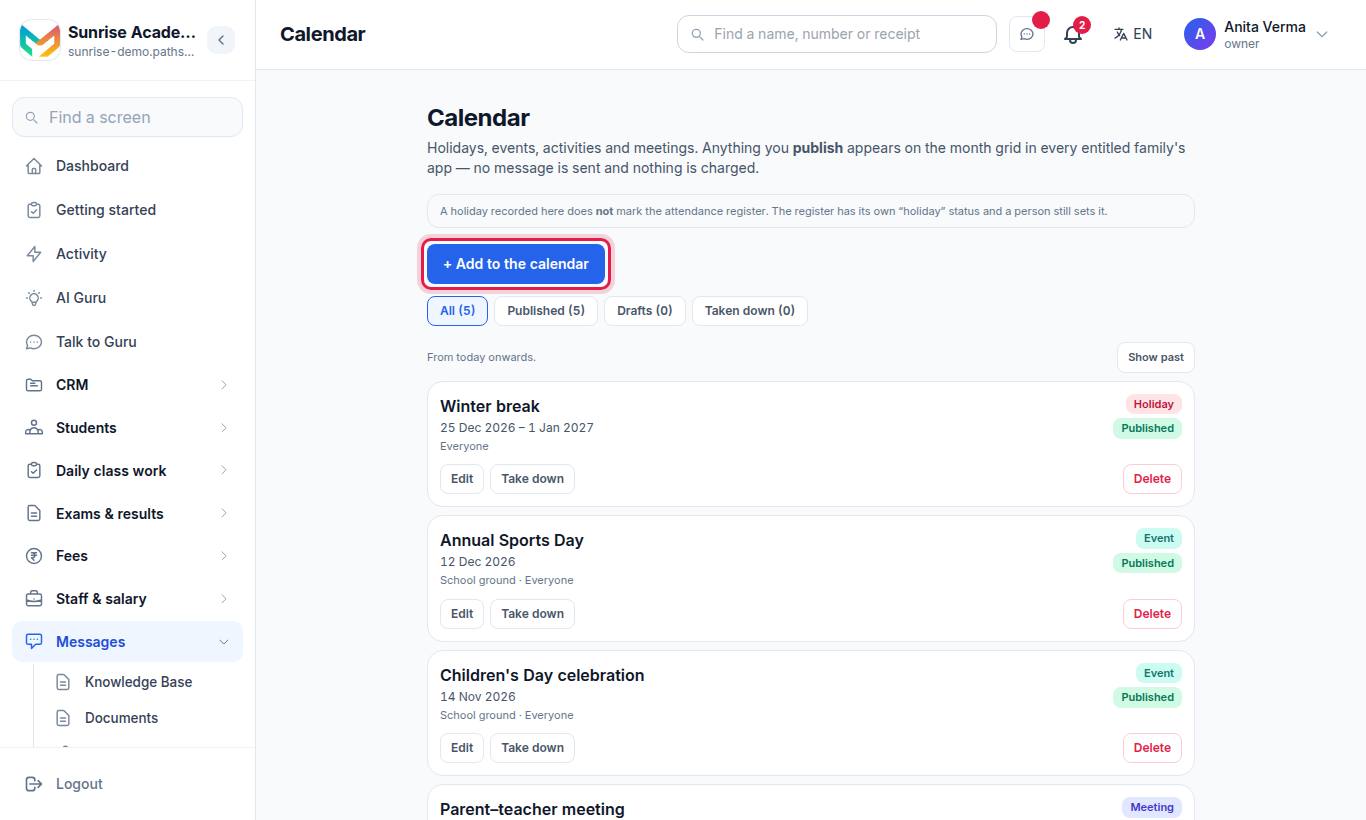
The Calendar is part of MJX Academic.
#Steps to add a holiday or event
- Press + Add to the calendar.
- Fill in:
| Field | What to put |
|---|---|
| Name | For example "Independence Day" |
| What kind | Holiday — we are shut, Event, Activity, Meeting or Something else |
| Day / Last day | Leave the last day empty for a single day |
| From / To (optional) | Times |
| Where (optional) | For example "School ground" |
| Who it is for | Everyone, One class (then which class) or One section |
| Details (optional) | Anything a family needs to know |
- Press Save & publish, or Save as draft.
#Drafts, published and taken down
| State | Who sees it |
|---|---|
| Draft | Only you, on this screen |
| Published | Every entitled family's month grid |
| Taken down | Nobody, but the record stays here |
Filter the list with All, Published, Drafts and Taken down, and press Show past to see earlier entries.
#Who can do what?
| Action | Default roles |
|---|---|
| See the calendar | Everyone signed in |
| Add, edit, publish, take down, delete | Owner, Admin |
#Event photo albums
Photo albums are made in the MJX Learn app by the institute (educator) side, and need MJX LMS. Students see them in their own app.
- Tap New album. Give the Event name, choose Who can see it (All my students or One class), and switch Students can download on or off.
- Tap Create album.
- Add pictures with Add photos from the phone, or Add a Google Drive folder: share the folder in Google Drive as "Anyone with the link" and paste its link.
#Show an album on your public page
- Open the album and choose Show on our public page.
- Confirm Show it — only if the families are happy for these photos to be public.
- The album shows On your public page — anyone with the link can see it. Use Copy the link to share it.
Public albums are listed at your institute's own address, for example sunrise.pathshala.mjxtechnologies.com/photos. Choose Take off our public page at any time. Pictures there are marked so image search engines do not index them, and the original can be downloaded only if you allow downloads.
| Action | Who |
|---|---|
| Make, change or remove albums, show on public page | Owner |
| See albums in the app | Institute staff and the students the album is for |
For more on the app, see MJX Learn.
#Related
#Questions people ask
Does adding a holiday send a message?
No. A published entry appears on the month grid in every entitled family's app. No message is sent and nothing is charged.
Does a holiday mark the attendance register?
No. The register has its own handling for holidays and a person still sets it.
An event was cancelled. Should I delete it?
Use Take down instead. It hides the entry from families but keeps the record, so "what was on in June" can still be answered.
Where do I make photo albums?
In the MJX Learn app, under Institute › Event photos. Albums need MJX LMS.
Can anyone see our photos?
Only if you switch an album to show on your public page. Every album is private to your students until you do.