
Report cards and the exam report
Print one report card per child from the result sheet, let families download theirs, and compare every class in an exam on the exam report.
In Pathshala, a report card is printed from the exam's result sheet — one page per child, with every paper, the total, the percentage, the grade, the position and the attendance figure. The Exam report puts every class that sat an exam side by side.
#How to print report cards
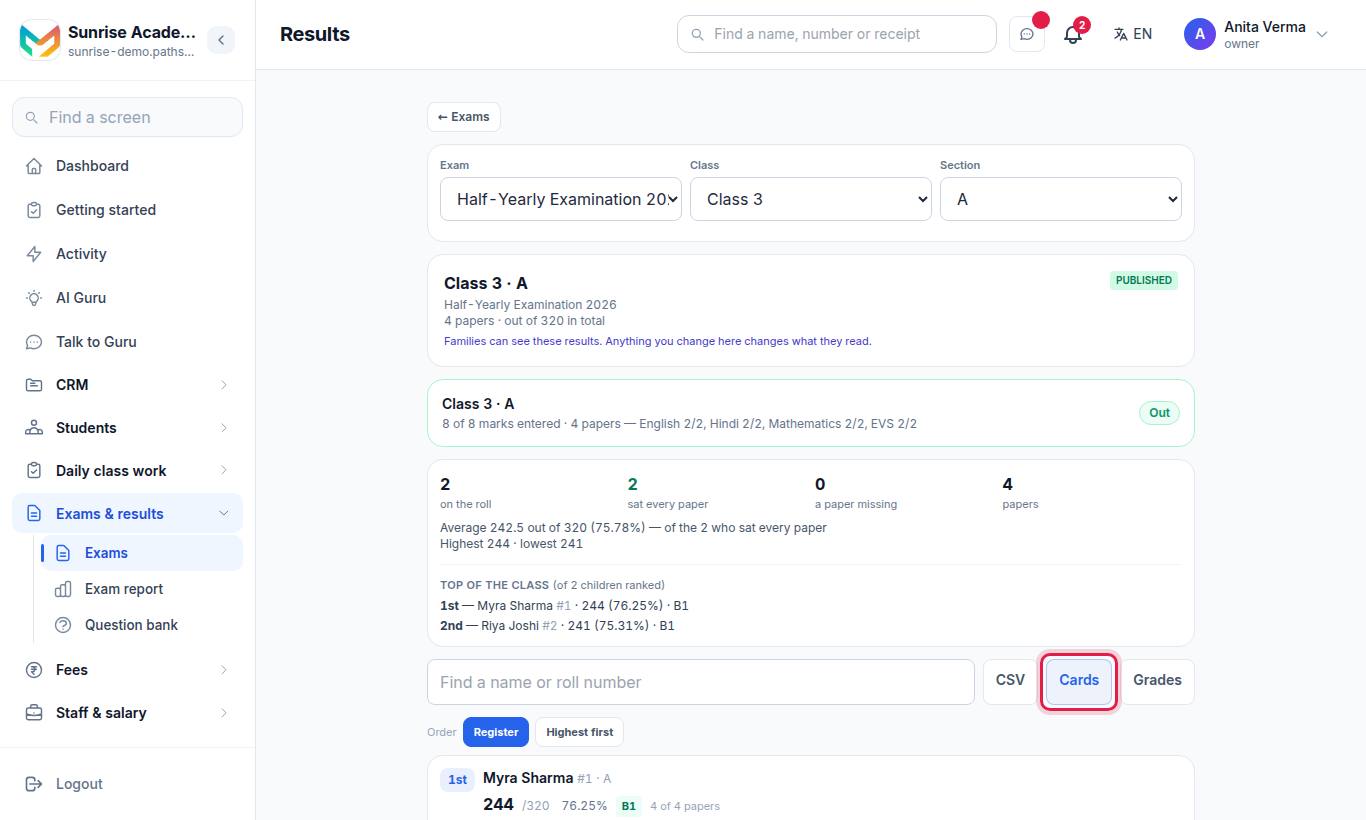
- Open Exams and press Results on the exam (or open the Results tab).
- Choose the Exam, the Class and optionally the Section.
- Press Cards.
#What is on a report card?
| On the card | Notes |
|---|---|
| Your letterhead | From your institution's settings |
| Child's name, class and section | |
| Every paper with marks and "out of" | Absent papers are shown as absent, never zero |
| Total, percentage, grade | One grade for the overall percentage, from your grading scale |
| Position in the class | Only if the child has a mark on every paper |
| Attendance | From the start of the exam's session to the last dated paper; the range is printed under the figure. Where a class keeps a register per subject, subject-wise attendance can appear too |
| Date worked out | Every card says when its figures were calculated |
The card has no per-subject grade letter, no teacher's remark or conduct line, and no card number.
#What do families get?
When you Show results for the exam (or publish their child's section), families see the result in the MJX Parent app and can download their child's card as a PDF. The family copy is the same card without the position and without the class average.
#The exam report (every class side by side)
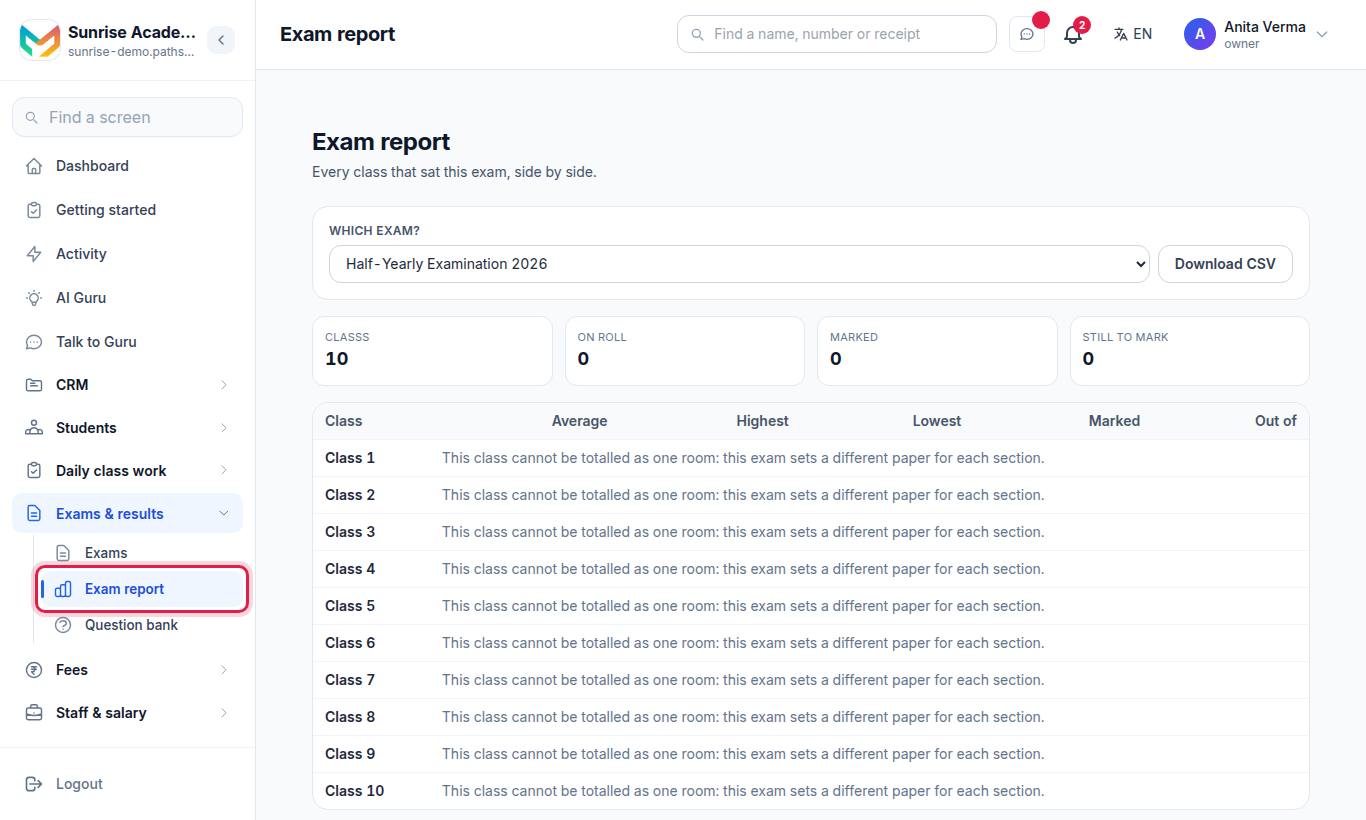
- Open Exam report (a coaching centre sees Test report).
- Under Which exam?, choose the exam. Drafts are marked "— draft".
- Read the table. Press Download CSV to keep it.
| Column | Meaning |
|---|---|
| Class | Each class that sat the exam |
| Average | The class average percentage, the same figure the result sheet prints |
| Highest / Lowest | The highest and lowest total in the class |
| Marked | Children with a mark on every paper, out of those on the roll (for example 32/35) |
| Out of | The total marks of the class's papers |
If marks are still being entered anywhere, the report says Provisional — the figures will move. There is no overall average for the whole institution on purpose: it would weigh a small class the same as a large one. A class whose sections sat different papers is not added up as one room.
#Who can use report cards?
| Task | Who |
|---|---|
| See the result sheet and print report cards | Owner, Admin, Staff |
| Show results to families | Owner, Admin |
| Exam report | Owner, Admin, or anyone with the academic reports permission |
Plan: report cards and the exam report are in MJX Academic Basic and above.
#Tips
- Enter every paper before you print. A child missing a mark on one paper gets no position.
- Set the grading scale before results day, not after.
- Use the exam report after each exam to spot the class that needs help early.
#Questions people ask
Is the report card saved when I print it?
No. A card is worked out the moment you print it and carries the date it was worked out. Re-printing after you change a grade band gives the new letters.
Does the report card show attendance?
Yes. It shows the child's attendance from the start of the exam's session to the last dated paper, with that date range printed under the figure.
Can parents download the report card?
Yes, once results are shown to families. Their copy has no position and no class average.
Is there a teacher's remark or conduct line?
No. The card has no remark, conduct or card number.
Who can see the exam report?
The owner and admins, or anyone given the academic reports permission.