
Live classes on Zoom or Google Meet, and batches
Schedule live classes on Zoom or Google Meet in MJX Learn, let learners join from the app, mark attendance, add recordings and run batches.
A live class in MJX Learn is a scheduled Zoom or Google Meet session attached to a course. Learners who have the course see it on their home screen and in Live classes, get a Join button ten minutes before it starts, and can add it to their phone's calendar. After the class you can mark attendance and add the recording.
#How to schedule a live class
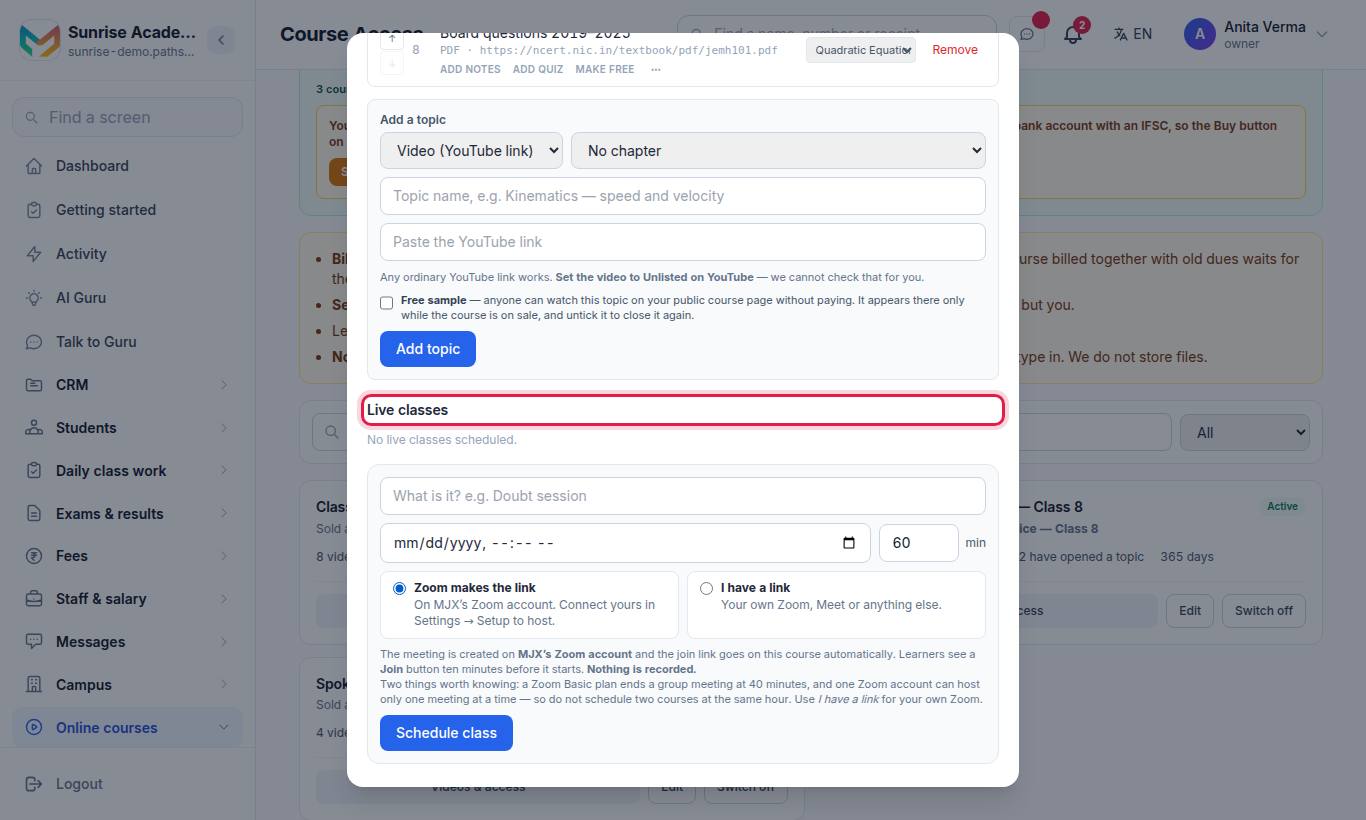
- Type what it is, e.g. "Doubt session".
- Pick the date and time, and the length in minutes (60 by default).
- Choose who makes the link:
- Zoom makes the link — created the moment you schedule it.
- Google Meet makes the link — created the moment you schedule it.
- I have a link — "Your own Zoom, Meet or anything else." Paste it.
- Press Schedule class.
#Use your own Zoom or Google account
In the app, Settings has Connect Zoom ("Host Zoom classes on your own Zoom account") and Connect Google Meet (classes get a Meet link in a "Pathshala classes" calendar on your own Google account). Once connected, the choice reads "On your Zoom account — you host." / "On your Google account — you host."
#On the class row
| Button | What it does |
|---|---|
| Start / Open | Opens the meeting (Start when you are the host). |
| Attendance | Shows who tapped Join and lets you mark present or absent. |
| Add recording | Paste a YouTube or Google Drive link to the recording. It is added as a topic. |
| Recording ✓ remove | Removes it — if it was added as a lesson, that lesson goes too. |
| Cancel | Cancels the class; you can give a reason the office will see. |
#What learners see
- In the app: Next live class, Live now, Live schedule on the Home tab, with Join. "The Join button appears ten minutes before it starts."
- On the web:
~/learn/live— Live classes — Across all your courses, grouped Today, Upcoming and Past, with Join class, 📅 Add reminder and Watch the recording. - After a class: "This class has finished. If your teacher shares a recording it appears as a topic inside the course."
- Notifications. Learners get "Live class coming up" about half an hour before and "Your class is starting" when Join opens; you get "Class starting soon". Tapping one opens that class, with Join (or Start for you) as soon as it works. A class made for a batch is announced only to the learners in that batch.
- The course's own screen lists its next live classes.
A Live course with no topics of its own leaves the learner's list once every class has finished, unless you tick Keep this course after the live class is over.
#Batches (cohorts)
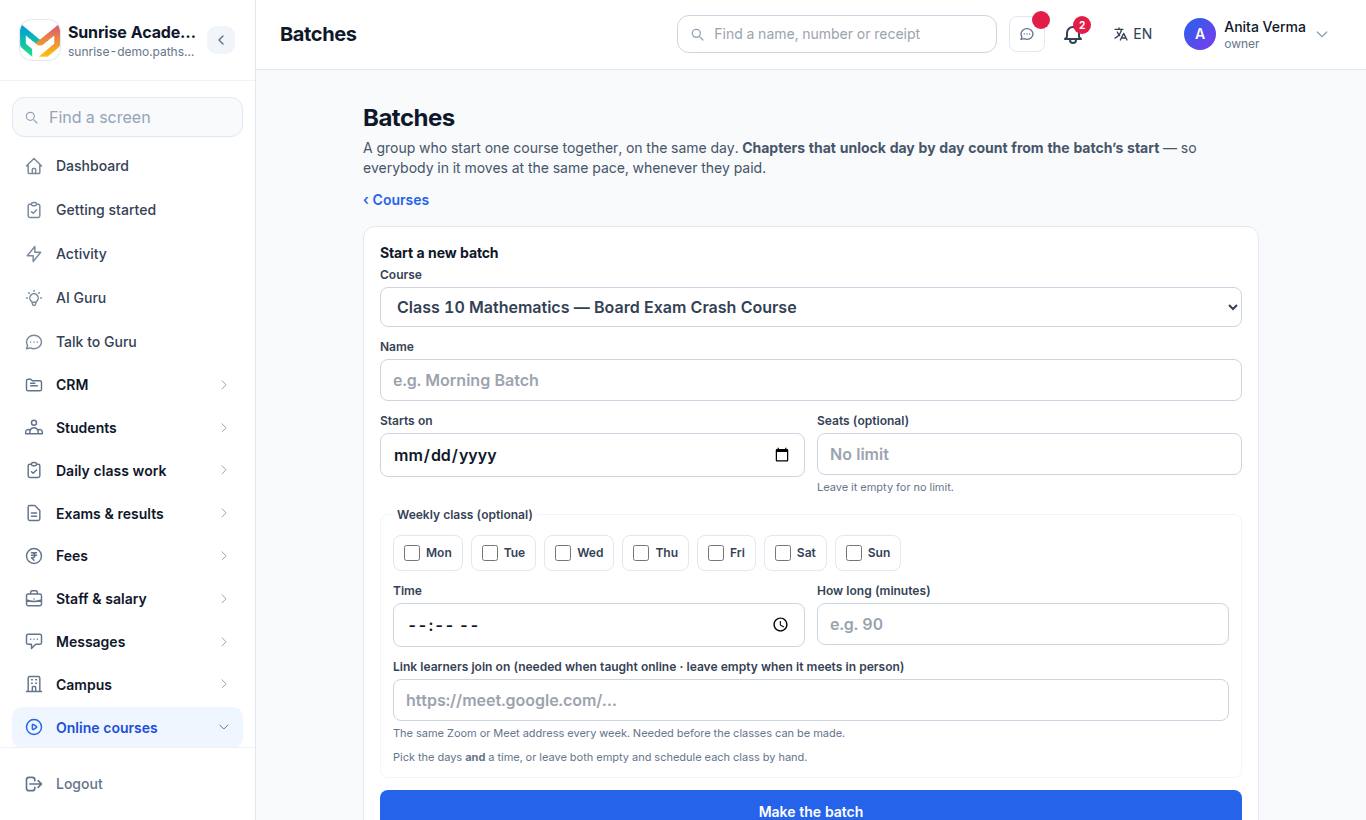
"A group who start one course together, on the same day." The word follows your institute type (Batches for coaching). In the app this is Teaching › Batch schedule.
#Steps to start a batch
- Under Start a new batch, choose the Course, a Name (e.g. "Morning batch") and Starts on.
- Optionally set Seats — leave empty for no limit. When full, new buyers cannot pick it.
- Optionally set a Weekly class: tick the days, pick a Time and How long (minutes).
- Paste the Link learners join on (the same Zoom or Meet address every week). Leave it empty when the batch meets in person.
- Press Make the batch.
#After you make a batch
- Press Learners to place people, or "Add all … learners not in a batch".
- Press Make the classes to create the live classes from the timetable. "Classes already made are skipped, so pressing this again is safe."
- Live classes made for a batch show only to the learners in it.
- Chapters that unlock day by day count from the batch's start, so everybody in it moves at the same pace, whenever they paid.
- Switch a batch off to stop offering it to new learners; delete it if it is no longer needed.
When a course has open batches, buyers choose one on the sale page ("Choose your batch", with "Only 1 seat left" when nearly full).
#Who can use this?
| Who | Can |
|---|---|
| Owner, Admin | Schedule, cancel, mark attendance, add recordings, manage batches. |
| Teacher | In the app, teachers see their courses' classes; only the owner can schedule a live class. |
| Learners | Join from the app or browser. |
| Plan | Basic and up ("Live classes, mock tests and certificates"). |
#Questions people ask
When can learners join a live class?
The Join button appears ten minutes before the class starts — not before, so nobody taps it on the wrong day.
Do I need my own Zoom account?
No. Choose "Zoom makes the link" or "Google Meet makes the link" and the meeting is created on MJX's account. You can also connect your own Zoom or Google account, or paste any link with "I have a link".
Are live classes recorded?
No, nothing is recorded by MJX Learn. If you record the class yourself, press "Add recording" and paste a YouTube or Google Drive link; it appears as a topic in the course.
What is a batch?
A group of learners who start one course together on the same day. Chapters that open day by day count from the batch's start, and its weekly timetable can make the live classes for you.
Which plan includes live classes?
Live classes and batch classes are part of "Live classes, mock tests and certificates" — MJX LMS Basic and up.