
When a student leaves — mark as left and deletion requests
How to mark a student as left or remove a record made by mistake in Pathshala, and how the three-step approval works.
In Pathshala, a student is never deleted on one person's say-so. Leaving is recorded through a deletion request that is approved in three steps, or through a transfer certificate. The record stays on file as history, with every fee and mark kept.
#Two ways a student leaves
| Way | When to use it | What happens |
|---|---|---|
| Mark as Left (recommended) | The student has left your institution | Status becomes "Left". The record is kept for history. Re-admission later means a new student with a new admission number. |
| Hard Delete (only for mistakes) | A student was created from an enquiry by mistake | The record is removed for good, and the original enquiry is freed again. |
| Transfer certificate | The student needs a TC | Tick Also mark this student as left when issuing. See Certificates. |
Hard Delete is not offered for a student who was added by hand (not from an enquiry).
#Steps to request that a student is marked as left
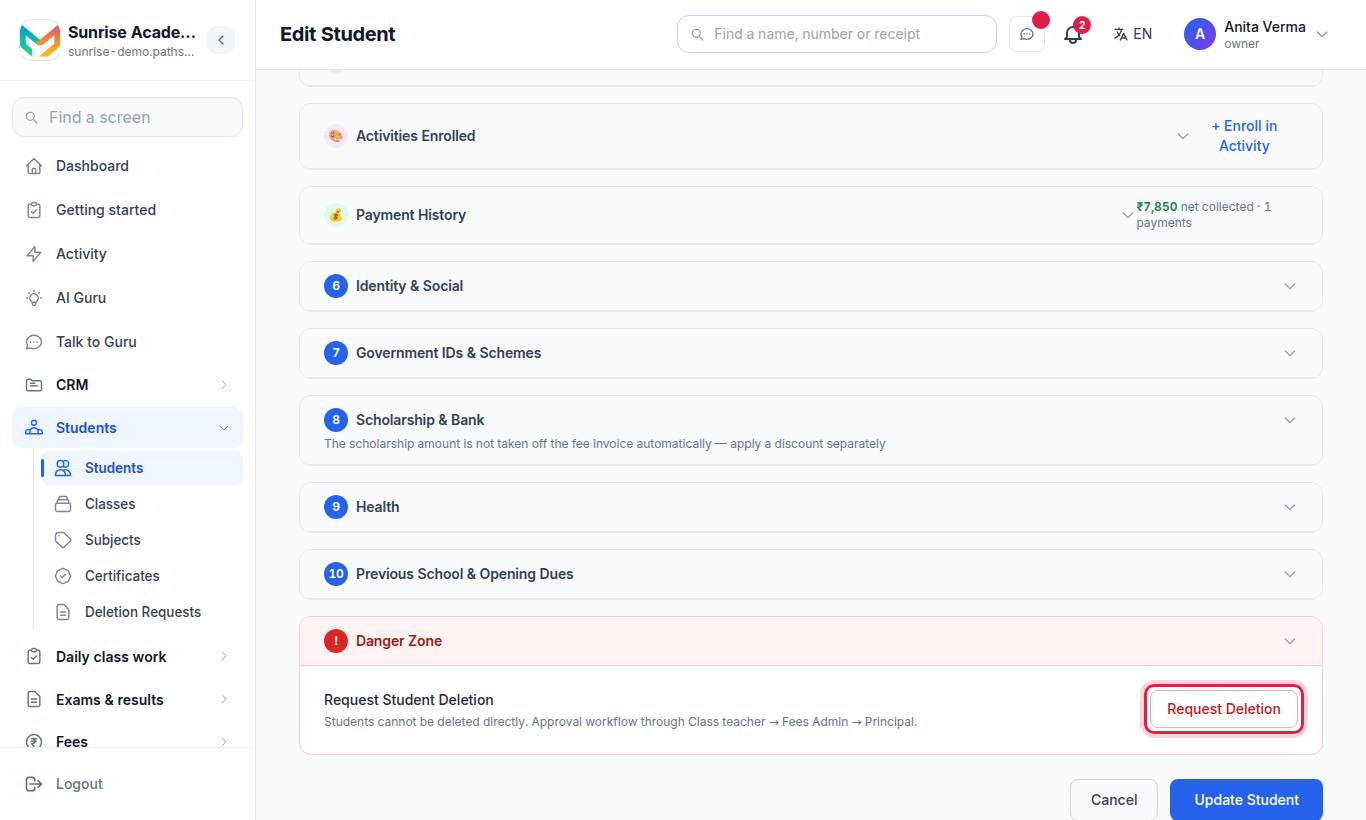
- Open the student and press Edit.
- Scroll to Danger Zone at the foot of the form.
- Press Request Deletion.
- Choose the Action Type: Mark as Left or Hard Delete.
- Write a Reason (at least 5 characters). Approvers will read it.
- Press Submit Request.
#How the approval works
| Stage | Who acts (school words) | Default role |
|---|---|---|
| 1 | Class teacher (Lead faculty at a coaching centre, Lead tutor at tuition classes) | Staff |
| 2 | Fees Admin | Admin |
| 3 | Principal (Director, Owner, Dean or Head, by institution type) | Owner |
A Hard Delete for an enquiry mistake skips straight to stage 3. The owner can act at any stage.
#How to approve or reject a request
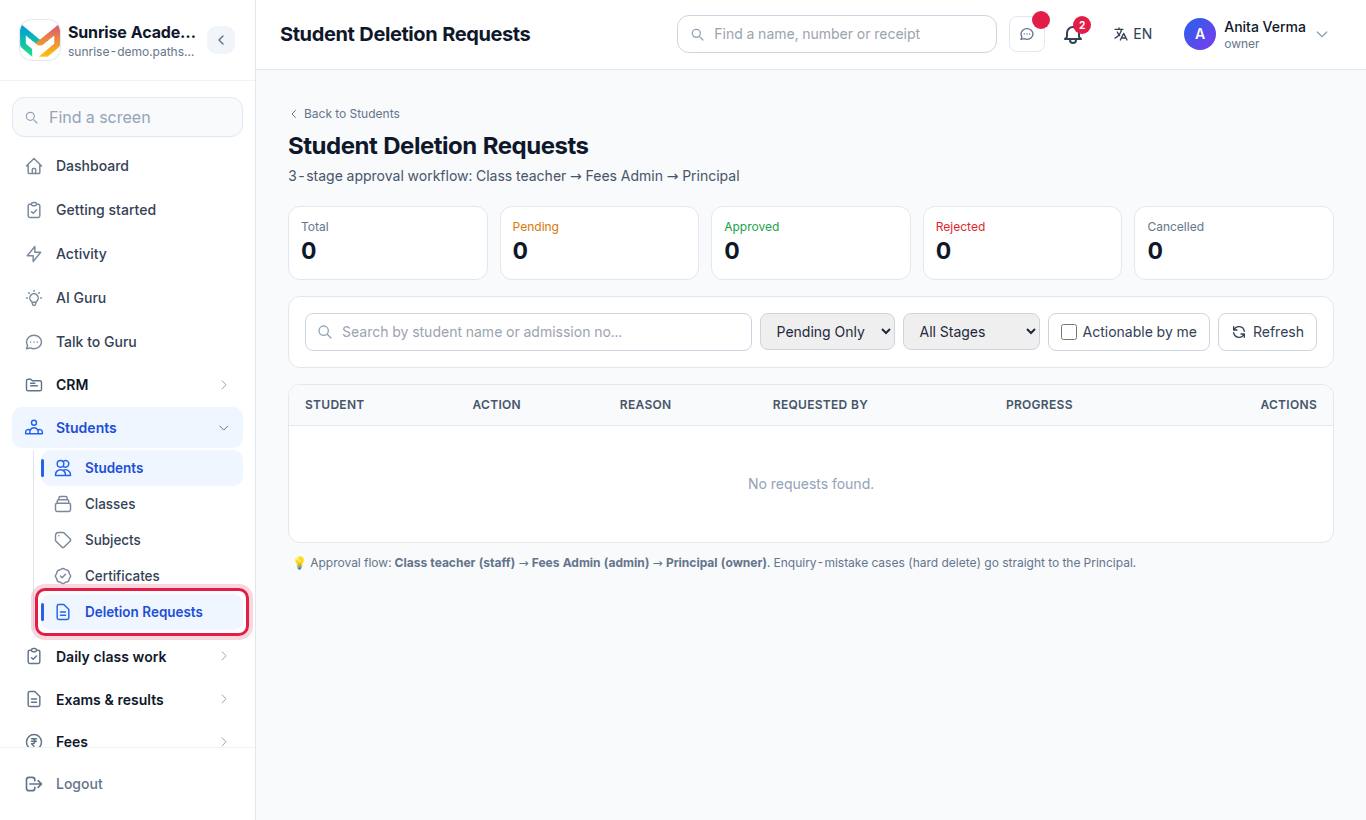
- The top of the page shows how many requests are pending your action, and totals for Pending, Approved, Rejected and Cancelled.
- Filter by status, by stage, or tick Actionable by me.
- Press Approve on a row, add Notes if you like, and press Approve again in the box. At the last stage the screen warns Final Approval — Action Will Execute.
- Or press Reject on the row, write a Rejection Reason (at least 5 characters) and press Reject.
#Who can use the Deletion requests screen?
Anyone allowed to raise or approve deletion requests — by default Owners, Admins and Staff. Each person can only act on the stage that is theirs.
#Related
#Questions people ask
Can I just delete a student?
No. A student record is never deleted directly. You raise a deletion request and it is approved in steps, so no one can remove a child's record alone.
What is the difference between Mark as Left and Hard Delete?
Mark as Left keeps the record forever with the status "Left". Hard Delete removes the record completely and is only allowed for a student made from an enquiry by mistake.
Who approves a request?
Three people in turn — the class teacher, the fees admin and the principal. The owner can act at any step.
The student comes back next year. What do I do?
Add them again as a new student. They get a new admission number; the old record stays as history.
Can a transfer certificate mark them as left?
Yes. When you issue a transfer certificate you can tick "Also mark this student as left".