
Exam management — datesheet, marks entry and results
Create an exam and its datesheet, enter marks paper by paper, set your grading scale, see the result sheet and send datesheets and results to families.
In Pathshala, Exams holds every exam you run and its datesheet: which subject, which class, which day and out of how many. From each paper you open Marks to enter what every child scored, and the Results screen adds it all up per class.
A coaching centre sees Tests instead of Exams, and a skill institute sees Assessments.
The exam screens share one tab strip: Exams, Marks, Results, Grades and Send.
#Steps to create an exam
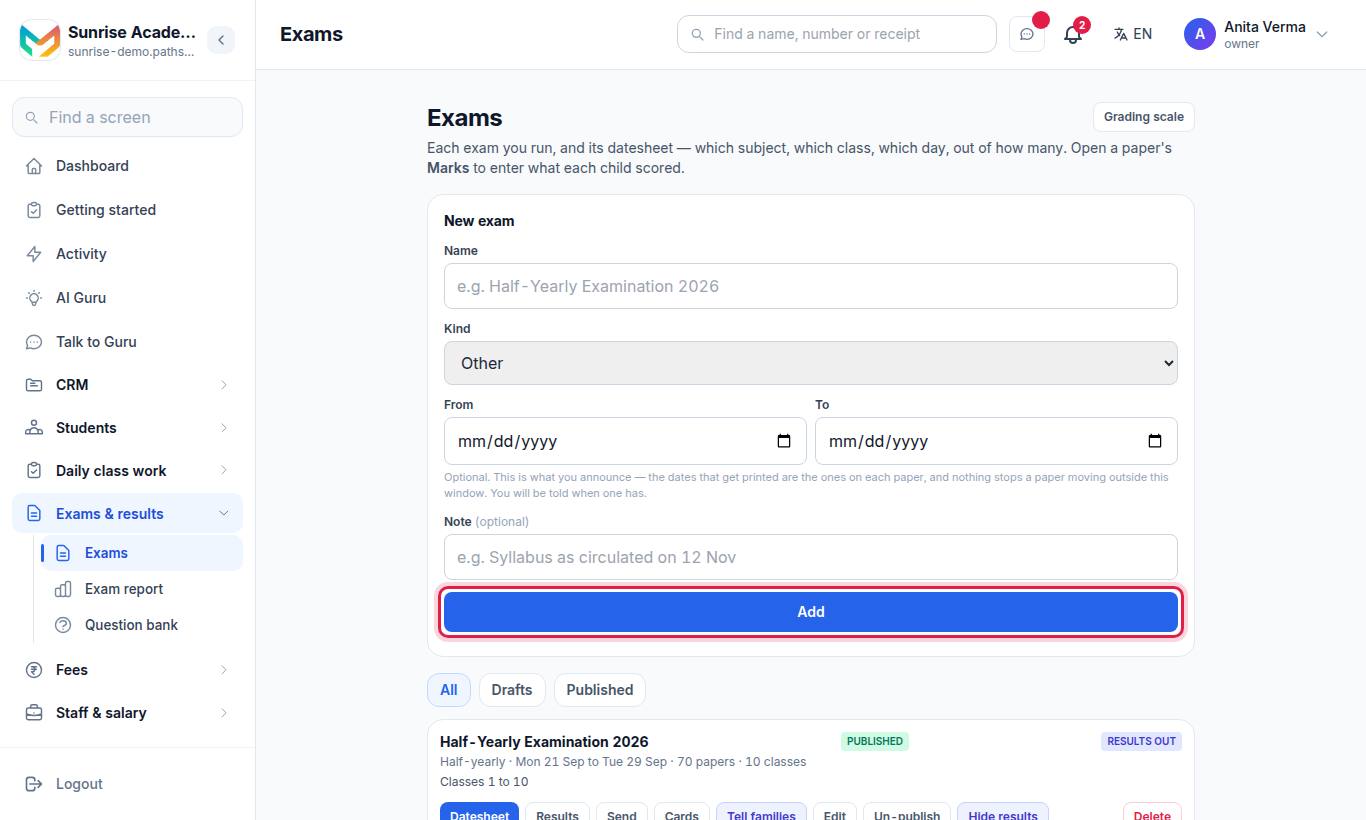
- Open Exams and use New exam.
- Type the Name (for example "Half-Yearly Examination 2026").
- Choose the Kind: Unit test, Term / semester, Half-yearly, Final / annual, Practical, or Other.
- Optionally set From and To (the window you announce) and a Note (for example "Syllabus as circulated on 12 Nov").
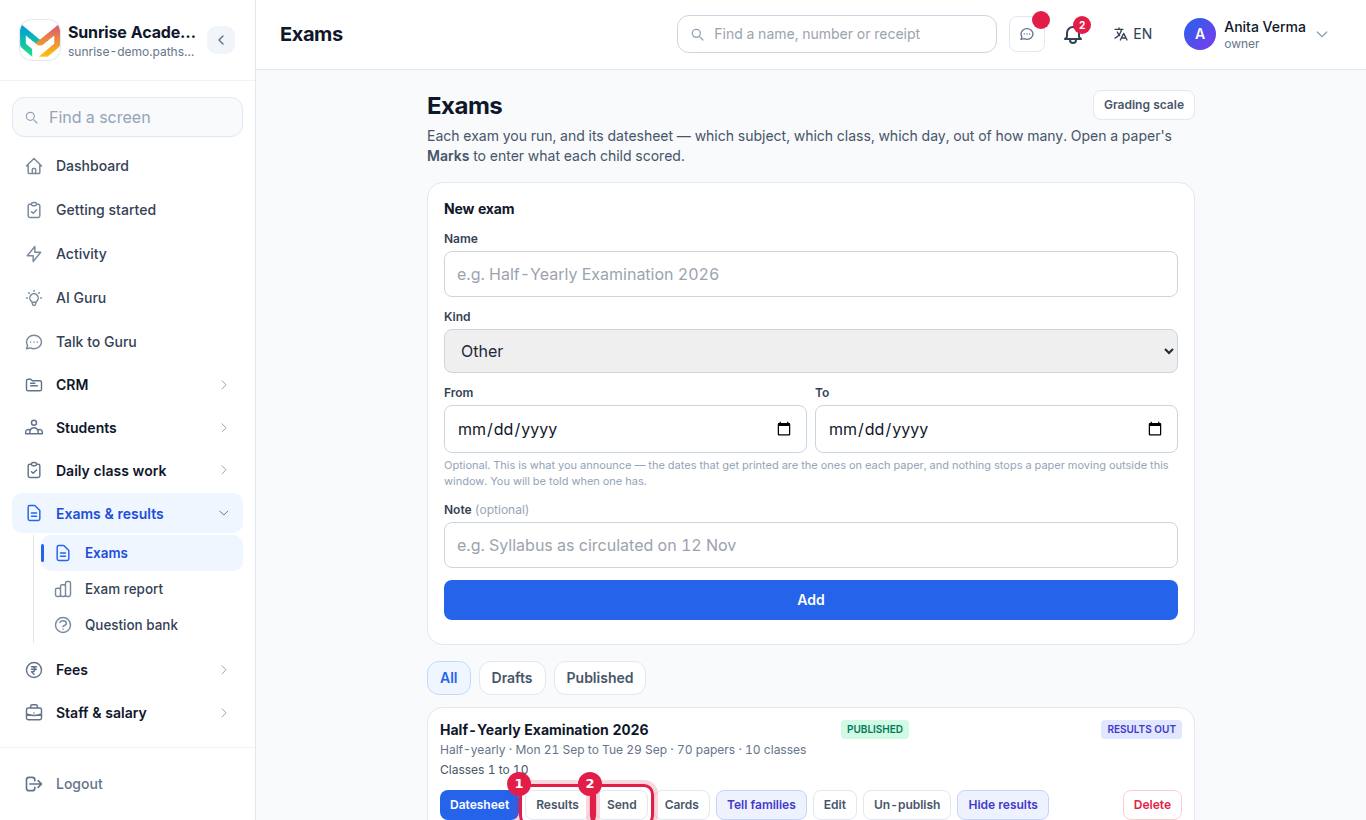
- Press Add.
#How to build the datesheet (add papers)
- On the exam, press Datesheet.
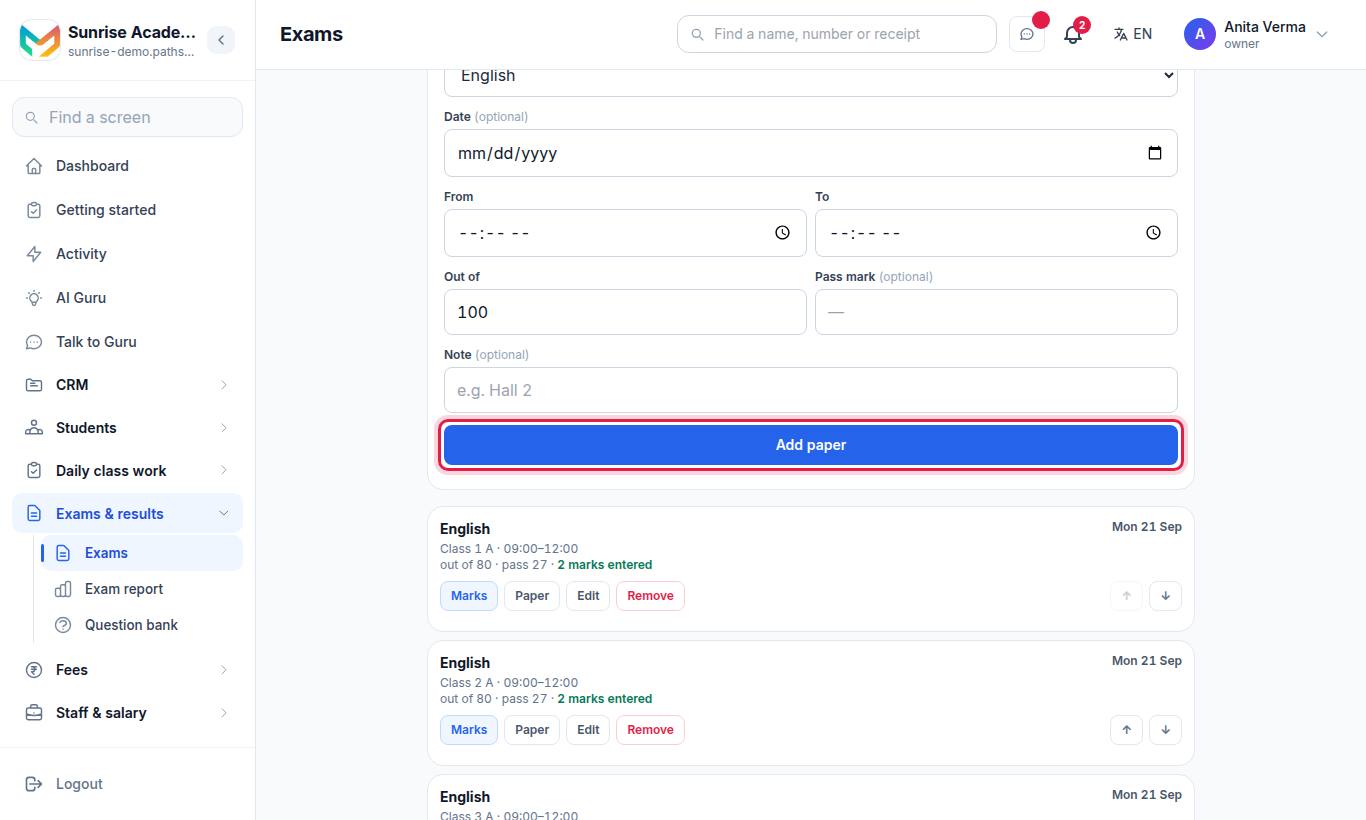
- Under Add a paper, choose the Class, the Section (or the whole class) and the Subject.
- Set the Date (optional), From and To times, Out of (100 by default) and an optional Pass mark and Note (for example "Hall 2").
- Press Add paper. Repeat for every paper.
A paper with no date sits at the bottom until you give it one. Two papers the same children sit at the same hour are marked, but still saved.
From the datesheet you can also press CSV, Save all papers as one PDF, or "…or the answer keys, in one file" (the last two need question papers built — see Question papers).
#Each paper's buttons
| Button | What it does |
|---|---|
| Marks | Opens marks entry for this paper |
| Paper | Opens the question paper builder (Pro). On Basic it shows Paper with a 🔒 and opens the upgrade page |
| Edit / Remove | Change or delete the paper |
#Each exam's buttons
| Button | What it does |
|---|---|
| Datesheet | Opens the papers of the exam |
| Publish / Un-publish | Shows or hides the datesheet for families |
| Send | Sends the datesheet on WhatsApp (publish it first) |
| Cards | Prints admit cards — see Admit cards |
| Results | Opens the result sheet |
| Show results / Hide results | Lets families see the results, or hides them again |
| Tell families | Sends a "result is out" WhatsApp (show the results first) |
| Edit / Delete | Change or delete the exam |
#How to enter marks
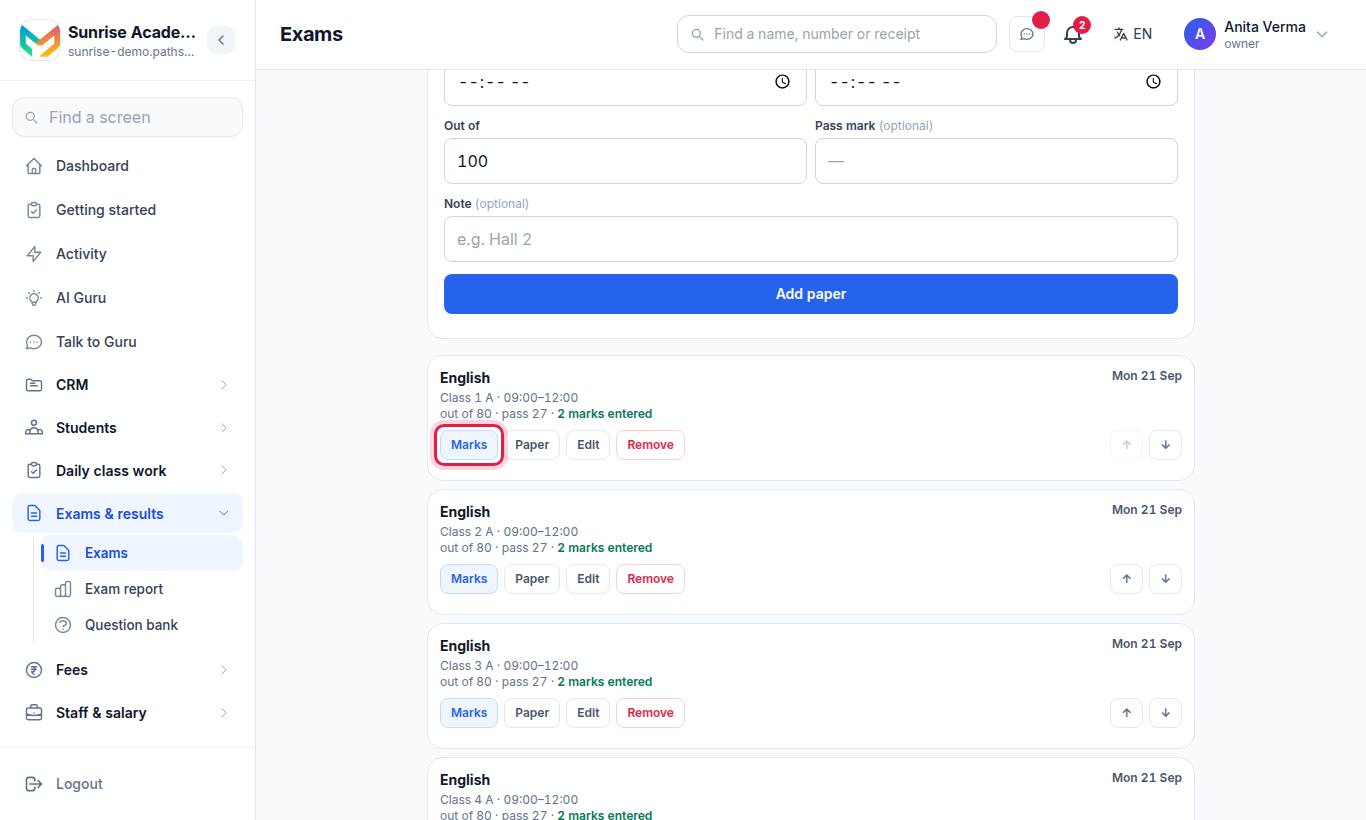
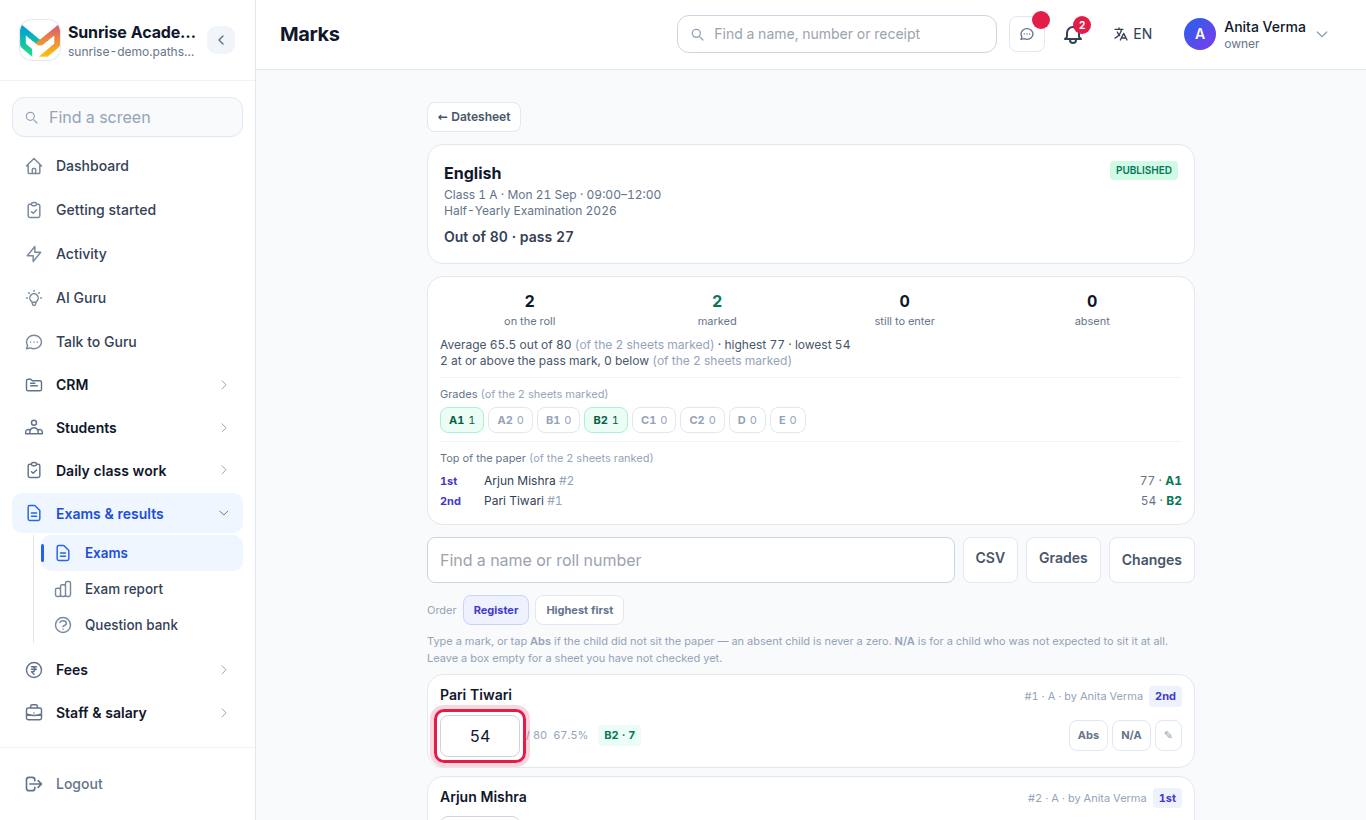
- Open the exam's Datesheet and press Marks on the paper.
- Type each child's mark. Use Find a child to jump to a name or roll number.
- Tap Abs if the child did not sit the paper, or N/A if they were not expected to sit it. Leave a box empty for a sheet you have not checked yet.
- Add a note to a sheet if needed ("A note about this sheet").
- Press Save marks.
Switch the order between Register (roll order) and Highest first. Changes shows who changed which mark and when. CSV downloads the marks.
#How to set your grading scale
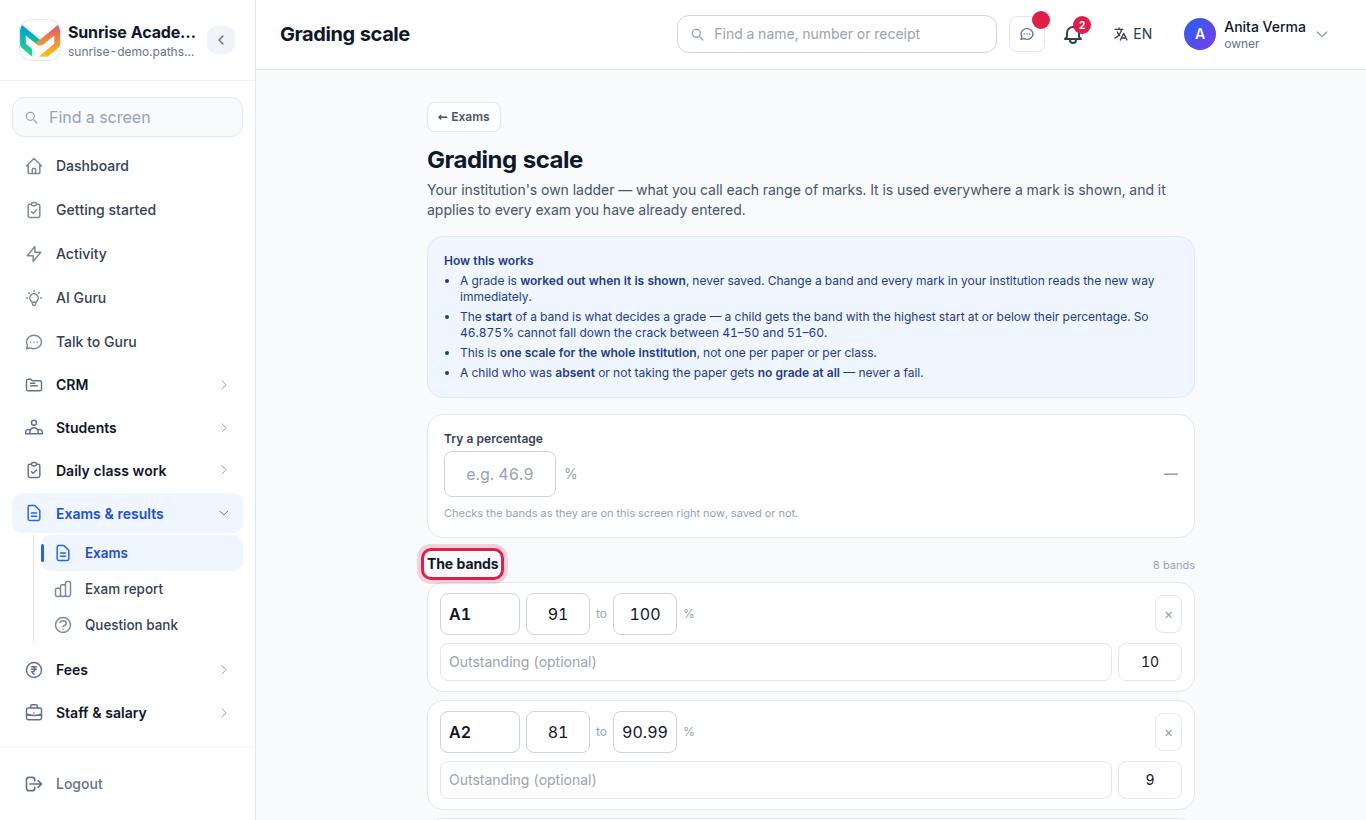
The grading scale is your institution's own ladder — one scale for the whole institution, used everywhere a mark is shown.
- Open Grading scale (from the Exams screen or the Grades tab).
- Press + Add a band for each range, or Start from a ready-made ladder: "10-point ladder (A1 to E)" or "Four words (Distinction to Needs work)".
- Set where each band starts, its letter or word, and optionally its grade points.
- Use Try a percentage to check how a mark will be graded (for example 46.9).
- Press Save scale.
A child gets the band with the highest start at or below their percentage. With no scale, marks are shown as numbers only — right for a centre that ranks rather than grades. Pathshala does not work out a CGPA.
#The result sheet
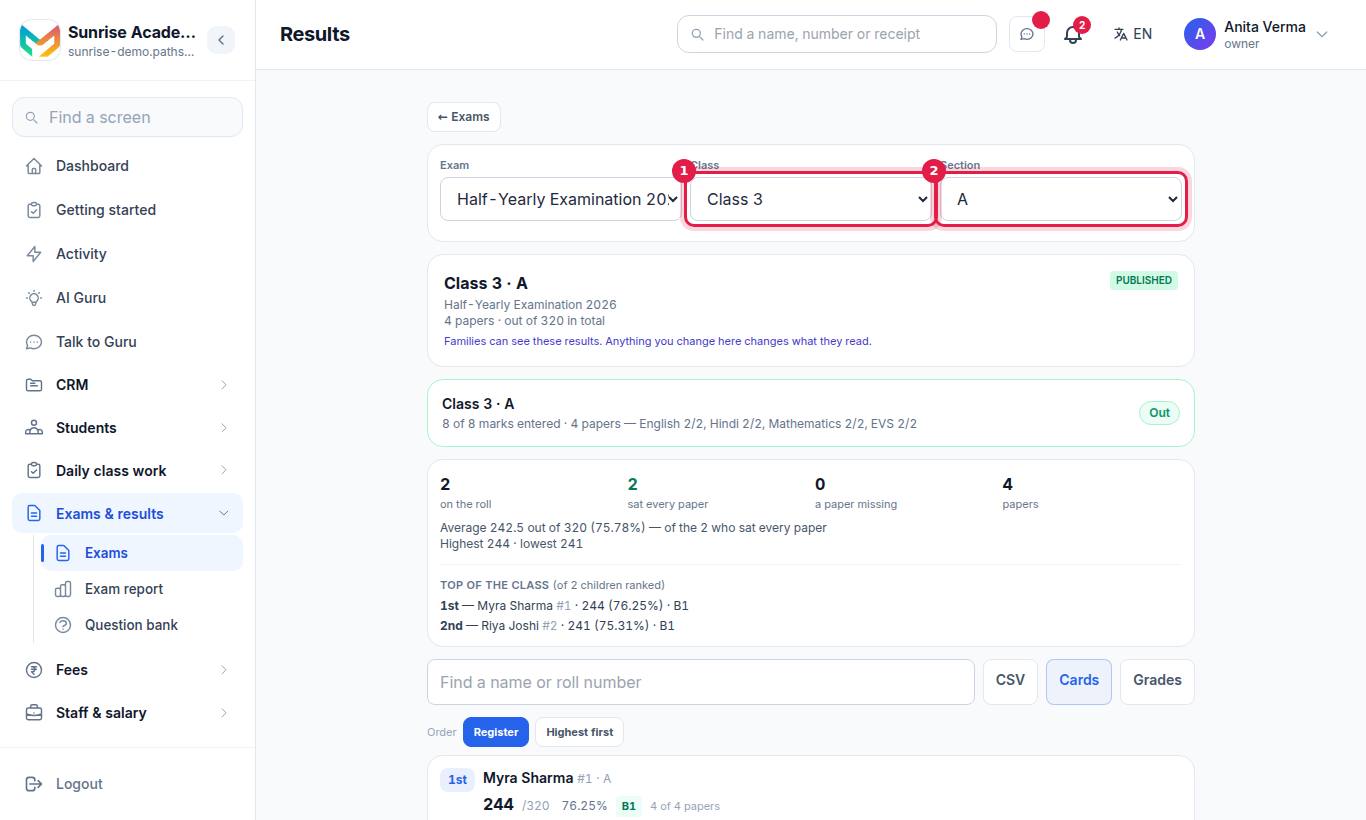
Choose the Exam, the Class and optionally the Section. You get one line per child across every paper: the total, the percentage, the grade and the position in the class. CSV downloads it; Cards prints report cards (see Report cards).
A total gets a position only where the child has a mark on every paper of the sheet.
#When can families see results?
- Exam-wide: press Show results on the exam card (owner or admin).
- One section at a time: on the result sheet, press Publish this section (or Publish this class). Take back hides it again.
The sheet always says whether "Families can see these results" or "Families cannot see these results".
#How to send the datesheet and results on WhatsApp
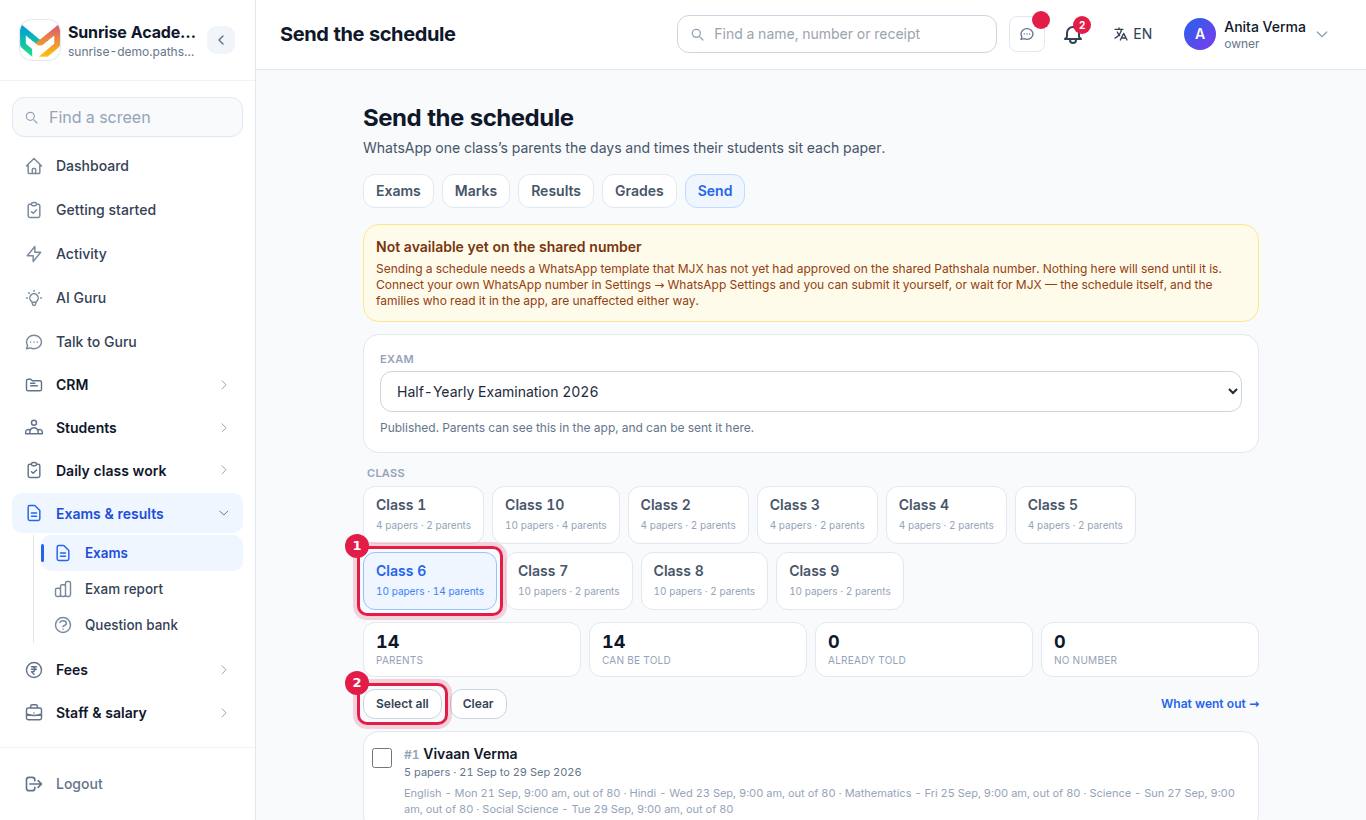
Send the schedule WhatsApps one class's families the days and times their children sit each paper. Tell families the result is out sends one WhatsApp naming the child and the exam, with a button that opens the result.
- Open Send (or press Send / Tell families on the exam).
- Choose the Exam and the Class.
- Tick who gets it (Select all / Clear).
- Press Preview to see the message, then Send.
- What went out → shows the log.
#Who can use exams?
| Task | Who |
|---|---|
| See exams, datesheets and grading scale | Owner, Admin, Staff |
| Create exams, add papers, publish the datesheet | Owner, Admin |
| Enter and change marks | Owner, Admin, Staff (the subject teacher, class teacher, a cover teacher or the principal) |
| See results | Owner, Admin, Staff |
| Change the grading scale | Owner, Admin |
| Show results, send datesheets and results | Owner, Admin |
Plan: MJX Academic Basic and above. Sending on WhatsApp is in Basic. The Paper builder and Save all papers as one PDF need Pro; on Basic they show a 🔒 and open the upgrade page.
#Troubleshooting
| You see | What it means |
|---|---|
| "You can see the exams and their datesheets. Only the office can change them." | Your login can read only. Ask the owner or an admin. |
| "You can see the marks. Only the subject teacher, the class teacher, a cover teacher or the principal can change them." | You are not linked to this class or subject on the Staff screen. |
| "Nobody is on the roll" | No students in the paper's class. Admit students or check the paper's class. |
| "No WhatsApp number connected" | Connect your number in WhatsApp Settings before sending. |
| "Template is with Meta" | You submitted the template; nothing sends until Meta approves it. |
| "Not available yet on the shared number" | This message cannot go from MJX's shared number; connect your own. |
| "Network problem. Nothing was saved — try again." | Your connection dropped while saving marks. Save again. |
Teachers can also enter marks in the MJX Teacher app. Families read published results in the MJX Parent app.
#Questions people ask
Is an absent child given zero?
No. Tap Abs for a child who did not sit the paper. An absent child gets no mark, no grade and no position — never a zero.
Are grades saved with the marks?
No. Grades are worked out from your grading scale every time they are shown. Change a band and every mark reads the new way at once.
When do families see the results?
Only after you press Show results on the exam (or publish one section on the Results screen). Until then, families cannot see them.
Does the result WhatsApp include the marks?
No. It names the child and the exam and has a button to open the result. No total, percentage, grade or position is in the message.
Two papers on the same day and time — will it stop me?
No. The datesheet marks the clash so you can see it, but it still saves, because papers are often moved late.