
Candidates and the hiring pipeline
Use the MJX Hire candidate board — move people between stages, add notes, email or WhatsApp them, ask for documents and verify with DigiLocker.
Every application in MJX Hire sits on one board, stage by stage, across all your jobs. This guide covers the Candidates list and board, a job's Applicants tab, and the candidate's own page where your team reads, notes, messages and checks documents.
#Where do candidates show?
| Screen | Path | What it shows |
|---|---|---|
| Candidates | Sidebar › Recruitment › Candidates | Everyone who applied, across all your jobs. |
| Applicants tab | Sidebar › Recruitment › (a job) › Applicants | Everyone for that one job. |
| Newest applicants | Sidebar › Recruitment (home) | The latest few, with their stage. |
| Applications by stage | Sidebar › Recruitment (home) | A chip per stage; press one to open Candidates on that stage. |
#How to use the Candidates screen
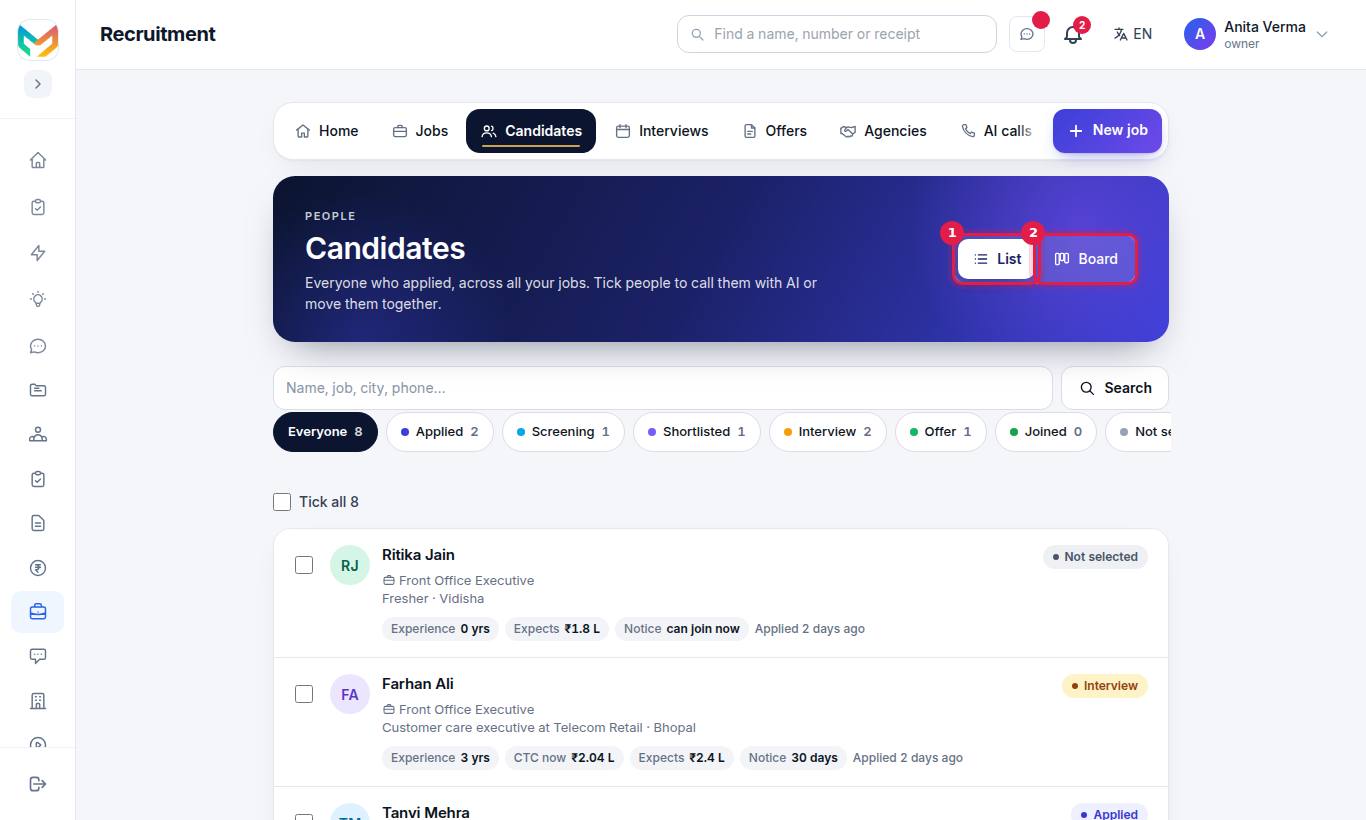
- Choose List or Board at the top.
- Search by Name, job, city, phone… and press Search.
- Press New this week to see only recent applicants, or Show everyone to clear it.
- On Board, drag a card to another stage. On a phone, tick people and use the bar at the bottom.
Each card shows the person's job, an ATS chip (Pro, see ATS match), what they Expects as salary, the AI call status, and an Agency badge when an agency sent them and has not shared the contact yet.
#How to move people to another stage
- Tick the people (or Tick all).
- In the bar at the bottom, pick a stage in Move to… and press Move.
- If you pick Not selected, you are asked "Why not selected? (optional — only your team sees this)".
- Tick Also email each of them the polite "not selected" message if you want them told.
From the same bar you can press 📞 Call them with AI on MJX Hire Pro — see AI screening calls.
#The job's Applicants tab
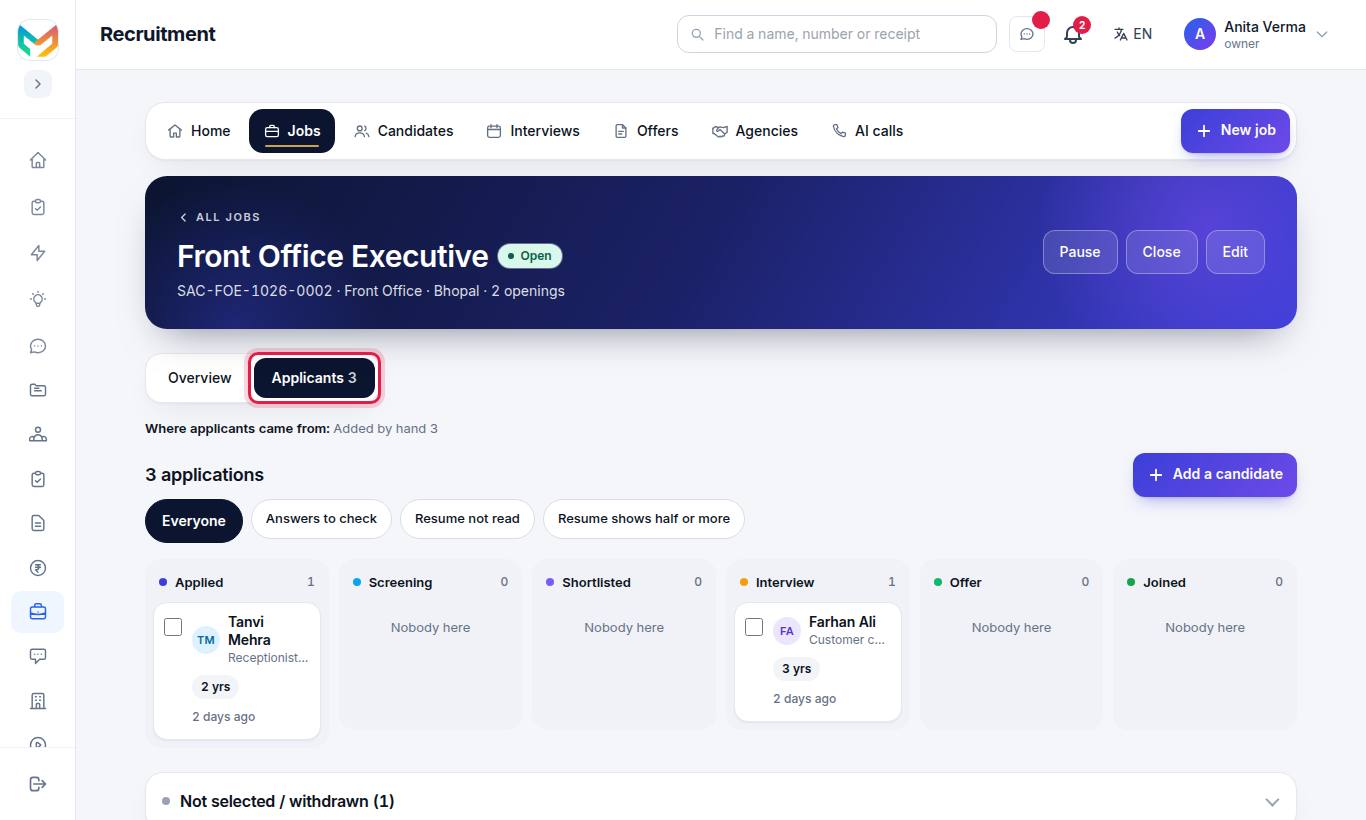
The tab groups applicants by stage. Quick filters at the top:
| Filter | Shows |
|---|---|
| Everyone | All applicants of this job |
| Answers to check | People whose screening answers differ from what the job needs |
| Resume not read | People whose resume the AI has not read yet |
| Resume shows half or more | People whose ATS match is 50% or higher |
People who were Not selected or Withdrawn are listed separately at the bottom.
From the bottom bar you can also press ✨ Read their resumes with AI (Pro).
#How to add a candidate by hand
- On the job, press Add a candidate.
- Type Full name (required), and an Email or Mobile number.
- Add Current job title and Experience (yrs) if you know them.
- Attach a Resume (PDF or Word, optional).
- Press Add to "Applied".
#The candidate's page
Open any card to see the candidate's page. The sections are:
#Profile and screening details
Press Edit details to fill or correct the facts recruiters ask about:
| Field | Unit |
|---|---|
| Total experience (years) | years |
| Relevant experience (years) | years |
| Current CTC (₹ a year) | rupees a year |
| Expected CTC (₹ a year) | rupees a year |
| Notice period (days) | days |
| Last working day | date |
| Willing to relocate | yes / no / maybe |
A fact heard on an AI screening call carries an AI call tag. You can see WhatsApp and LinkedIn ↗ links when the person gave them.
#Their answers
The person's answers to your screening questions. Answers that differ from what the job needs show under "⚠ Answers to check — this is a flag, not a decision".
#Move to another stage
Pick a stage and press Move. If the person was not selected, the reason shows as "Why not selected: …" for your team only.
#Message the candidate
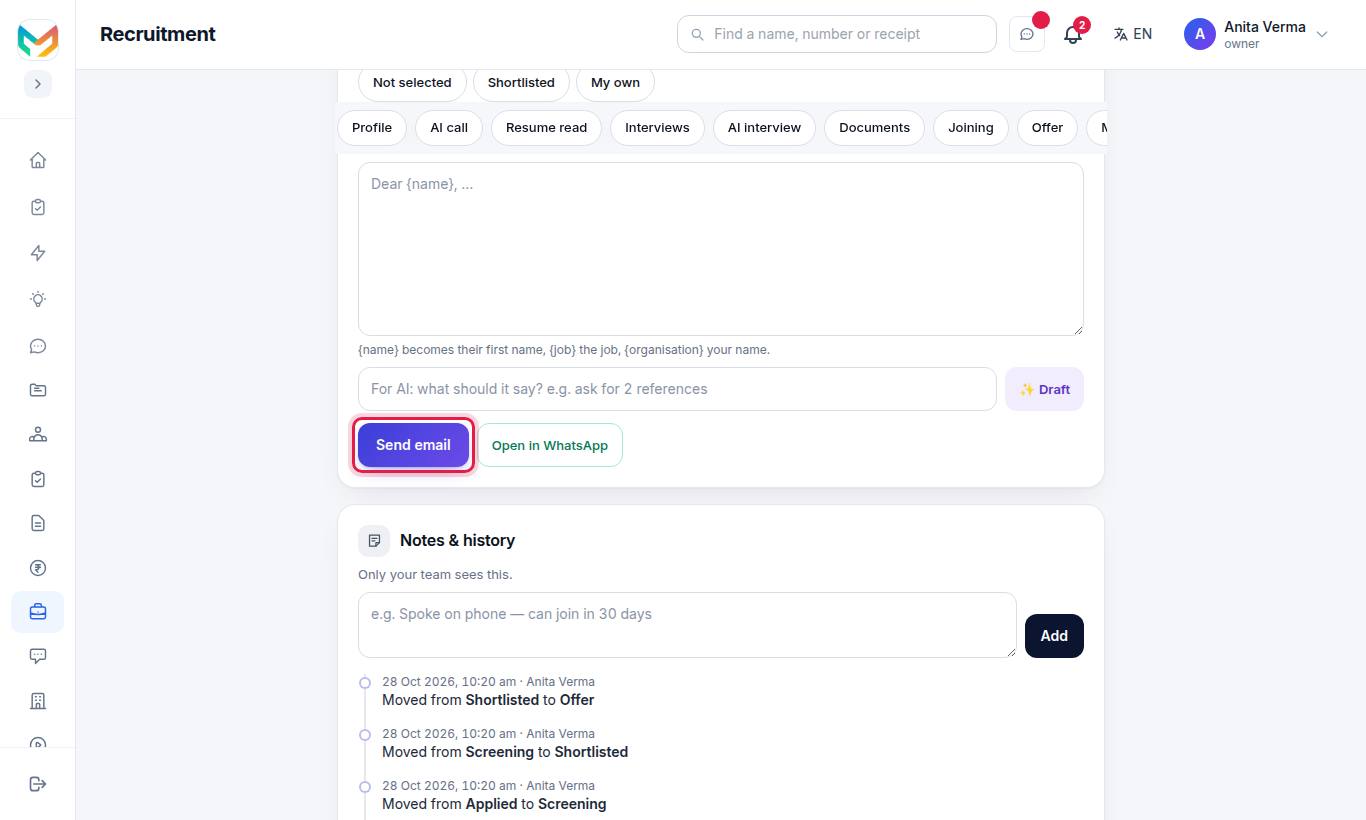
- Pick a message: Not selected, Shortlisted or My own.
- Edit it.
{name}becomes their first name,{job}the job,{organisation}your name. - On Pro, type what you want and press ✨ Draft for an AI draft. (On other plans: "AI drafts come with MJX Hire Pro".)
- Press Send email, or Open in WhatsApp to send it from your own WhatsApp.
Nothing is sent until you press Send email. Sending email comes with MJX Hire Basic and Pro.
#Notes and history
Type a note (for example "Spoke on phone — can join in 30 days") and press Add. The history lists every stage move, email and note, newest first. Only your team sees this.
Also applied for lists other jobs the same person applied to.
#How to ask for documents
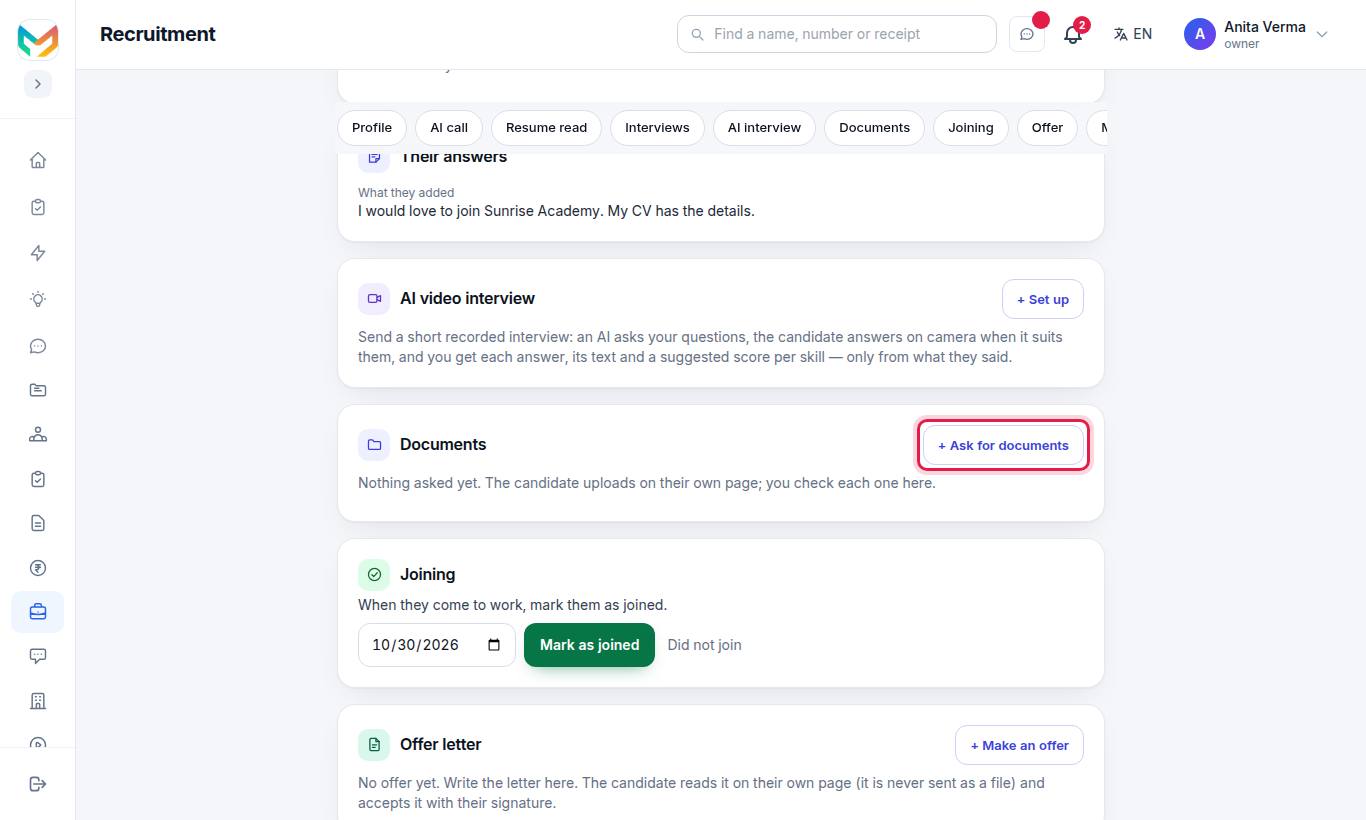
- Press + Ask for documents.
- Tick the documents you need. Items marked DigiLocker can be verified by the candidate with one press.
- Type anything else in "Something else? e.g. Police verification".
- Set a Last date.
- Keep Email the candidate the list and the link to upload ticked, and press Ask.
The documents you can ask for:
| Before the offer | Before joining | After joining |
|---|---|---|
| Photo ID (PAN, driving licence, passport or voter ID) | PAN card | EPF nomination (Form 2) |
| Education certificates and mark sheets | Aadhaar — masked copy only | EPF declaration (Form 11) |
| Experience / relieving letters | Gratuity nomination (Form F) | |
| Last 3 months' payslips | Medical fitness certificate | |
| Cancelled cheque or bank passbook (first page) | ||
| Address proof | ||
| Passport-size photograph |
The candidate uploads on their own page (PDF or a clear photo, up to 5 MB each). For each file you press Verified or Send back with what is wrong. Take back removes a request that was not uploaded yet.
#DigiLocker verification
When the candidate verifies with DigiLocker, the page shows Verified by DigiLocker with Name, Date of birth, Gender, PAN, Aadhaar (last 4 digits only) and Address (from Aadhaar). A document that came signed from DigiLocker needs no check by your team.
If it is the wrong person or document, press Remove this verification; the candidate is asked to verify or upload again. See also DigiLocker KYC.
#Who can use this?
| Who | What they can do |
|---|---|
| Owner, Admin, HR role | Everything on this page. |
| Interviewer (not HR) | Open only the candidates on their own interviews, read the resume and give feedback. |
| Feature | Plan |
|---|---|
| Board, stages, notes, add by hand | Every plan |
| Candidate email | Basic and Pro |
| Documents and DigiLocker checks | Basic and Pro |
| AI resume reading, AI message drafts, AI calls | Pro |
#Questions people ask
How do I move many candidates at once?
On Candidates or a job's Applicants tab, tick the people, choose a stage in "Move to…" at the bottom and press Move. On a computer you can also drag a card on the Board view.
Is a candidate told when I move them to Not selected?
Only if you tick "Also email each of them the polite 'not selected' message". The reason you type is seen only by your team.
Can I add a candidate who did not apply online?
Yes. Open the job and press Add a candidate. Fill in the name and, if you have it, the resume. Nothing is sent to the person — they are only added to the job.
Who sees the notes on a candidate?
Only your team. Notes and history are never shown to the candidate.
Can a candidate verify PAN and Aadhaar with DigiLocker?
Yes, on MJX Hire Basic and Pro. When you ask for PAN, Aadhaar, photo ID or address proof, the candidate can press Verify with DigiLocker on their own page instead of uploading a copy.