
Confirm payments parents report (UPI and bank transfer claims)
When a parent says "I have paid" by UPI or bank transfer, check it against your bank and confirm it in Pathshala to record the payment and send the receipt.
A payment claim is a parent telling your institute "I have paid this bill" — usually by UPI to your QR, or by bank transfer — together with the amount and the UTR or reference. In Pathshala the claim waits on the Parent Payments screen until your office checks it against the bank and confirms it. Only then does it become a payment with a receipt.
This keeps UPI simple for parents while making sure nothing is marked paid until the money is really in your account.
#How does a parent report a payment?
On the parent web page, a parent opens a bill and presses Pay. Under Already paid? they fill in:
| Field | What they enter |
|---|---|
| How did you pay? | UPI, Bank transfer, Cash at the office, Card at the office, Card machine (POS) or Cheque |
| Amount paid | Filled in with what is still unclaimed on the bill; they can lower it |
| Reference | The label changes with the method: UPI reference / UTR, UTR / transaction number, Receipt number (cash), Approval / RRN (card), RRN / approval code (POS), Cheque number |
They press Tell the school I have paid. In the MJX Parent app the button is I have paid — tell the school, then Send to the school.
The parent sees: "Sent to the school. They will confirm it against their account, usually within a day."
Pathshala refuses a claim when:
- the bill was cancelled;
- the amount is more than what is pending on the bill;
- earlier claims already cover the bill;
- the same reference was already sent for that bill.
#How to review payment claims
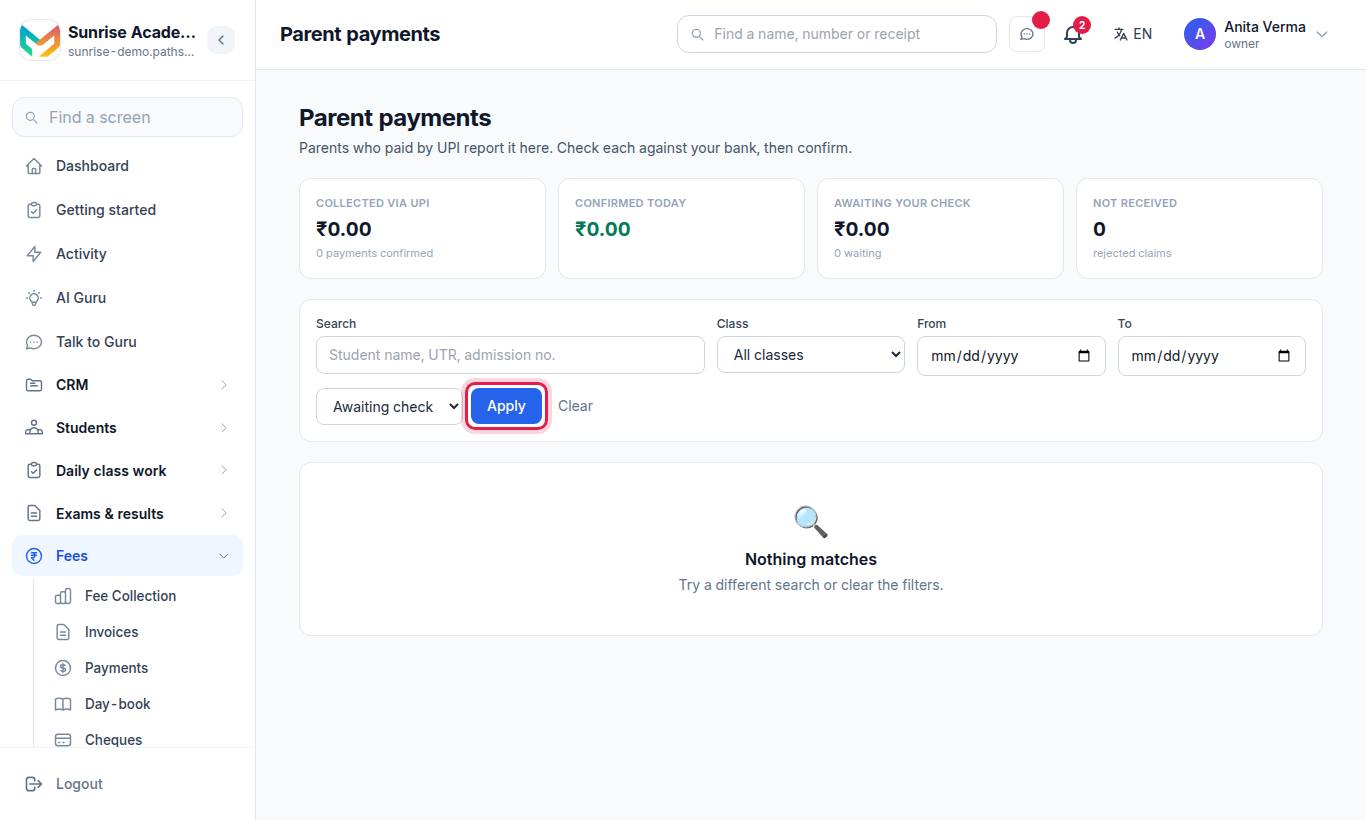
The screen opens on claims Awaiting check. At the top are four totals: Collected via UPI, Confirmed today, Awaiting your check and Not received.
Each claim shows the student's name, class and admission number, the bill number, when it was reported, the reference, Method, Paid on, and the amount next to the bill's pending balance.
#Steps to confirm a claim
- Open your bank app or statement and find the money using the reference (UTR) and the date in Paid on.
- If it is there, press Confirm received on the claim.
- Confirm the prompt "Confirm you have received this payment in your account?".
#Steps to reject a claim
- Press Not received.
- Type why, for example "No credit found for this UTR on 12 Oct". The parent will see this message.
- Press OK. The claim moves to Not received and the bill is unchanged.
A reason is required. Pressing OK on an empty box shows "Please give a short reason".
#Filters on the claims screen
| Filter | Use |
|---|---|
| Search | Student name, UTR or admission number |
| Class | One class, or All classes |
| From / To | Dates the claims were reported |
| Status | Awaiting check, Confirmed, Not received, All |
Press Apply to filter and Clear to reset.
#What is recorded when you confirm
- A completed payment is recorded on the bill for the claimed amount, dated the day the parent said they paid.
- The payment method is your first active method of the matching type (a UPI claim goes to your UPI method, a cheque claim to your Cheque method). Keep one of each active on Payment methods.
- The reference becomes the payment's transaction ID, and the note says the parent paid and the school confirmed it.
- Pressing confirm twice never records two payments.
#Where else claims show up
- The fee dashboard shows a banner such as "2 parent payments waiting for you to confirm", with Review →.
- PhonePe payments a parent started from the parent page appear here as pending claims marked "Started on PhonePe — awaiting confirmation" until the parent returns to the result page. Check them in your PhonePe dashboard before confirming. See Online payments.
#Who can use payment claims?
| Task | Who |
|---|---|
| Open the screen | Owner, Admin, or staff with Manage Payment Claims (the Accountant role has it) |
| Confirm received / Not received | Owner and Admin, or a role given Accept a Payment Claim |
| Report a payment | The parent (or the learner, where there is no parent) on the parent page or MJX Parent app |
The screen is part of MJX Fees Management Pro. On a lower plan the menu row shows a lock.
#Tips
- Check claims once in the morning and once before closing. Families wait for the receipt.
- Always match the UTR and the amount, not just the name — two parents can send the same amount on the same day.
- Reject with a clear, polite reason. The parent reads it, and a vague "not received" leads to a phone call.
- If you take a lot of UPI, a connected gateway confirms payments by itself and saves this daily check.
#Questions people ask
Does a parent's claim count as a payment straight away?
No. A claim is only a report. The bill stays unpaid until someone in your office presses Confirm received.
What happens when I confirm a claim?
Pathshala records a real payment against the bill, with the reference as the transaction ID, and sends the receipt to the parent on WhatsApp.
Does the parent see why a claim was rejected?
Yes. You must type a short reason when you press Not received, and the parent sees it.
Can a parent report the same UTR twice?
No. A reference that is already waiting or confirmed on that bill is refused.
Which plan has payment claims?
Reviewing claims is part of MJX Fees Management Pro.