
Calls, click to call and the call log in MJX CRM
Call an enquiry from the CRM, log how it went in one tap, connect your own calling account once in Telephony for click to call and AI calls, and turn missed calls into leads.
MJX CRM keeps a log of every call to an enquiry (lead, for a business), so anyone can see who was called, when and how it went. You can call from your own phone on any plan, or switch on Click to call with your own Plivo account (CRM Pro), where the outcome is written by itself. Your calling account is connected once, on Telephony, and AI calls use the same connection.
#How to call an enquiry and log it
- Open the enquiry (or find it on CRM home or My work) and press Call.
- Your phone's dialer opens with the number. Make the call.
- When you come back to the page, How did the call go? opens. Pick one: ✅ Talked, 📵 No answer, ⛔ Busy, 📴 Switched off, 🕑 Call back later, 👎 Not interested, ❌ Wrong number.
- For Call back later, set When should you call back?
- Add a Note (optional), e.g. "Father will visit on Saturday", and press Save — or Skip.
What an answer does to the enquiry is shown under the buttons:
| Outcome | Effect |
|---|---|
| Talked | The enquiry moves from New to Talking (if it is new) |
| Call back later | The enquiry's next call-back is set to the time you chose |
| Not interested | The enquiry is not marked "Not interested" — do that yourself on its page if you want to |
#The Calls page
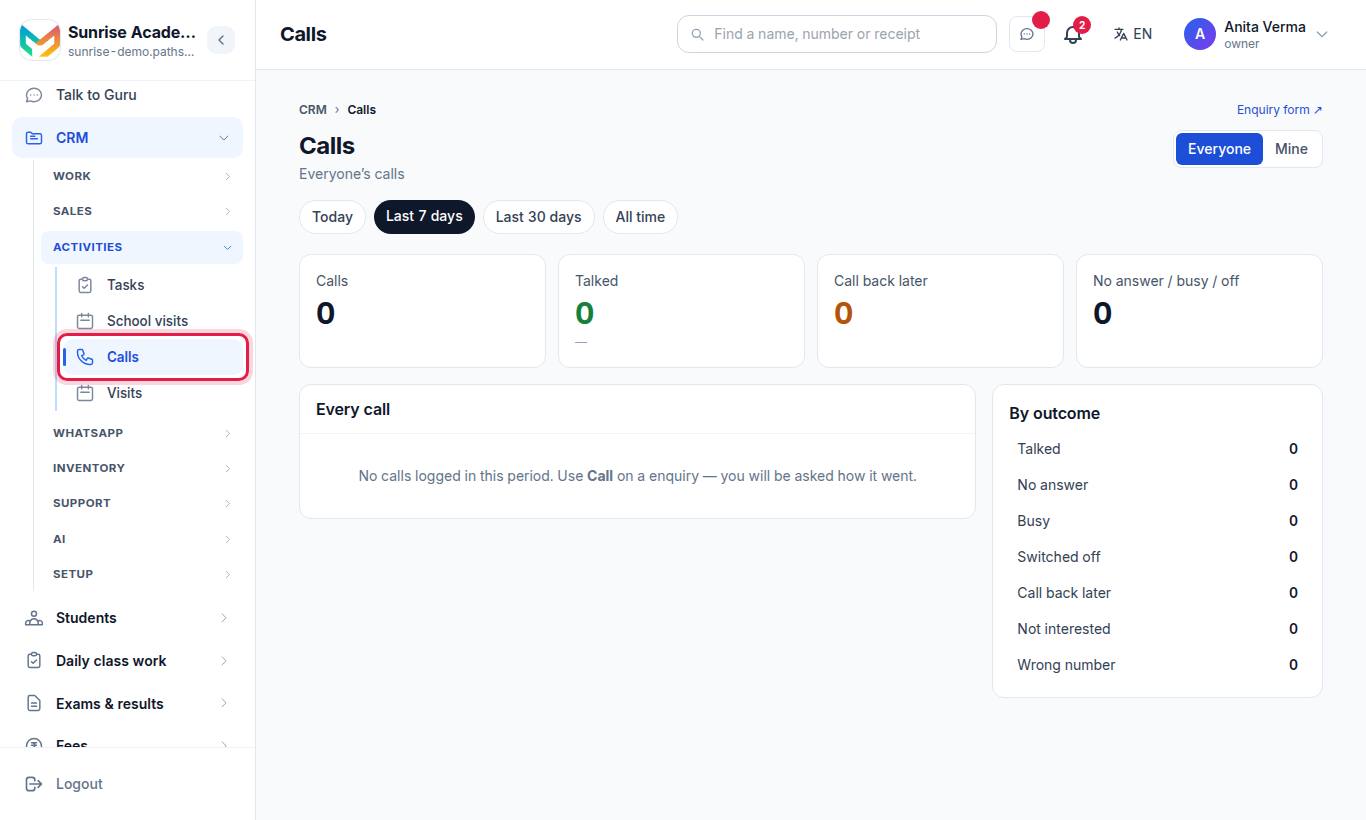
| Control | Choices |
|---|---|
| Period | Today · Last 7 days · Last 30 days · All time |
| Whose | Everyone (owner, admin) or My team (staff) · Mine |
| Views | Every call · By outcome · By person |
Staff see their own calls and calls on the enquiries they can see. Click an outcome to filter; Show all outcomes ✕ clears it.
#Telephony: connect calling once
Telephony is the one place you connect your calling account. Click to call and AI calls both use it (and MJX Hire's AI calls, if you have MJX Hire Pro), so you never type the same details twice.
#How to connect calling
- Sign in as the Owner or an Admin.
- Open Apps › MJX CRM › CRM settings › Telephony.
- Under Calling connection, pick your provider: Plivo, Twilio, Exotel or Another provider. Click to call works with Plivo only; AI calls work with all four.
- Fill in the fields it asks for. For Plivo: the Auth ID and Auth token (from Plivo → Overview) and your Plivo number with the country code, e.g.
+911140001234— the number your lead sees. The token is locked away the moment you save it and is never shown again; leave the box empty later to keep it. - Press Save connection, then Test connection. The test asks the provider whether the details are right — it rings nobody and costs nothing.
There is nothing to paste into the Plivo website: the CRM tells Plivo where to call back each time it places a call. Calls go to Indian numbers only.
Forget the saved token erases the token. Click to call, AI calls and any other calls on this connection stop until you paste it again.
#Click to call (CRM Pro)
With click to call, you press Call on a lead and your own phone rings first. Pick it up and the lead is connected, seeing your institute's number. When you hang up, the call is in the lead's call log by itself — no "how did it go?" to answer.
#How to switch it on
- Connect calling with a Plivo account on the same page (see above).
- Under Click to call, set Most calls in a day — "A safety limit on your own bill." (1 to 5,000; default 200).
- Turn on Switch click to call on and press Save.
- Make sure every staff member has their own mobile number on their staff record — that is the phone that rings first.
If your calling connection is Twilio, Exotel or another provider and you used click to call before, it keeps using the Plivo account saved earlier. The page says so; choose Plivo to use one account for everything.
#How a call goes
- Press Call on a lead — "Asking your phone to ring…".
- Your phone rings — "Your phone is ringing." Pick it up.
- The lead's phone rings, showing your institute's own number.
- You talk. When you hang up, the call is in the lead's call log.
The page also shows calls today, talked today, calls and minutes in 7 days, and how many of this week's calls were answered. Minutes are what Plivo reported; what they cost is on your Plivo bill.
#Rules and safety
| Rule | Detail |
|---|---|
| Plan | CRM Pro ("🔒 Click to call comes with MJX CRM Pro.") — settings stay saved without it |
| Who may dial | Owner and admin: any live lead. Others: only leads they can already see |
| Daily cap | Counted in India time, checked before any call is placed |
| Two calls at once | "You have just placed a call. Give it a few seconds before the next one." |
| Recording | Nothing is recorded |
| Forgetting the token | Forget the saved token on Telephony — calling stops until you paste it again |
If Plivo never reports how a call ended, the call is shown as not reported and is not counted as answered — "Nothing has been guessed." Press Say how these calls went to log them yourself.
#Missed call → lead (CRM Pro)
Publish one Plivo number. Every caller hears your greeting, the call ends, and they become an enquiry with a high-priority task "Call back … — they called and the line was not answered", due in 30 minutes. The missed call is also logged as an inbound, unanswered call.
Set it up in Apps › MJX CRM › CRM settings › Where enquiries come from with Add missed-call source. See Lead sources and connectors.
#AI calls
The AI caller can ring an enquiry for you and talk to them, on the same connection you set up in Telephony. See AI caller.
#MJX Dialer (separate app)
MJX Dialer (com.mjxtechnologies.app.dialer) is a standalone Android phone dialer from MJX. It is fully offline — no server and no login — so it does not connect to MJX CRM or fill its call log.
#Who can use it?
| Feature | Who | Plan |
|---|---|---|
| Call button and "How did the call go?" | Anyone with CRM access, on leads they can see | Every plan |
| Calls page | Everyone; staff see their own and their leads' calls | Every plan |
| Telephony (the calling connection) | Owner, Admin | Saved on any plan; used by CRM Pro features |
| Click to call | Owner, Admin switch it on | CRM Pro |
| Missed call → lead | Owner, Admin set it up | CRM Pro |
#Tips
- Always log the outcome — a lead with no logged call looks untouched in Reports and My work.
- Use Call back later with a time instead of a note; it sets the next call-back for you.
- Keep the daily cap near your team's real volume so a mistake cannot run up your Plivo bill.
#Questions people ask
Are calls recorded?
No. MJX CRM does not record calls and has nowhere to keep a recording.
Who pays for click-to-call calls?
Calls are placed on your own Plivo account and billed by Plivo to you. MJX does not add anything per call.
Do I need Plivo to log calls?
No. The Call button opens your phone's own dialer on every plan, and the CRM asks "How did the call go?" when you come back. Plivo is only for click to call (CRM Pro).
Whose phone rings first with click to call?
Yours. When you pick up, the lead's phone rings, showing your institute's number.
Do I connect calling twice, for click to call and for AI calls?
No. You connect your calling account once, on Telephony. Click to call and AI calls both use it.
Is the MJX Dialer app part of the CRM?
No. MJX Dialer is a separate, fully offline Android dialer. It does not send calls to the CRM.