
Add and manage students
Add a student, find anyone fast, read the one-page student profile, see siblings, and change a student's status in Pathshala.
The Students screen is your register: every enrolled student, with class, section, contact and status. In Pathshala, a student is added once and the same record feeds attendance, fee bills, exams, transport, the hostel and the parent app.
#Where to find it
A coaching centre, tuition class or college sees the same screen. A skill institute sees Learners.
#What is on the Students screen?
| Part | What it shows |
|---|---|
| Counts | Total, Active, Inactive, Graduated, Transferred, Left |
| Filters | All Classes, All Sections, a status filter, and a search box (name, phone, email) |
| Table | Admission No, Name, Class, Contact, Status, Actions |
| Row actions | View, Edit, Status |
| Top buttons | Promote / new session, Bulk Import, Add Student |
| Tabs | Students, LMS Buyers, App |
- LMS Buyers lists people who hold an online course but are not on your roll (they bought on your public course page, or were given access by hand). They have no admission number or class. See the Learn docs.
- App lists people who signed in to your app with their WhatsApp number. Those marked No course yet are people you can follow up.
#How to add a student
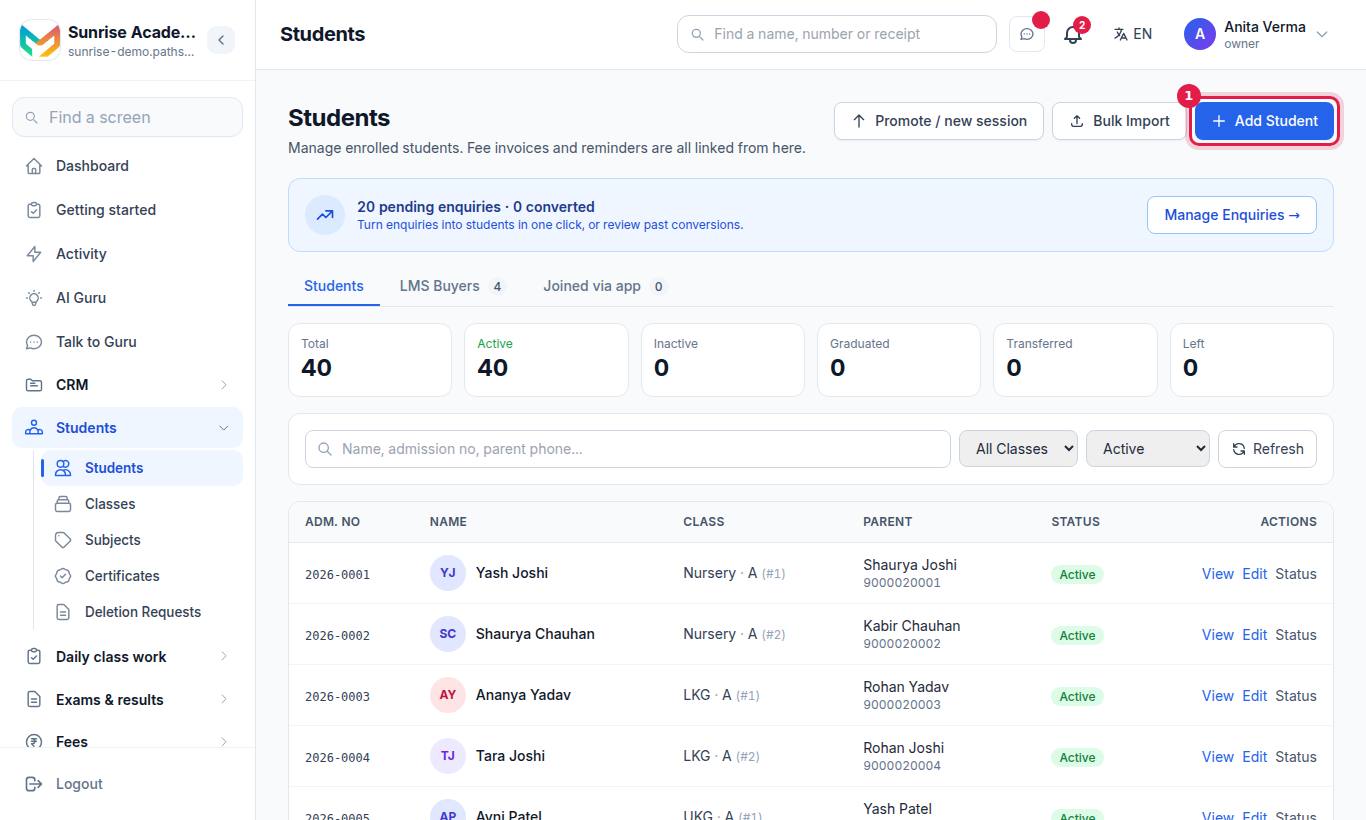
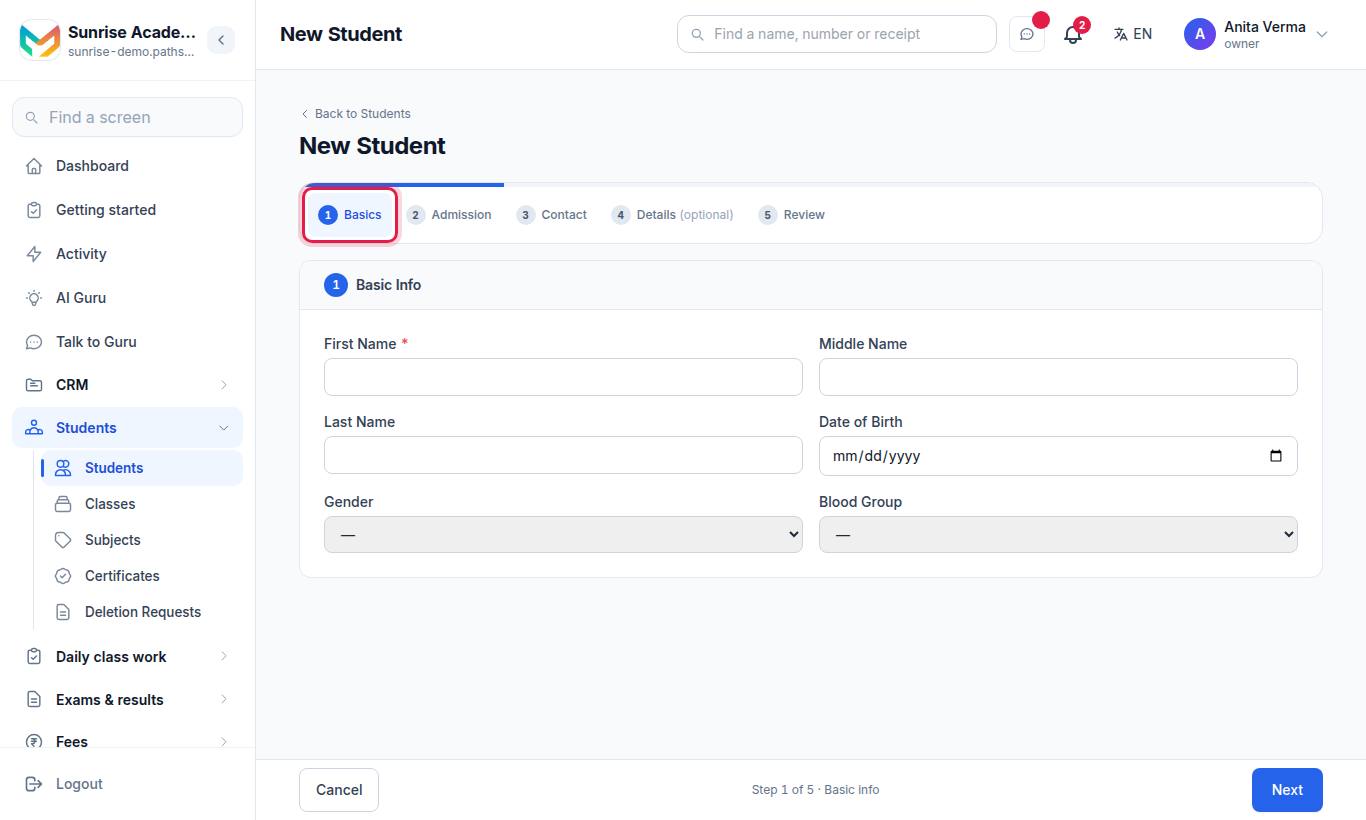
- Press Add Student.
- Work through the steps Basics, Admission, Contact, Details and Review. Only the first name is required; class and section are needed for the register.
- On Review, check everything and press Save Student. When you edit an existing student, the button is Update Student.
If the student came through an enquiry, admit them from the enquiry instead so nothing is typed twice. See From enquiry to admission.
#What can you record?
| Section | Fields |
|---|---|
| Basic Info | First Name, Middle Name, Last Name, Date of Birth, Gender, Blood Group, photo (JPG, PNG or WebP, up to 5 MB) |
| Admission & Placement | Admission Number, Roll Number, Class, Section, Academic Year, Admission Date |
| Contact Details | Primary Contact Name, Primary Phone (WhatsApp), Email, WhatsApp Number, Father Name and Phone, Occupation and Qualification, the same for Mother, Guardian, Emergency contact (name, phone, relation), the student's own phone and email, annual family income |
| Address | Correspondence Address, City, State, Pincode, Permanent Address (or tick that it is the same) |
| Preferences & Notes | Preferred Language for reminders, Status, Notes |
| Identity & Social | Category, Religion, Caste, Sub-Caste, Mother Tongue, Place of Birth, Nationality, House |
| Government IDs & Schemes | Samagra ID (SSSM), APAAR ID, PEN Number, Aadhaar Number, RTE quota, BPL, BPL Card Number, Divyang, Disability Type and % |
| Scholarship & Bank | Scholarship Scheme, Amount, Scholarship Status (Applied, Sanctioned, Received, Rejected), Bank Name, Branch, IFSC, Account Holder, Account Number |
| Health | Height, Weight, Allergies, Medical History |
| Previous School & Opening Dues | Previous School Name, Previous TC Number, Opening Due Balance, Biometric ID, Other Details |
#The student profile page
Press View on any row to open one page about that student.
The top shows the photo, class and section, roll and admission number, the parent's name and phone, and three tiles: Attendance (this session), Fees due and Last exam. Buttons: Edit details, Collect fee and Certificates.
| Tab | What it shows |
|---|---|
| Overview | About (date of birth, gender, admitted on, session, mother tongue, previous school), Contact, Health |
| Fees | Billed, Paid, Due, the bills, payments received and discounts |
| Attendance | This session's percentage, days present, absent and on leave, this month, and the last few school days |
| Exams | Each exam with the percentage and subject-wise marks |
| Family | Father, mother and guardian, and Brothers and sisters here |
| More | Bus (route, stop, pick-up, drop, vehicle, driver), Hostel (room, bed, since), library books out, certificates issued |
The Fees, Attendance and Exams tabs show only if your plan has those modules and your role may see them. A skill institute, which has no parents on record, has no Family tab.
#Siblings
Pathshala links brothers and sisters by the family phone number. On the Family tab, every other student with the same phone appears with their class; tap a name to open their page. If none appear, check that both children have the same primary phone.
Sibling fee concessions are set up as discounts in Fees. See the Fees docs.
#Discounts, activities and payments on the edit form
When you edit a student, four panels at the foot of the form connect them to fees:
- Discounts Applied — + Add Discount: pick a discount type, value, valid from and until, and a reason. Some discount types need approval; Owners and Admins can tick Auto-approve.
- Optional fees — a tick for each optional (opt-in) fee head in the class's fee structure, such as Transport. Tick what this student takes and press Save; only ticked optional heads go on new invoices. See Optional (opt-in) fee heads.
- Activities Enrolled — + Enroll in Activity for paid activities such as dance or skating, with Withdraw when they stop.
- Payment History — what the family has paid.
#How to change a student's status
- Press Status on the student's row.
- Pick the New Status: Active, Inactive, Graduated or Transferred.
- Press Change.
"Left" is not in this list on purpose. See Students who leave.
#How to give roll numbers to a whole class
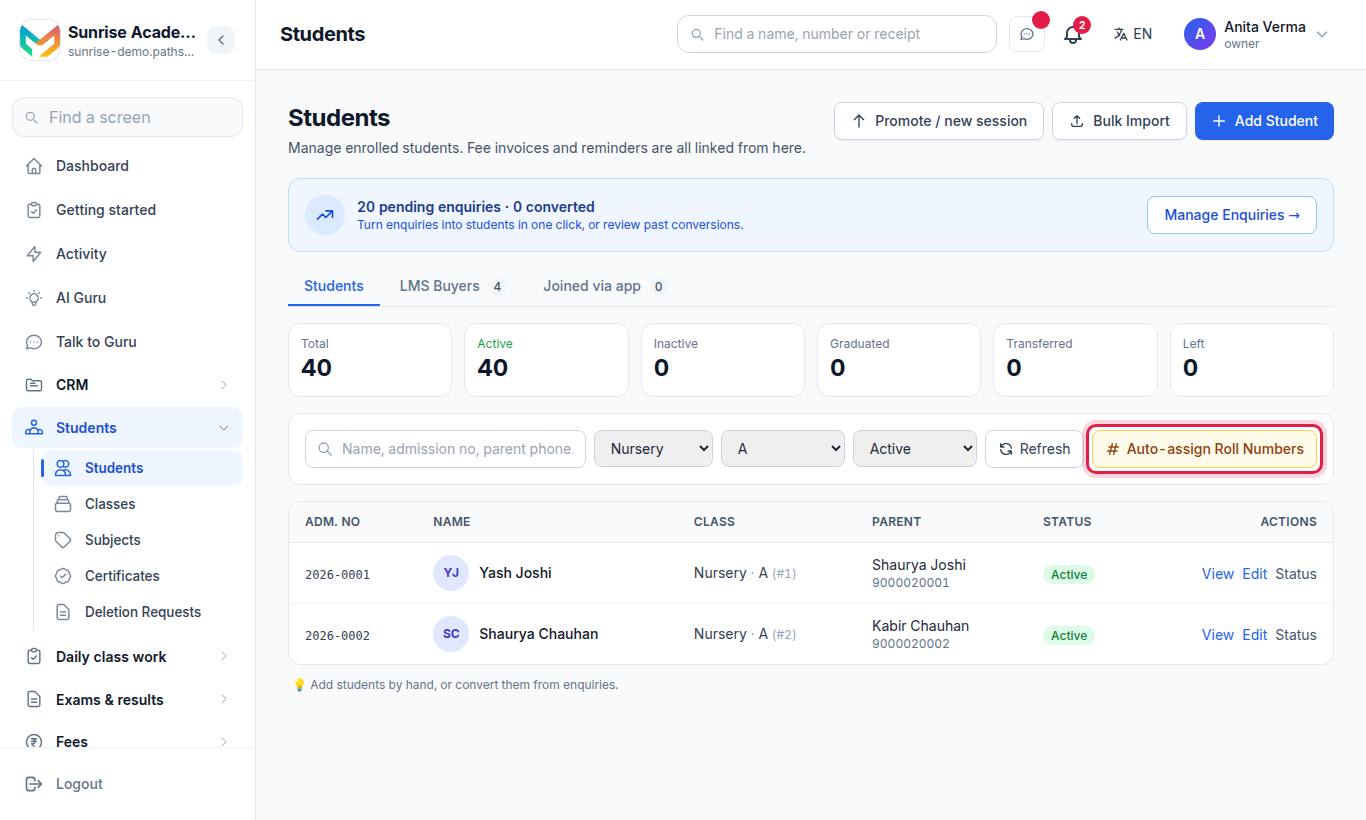
- Press Auto-assign Roll Numbers.
- Choose the class and section and the number to start from.
- Check the preview (current roll and new roll, in alphabetical order).
- Press Assign Roll Numbers.
#Who can do what?
| Action | Default roles |
|---|---|
| See the list and profiles | Owner, Admin, Staff |
| Add a student | Owner, Admin |
| Edit a student | Owner, Admin |
| Auto-assign roll numbers | Owner, Admin |
| Give a discount (it waits for approval) | Owner, Admin, Staff |
| Approve a discount | Owner, Admin |
The owner can change any of these under Sidebar › Settings › People & roles › Roles & permissions.
#Troubleshooting
| What you see | What to do |
|---|---|
| "Aadhaar/bank details cannot be saved right now (encryption key missing). Everything else can still be saved." | Save without the Aadhaar or bank number and contact MJX support. |
| "That picture is larger than 5 MB." | Use a smaller photo, or take a screenshot of it. |
| The student is missing from the register | Check that the student is Active and has a class (and section, if the register is filtered). |
| "Brothers and sisters here — None found" | The two children have different family phone numbers. Make them the same. |
#Related
#Questions people ask
Are Aadhaar and bank account numbers safe?
Yes. Aadhaar numbers (the student's, father's and mother's) and the bank account number are stored encrypted. Lists only ever show the last four digits.
How does Pathshala find brothers and sisters?
By the family phone number. Every other student on the roll with the same family phone appears under "Brothers and sisters here" on the Family tab.
Can a teacher edit a student?
Not by default. Staff can see the list and the profile; adding and editing is for the Owner and Admins unless the owner gives that permission to someone else.
Why can I not choose "Left" as a status?
Because a student leaving is approved, not just typed. Use a deletion request with "Mark as Left", or tick "Also mark this student as left" when you issue a transfer certificate.
Which phone number do fee reminders and attendance alerts go to?
The Primary Phone on the student's Contact step. Change it there if the family uses a different WhatsApp number.