
WhatsApp message templates — create, submit and track approval
What WhatsApp templates are, which ones Pathshala sends, the Utility, Marketing and Authentication categories, and how to get yours approved.
A template is a pre-approved message with blanks, such as "Hi {{1}}, the fee of Rs {{2}} for {{3}} is due." WhatsApp only lets a business message someone who has not written in the last 24 hours with a template that Meta has approved. In Pathshala you write, submit and track templates on the WhatsApp Templates page.
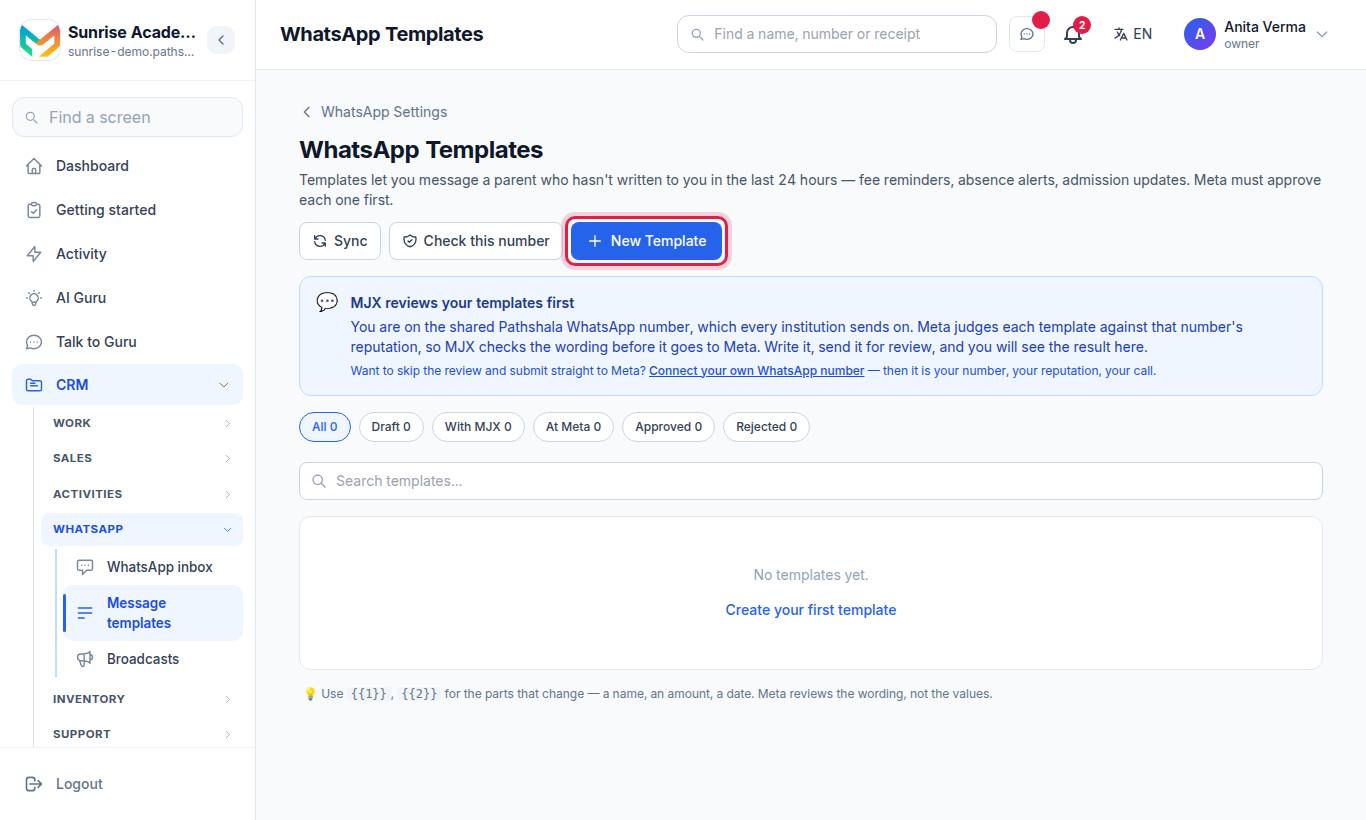
The page lives at /whatsapp/templates. It needs a plan with Message templates (WhatsApp Automation Basic or Pro).
#Which templates does Pathshala use?
You do not have to write the everyday ones. Pathshala's modules send these by name. They are already approved on the shared MJX number, and Pathshala submits them for your own number when you connect it (see Ready to send on WhatsApp Settings).
| Module | Template (label) | Sent when |
|---|---|---|
| Fees | Fee reminder | Fees are due but not yet late |
| Fees | Fee overdue | Fees are past the due date |
| Fees | Fee invoice (PDF) | You send a fee invoice PDF to a parent |
| Courses (MJX LMS) | Course access granted | A paid course is unlocked |
| Courses (MJX LMS) | Webinar booked / Webinar reminder | A live class is bought, and shortly before it starts |
| Admissions / Enquiry | Enquiry received / Enquiry acknowledgement | An enquiry reaches you |
| Admissions / Enquiry | New inquiry alert | Sent to your own phone when a new enquiry arrives |
| Admissions / Enquiry | Admission confirmed | An admission is confirmed |
| Admissions / Enquiry | Follow-up: next day / third day / last message | An enquiry has had no reply |
| Admissions / Enquiry | Business follow-up: next day / checking in / last message | The same, worded for a business |
| Attendance | Absent today / Late today | You send absence or late alerts |
| Attendance | Attendance shortage | A student is below your required attendance |
| Notices / Circulars | Notice / circular | You publish a notice and choose to send it on WhatsApp |
| Exams & Results | Exam schedule / Result published | You publish a date sheet or a result |
| Certificates & Documents | Certificate (PDF) / Certificate withdrawn | You send or cancel a certificate |
| Payroll | Payslip (PDF) | The office issues the month's payslips |
More detail on each trigger: Automatic messages.
#What are the template categories?
| Category | Use it for | Example |
|---|---|---|
| Utility | Something that happened or is due | A receipt, a fee reminder, an absence notice, a result |
| Marketing | Offers, announcements, anything promotional | "Admissions open — 10% off till Sunday" |
| Authentication | One-time codes | A sign-in or verification code |
The form says it simply: reminders and alerts are Utility; offers are Marketing. Meta may move a template to Marketing if its wording is promotional, and Marketing messages cost more on your WhatsApp bill.
#How to create a template
- Press New Template.
- Fill in the form:
| Field | Rules |
|---|---|
| Template name | Lowercase letters, numbers and underscores only, e.g. fee_reminder. Spaces become underscores. One name per language. |
| Language | English, English (US), Hindi, Marathi, Gujarati, Bengali, Tamil, Telugu, Kannada, Malayalam, Punjabi or Urdu |
| Category | Utility, Marketing or Authentication |
| Header (optional) | No header, Text header (up to 60 characters, at most one variable), Image header (JPG or PNG, up to 5 MB), Video header (MP4 or 3GP, up to 16 MB) or Document header (PDF, up to 100 MB). A media header needs a sample file for Meta. |
| Message | Up to 1,024 characters. Use {{1}}, {{2}} … for values that change, numbered in order from {{1}}. |
| Sample values | An example for each variable, e.g. "Ravi". Meta needs them to review; they are never sent to anyone. |
| Footer (optional) | Up to 60 characters, no variables. E.g. "Reply STOP to opt out". |
| Buttons (optional) | Up to 3. Quick reply, Open link or Call. Press + Add button. |
- Press Save draft. It is stored as Draft.
- Press Submit to Meta and confirm.
#What do the statuses mean?
Use the chips at the top — All, Draft, At Meta, Approved, Rejected — to filter the list. (With MJX appears only on the shared number, for a template sent to MJX before 30 October 2026.)
| Status | Meaning |
|---|---|
| Draft | Saved, not submitted. You can edit or delete it. |
| With MJX for review | Sent to MJX for review before 30 October 2026, when the shared number still took template requests. You can Withdraw it. |
| MJX sent this back | MJX did not send it to Meta. Its reason is shown; edit the wording and send it again. |
| Pending Meta review | Waiting for Meta. |
| Approved | Ready to use in modules, the inbox and broadcasts. |
| Rejected | Meta said no. Meta's reason is shown under Meta rejected this:. |
| Paused by Meta | Meta paused it after poor feedback (for example, people blocking or reporting). |
| Disabled | Meta switched it off. |
| Not submitted | Sending to Meta failed; the reason is shown. |
Pathshala checks Meta automatically every few minutes. The line at the top says when it last checked. You can also press Sync.
#Templates and changing your number
A template belongs to the WhatsApp number it was approved on and does not move. If you change number, templates approved on the old one show Not on your current number and must be submitted again. If you reconnect the number they were approved on, press Check this number — they are restored without resubmitting. Check this number also finds templates you created directly in Meta's own console.
#Who can manage templates?
- Owner, Admin: create, edit drafts, submit, withdraw, delete, Sync, Check this number (create and submit need your own number).
- Other staff: can open the page and read templates.
#Tips for approval
- Say who you are and why you are writing in the first line.
- Keep Utility templates free of offers — one promotional sentence can turn it into Marketing.
- Do not start or end the message with a variable, and do not put two variables side by side.
- Give realistic sample values.
- Add "Reply STOP to opt out" in the footer of anything you broadcast.
If you see a banner saying template decisions were never emailed to you, add an email address in Settings — the status on the Templates page is still the real one.
Related: Broadcasts · Best practices · Troubleshooting
#Questions people ask
Why do I need a template?
WhatsApp lets a business start a conversation, or write after 24 hours of silence, only with a template Meta has approved. Inside 24 hours of the person's last message you can reply freely.
How long does approval take?
Meta usually answers within minutes, sometimes a day or two. Pathshala checks Meta for you every few minutes — you do not need to press Sync.
Can I create a template on the shared MJX number?
No. To create or submit your own templates you need to connect your own WhatsApp number. On the shared number your automatic messages (fee reminders, sign-in codes, alerts) keep going on templates MJX has already approved.
Can I edit an approved template?
No. A template that has been submitted cannot be edited, because Meta reviews exactly what you wrote. Create a new one with a new name instead.
What happens if I delete a template?
If it was approved it is removed from Meta too, and any module using it stops sending it.
Do I have to create the fee reminder and absence templates myself?
No. Pathshala's standard templates are already approved on the shared number, and are sent to Meta for your own number automatically when you connect it.