
Connect an eSSL or ZKTeco biometric attendance machine
Point an eSSL or ZKTeco fingerprint or card machine at Pathshala so every punch lands on the staff register — or upload its Excel, or use a card reader.
With MJX Attendance Pro, an eSSL or ZKTeco machine — fingerprint or ID-card swipe — sends every punch to the staff register by itself. In Pathshala, the first punch of the day becomes the check-in and the last the check-out. Door access devices from eSSL / ZKTeco work the same way.
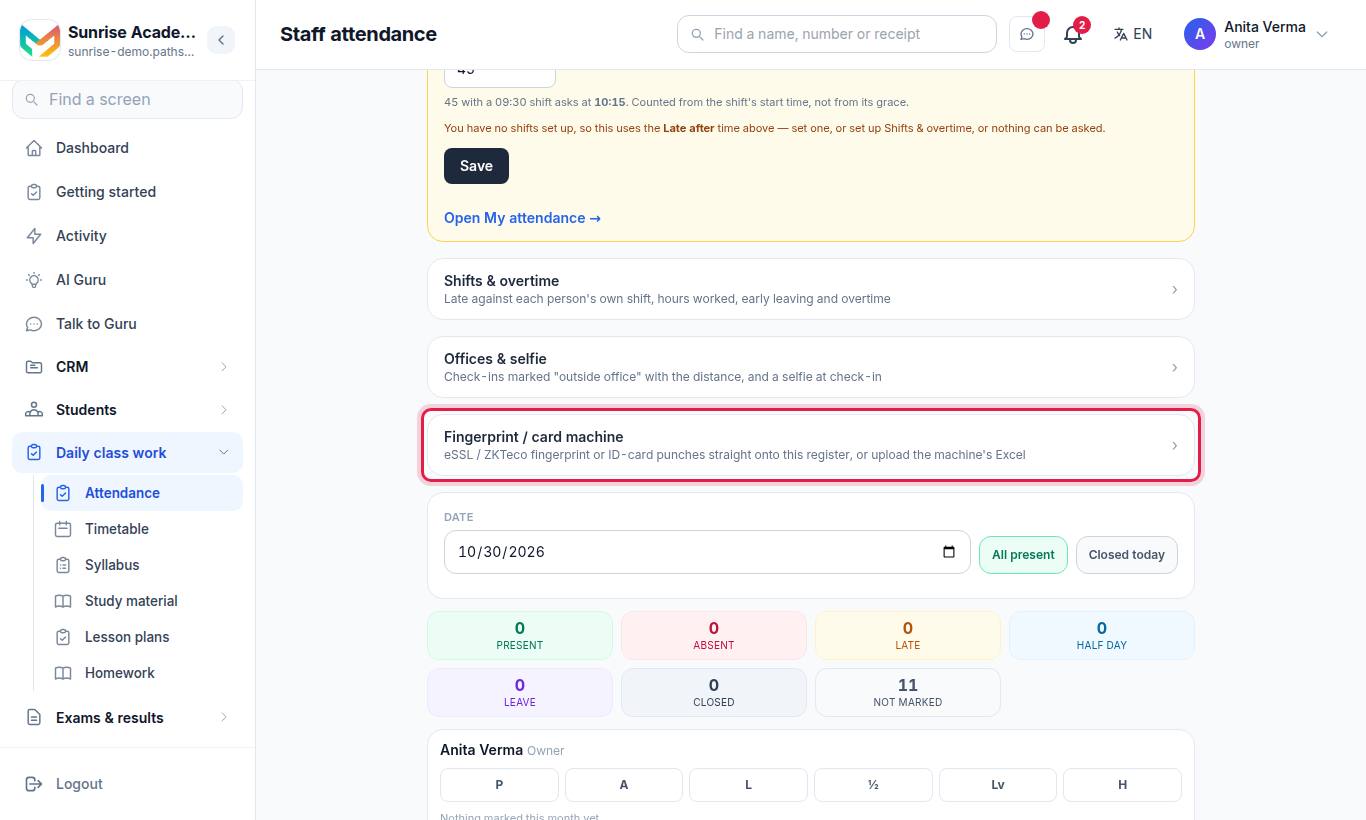
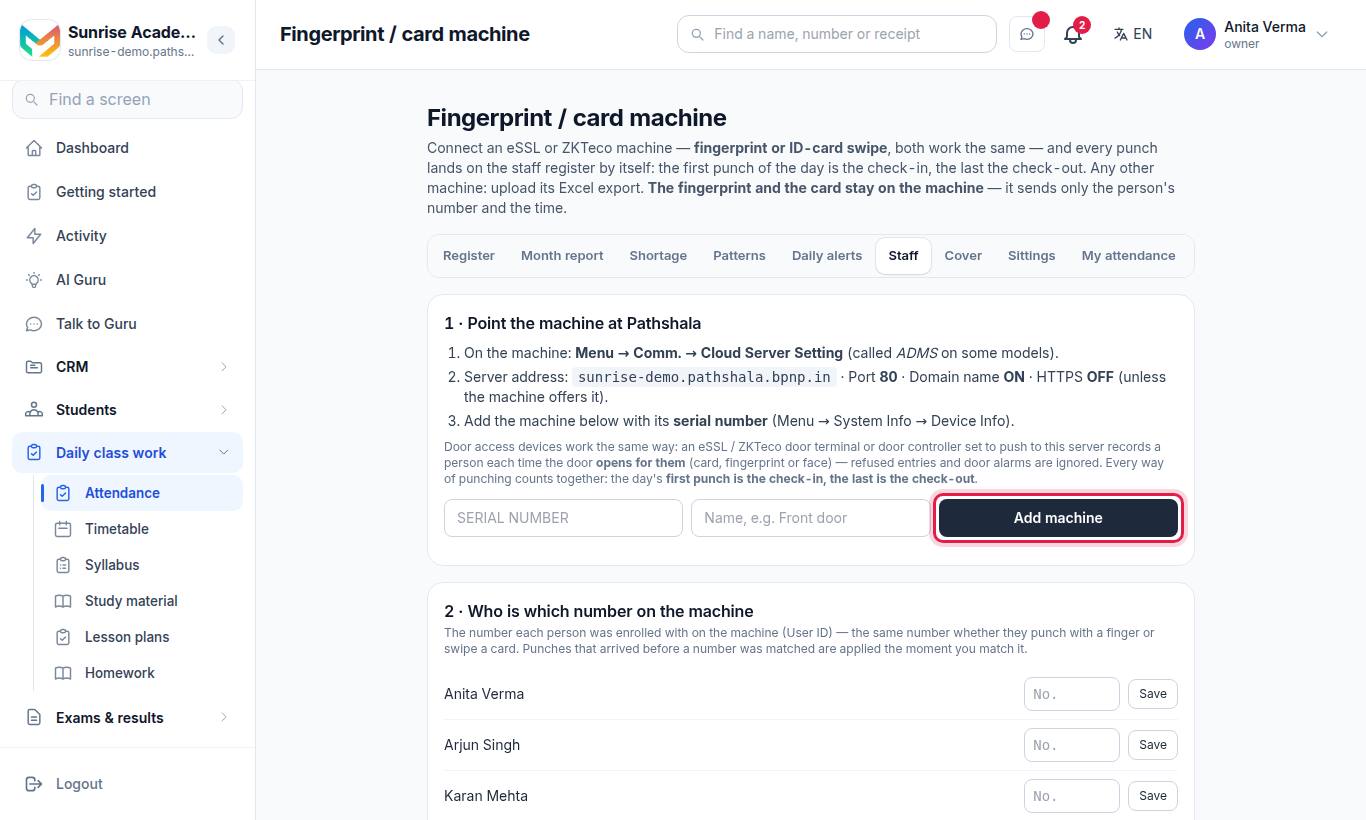
At a school, open Attendance › Staff and the Fingerprint / card machine card.
#Steps to connect a machine (push to Pathshala)
- On the machine, open Menu → Comm. → Cloud Server Setting (called ADMS on some models).
- Set:
| Setting | Value | |---|---| | Server address | Your organisation's own address, shown on the screen — for example sunrise.pathshala.mjxtechnologies.com | | Port | 80 | | Domain name | ON | | HTTPS | OFF (unless the machine offers it) |
- Find the machine's serial number: Menu → System Info → Device Info.
- In Pathshala, under 1 · Point the machine at Pathshala, type the Serial number and a name (for example Front door), and press Add machine.
#Steps to match people to machine numbers
Under 2 · Who is which number on the machine:
- For each person, type the number they were enrolled with on the machine (User ID) — the same number whether they use a finger or a card.
- Press Save.
Numbers the machine sent that nobody is matched to yet are listed, so you can see who is still missing. Punches that arrived before a number was matched are applied the moment you match it.
#How to upload another machine's Excel
Under Another machine? Upload its Excel:
- Export the attendance log from the machine's software as Excel or CSV. It needs a User ID column (or Emp Code / PIN) and a Date Time column (or Date and Time).
- Choose the file and press Upload. Punches already here are skipped.
#No machine? A card reader at the desk
Under No machine? A card reader at the desk:
- Plug in a USB card reader — sold as "RFID USB reader, keyboard mode" — on the office computer or a tablet.
- Type a name (for example Front desk) and press Add a check-in screen.
- Copy the link (Copy) and open it on the desk computer or tablet. Press F11 for full screen and keep it open.
- Everybody taps their ID card once when they arrive and once when they leave. The screen says Tap your card.
Android phone with NFC: open the check-in screen's link in Chrome on the phone, press 📱 Use this phone's NFC once, and people hold their card to the back of the phone. iPhones cannot do this in a browser.
#Give each person their card
Under Who has which card:
- Click a person's box and tap their card on the reader — the number types itself — then Save.
- Or on an Android phone, press 📱 beside the person and hold their card to the phone.
- Typing it? Use the chip's Serial Number as an NFC app shows it (for example
53:63:F3:…:40), with the colons.
Nothing is written on the card; its own chip number is used. Taps made before a card was given are put on the register when you save.
#For technicians: what the machine talks to
The machine uses the standard push protocol. Pathshala answers in plain text and identifies the organisation by the machine's serial number (an unregistered serial writes nothing).
| Request | Purpose |
|---|---|
GET /iclock/cdata?SN=<serial> | The machine says hello and gets its settings (TimeZone=330) |
POST /iclock/cdata?SN=<serial>&table=ATTLOG | Attendance punches, one line per punch: PIN <tab> YYYY-MM-DD HH:MM:SS … |
POST /iclock/cdata?SN=<serial>&table=rtlog | Door controller events — only "door opened for a person" counts; refused entries and alarms are ignored |
GET /iclock/getrequest, POST /iclock/devicecmd | Answered OK |
#Who can use it?
Owner, Admin, or anyone with Manage Check-in Machines (the HR job has it). The feature is MJX Attendance Pro. A check-in screen on an organisation without it says "Card check-in is not switched on — It comes with MJX Attendance Pro — ask the office."
#Common messages
| Message | What to do |
|---|---|
| Type the machine's serial number exactly as its menu shows it (letters and numbers). | Copy it from Device Info |
| That machine is already added. | It is on your list already |
| That serial number is registered to another organisation. If it is yours, ask MJX. | Contact MJX support |
| Number … is already somebody else's on the machine. | Each User ID belongs to one person |
| Could not find the columns… | The file needs a User ID and a Date Time (or Date and Time) column |
| This check-in screen's link is not valid | Make a new link on Fingerprint / card machine |
#Questions people ask
Does the fingerprint leave the machine?
No. The fingerprint and the card stay on the machine. It sends only the person's number and the time.
Which punch is the check-in?
The first punch of the day is the check-in, and the last is the check-out. Every way of punching — finger, card, face, phone — counts together.
My machine is not eSSL or ZKTeco. Can I still use it?
Yes. Export the attendance log from the machine's software as Excel or CSV and upload it under Another machine? Upload its Excel.
What if punches arrive before I match a person's number?
They are kept, and applied the moment you match that number to a person.
Can I use ID cards without a machine?
Yes. Plug a USB card reader into a desk computer or tablet and open a check-in screen, or use an Android phone with NFC.