
Get started with WhatsApp automation
Sign up, fill in your knowledge base, test an AI answer and send your first WhatsApp message in Pathshala — in about fifteen minutes.
This guide takes you from sign-up to a working WhatsApp assistant: the AI answers from your own information, sends your PDFs, and you can see every chat. In Pathshala, all of it lives under Apps › WhatsApp.
#Sign up
Open the WhatsApp Automation sign-up (or sign up and pick WhatsApp Automation). Fill in the one form. Your portal is ready in about a minute and the 14-day trial starts with no card. After you sign in, Pathshala opens the Knowledge Base.
#Fill in your knowledge base
Go to Apps › WhatsApp › Knowledge Base. Open each category card — for example Fees Structure, Timings, Admission Process, Facilities — press Add Content, write it in your own words and press Save. The bar at the top shows how complete it is. See AI replies for what each part does.
#Upload the PDFs people ask for
On Basic and Pro (and during the trial), go to Apps › WhatsApp › Documents and press 📤 Upload Document (owner login). Upload your fee structure, brochure or syllabus, give each a Document Name, a Category and some Trigger Keywords (for example fees, fee, fee structure). When someone writes one of those words, the AI sends the file.
#Test an answer
On the Knowledge Base page, open See what WhatsApp knows now — and try a question. Under Try a question, type what a parent would ask and press Ask. You see the reply WhatsApp would send. Nothing is sent.
#Check your number and switch on AI replies
Go to Apps › WhatsApp › WhatsApp. The card Your WhatsApp number shows Shared MJX or Own number.
- On the shared number there is nothing to set up.
- If the card says "Nothing can be sent until you connect one", your account must use its own number — follow Connect your own number.
Then open Settings (the ⚙️ Setup tab) and check that AI Auto-Reply is on under WhatsApp Settings. Press Save Settings (owner only).
#Complete KYC if you are asked to
If MJX collects payments for you, WhatsApp messages start only after KYC. Open Settings › Getting paid & KYC (Settings is at the foot of the menu) and finish its steps — PAN and the bank account. WhatsApp switches on by itself once your account is verified.
#Send a test message
From your own phone, send a WhatsApp message to your number (or, on the shared number, scan your WhatsApp enquiry code — see below). Within a few seconds the AI answers. The chat appears in Apps › WhatsApp › WhatsApp Inbox (Basic and Pro).
#How do people find me on the shared number?
On the shared MJX number, several institutes share one number, so Pathshala needs to know who a person means. Give people your own WhatsApp enquiry code:
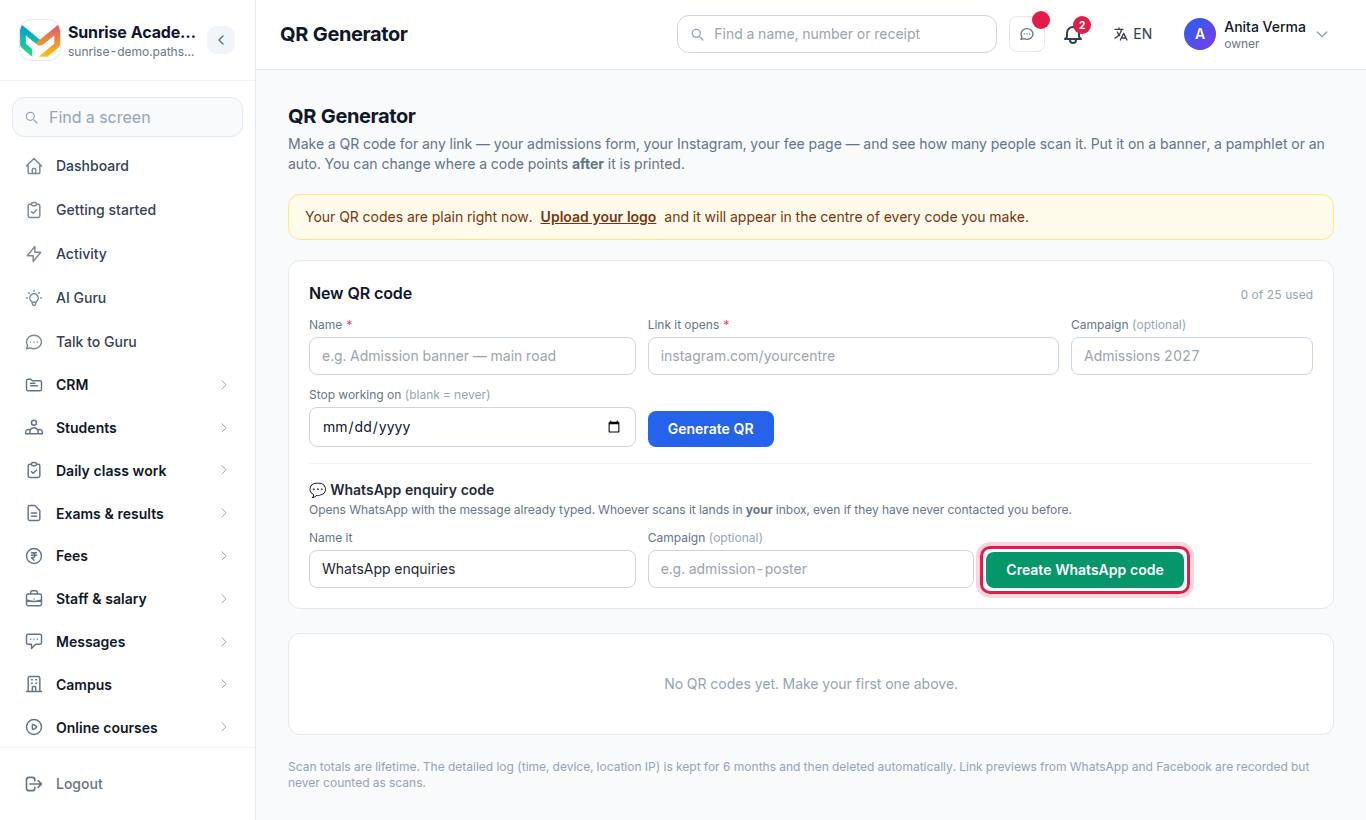
- Keep or change Name it (default: "WhatsApp enquiries").
- Optionally add a Campaign, for example
admission-poster. - Press Create WhatsApp code.
The QR opens WhatsApp with a message already typed. Whoever scans it lands in your inbox, even if they have never contacted you before. Print it on posters, fee slips and your website. Only an owner or admin can create one.
#Who can do what?
| Task | Who |
|---|---|
| Edit the knowledge base | Any signed-in staff member |
| Upload or delete documents | Owner |
| Add Latest updates, use Try a question | Owner, Admin |
| Connect or change the WhatsApp number | Owner, Admin |
| Read WhatsApp Settings | Any signed-in staff member |
| WhatsApp Inbox | Owner, Admin (or a role given the WhatsApp send permission) |
| Pay the WhatsApp bill | Owner, Admin |
See Users and roles to add your team.
#What next?
- Message templates — needed for anything you send first.
- Automatic messages — what goes out without you pressing anything.
- Best practices — a weekly routine that keeps answers right.
#Questions people ask
How long does setup take?
About fifteen minutes on the shared MJX number — most of it is writing your knowledge base. Connecting your own number adds about ten minutes, and Meta then approves your templates, usually within minutes to a day or two.
Do I need a card for the trial?
No. Every sign-up starts with a 14-day trial of every feature, with no card.
Can I test the AI without messaging a real parent?
Yes. Use "Try a question" on the What WhatsApp knows page. You see the answer WhatsApp would send, and nothing is sent to anybody.
Why are no WhatsApp messages going out yet?
WhatsApp switches on after KYC when MJX collects payments for you. Complete PAN and bank verification on Getting paid & KYC. Login codes are always sent.