
AI WhatsApp replies and the knowledge base
How Pathshala's WhatsApp AI answers from your knowledge base and documents, what it will never guess, and how to test and pause it.
When someone messages your WhatsApp number, Pathshala's AI reads your knowledge base, your latest updates, your fees and courses, and the conversation so far, then answers in the language they wrote in. If they ask for a document you uploaded, it sends the file. In Pathshala you control all of this from Apps › WhatsApp › Knowledge Base and Settings.
#What does the AI read before every reply?
| Source | Where you change it |
|---|---|
| Latest updates — read first; they win over older text | Knowledge Base › See what WhatsApp knows now |
| Your knowledge base categories (only those switched on) | Apps › WhatsApp › Knowledge Base |
| Your fee structure and courses with prices | The fee structure and the courses list themselves |
| The documents it can send, by name | Apps › WhatsApp › Documents |
| The conversation with this person — the last 14 turns over 14 days, including what your staff replied | — |
| What your institute already knows about the sender: an open enquiry (student name, class) and an upcoming visit | Their enquiry and Visits |
| Your institute's public phone and email, for every "please contact us" | Sidebar › Settings › Organisation › Organisation details › 🏫 Address & info |
Closed enquiries are ignored, because an old number may now belong to someone else. If two children share one number, the AI does not use a name unless the sender does.
#How to fill in the knowledge base
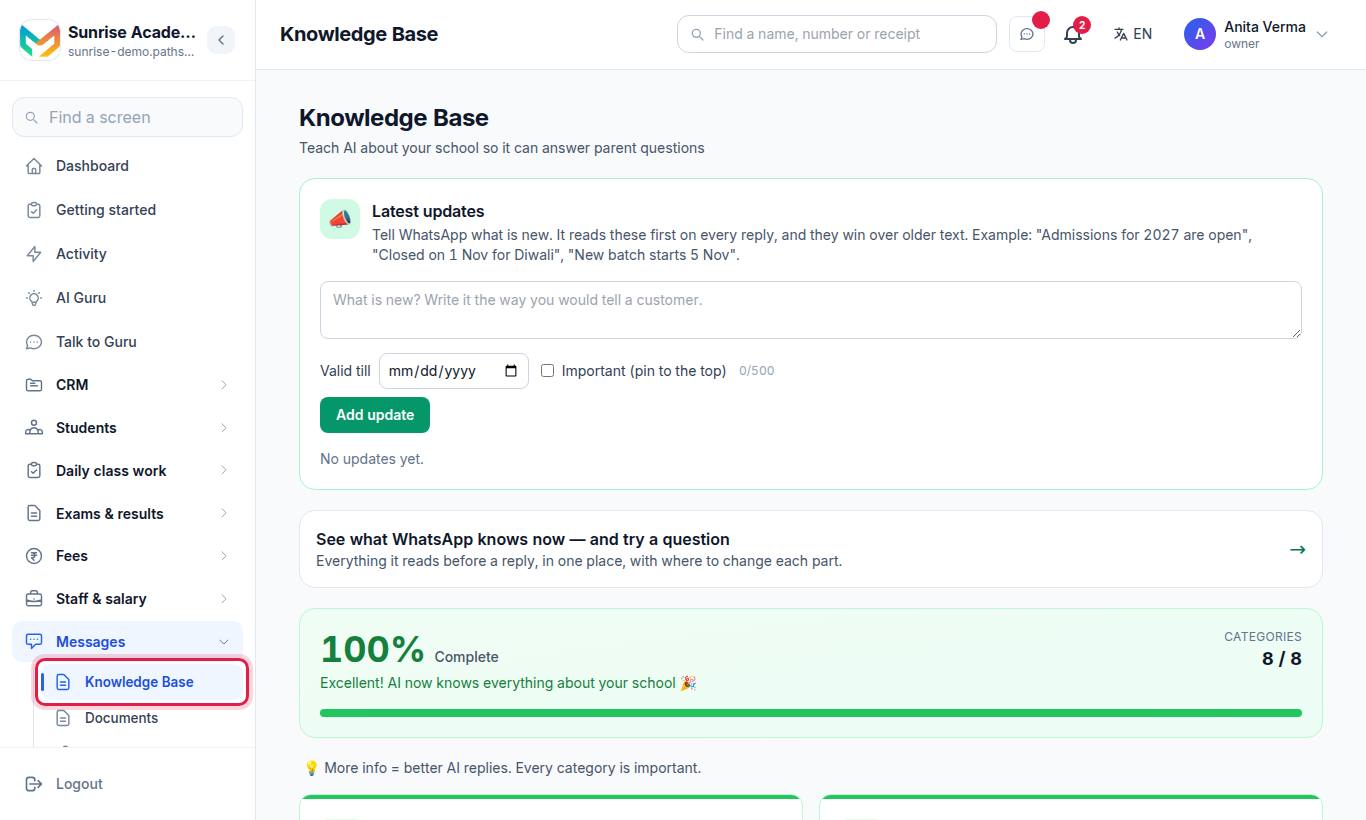
- Open a category card and press Add Content (or Edit Content).
- Write the facts in your own words. Hindi-English mix also works. More detail gives better replies.
- Optionally (owner or admin) press ✨ AI draft — the AI rewrites what you typed more clearly, with the same facts. Press Use this or Keep mine.
- Leave Let AI use this info on (Enabled).
- Press Save.
The categories depend on your type of organisation:
| Organisation | Categories |
|---|---|
| School | General Info, Classes & Sections, Fees Structure, Timings, Admission Process, Facilities, USPs (Specialties), Achievements |
| Coaching, tuition, skill institute | General Info, Courses & Batches, Fees Structure, Timings, Admission Process, Facilities, USPs, Achievements |
| College | The coaching list plus Departments and Semesters & Academic Calendar |
| Business | General Info, Courses & Batches (your services), Fees Structure, Timings, Facilities, USPs |
Category names use your own words — for example "Institute Timings" or "Enrollment Process" — depending on your organisation type. The page also shows Also read automatically: your fees and courses: the AI quotes those from your fee structure and courses list.
#Latest updates, and "What WhatsApp knows"
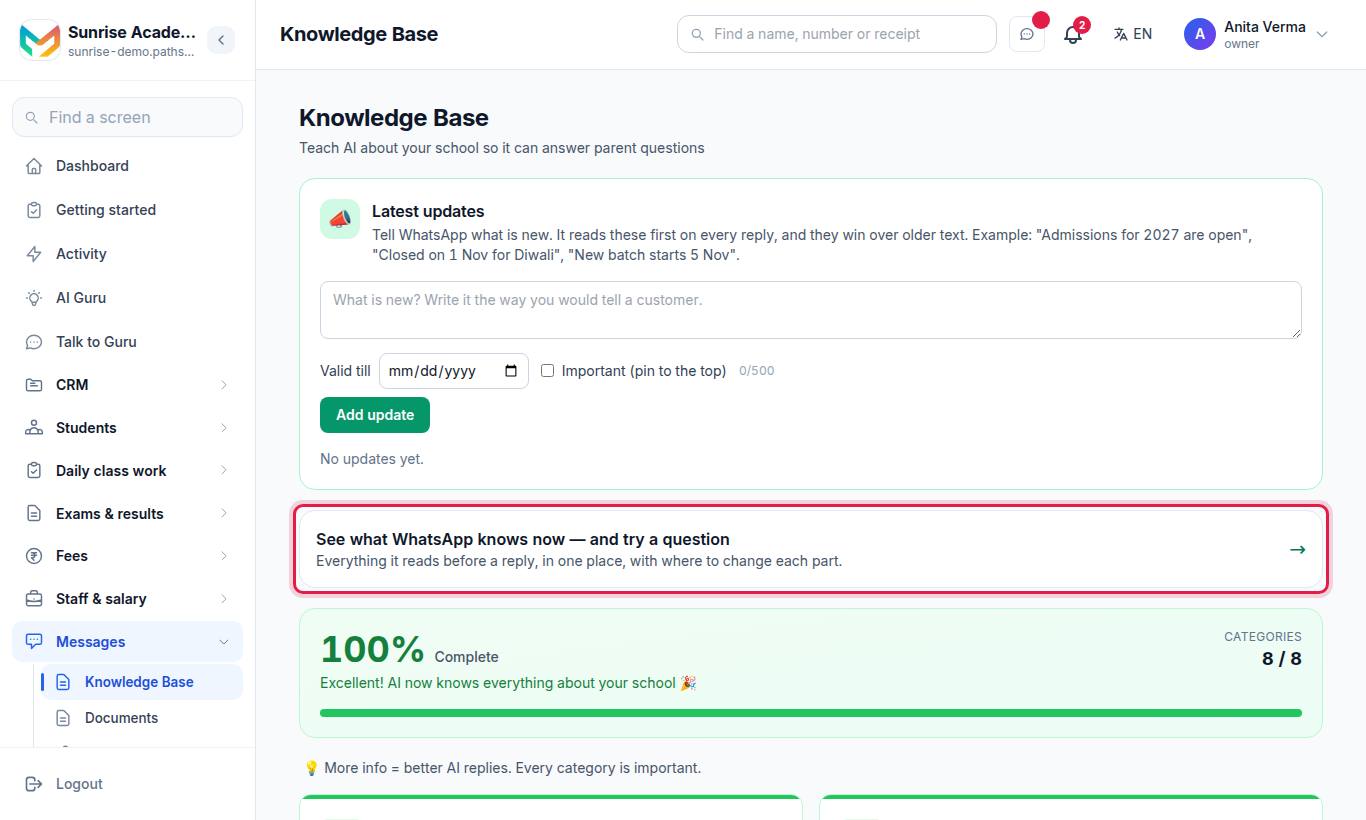
The page What WhatsApp knows has three parts:
- Latest updates — tell WhatsApp what is new, for example "Admissions for 2027 are open" or "Closed on 1 Nov for Diwali". Type it (up to 500 characters), optionally set Valid till and tick Important (pin to the top), then press Add update. After the date it shows "expired — WhatsApp no longer says this". Use Edit or Remove on any update. Up to 20 active updates are read.
- Try a question — type what a customer would ask and press Ask. You see the answer WhatsApp would send, marked "Not sent — this is only a preview."
- What WhatsApp knows now — exactly what it reads before every reply, newest first, each part with Last changed and a Change this link.
Only an owner or admin can add updates or try a question.
#How documents are sent automatically
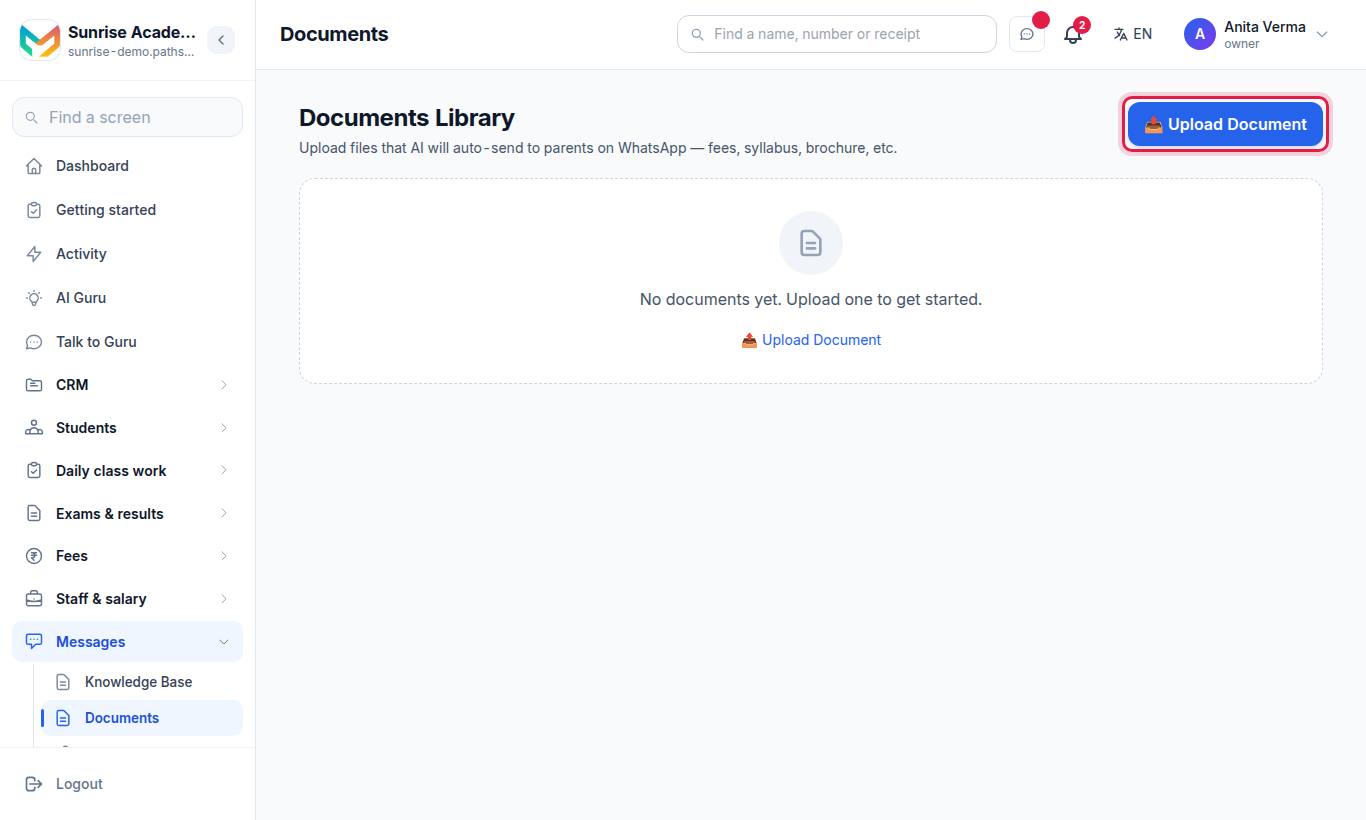
- Press 📤 Upload Document.
- Choose the file (PDF/Image, max 5 MB), a Document Name, a Category (Fees, Brochure, Syllabus, Holidays List, Forms, and more) and optionally a Class for class-specific files.
- Add Trigger Keywords (comma-separated), for example
fees, fee, fee structure, fee pdf. When someone writes one of these words, the document is sent. - Add a Caption — the WhatsApp text sent with the file — and press Upload.
Sending a matched document uses no AI. The same document is not sent to the same person twice in a week — the AI answers the question instead. Each card shows how many times the document was sent.
Documents are what the AI sends. Message Files (/message-files) are what your staff attach by hand in the inbox — see Inbox and chats.
#What the AI will not do
- It will not guess money. Every ₹ figure or percentage in a reply must be in your knowledge base, latest updates, fee structure or courses. If not, the reply is replaced by "I can't confirm fees or payment amounts from here" plus your contact details.
- It will not tell anyone else's dues. A question about pending fees is answered from your fee records, and only when the sender's number is the number on the student's record. Otherwise the person is told how to reach you.
- It will not answer each line of a burst separately. People often send "hi", "fees?", "class 5" in quick succession. The AI waits a few seconds and answers them together.
- It will not keep talking when a person asks for a human. If someone asks to talk to a person, Pathshala opens one task on their enquiry, due within the hour, for whoever owns the lead (or the owner) — once a day per enquiry.
- It will not reply while you are replying. See below.
If the AI service cannot be reached, the person gets your AI Fallback Message, or a polite line with your contact details in their language.
#How to pause the AI for one chat
- From an enquiry: reply in the chat box on the enquiry page. The badge changes from 🤖 AI Active to 👤 Manual Mode (AI paused) for 30 minutes. Press Resume AI to hand back early.
- In the MJX CRM app: when you reply to a lead, the chat shows "You are answering — the AI is quiet on this chat." Press Hand back to AI when you are done.
#AI settings
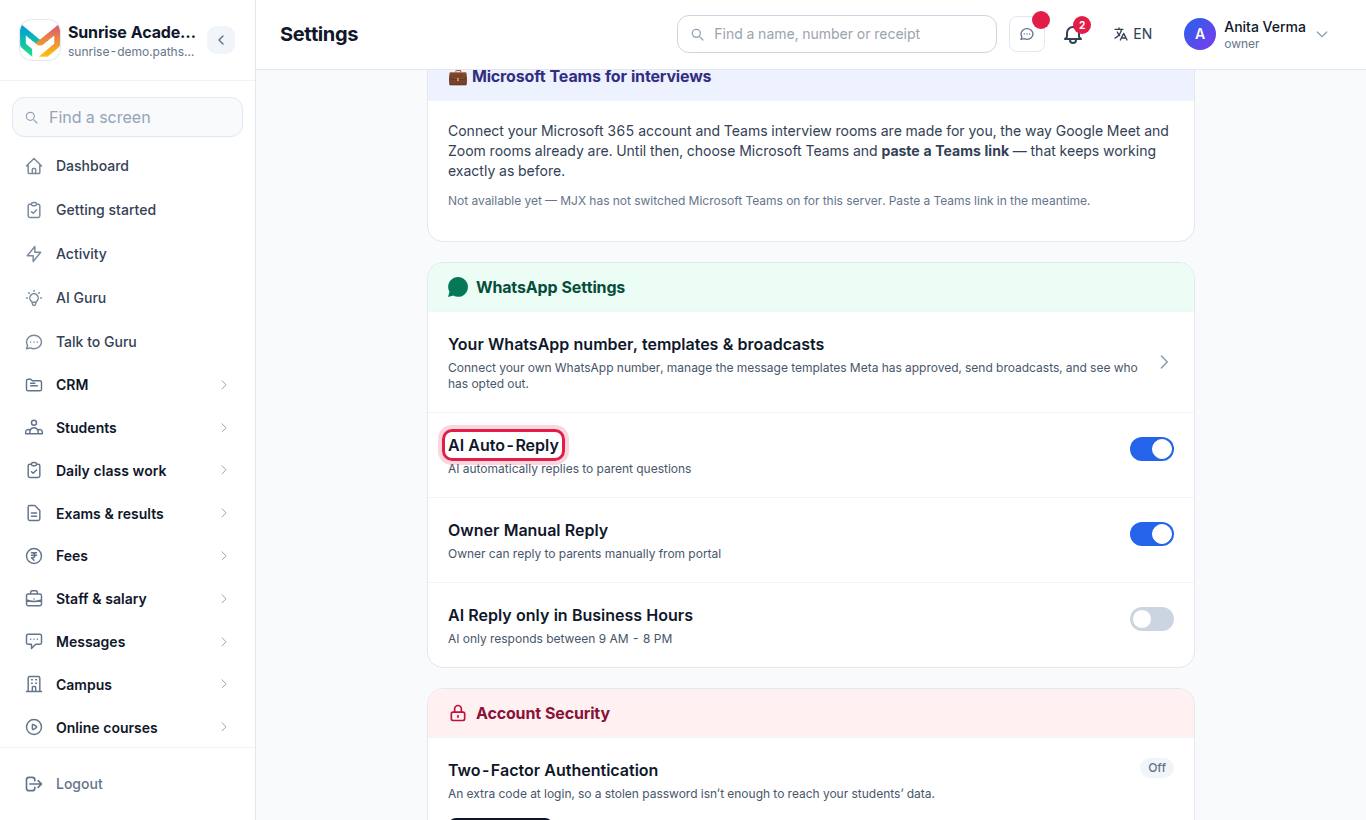
| Setting | Section | What it does |
|---|---|---|
| AI Auto-Reply | WhatsApp Settings | AI automatically replies to questions. Off = no AI replies at all. |
| Owner Manual Reply | WhatsApp Settings | Owner can reply to leads manually from the portal |
| Use Knowledge Base | AI Behavior | AI uses your institute information (KB) to reply |
| AI Fallback Message | AI Behavior | When AI cannot answer, send this message (up to 500 characters) |
Press Save Settings. Only the owner can change these settings.
#Who can use it?
The knowledge base is on every WhatsApp Automation plan, including Forever Free. AI documents need Basic or Pro.
| Task | Who |
|---|---|
| Edit knowledge base categories | Any signed-in staff member |
| ✨ AI draft, Latest updates, Try a question | Owner, Admin |
| Upload, edit or delete documents | Owner only (staff can see the library) |
| AI settings in Settings | Owner only |
Related: Automatic messages · Best practices · Troubleshooting
#Questions people ask
What happens when the AI does not know the answer?
It does not invent one. A reply that names a fee or percentage not found in your own data is replaced with a line asking the person to contact you, with your phone and email. You can also write your own fallback message in Settings.
Which language does it reply in?
The language of each message — Hindi (Devanagari), English or Hinglish. A message with no language in it, such as "ok" or "5", continues the language of the person's last message.
Can parents ask about their own dues?
Yes, but the AI answers only when the number writing is the number on the student's record, and the figures come from your fee records, never from the AI.
How do I stop the AI answering one person?
Reply to them yourself from their enquiry. The AI goes quiet on that chat for 30 minutes, and you can press Resume AI at any time. In the MJX CRM app, press "Hand back to AI" when you are done.
Does Try a question cost anything?
It sends nothing to anybody, but it is a real AI call and counts on your AI usage.