
WhatsApp Inbox — read and reply to chats from Pathshala
Use Pathshala's WhatsApp Inbox to read every chat, reply, send files, locations and templates, and understand the 24-hour reply window.
The WhatsApp Inbox shows every chat on your WhatsApp number in one place, like WhatsApp Web, so a counsellor leaving does not take the history with them. In Pathshala you can reply, send files from your library, send a location pin, and send approved templates.
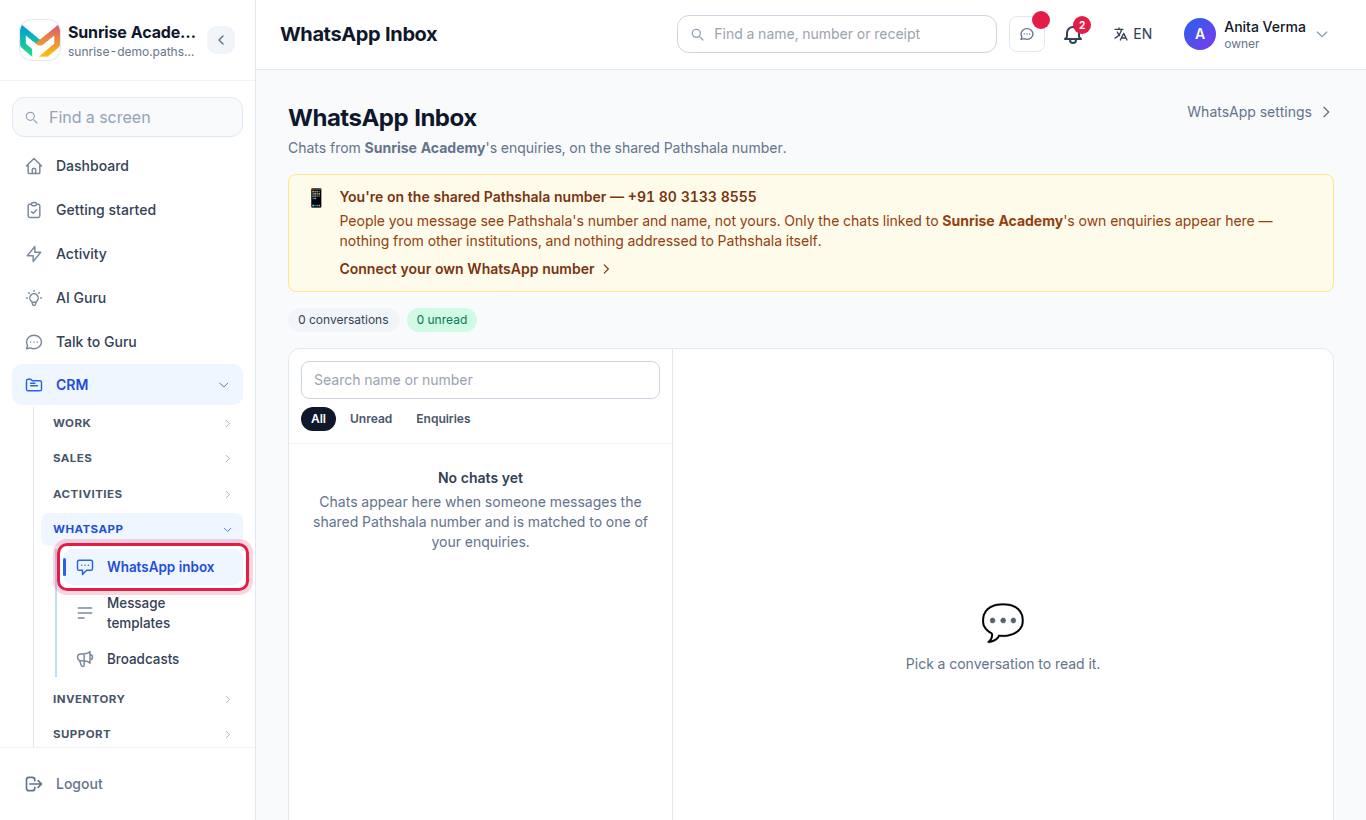
The inbox lives at /whatsapp/inbox. It needs a plan with Shared inbox (WhatsApp Automation Basic or Pro) and an owner or admin login (or a role with the WhatsApp send permission).
#What you see
- At the top: how many conversations, how many unread, and how many earlier enquiry threads.
- Under the title, a line says whether these are chats from your enquiries on the shared Pathshala number or messages sent to your own WhatsApp number, with a WhatsApp settings link. On your own number, the reply box says "Replying from your own WhatsApp number."
- On the left: the chat list, with Search name or number and three filters — All, Unread and Enquiries (chats linked to an enquiry). A chip shows the student's name on linked chats.
- On the right: the chat. Messages people send you show in full — text, photos, videos, documents, Voice message with a player, locations (with an Open link), and shared contacts.
If your account has no number yet, opening the inbox takes you to WhatsApp Settings to connect one.
#How to reply
- Pick a chat. It is marked as read.
- Type in Type a message and press Send. Up to 4,096 characters.
You can reply this way only while the 24-hour window is open — that is, within 24 hours of the person's last message to you. When it is closed, the box says Templates only and a note explains why:
- "More than 24 hours since this parent last messaged, so WhatsApp allows only an approved template."
- "This parent has not messaged you yet, so WhatsApp allows only an approved template."
#How to send a file
- Press the paperclip (Send a file).
- Choose:
- My files — pick a file from your Message Files library, or
- Upload once — upload a file from your device.
- Optionally Add a message (optional) as a caption, and send.
Limits: photo up to 5 MB, video up to 16 MB, document up to 100 MB. Files need an open 24-hour window.
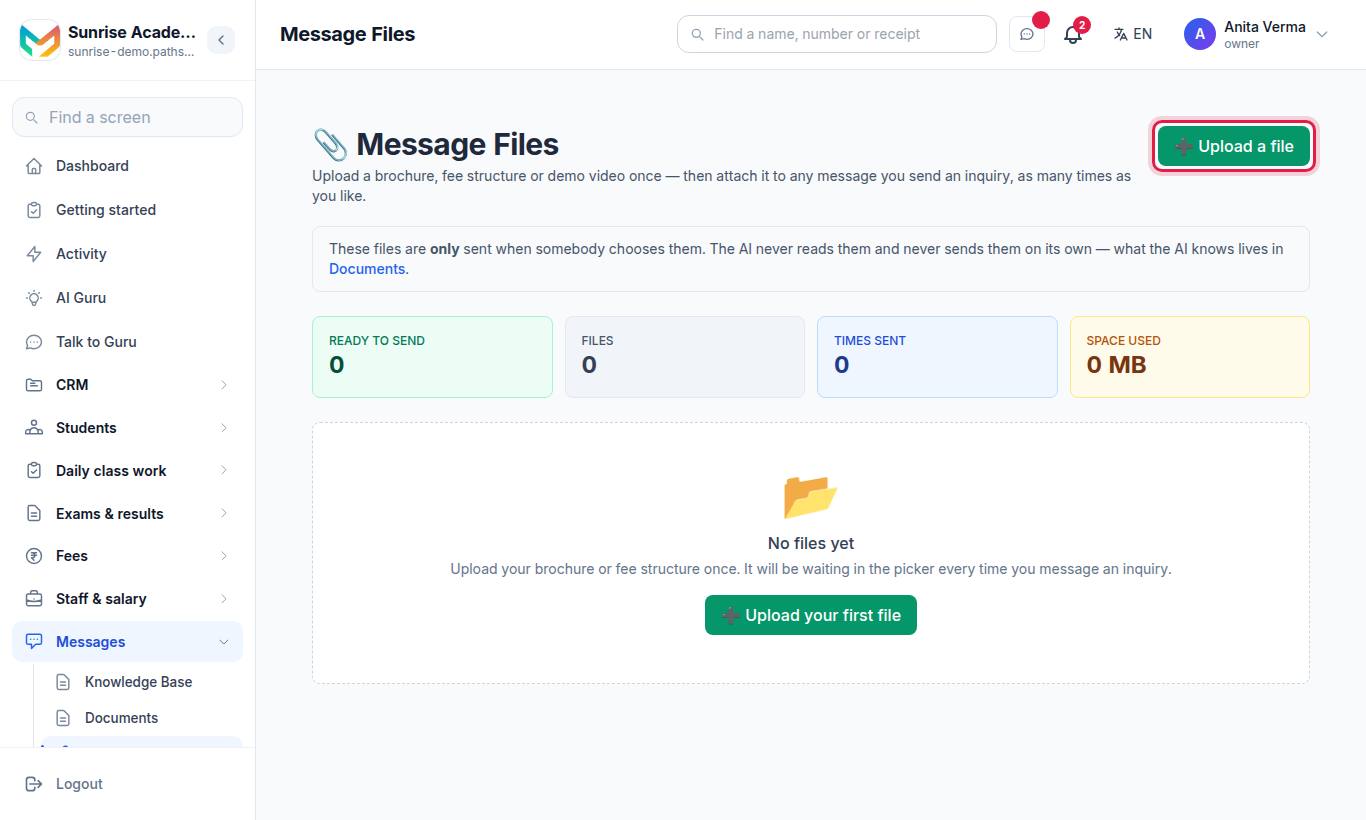
Keep the files you send again and again — fee structure, brochure, route map — in Message Files so staff never upload them twice.
#How to send a location
- Press the pin (Send a location).
- Press 📍 Where I am now to use this device's location, or type a pin: Latitude and Longitude. In Google Maps, long-press the spot — the two numbers appear at the top.
- Optionally add Name (optional) and Address (optional).
- Press Send pin.
A location needs an open 24-hour window.
#How to send an approved template
- Press Send an approved template.
- The sheet Send an approved template lists your own approved templates, with their language and wording.
- Pick one and fill in the blanks.
- Press Send template.
If you have none, the sheet links to Create one on the Templates page. Sending a template starts a new 24-hour window when the person replies.
#Replying from an enquiry
Every enquiry with a WhatsApp chat also has a reply box on its own page. It shows 24-hour reply window open — about Nh left or 24-hour window closed. Replying there pauses the AI for 30 minutes (👤 Manual Mode (AI paused)) and offers Resume AI. You can attach a one-off file or pick one from your library.
#Who handles which chat?
The web inbox has no "assign to" button. Chats linked to an enquiry follow that enquiry's owner in MJX CRM. When someone asks the AI for a person, Pathshala opens a task on their enquiry, due within the hour, for whoever owns the lead.
#In the MJX CRM app
Owners and admins see WhatsApp inbox — "Every chat on your WhatsApp number". Open a chat and use the attach button (Send a photo, video, voice note or file):
| Option | Limits |
|---|---|
| Photo | JPG or PNG, up to 5 MB |
| Video | MP4, up to 16 MB |
| Audio or voice note | MP3, OGG, M4A, up to 16 MB |
| Document | PDF, Word or Excel, up to 16 MB |
| Location | Pick on the map, search, or paste a Google Maps link |
Add a caption and tap Send on WhatsApp. While you are answering a lead the chat says "You are answering — the AI is quiet on this chat."; tap Hand back to AI when done. The same menu has Message templates (opens on the website). Get the app and learn the rest in WhatsApp in MJX CRM and the CRM app.
Related: Templates · AI replies · Troubleshooting
#Questions people ask
Why can I only send a template to some people?
WhatsApp allows free text, files and locations only within 24 hours of the person's last message to you. After that, or if they have never written, only an approved template can be sent.
Why is a chat marked "Earlier enquiry"?
It arrived on a number you no longer send from — for example the shared Pathshala number before you connected your own. It is read-only. Send an approved template to start a fresh chat from your current number.
Does replying from the inbox stop the AI?
Replying from the WhatsApp Inbox does not pause the AI. To have the AI stay quiet while you talk, reply from the person's enquiry page, which pauses it for 30 minutes.
Can my staff use the inbox?
By default only the owner and admins can, because chats carry fee matters and family details. An owner can give a role the WhatsApp send permission.
Can I use it on my phone?
Yes. The website works on a phone, and the MJX CRM app has a WhatsApp inbox with photo, video, audio, document and location sending.