
Collect a fee (cash, UPI, cheque, card or online)
Record a full or part fee payment in Pathshala by cash, UPI, cheque, card or bank transfer and send the receipt to the parent on WhatsApp.
Collecting a fee in Pathshala means recording a payment against an invoice. The invoice's balance goes down at once, a receipt number is given, and the receipt can reach the family on WhatsApp within seconds.
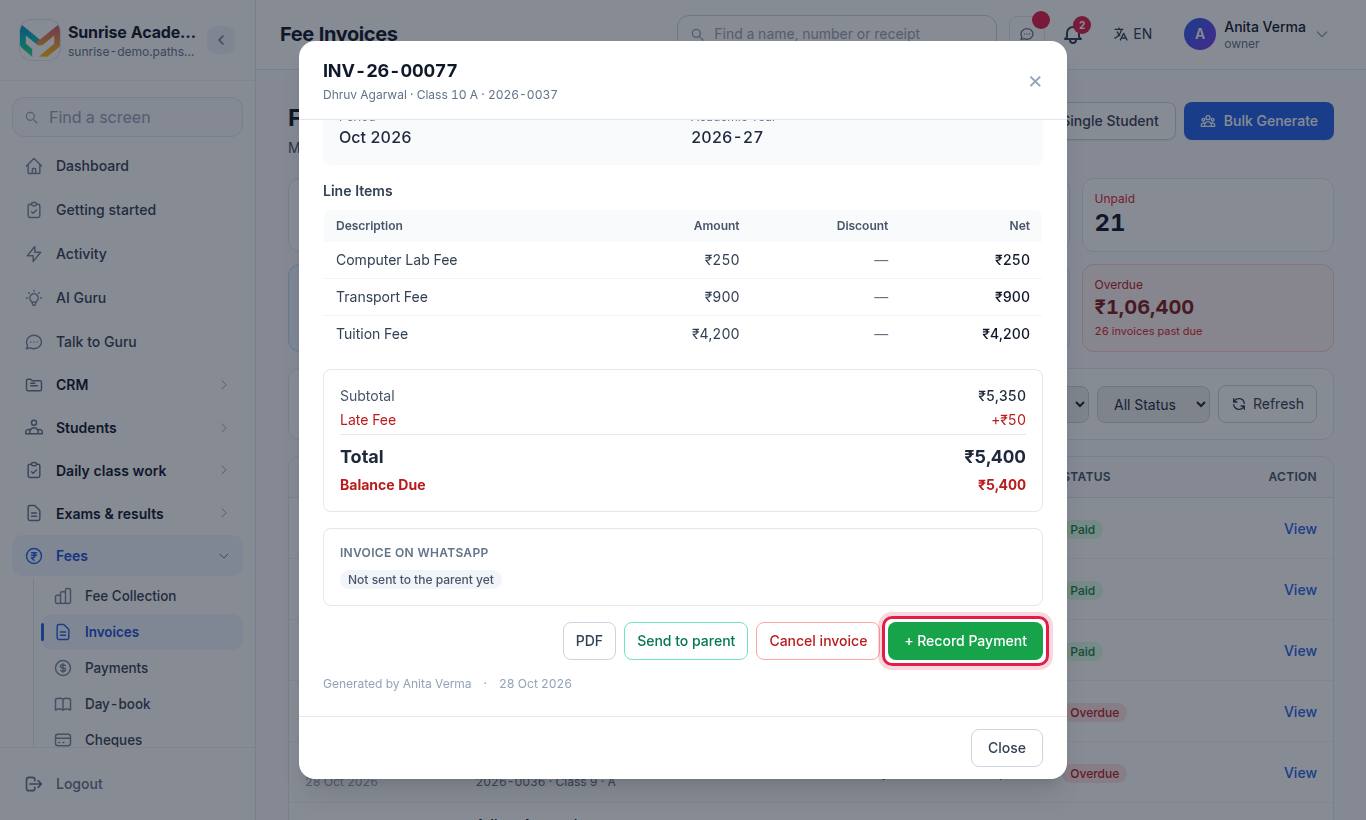
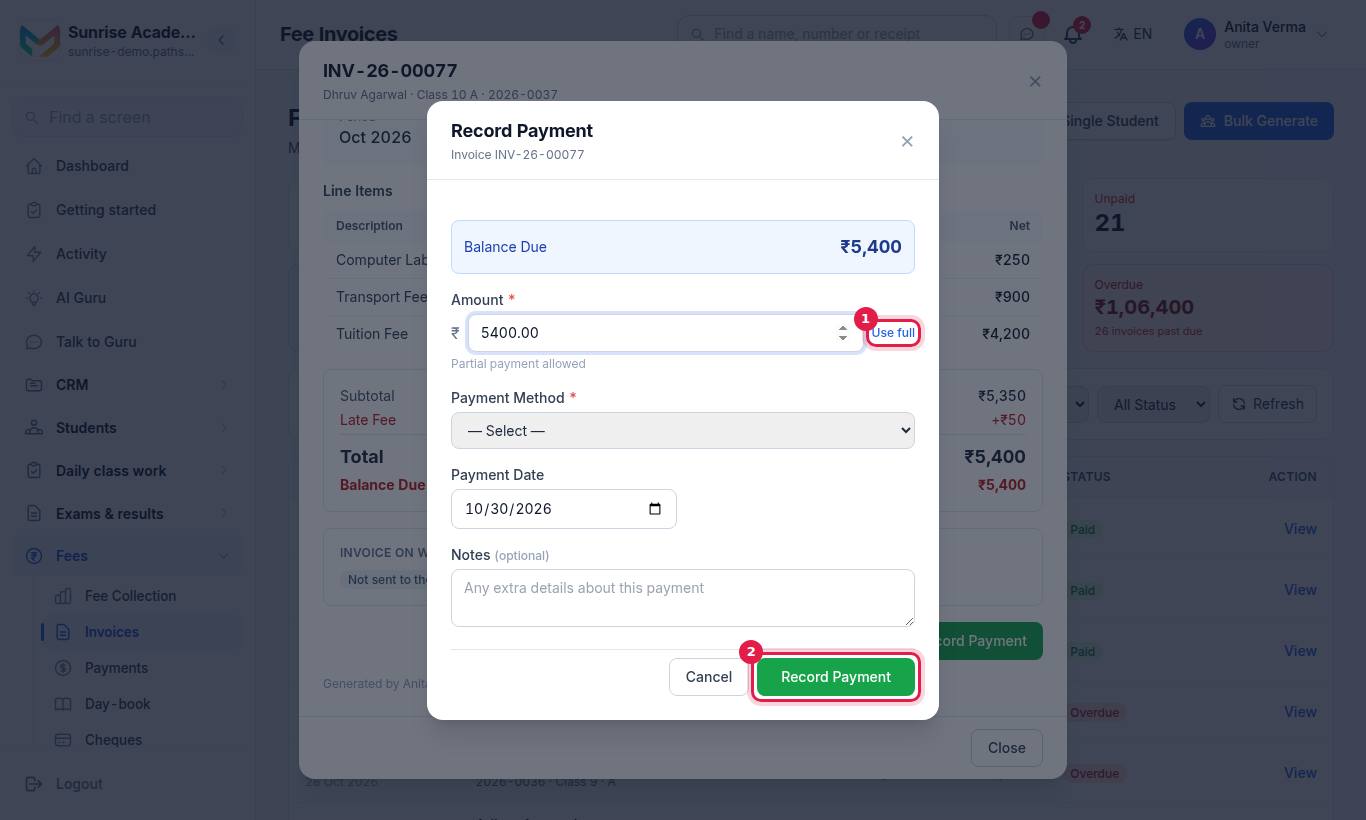
On Invoices, the blue Collect a payment button is the place to start: it puts the cursor in the search box — type the student's name or admission number, open their invoice and press + Record Payment. The Collect fee button on your dashboard home and Collect a payment on Fee collection open Invoices the same way.
Payments opens on this month, the same period as its This Month tile.
#Who can use this?
| Action | Who |
|---|---|
| Record a payment | Owner, Admin, or staff with Collect Fees (the Accountant and Cashier roles have it) |
| Cancel or refund a payment | See Refunds and cancellations |
Recording payments works on every plan, including Forever Free. The automatic WhatsApp receipt needs Basic or above.
#Before you start
- At least one active payment method must exist (Cash, UPI, Cheque…). If none exists, the payment form shows a warning with a link to set one up. See Payment methods.
- The student needs an invoice for the period. If there is none, raise one first.
#How to record a payment
#Steps
- Open Apps › Fees › Invoices. Search by the student's name, admission number or invoice number.
- Press View on the invoice.
- Press + Record Payment. The form shows the Balance Due.
- Type the Amount, or press Use full to take the whole balance. A smaller amount is fine — partial payment is allowed.
- Choose the Payment Method.
- Check the Payment Date (today by default).
- Fill in the extra fields for the method you chose:
- UPI, bank transfer, card or online gateway — Transaction ID (the UPI or bank reference).
- Cheque — Cheque Number, Cheque Date and Bank Name.
- Optionally add Notes.
- Press Record Payment.
#What happens after you record a payment
- Numbers. The payment gets a payment number (
PAY-YY-00001…) and, because it is complete, a receipt number (RCP-YY-00001…). - The invoice. Its paid amount and balance are worked out again, and its status changes to Partial or Paid.
- The receipt on WhatsApp. On Basic and above, the PDF receipt is sent to the parent's WhatsApp number by itself. On Forever Free the receipt is still made as a PDF but is not sent. See Receipts.
- The cheque register. If a cheque number was typed, the payment appears in Cheques as In hand until you mark what the bank did.
- The day-book. The line appears in the Day-book under the person who recorded it.
- Course access. If the bill was for an online course, the student's access is granted.
#Payment methods at the counter
| Method type | Extra field on the form | Notes |
|---|---|---|
| Cash | — | Counted as cash in the day-book and Tally export |
| UPI | Transaction ID | Type the UPI reference so duplicates can be spotted |
| Bank transfer | Transaction ID | For NEFT, IMPS, RTGS |
| Card | Transaction ID | For a card machine at the counter |
| Cheque | Cheque Number, Cheque Date, Bank Name | Goes into the cheque register |
| Online gateway | Transaction ID | Usually recorded by itself when a parent pays online |
#Collect fees on the phone (MJX Teacher app)
Staff whose role allows it can take payments in the MJX Teacher app (get the app):
- Open the Fees tile and find the student (name, admission number or parent's name).
- Press Take payment on the bill, type the Amount received, choose How was it paid?, and add a Reference / UTR (optional), Cheque number or Bank (optional) if needed. Press Continue.
- Check the You are taking screen and press the Take ₹… button (or Go back and change). The app shows Payment recorded with the receipt number, and the receipt goes on WhatsApp as on the web.
The app also has My collection today (your own takings by mode), Who owes, Cheques and Payment claims, each shown only if your role and plan allow it.
#Payments a parent makes without you
- Online through your gateway (Pro): the payment is recorded and receipted by itself. See Online payments.
- To your UPI ID or QR: the parent reports it with a reference, and it waits in Parent Payments until you confirm it. See Parent payments.
#The Payments screen
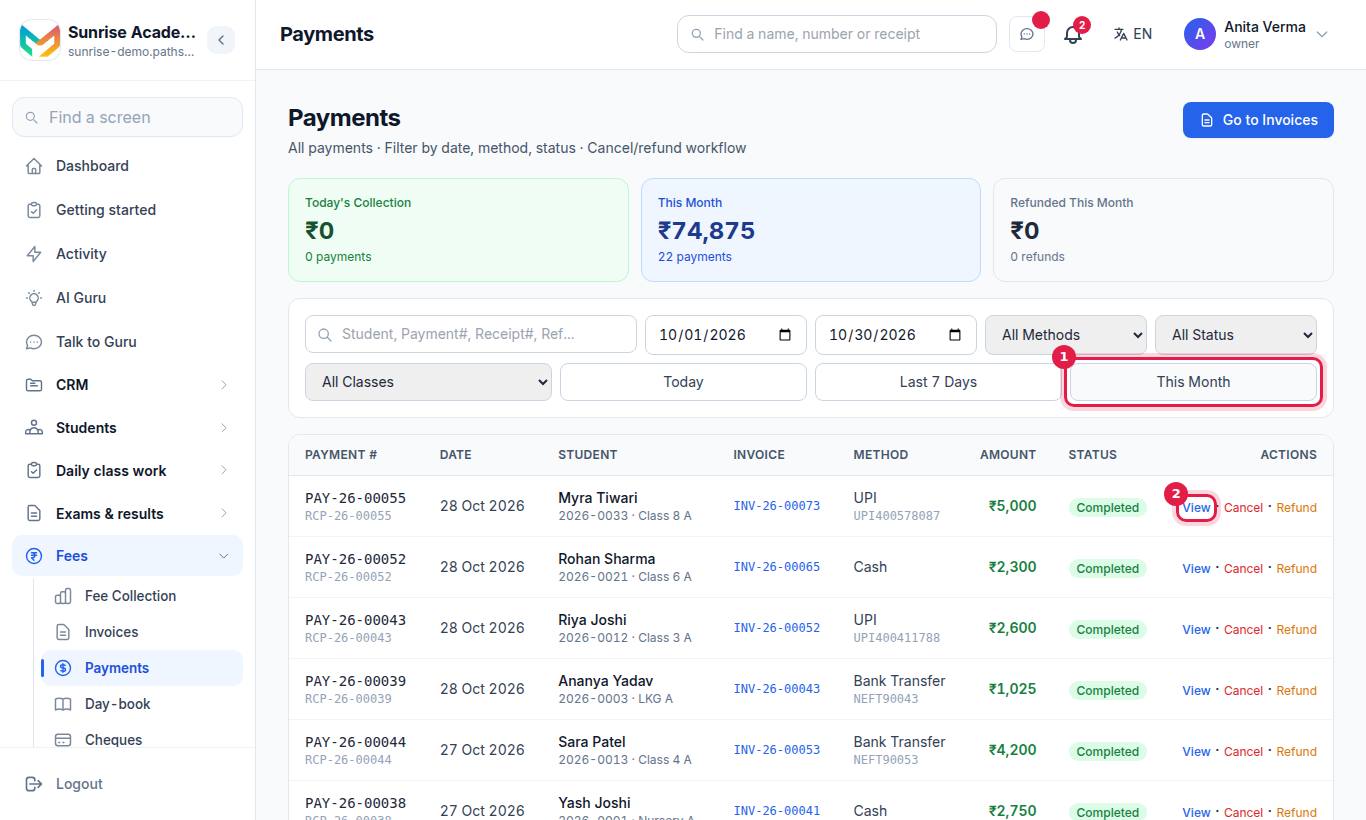
This lists every payment. At the top: Today's Collection, This Month, Refunded This Month, and Today's Collection by Method.
| Filter | Options |
|---|---|
| Search | Student, Payment#, Receipt#, reference |
| Dates | From and to, or Today, Last 7 Days, This Month |
| Method | All Methods or one |
| Status | Completed, Pending, Cancelled, Refunded, Failed, Cheque bounced |
| Class | All Classes or one |
Each row has View, and for completed payments Cancel and Refund. When a total says · kept, it is the money received minus refunds.
#Tips
- Always type the UPI or bank reference. The "Worth a look" check flags the same reference used twice.
- Record the payment on the day the money came in. A payment entered many days after the date written on it is flagged for the owner.
- Count the cash drawer against Day-book before you leave.
#Questions people ask
Can a parent pay part of the fee?
Yes. Type any amount up to the balance. The invoice shows Partial and the rest stays due. You can take more payments later against the same invoice.
Can I take more than the bill amount?
No. A payment larger than the invoice's balance is refused. Raise the next bill first, then take the payment against it.
What if I press Record Payment twice?
The money is not recorded twice. The second press is recognised and you are shown the payment that was already saved.
Can my cashier collect fees from a phone?
Yes. In the MJX Teacher app, open Fees and use Take payment. The receipt goes out the same way.
Where do I record a cheque?
Choose your Cheque method and fill in the cheque number, date and bank. The payment then enters the cheque register so you can mark it cleared or bounced.