
Bonafide, character and transfer certificates
Issue numbered bonafide, character and transfer certificates (TC) from the student record in Pathshala, with your own wording, signature and seal.
Pathshala issues bonafide, character and transfer certificates straight from the student record in a few taps. Every certificate is numbered, kept in a register forever, and can be printed again exactly as it was signed.
#Where to find it
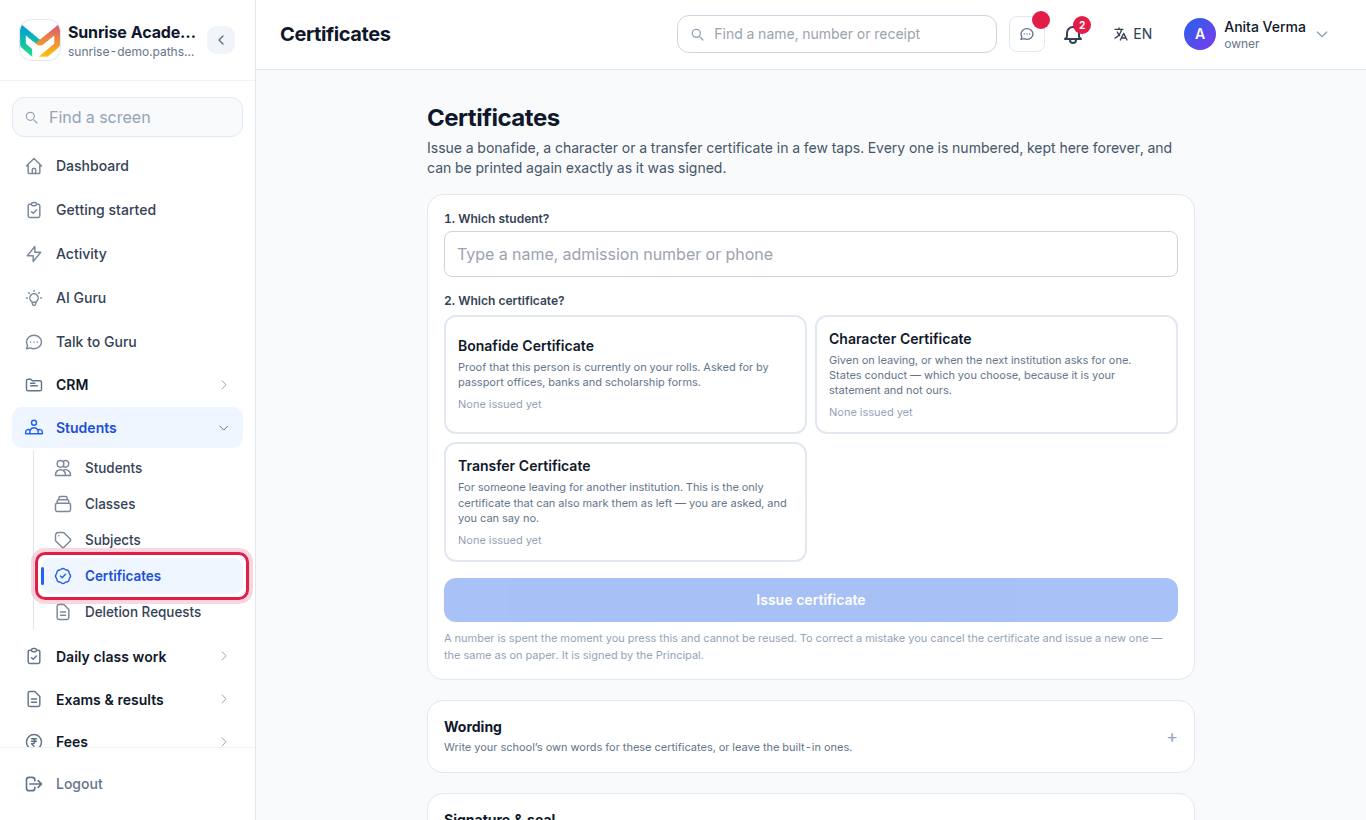
You can also press Certificates on a student's profile page. Certificates are part of MJX Academic.
#The three certificates
| Certificate | Number starts | What it is for |
|---|---|---|
| Bonafide Certificate | BON | Proof the student is currently on your rolls — for passport offices, banks and scholarship forms |
| Character Certificate | CHR | Given on leaving or when the next institution asks. States conduct, which you choose. |
| Transfer Certificate | TC | For someone leaving for another institution. The only one that can also mark them as left. |
Numbers run per type, for example BON/2026/8.
#Steps to issue a certificate
- Which student? Type a name, admission number or phone and pick them.
- Which certificate? Tap Bonafide, Character or Transfer.
- What is it for? (optional) For example "passport application". It is printed as "issued on request for the purpose of …". Leave it blank to leave that line off.
- For a character or transfer certificate, choose the Conduct: Excellent, Very Good, Good or Satisfactory.
- For a transfer certificate:
- Date of leaving — today by default; set it back if they left earlier.
- Reason for leaving (optional) — for example "relocating to another city".
- Also mark this student as left — ticked by default. Untick it to issue the paper today and take them off the roll later.
- Press Issue certificate.
#The register: issued so far
Every certificate ever issued is listed, newest first. Filter by All, by type, or Cancelled only. Each row has:
| Button | What it does |
|---|---|
| Open PDF | Opens the certificate |
| Send on WhatsApp / Send again | Sends it to the number on the student's record. There is no unsend. |
| Cancel | Cancels it with a reason |
#How to cancel a certificate
- Press Cancel on the row and write a reason (a reason is required).
- The number stays spent and the record stays in the register. The PDF is reprinted with CANCELLED across it.
- If the TC had marked the student as left, they are put back on the roll — unless their record has changed since, in which case it is left as it is.
#Sending certificates on WhatsApp
Certificates go out on your own WhatsApp number using approved templates. Under Sending on WhatsApp, press Create these on my number to submit them to Meta; approval usually takes about a day. Until then a certificate can only be sent to someone who has messaged you in the last 24 hours. Issuing and downloading work without WhatsApp.
#Your own wording
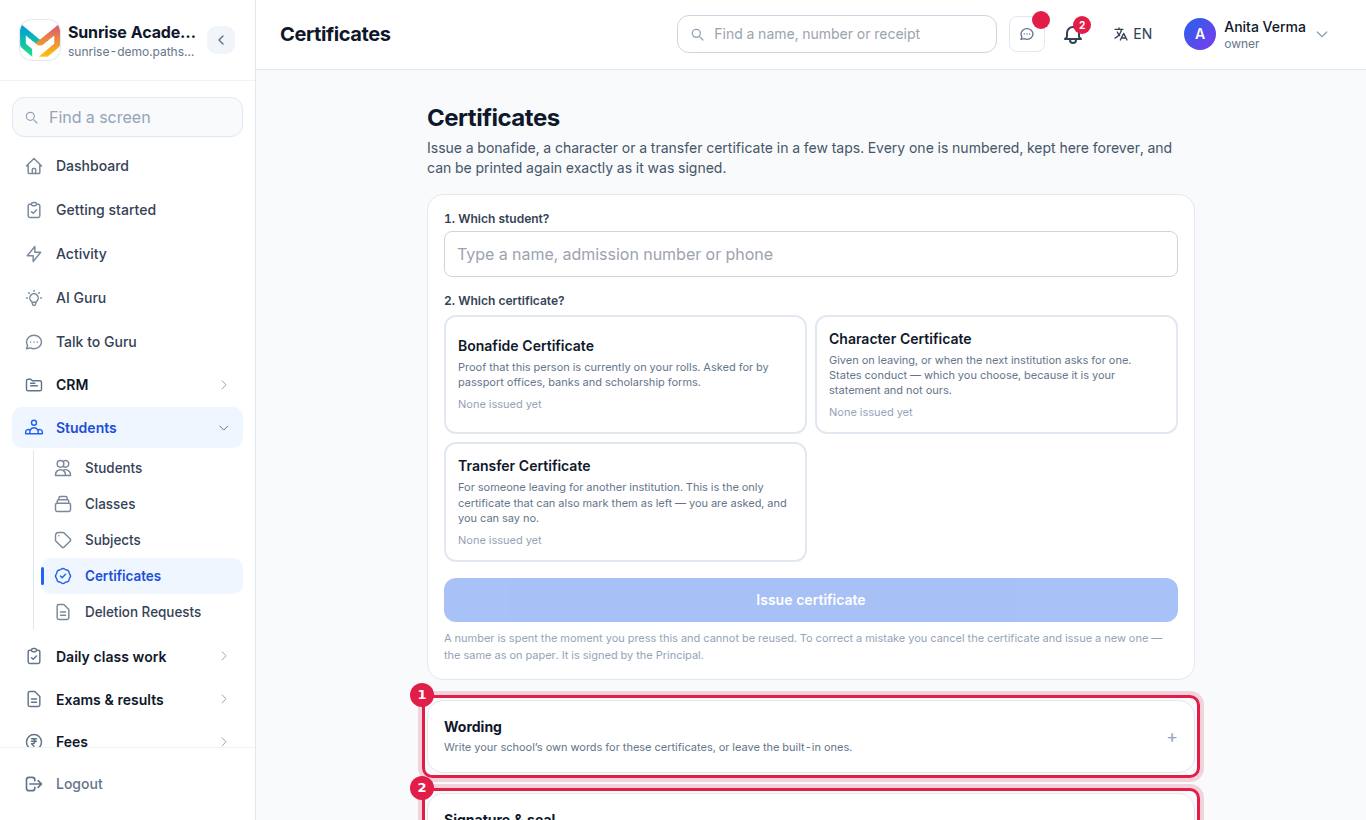
Write your institution's own words for each certificate, or keep the built-in ones.
- Open Wording and choose a certificate.
- Edit the text. Tap a field chip to insert it at the cursor, for example
{name},{parent},{class},{section},{session},{date_of_birth},{admission_number},{left_date},{conduct},{purpose},{institution},{number},{date}. - Press Preview, then Save wording. Use the built-in again goes back to Pathshala's text.
A line whose detail is not on record for that student is left off the certificate. Changing the wording changes the next certificate — never one already signed.
#Signature and seal
Upload a Signature (a scan on white) and a Seal or stamp, as PNG or JPG, up to 2 MB each. A PNG with a transparent background sits on the paper best. Press Remove to take one off. They are printed on every certificate from then on.
#Who can do what?
| Action | Default roles |
|---|---|
| See the register and open PDFs | Everyone signed in |
| Issue, cancel, send on WhatsApp | Owner, Admin |
| Change wording, signature and seal | Owner, Admin |
#Tips
- Upload the signature and seal before the first certificate; they are copied at the moment of issue.
- If a family asks again, open the old one from the register instead of issuing a new number. The screen also warns you if the student already got one recently.
- Online course completion certificates are separate and are covered in MJX Learn.
#Troubleshooting
| What you see | What to do |
|---|---|
| "You can see the register below. Issuing and cancelling is for the owner or an admin." | Ask an owner or admin to issue it. |
| "It could not be issued." | Check the student's details and try again. |
| "Nothing was issued — the network dropped. Try again." | Try again; no number was spent. |
| "No WhatsApp number is connected, so nothing can be sent from this screen." | Connect your number in WhatsApp, or hand over the PDF. |
| "The certificate templates are not approved on your WhatsApp number yet…" | Press Create these on my number and wait for approval. |
#Related
#Questions people ask
Which certificates can Pathshala issue?
The Bonafide Certificate, the Character Certificate and the Transfer Certificate (TC). Marksheets and report cards are made from exam results — see Report cards.
I made a mistake on a certificate. Can I edit it?
No, the same as on paper. Cancel it with a reason and issue a new one. The cancelled number stays in the register and its PDF is reprinted with CANCELLED across it.
If the student's details change later, does the old certificate change?
No. Every certificate keeps the details exactly as they stood on the day it was signed. Printing it again years later gives the same document.
Does issuing a TC remove the student?
Only if you tick "Also mark this student as left". They stop counting in registers, fee runs and attendance from the date of leaving. Nothing is deleted, and cancelling the TC puts it all back.
Can I send the certificate to the parent on WhatsApp?
Yes, with Send on WhatsApp on the register, once the certificate message templates are approved on your WhatsApp number.