
Syllabus tracking and lesson plans
Type each subject's chapter list once, let teachers tick chapters off to show the portion covered, and plan each lesson by day and period.
The Syllabus in Pathshala is the chapter list of each subject, per class, and how far each class has got through it. Lesson plans are what a teacher will do in one period on one day, filed by class, subject and chapter.
#Syllabus
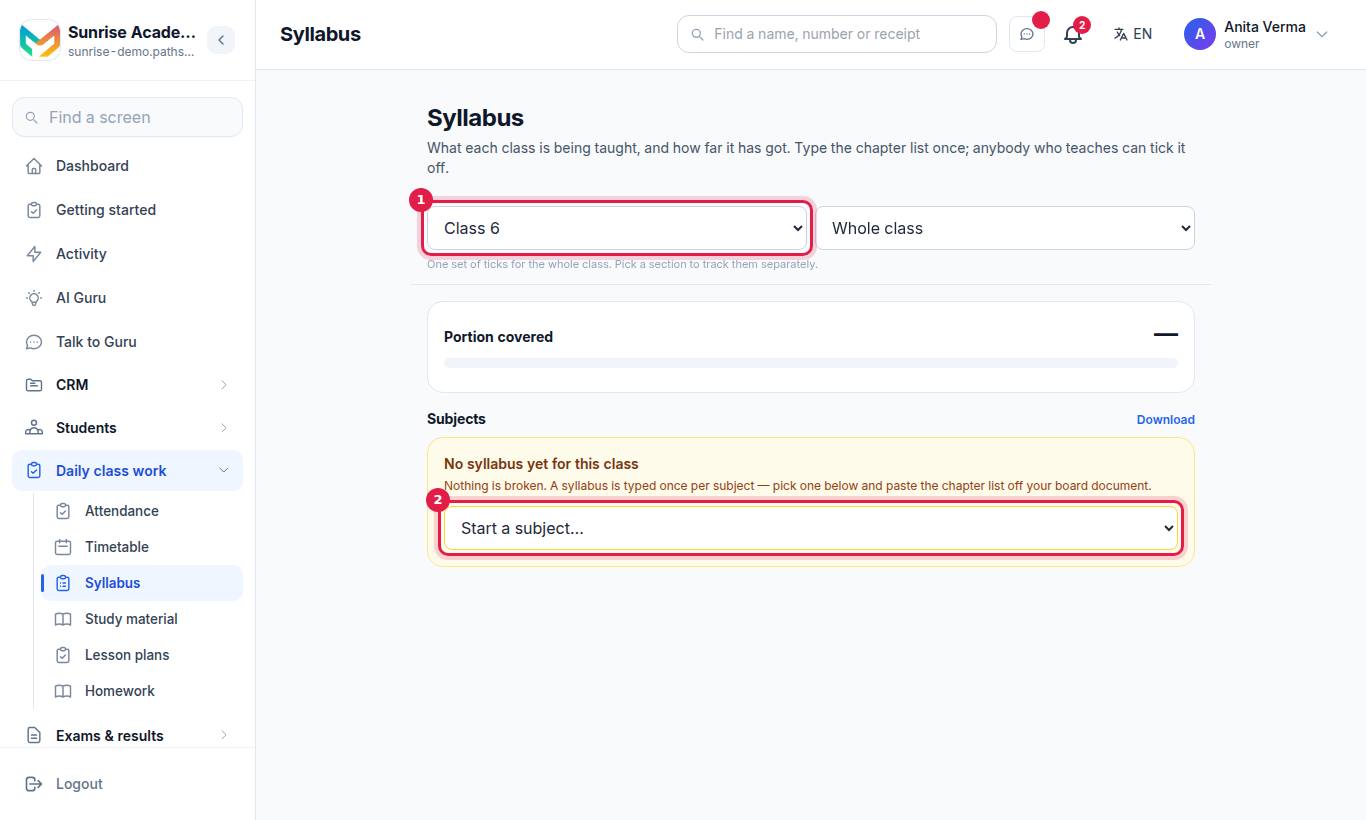
The screen shows the Portion covered for the chosen class, subject by subject. Press Download for a spreadsheet.
#How to type a syllabus
- Open Syllabus and choose the Class.
- Under Start a subject…, pick the subject.
- In Add chapters, paste the chapter list — one chapter per line (for example "Integers", "Fractions and Decimals", "Data Handling").
- Press Add.
#How to tick off a chapter
- Open the class and the subject.
- Tap the tick beside a chapter when you have finished teaching it.
The Portion covered figure updates at once. If the class has sections, ticks can be kept for one section or for the whole class.
#Who can use the syllabus?
| Task | Who |
|---|---|
| See the syllabus and portion covered | Owner, Admin, Staff |
| Tick chapters off | Owner, Admin, Staff (teachers) |
| Type, reorder, rename or delete chapters | Owner, Admin |
Plan: MJX Academic Basic and above.
#Lesson plans
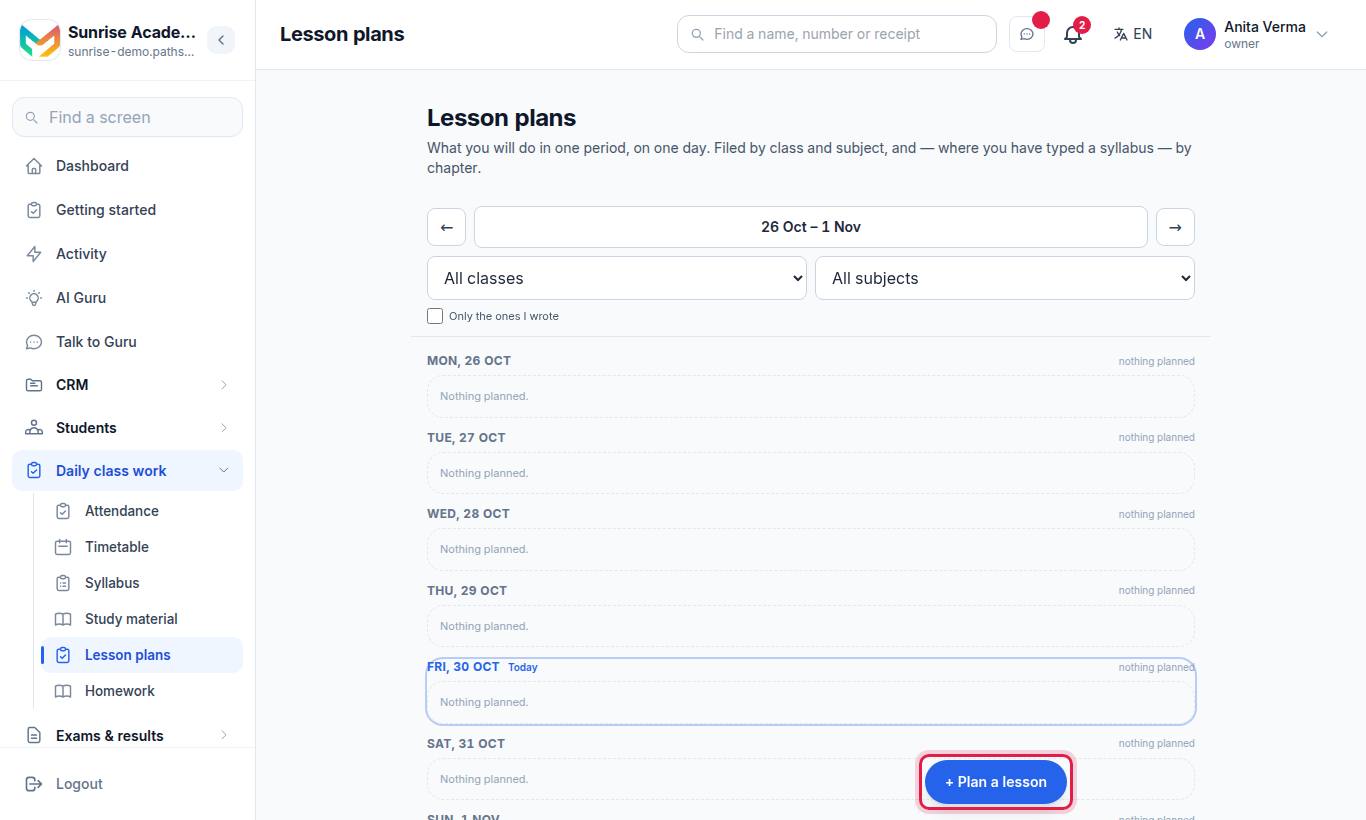
The screen shows one week at a time. Use the arrows beside This week to move back or forward, and filter by class, subject and section. Tick Only the ones I wrote to see just your own.
#How to plan a lesson
- Press + Plan a lesson.
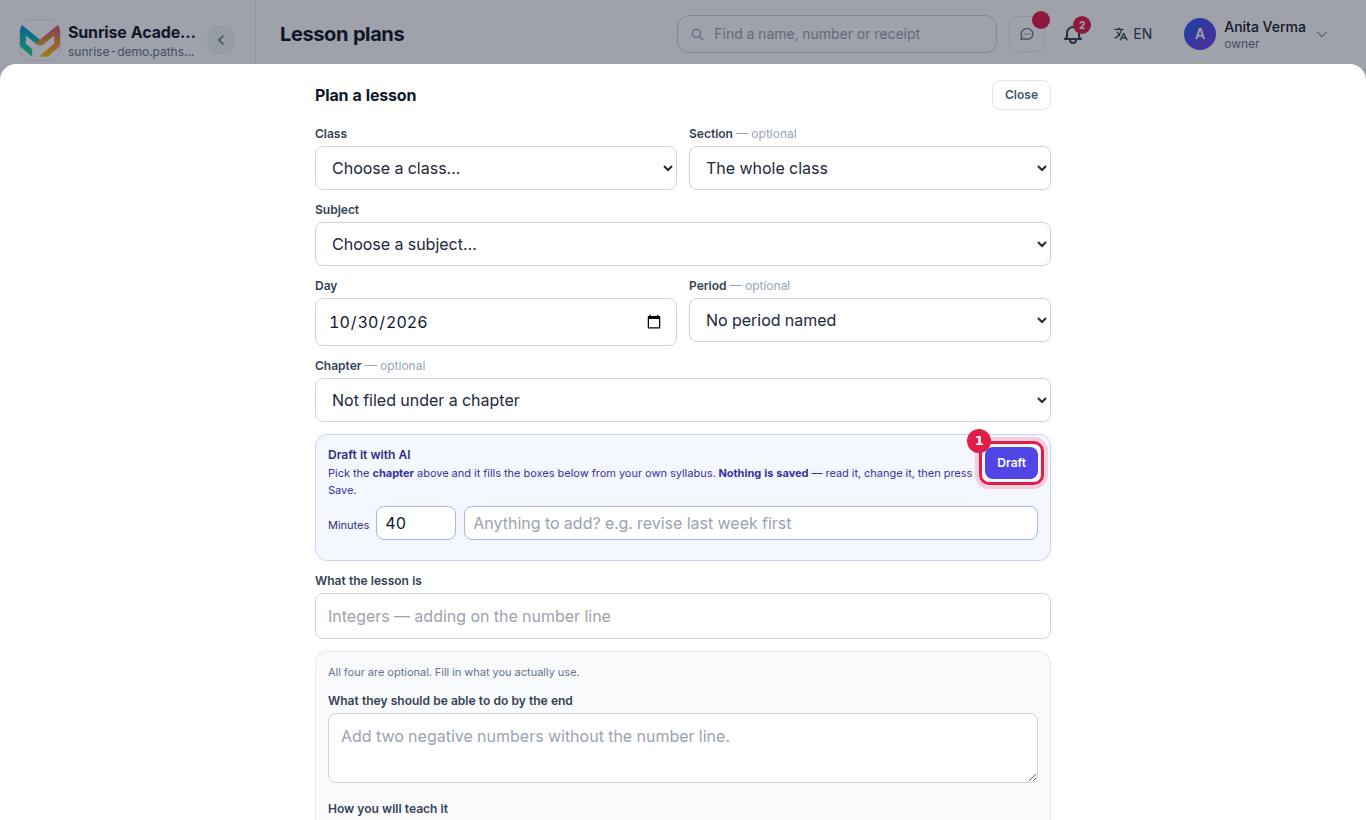
- Choose the Class, optionally the Section, and the Subject.
- Set the Day, and optionally the Period and the Chapter.
- Set the Minutes (40 by default).
- Fill in what you use — all four boxes are optional:
- What the lesson is
- What they should be able to do by the end
- How you will teach it
- What you need in the room
- Optionally note Homework you will set (a note only — it does not set homework).
- Press Save.
#After the lesson: How it went
Open the plan and set How it went:
| Status | Meaning |
|---|---|
| Planned | Not taught yet |
| Taught | Done as planned |
| Did not happen | Cancelled or missed |
#Draft a lesson plan with AI (Pro)
Pick the Chapter first, then use Draft it with AI and press Draft. It fills the boxes from your own syllabus. Nothing is saved until you press Save. Without MJX Academic Pro, you see a padlock and See Pro. See AI in academics.
#Who can use lesson plans?
| Task | Who |
|---|---|
| See lesson plans | Owner, Admin, Staff |
| Write, change, delete and mark a plan | Owner, Admin, Staff |
Plan: MJX Academic Basic and above (AI drafting is Pro).
#Tips
- Type the syllabus in the first week of the session. Homework, lesson plans, study material and the question bank can then be filed by chapter.
- Ask teachers to tick a chapter the day they finish it, so the portion covered is true before an exam.
- Use Did not happen rather than deleting a plan, so the week stays honest.
#Questions people ask
Who types the syllabus?
The owner or an admin types the chapter list once per class and subject. Teachers tick chapters off as they finish them.
Can I paste the chapter list from the board document?
Yes. Paste it into Add chapters, one chapter per line.
Does a lesson plan set homework?
No. The "Homework you will set" box is a note to yourself. Use the Homework screen to set it.
Can I see only my own lesson plans?
Yes. Tick Only the ones I wrote.
Where else is the syllabus used?
Homework, lesson plans, study material and the question bank all file by chapter from it, and the AI drafts are written from it.