
Offer letters — write, release, hold or withdraw
Write an offer letter with a salary break-up in MJX Hire, release it for online signing, put it on hold or withdraw it, and turn the new joiner into an employee.
In MJX Hire you write an offer letter on the candidate's page, release it, and the candidate reads and signs it online. The letter carries a salary break-up (Annexure A), terms of employment (Annexure B) and a joining checklist (Annexure C). After they join, one press makes them an employee.
#How to make an offer
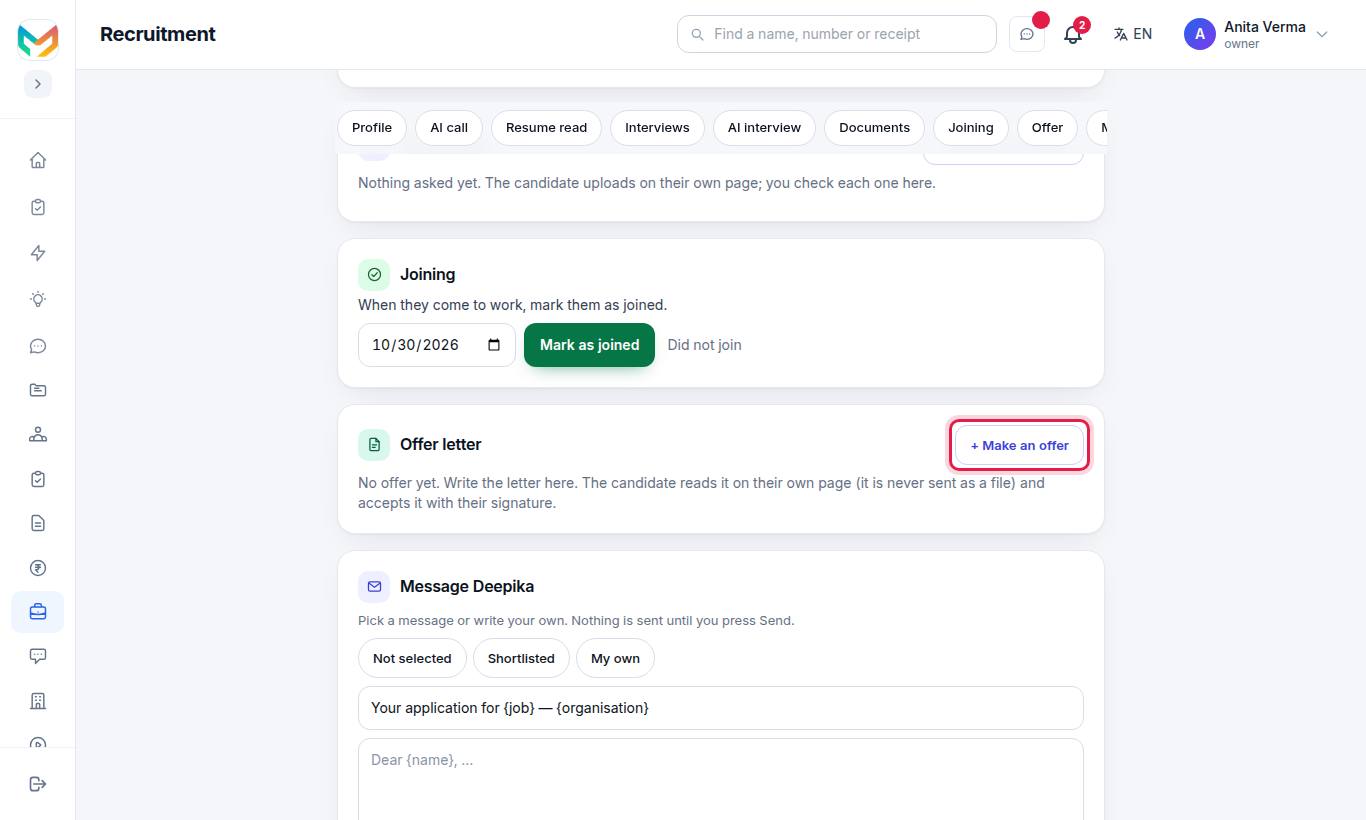
- Open the candidate and press + Make an offer under Offer letter.
- Fill in the job details: Designation (required), Department, Grade / band, Place of work, Joining date, Reports to, Probation (months), Notice (days).
- Under Their first day (optional), add the Time, Where and Whom to meet. They show in a box on the letter.
- Type the CTC — total cost to company, rupees a year.
- Build the Salary break-up — shown as Annexure A (see below).
- Set the Last date to accept (required).
- Fill Signed by (name) and Their designation.
- Check the Wording and the annexures.
- Press Save draft.
#The salary break-up
Choose Work it out by law or Type my own lines.
With Work it out by law you set:
| Setting | What it does |
|---|---|
| Basic — % of fixed pay | Basic salary as a share of fixed pay. |
| HRA — % of Basic | HRA is usually 40% of Basic (50% in Delhi, Mumbai, Kolkata, Chennai). |
| Provident fund | 12% of Basic, 12% of ₹15,000 (capped) or No PF. |
| Variable pay (₹ a year) | Any variable pay. |
| Insurance / other benefits (₹ a year) | Cost of benefits. |
| Other fixed allowances | e.g. Conveyance, Medical; they come out of the special allowance. Press + Add an allowance. |
| Flexible benefit plan | e.g. LTA, meal card: the most a year they may take out of the special allowance. Press + Add a flexible benefit. |
It also adds, where the law applies: Gratuity — 4.81% of Basic, Statutory bonus 8.33% when Basic is within ₹21,000 a month, and ESI 3.25% when gross pay is within ₹21,000 a month. The special allowance takes whatever is left, so the lines always add up to the CTC.
Press Fill a common split for Basic 40% · House rent allowance 20% · Special allowance (the rest). You can change every number after.
Insurance and other benefits — one per line (a cover, not a rupee line), for example "Group health insurance — ₹3,00,000 a year for you and your family".
#Signature and seal
The saved signature and seal come from Settings › Signature & seal (owner or admin uploads them). Tick to use them only if the person signing is the one whose signature is saved.
#Wording and annexures
- Wording — start from Standard offer (built in) or your own template, and press Use.
- Tap a field to put it where the cursor is. Fields include
{{candidate_name}},{{first_name}},{{designation}},{{joining_date}},{{ctc}},{{ctc_in_words}},{{reporting_to}},{{probation_months}},{{notice_period}},{{offer_expiry}},{{organisation}}and more. - Annexure B — terms and conditions of employment — standard terms written for Indian employment law. Have your lawyer or CA read them once. Start a clause with "3. Heading." to print the heading in bold. Leave it empty for no Annexure B.
- Annexure C — documents to bring when they join — one per line. Leave it empty for no Annexure C.
- Save this wording (letter + Annexure B) as a template… keeps it for next time, for example "Teacher offer".
#Leave the MJX mark off (Pro)
"Issued with MJX HR" is printed at the foot of every page. On MJX Hire Pro, tick Leave "Issued with MJX HR" off this letter — for that letter only. On other plans it shows "🔒 It is printed at the foot of every page."
#How to release an offer
- On the draft, press Preview and read it.
- Press Release to (name) and confirm.
The letter is frozen and emailed to the candidate. It shows on their page only while their stage is Offer.
#Offer statuses
| Status | What it means |
|---|---|
| Draft | Only your team sees it. You can edit or Delete draft. |
| Released | Frozen and sent. Waiting for the candidate. |
| Viewed | The candidate opened it. |
| Accepted | Signed by the candidate. Open ✍️ Signed copy. |
| Declined | The candidate declined, with their reason if given. |
| On hold | Paused by you. The candidate cannot open or sign it. |
| Withdrawn | Taken back by you. Not shown to the candidate. |
| Lapsed | Not answered by the last date to accept. |
#How to put an offer on hold
Press Put on hold and add a note for your team (optional). The candidate is not emailed; while the stage is Offer their page says the offer is on hold and they cannot open or sign it. Press Take off hold to make it live again.
#How to withdraw an offer
Press Withdraw offer and say why (only your team sees this). The candidate is not emailed and the offer simply leaves their page. To offer again you write a new letter. To only pause the offer, use Put on hold instead.
#The Offers list
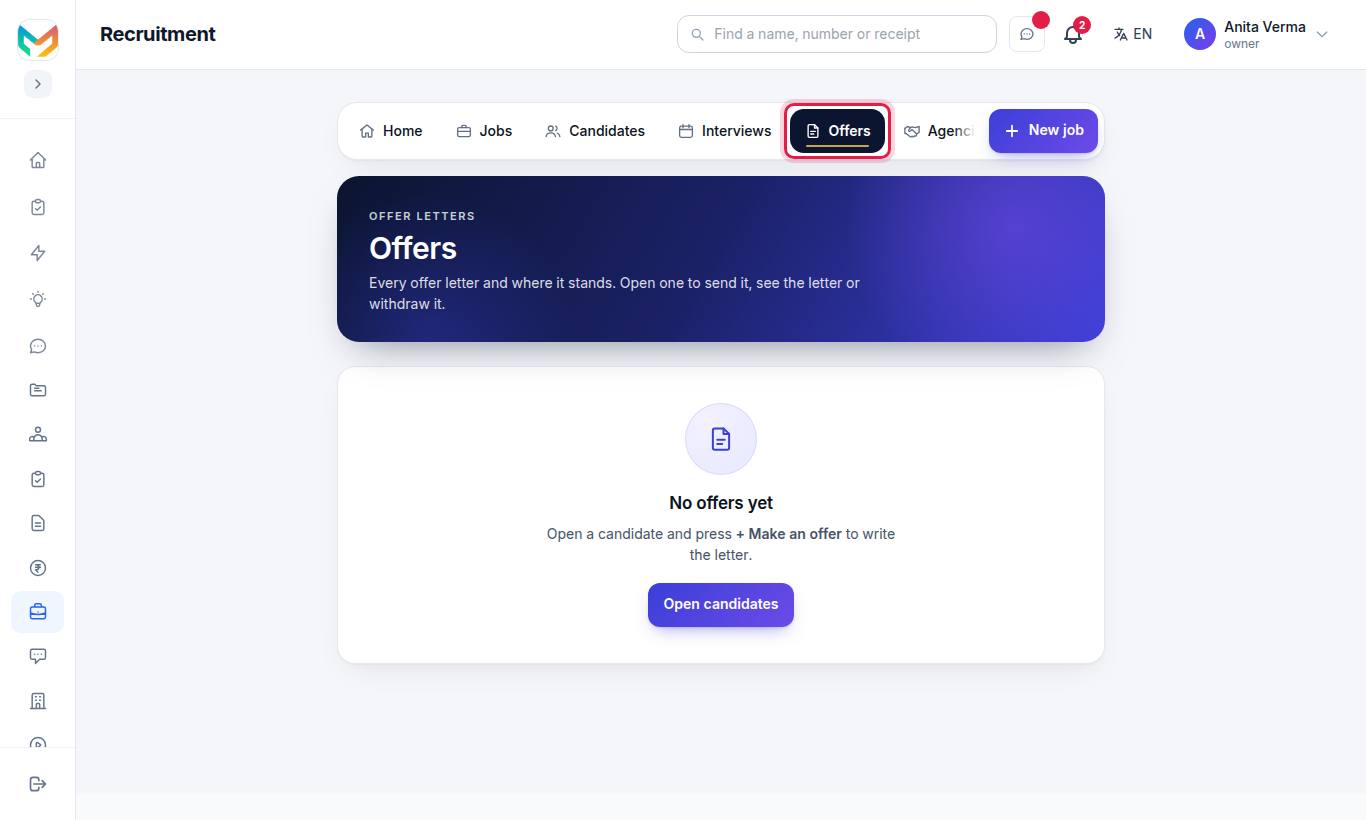
Every offer letter and where it stands. Open one to send it, see the letter or withdraw it.
#After the offer: joining
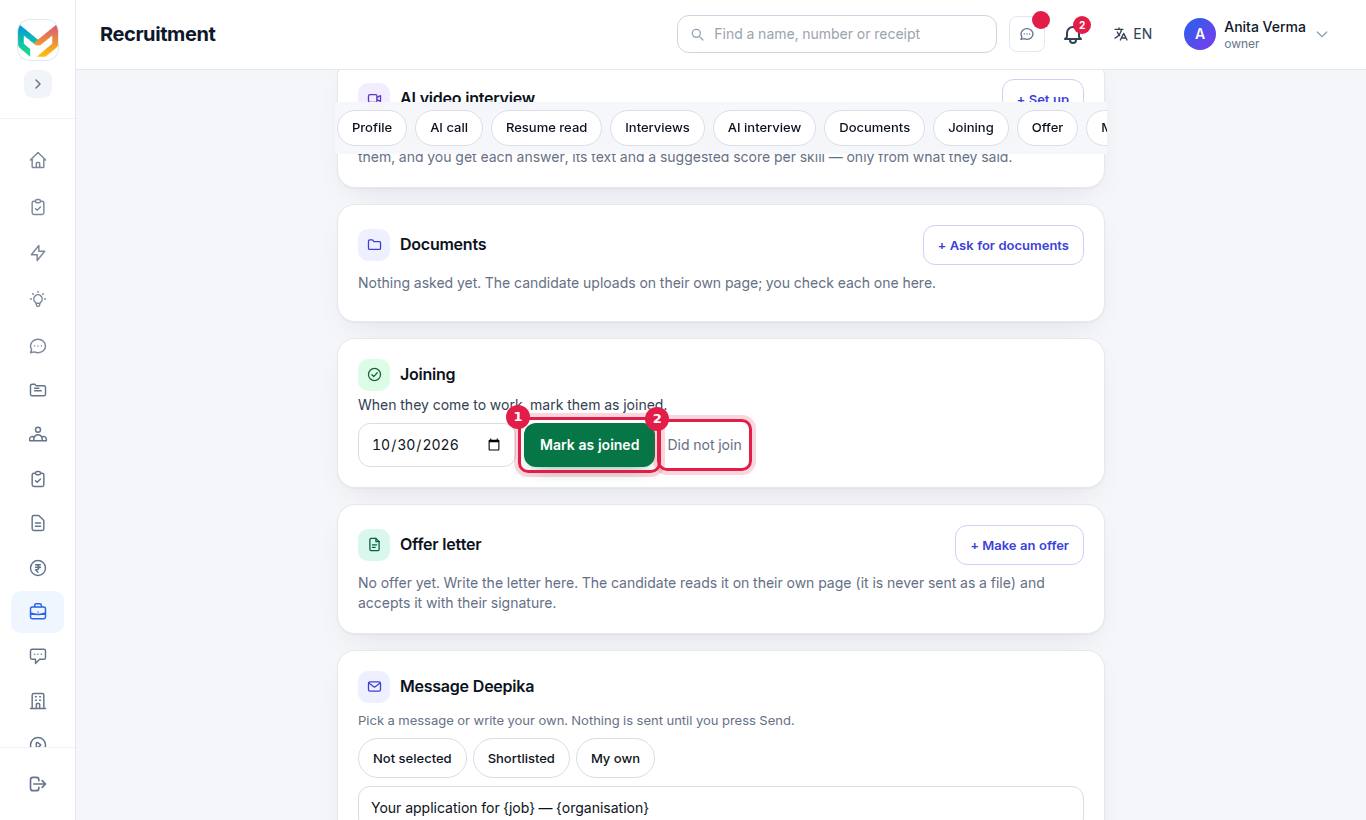
- When the person joins, press Mark as joined and pick the day they joined. If they did not, press Did not join (the reason is for your team only).
- Press Make (name) an employee. Fill Name (required), Mobile (their login) (required), Email, What they may do (Staff — daily work, no settings; or Admin — everything day to day), Designation and Staff ID (optional).
- Press Make employee.
A password is made for them and shown to you once — press Copy the password. They change it the first time they sign in. Their checked documents stay encrypted in MJX Hire and the staff record links to them. See MJX People.
#Who can use this?
- Plan: MJX Hire Basic and Pro ("Interviews, offers and candidate email"). Leaving the MJX mark off is Pro.
- Roles: Owner, Admin (where roles were never set up) and the HR role. Only an owner can make somebody an admin.
#Questions people ask
Can I change an offer letter after I release it?
No. Releasing freezes the letter. To change it, withdraw it and make a new one. To only pause it, use Put on hold.
Is the candidate told when I withdraw an offer?
No. The candidate is not emailed; the offer simply leaves their page. Tell them yourself if you need to.
How does the candidate sign?
On their own page they read the letter, type their full name, draw a signature, and confirm with a 6-digit code sent by email or WhatsApp. You get a signed copy.
Can the candidate download the letter as a PDF?
No. They read it as page pictures with their name printed across every page. You can open the letter and the signed copy as PDFs.
Can I remove "Issued with MJX HR" from the letter?
Yes, on MJX Hire Pro. Tick "Leave 'Issued with MJX HR' off this letter" on each letter.