
Grow course sales — Grow dashboard, analytics, abandoned checkouts and referrals
See where visitors come from, who asked for a demo, who paid and who left at checkout; share tracked links and posters, nudge learners on WhatsApp, and grow with affiliates and refer-a-friend in MJX Learn.
MJX Learn shows you how your course pages are doing — visits, Buy presses and sales — and who to follow up with. On the Pro plan it adds WhatsApp nudges, an affiliate record and refer-a-friend rewards. Everything is counted from your own records; nothing is guessed.
#Start with the Grow page
The Grow page is the first place to look: total visitors, new enquiries, demo bookings and paid admissions against the period before, Where students come from (Google, WhatsApp, Instagram, Facebook, YouTube, Marketplace, Referral, Poster QR, Direct, Other), conversion, enrolments and page views over time, and views by tracked link. It also has Tracked links for every channel, the Share kit (posters with a QR code and AI-written post texts) and Demo bookings you move from New to Enrolled. See Growth Studio.
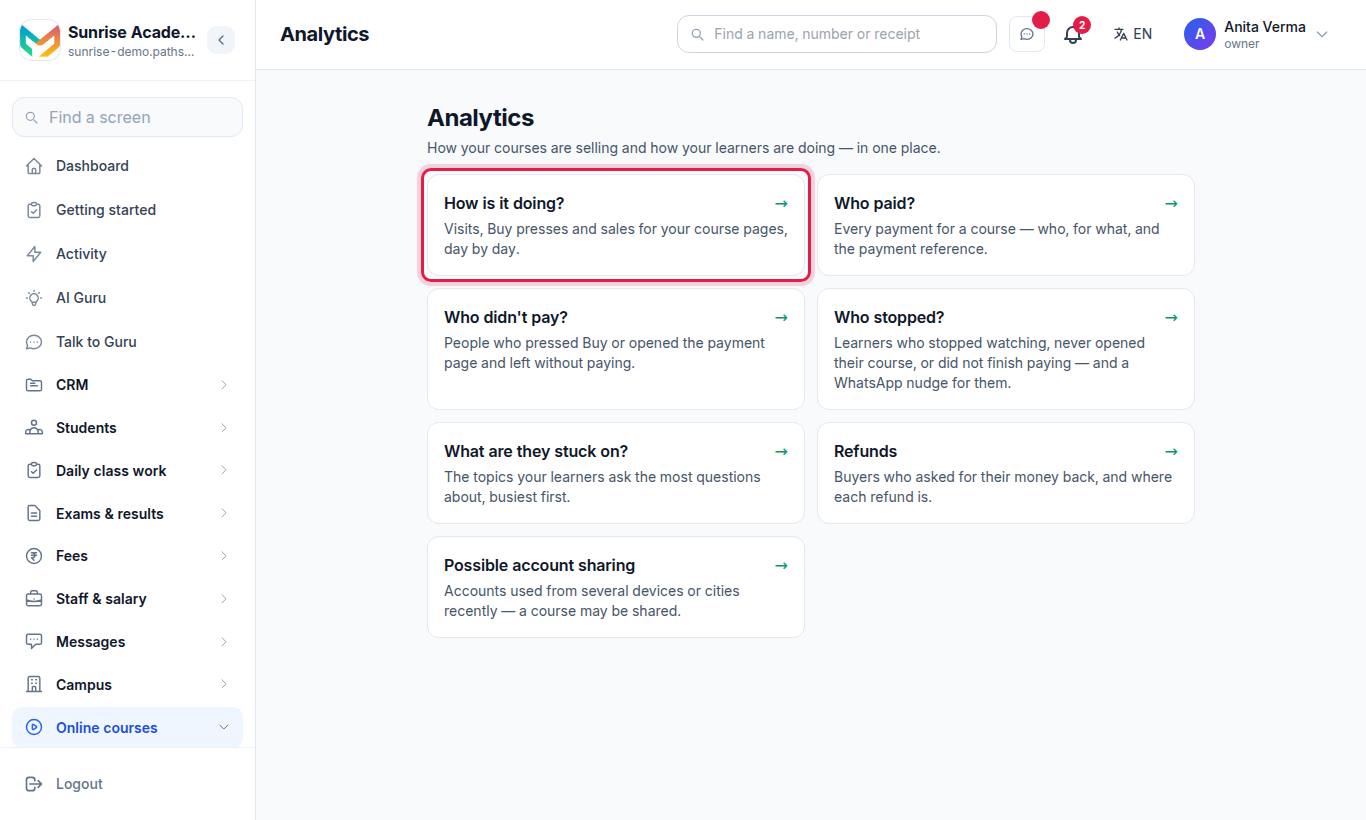
For owners and admins, the top of Analytics is your dashboard: Money, Learners (all time) and Sales for the last 30 days, Not paid — who to chase, Course performance, Today (live classes today, unanswered doubts, new learners today, stopped at checkout today) and Where my learners are from (By city / By country, counted from each learner's most recent sign-in). Every figure is a card you can tap:
| Card | Opens |
|---|---|
| Money, Sales | Who paid? |
| Learners, new learners today | The LMS Buyers tab (Students › LMS Buyers) |
| Not paid, stopped at checkout today | Who didn't pay? |
| Course performance | How is it doing? |
| live classes today | Courses — open a course with Videos & access to see its live classes |
| unanswered doubts | Doubts |
| Where my learners are from | Grow, when your plan has it |
Below it, under Reports, the page gathers every "how is it doing" screen as cards. Each card appears only for people allowed to open it.
| Card | What it shows | Who sees it |
|---|---|---|
| How is it doing? | Visits, Buy presses and sales for your course pages, day by day. | Everyone with MJX LMS |
| Who paid? | Every payment for a course — who, for what, and the payment reference. | Everyone |
| Who didn't pay? | People who pressed Buy or opened the payment page and left without paying. | Everyone |
| Who stopped? | Learners who stopped watching, never opened their course, or did not finish paying — with a WhatsApp nudge. | Owner, Admin |
| What are they stuck on? | The topics learners ask the AI about most. See Doubts. | Teachers on a course, Owner, Admin |
| Refunds | Buyers who asked for their money back. See Refunds. | Owner, Admin |
| Possible account sharing | Accounts used from several devices or cities recently. | Owner, Admin |
#The funnel: how is it doing?
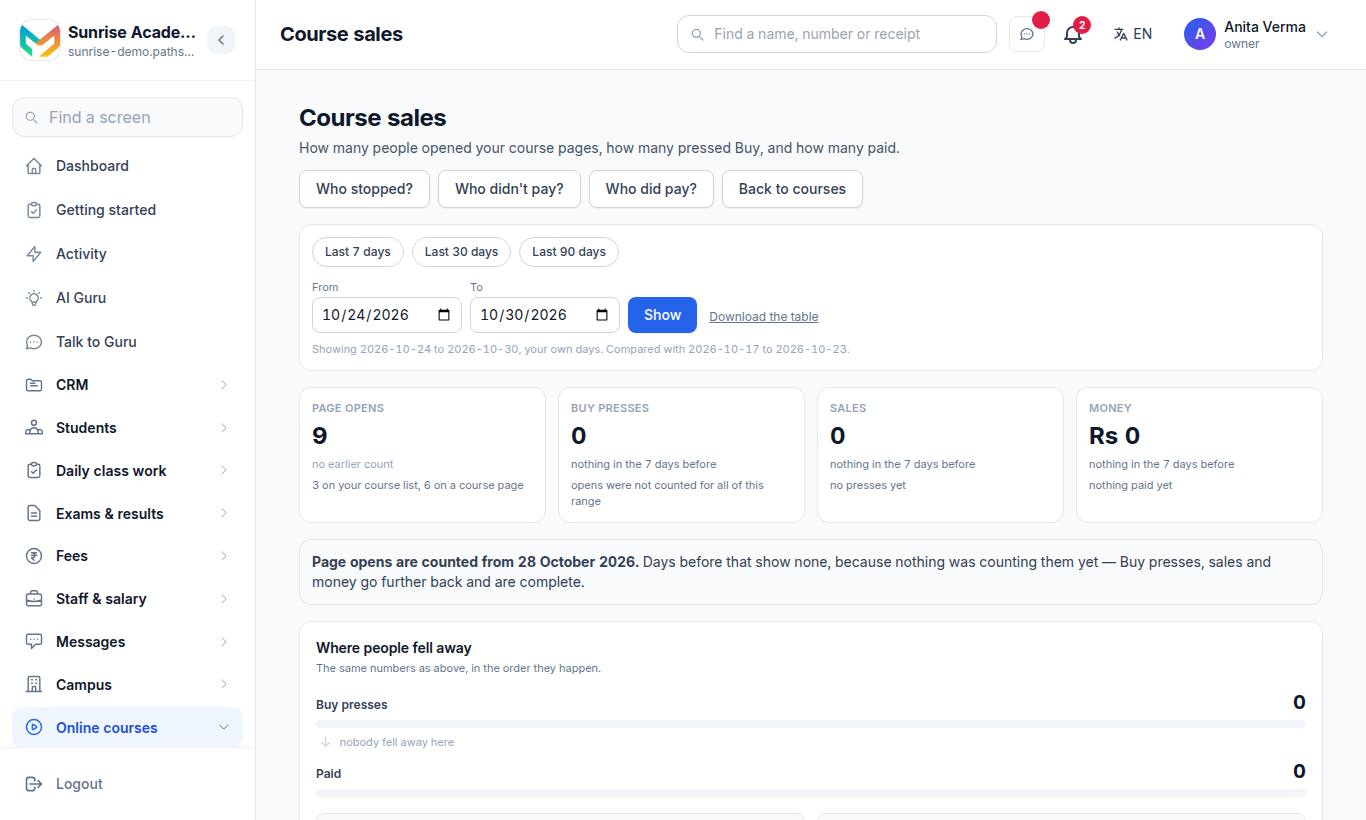
"How many people opened your course pages, how many pressed Buy, and how many paid." Choose Last 7 days, Last 30 days, Last 90 days or your own dates.
- Where people fell away — the same numbers in the order they happen.
- After the sale — whether the people who have access are using it.
- Course by course — each course's own numbers.
- What do these numbers say? — press Read the numbers for a plain-language summary.
A "Buy press" is one that reached a payment page. This is your public shop window only; course fees billed to students on your roll are on the Fees dashboard.
#How to follow up abandoned checkouts
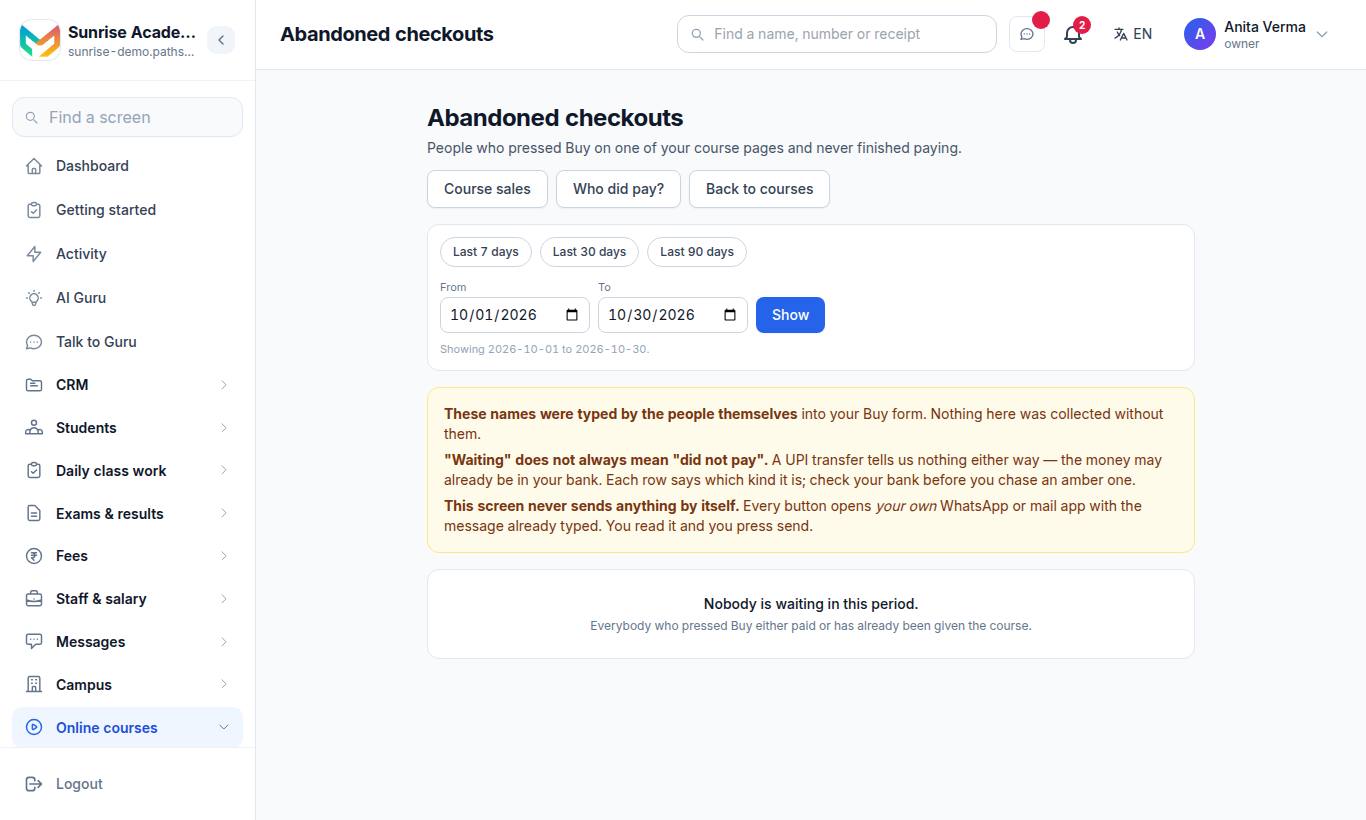
The Abandoned checkouts page lists "People who pressed Buy on one of your course pages and never finished paying." The names were typed by the people themselves. A checkout started in your WhatsApp chat carries a WhatsApp tag — see Sell courses on WhatsApp.
This screen never sends anything by itself. Every button opens your own WhatsApp or mail app with the message ready, so you decide what goes.
A UPI or bank-transfer row reads Check your bank — nothing tells us whether that money arrived. When it has, an owner or admin opens the row and presses Confirm payment received (with the amount received and, if you have it, the UTR / reference). The course opens and the learner gets their course link, the same as an online payment. 📷 Screenshot received shows when the learner sent a picture in your WhatsApp chat. This is not offered while MJX collects your course sales — those payments confirm themselves.
#How to send nudges
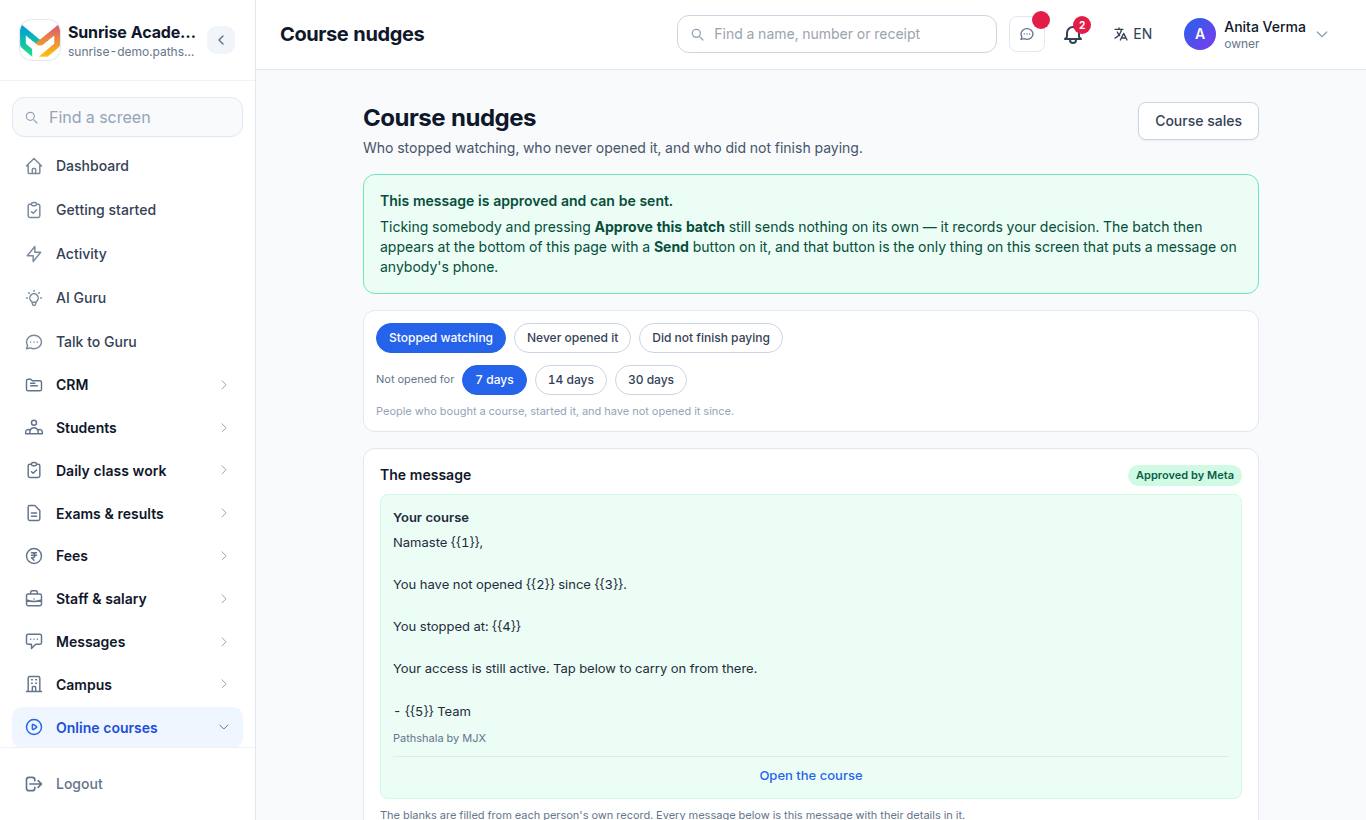
The Course nudges page has three lists:
- Stopped watching
- Never opened it — not one topic opened
- Did not finish paying
Pick 7 days, 14 days or 30 days.
#Steps to send a nudge batch
- Choose a list and a time window.
- Tick the people to message, or press Tick everyone.
- Press Approve this batch. Approving records your decision and sends nothing.
- The batch appears under Batches you have approved with a Send button. Press it to send the WhatsApp messages.
People who cannot be messaged are shown greyed out with the reason — somebody who asked you to stop messaging them, somebody with no number on their record, or somebody already in a batch in the last fortnight. Nobody is pointed at a course that is switched off or not on sale.
#Affiliates and teacher shares
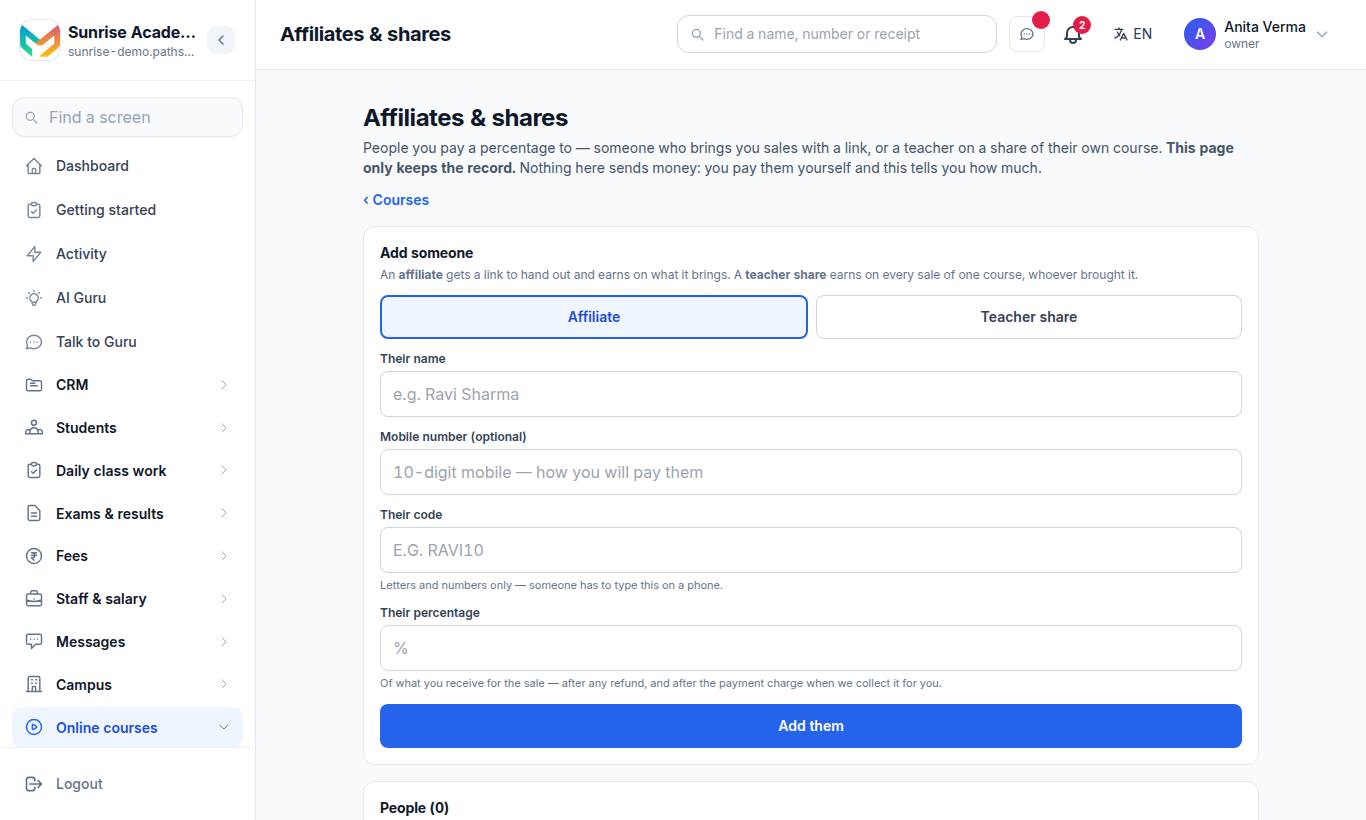
"This page only keeps the record. Nothing here sends money."
- An affiliate gets a link to hand out and earns on what it brings.
- A teacher share earns on every sale of one course, whoever brought it.
#Steps to add someone
- Under Add someone, choose Affiliate or Teacher share.
- Fill Their name, Mobile number (optional), Their code, Which course and Their percentage.
- Press Add them.
Each person's earnings are listed. When you pay them, press I have paid them. If you paid more than they earned, the page says so and it comes off what they earn next. Each affiliate gets a link of their own to share, and a page to check their earnings.
#Refer a friend
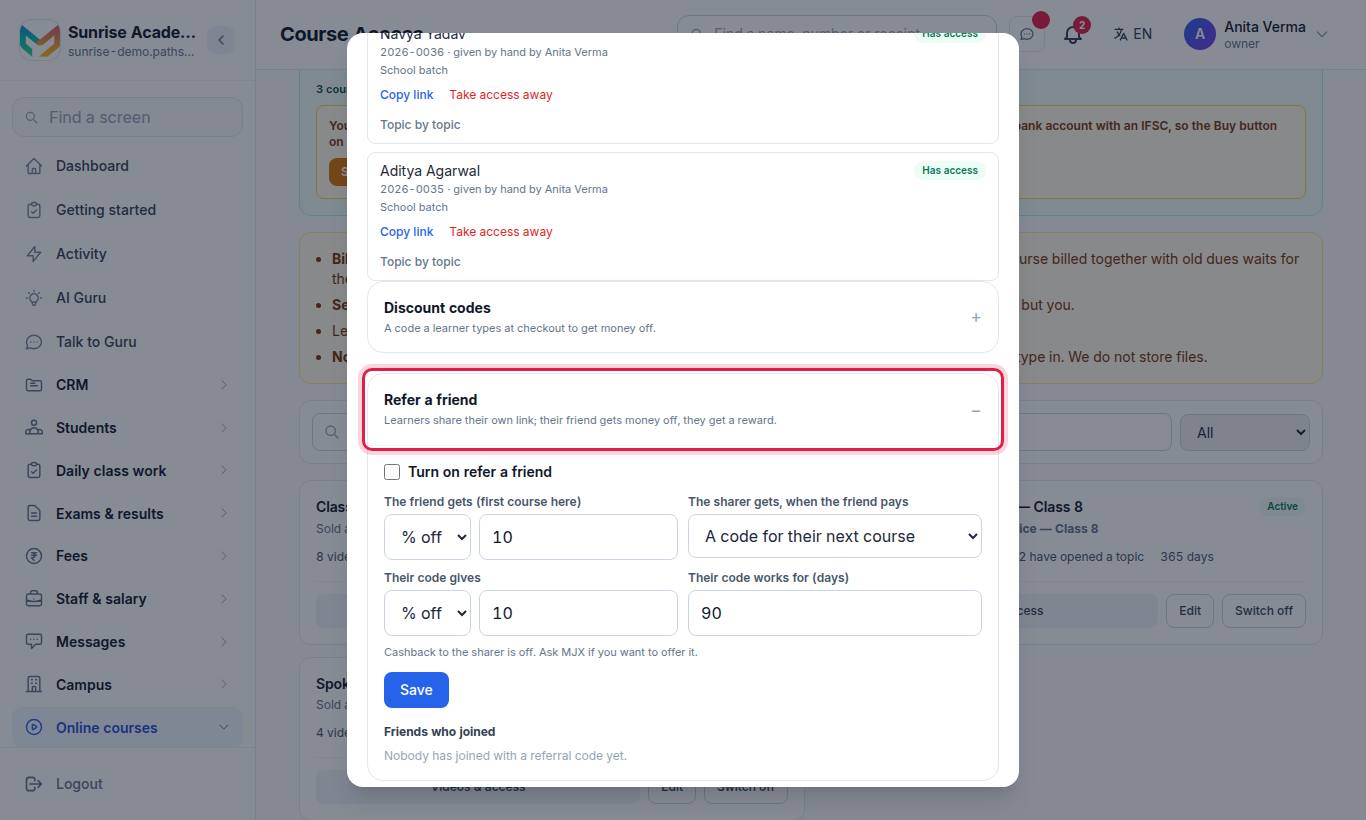
"Learners share their own link; their friend gets money off, they get a reward."
- Tick Turn on refer a friend.
- Set The friend gets (first course here) — % off or ₹ off.
- Choose The sharer gets, when the friend pays:
- A code for their next course — set Their code gives and Their code works for (days); or
- Cashback you pay them — set Cashback (₹).
- Press Save.
Friends who joined lists every referral. For cashback, the total you owe is shown ("₹… cashback to pay"); mark each one paid when you have paid it.
Learners find Refer a friend — Share your link — you both get something in the app's Profile tab, with Copy link and Share. A friend who opens the link sees "Your friend's code" on your course store, applied when they pay.
#Search and notifications
- Search (the magnifier on the Courses page,
/fees/courses/search): one box across your students, courses, payments, transactions and enquiries — by name, phone, course or payment reference. Owner and admin. - Notifications (the bell on the Courses page): sales, new joiners, questions and failed payments. Owner and admin.
#Who can use this?
| Feature | Plan |
|---|---|
| Analytics page, Who paid?, Possible account sharing, Search, Notifications | Every plan |
| Grow page, tracked links, demo bookings | Basic and above — "Grow dashboard and tracked links" |
| Posters and AI post texts (Share kit) | Pro — "Share kit: posters and AI post texts" |
| How is it doing? (funnel), Who didn't pay?, Who stopped? (nudges), Affiliates & shares, Refer a friend | Pro — "Affiliates, referrals and abandoned-cart nudges" |
A locked row or card shows a padlock: Not in your plan. See Plans and billing.
#Questions people ask
How do I confirm a UPI or bank transfer payment for a course?
On Abandoned checkouts, open the row, check your bank, then press "Confirm payment received". The course opens and the learner is sent their course link. Owner or admin only.
Does MJX Learn message people automatically when they leave at checkout?
No. The abandoned checkouts screen never sends anything by itself; each button opens your own WhatsApp or mail app with the message ready. Nudges are sent only after you approve a batch and press Send.
Are the funnel numbers estimates?
No. Every number is counted from your own records — page opens, Buy presses that reached a payment page, and payments. Nothing is predicted by a model.
Does the affiliates page pay affiliates for me?
No. It only keeps the record of what each person earned and what you paid them. You pay them yourself and press "I have paid them".
Which plan do I need?
The Grow page (visitors, sources, demo bookings, tracked links) needs MJX LMS Basic or above; posters and AI post texts need Pro. The funnel, abandoned checkouts, nudges, affiliates and refer-a-friend need MJX LMS Pro (the "Affiliates, referrals and abandoned-cart nudges" feature). Who paid? and Possible account sharing work on every plan.