
Interviews, AI video interviews and AI screening calls
Schedule interview rounds with feedback in MJX Hire, send an AI video interview, and let an AI assistant phone candidates for the first screening.
MJX Hire gives you three ways to talk to candidates: interview rounds with your own team, an AI video interview the candidate takes on camera, and an AI screening call that phones the candidate and asks the first questions. All results land on the candidate's page. The AI never rejects anybody.
#How to schedule an interview
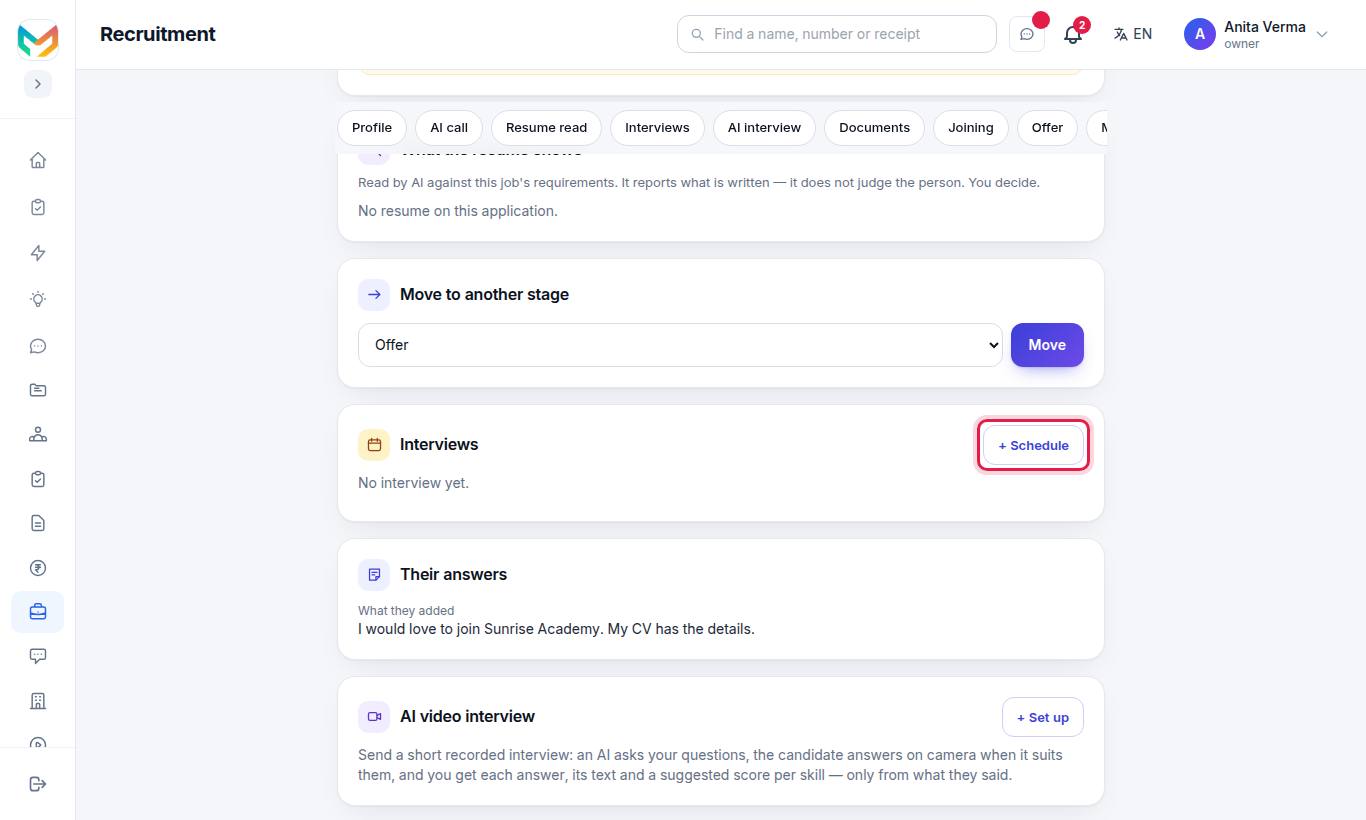
- Open the candidate and press + Schedule under Interviews.
- Name the round, for example "Teaching demo / HR round".
- Choose the date, time and length (15, 30, 45, 60 or 90 min).
- Choose how it happens (see the table).
- Pick the Interviewers from your staff.
- Add a Note for the candidate (optional) — for example "bring your certificates".
- Keep Email the invite (with a calendar file) to the candidate and interviewers ticked.
- Press Schedule.
| How | What happens |
|---|---|
| In person | Type the address or room. |
| Phone call | The team calls the candidate on their number. |
| Google Meet | A Google Meet link is made for you (your Google account if connected in Settings › Setup, else MJX's). |
| Zoom | A Zoom meeting is made for you (your Zoom if connected in Settings › Setup, else MJX's). |
| Microsoft Teams | When Teams is connected, leave the link empty to have the room made for you, or paste a link. |
| Video link | Paste any video-call link (it must start with https://). |
#Change, finish or cancel an interview
On the interview, press:
- Change — a new time or mode.
- Mark done — after it happened.
- Did not come — the candidate did not attend.
- Cancel — you are asked why (only your team sees this).
An interview can be scheduled only while the application is open. If it is closed you see "This application is closed — open it again before scheduling an interview."
#How interviewers give feedback
Each interviewer opens the candidate (from the invite, or My interviews) and fills:
- A verdict: Strong yes, Yes, Maybe or No.
- Rating (optional): 5 — Excellent, 4 — Good, 3 — OK, 2 — Below the bar, 1 — Poor.
- Notes: "What they said and did — strengths, gaps, anything the team should know".
Then press Save feedback. Everyone's feedback shows on the interview.
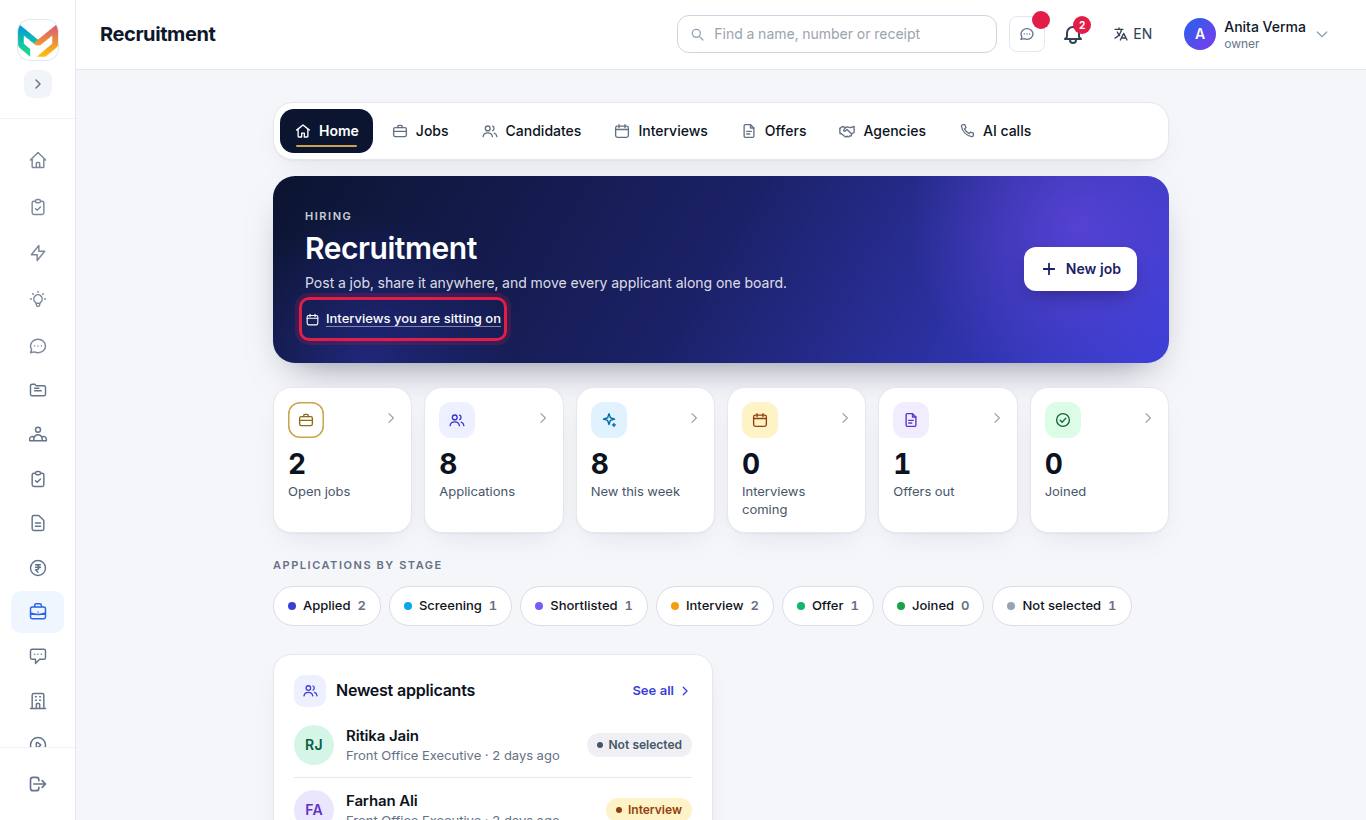
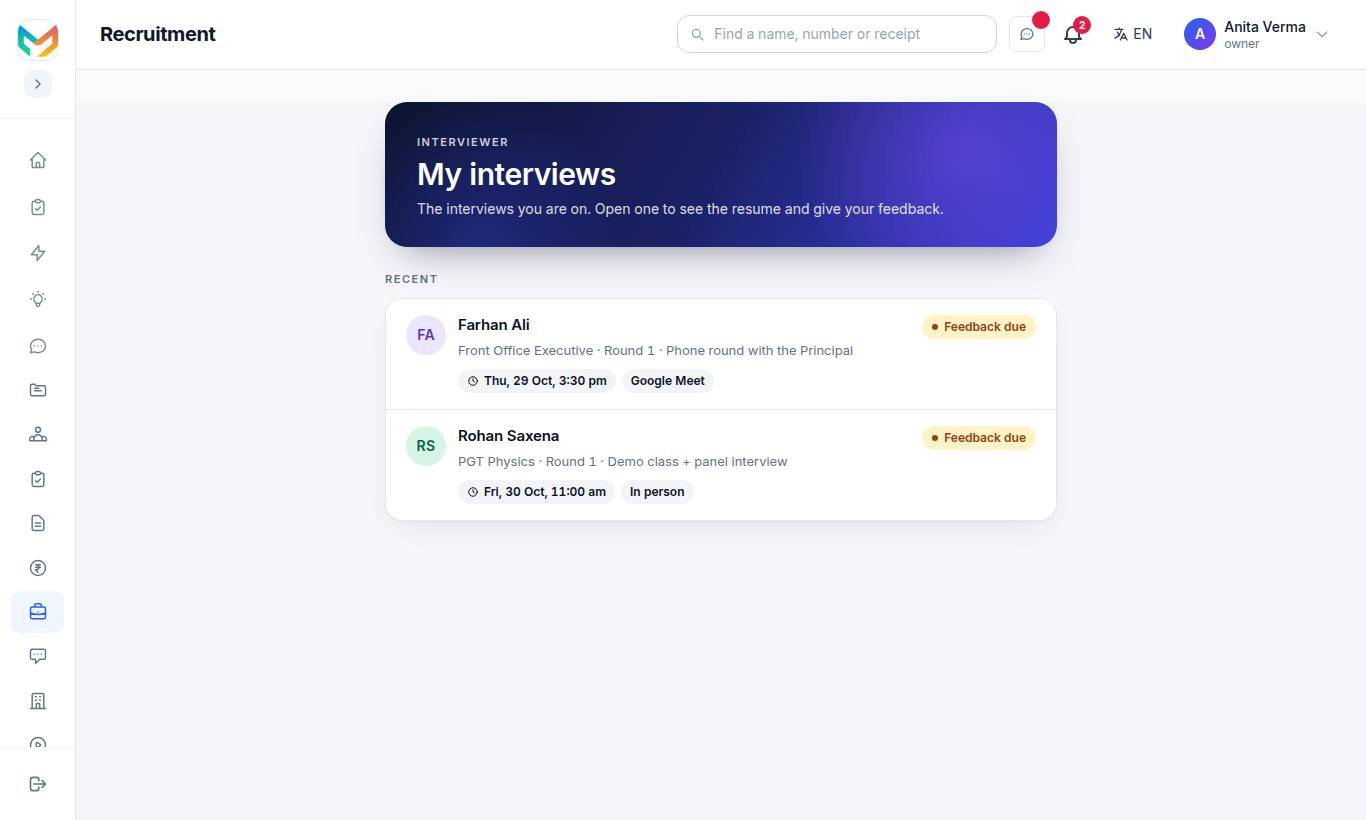
My interviews lists the interviews you are on, split into Feedback due and Feedback given. Any staff member who is added to an interview can open it, even without the HR role — they see only their own candidates.
#The Interviews list
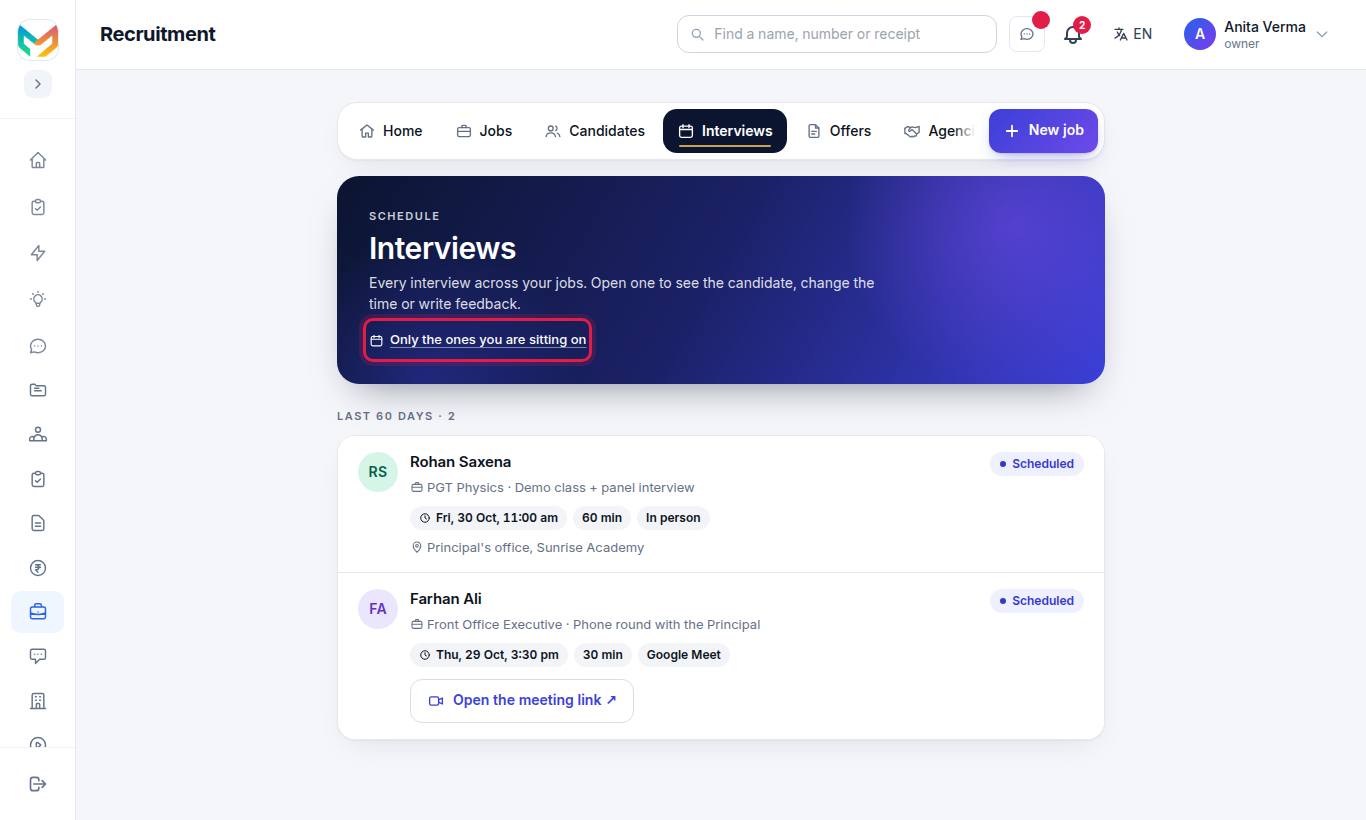
Every interview across your jobs, grouped by day. Tick Only the ones you are sitting on to see just yours.
#AI video interview (Pro)
The candidate answers your questions on camera when it suits them. Their spoken words are turned into text and the AI suggests a score for each skill, with quotes. Your team watches, reads and can change every score.
#How to send an AI video interview
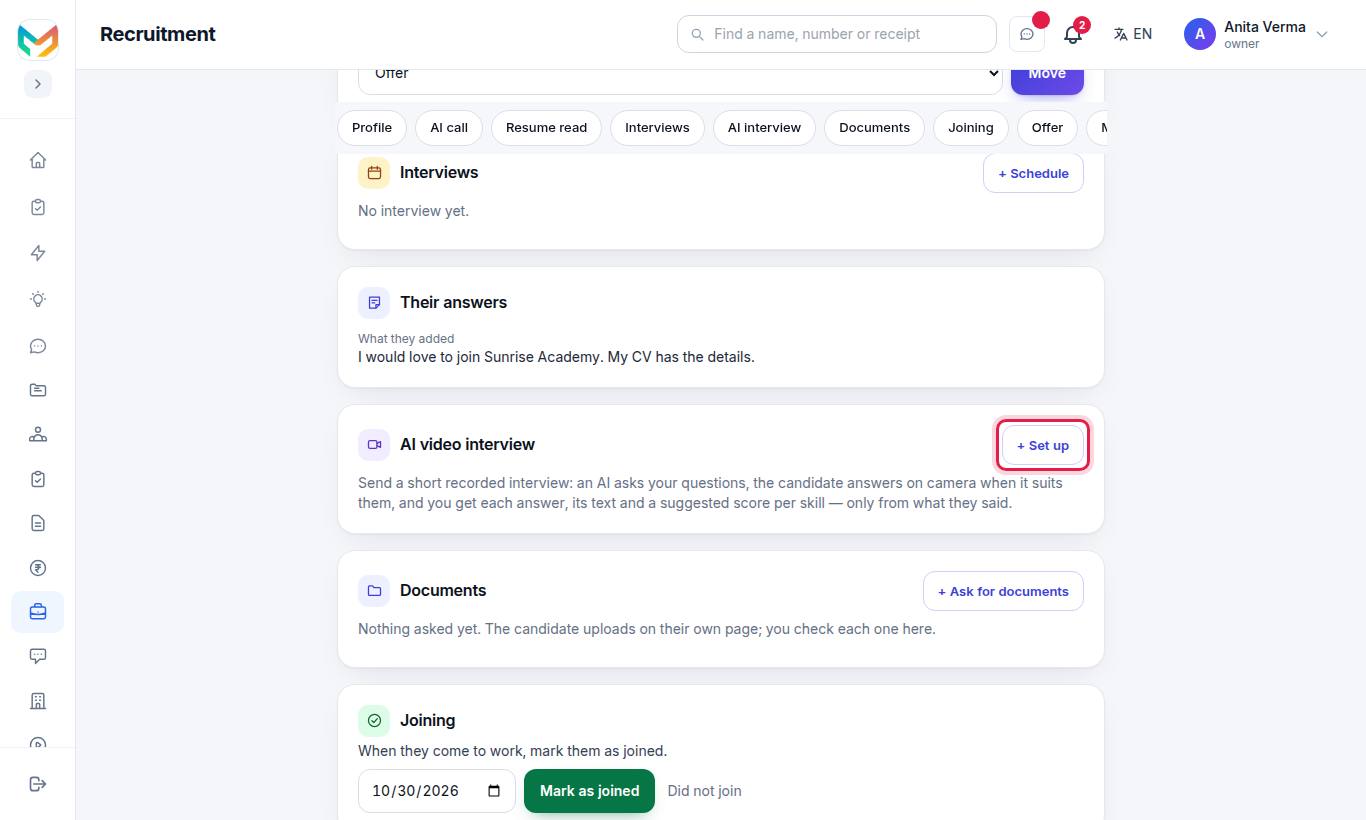
- Press + Set up.
- Under Skills to score — one per line (at most 8), keep or change Communication, Problem solving, Knowledge of the role, Language.
- Choose How many questions (up to 12), then press ✨ Draft the questions with AI or + Add a question.
- Choose Time for each answer: 1 minute, 1½ minutes, 2 minutes, 3 minutes or 5 minutes.
- Choose Follow-up questions (per question): None, Up to 1 or Up to 2.
- Choose the language: English, Hindi, or Hinglish (Hindi + English).
- Set the Last day to take it, and press Send to (name).
The candidate is told first that an AI asks the questions, what is recorded, that scores come only from their words, and that they can ask for a person instead.
#How to review it
When the candidate finishes, the page shows AI suggestion — from the words of the answers only · the decision is yours, an overall score out of 10, and a score per skill with quotes.
- Press Watch the answers and read the text to see each recording and its text.
- Under Your review, give your score out of 10 and pick Your recommendation….
- Add notes (only your team sees them) and press Save my review.
Press Score again to ask the AI to score it again. If the candidate left the page while answering, it says how many times.
If the candidate presses "I would rather talk to a person", the page says so — schedule a round with your team.
#AI screening calls (Pro)
An AI assistant telephones the candidate on your own telephone account and asks six things. What it hears clearly is written on the candidate's profile, with the words they said.
#How to set up AI calls
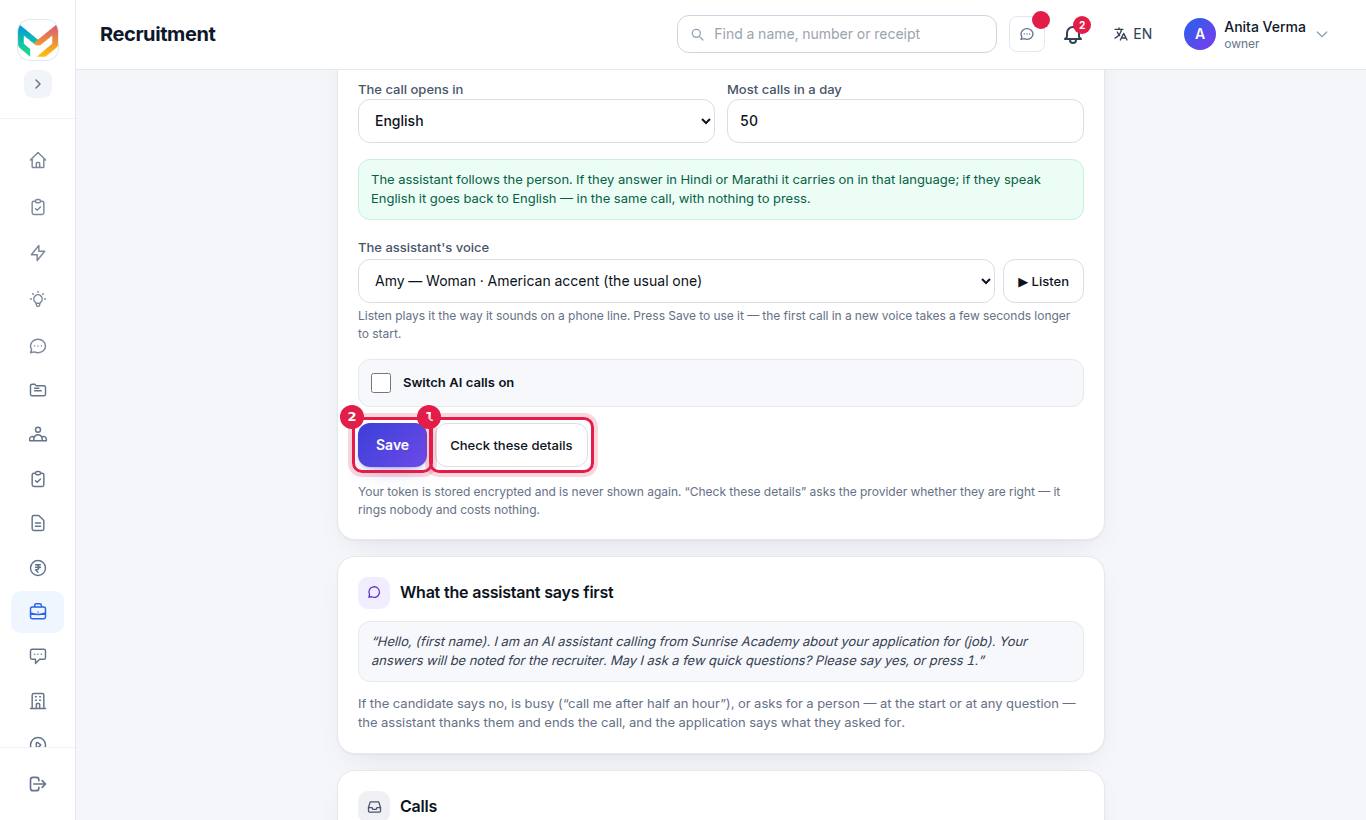
- Under Your telephone provider, choose Plivo, Twilio, Exotel or Another provider.
- Fill in the fields for your provider (see the table).
- Choose the language the call opens in: English or Hindi.
- Pick The assistant's voice and press ▶ Listen to hear it as it sounds on a phone line.
- Set Most calls in a day (1 to 1000; 50 to start).
- Press Check these details — it asks the provider whether the details are right. It rings nobody and costs nothing.
- Tick Switch AI calls on and press Save.
| Provider | Fields on the page |
|---|---|
| Plivo | Auth ID, Auth token, Your Plivo number. You need a Plivo voice number; nothing else to set up in Plivo. |
| Twilio | Account SID, Auth token, Your Twilio number. You need a Twilio voice number that may call India. |
| Exotel | Account SID, API key, API token, API host (api.exotel.com or api.in.exotel.com), Voice-bot flow (app) id, Your ExoPhone. In Exotel, make a flow with one Voicebot applet and give it the address the page shows. |
| Another provider | Your voice bot's web address (https://…), A shared secret (you choose it), Caller number (optional). The page explains what MJX posts and what your bot sends back. |
#How to start AI calls
- One candidate: on their page, under AI screening call, press Call with AI.
- Many candidates: on Candidates or a job's Applicants tab, tick people and press 📞 Call them with AI (up to 100 at a time). Confirm when asked.
You see a message like "3 calls are queued. They go out one at a time, starting now." Outside hours: "Calls go out 9:00 to 20:00 India time — these start when the window opens." If you pass your daily limit, the rest go out tomorrow.
Some people are skipped, with a reason:
| Reason | What to do |
|---|---|
| The contact is still with the agency. | Press Request contact and wait for the agency to share it. |
| No phone number on the profile. | Add the number with Edit details. |
| A call is already waiting. | Wait, or cancel the waiting call. |
| This application is closed. | Calls are not made for Not selected, Withdrawn or Joined. |
#How the call works
- The assistant opens: "Hello, (first name). I am an AI assistant calling from (your organisation) about your application for (job). Your answers will be noted for the recruiter. May I ask a few quick questions? Please say yes, or press 1."
- If the person agrees, it asks:
- How many years of work experience do you have in total?
- How much of that is relevant to the job?
- What is your current salary? (per month or per year)
- What salary are you expecting? (per month or per year)
- What is your notice period, or your last working day if serving notice?
- Are you willing to relocate if needed? (it names the job's place)
- Last one — anything to tell the recruiter?
- If an answer is unclear, it asks again once, and asks "Is that per month, or per year?" for salaries.
- It thanks them and ends the call.
If the candidate says no, is busy ("call me after half an hour"), or asks for a person — at the start or at any question — the assistant thanks them and ends the call. They can press 2 to have a person call instead.
#Languages
| Setting | What happens |
|---|---|
| Opens in | English or Hindi — your choice under AI calls. |
| Follows the person | With MJX's own voice engine on, if the person answers in another language, the assistant carries on in that language; if they speak English it goes back to English — in the same call, with nothing to press. |
The languages a call can follow are English, Hindi, Marathi, Bengali, Telugu, Malayalam, Gujarati, Tamil, Kannada and Punjabi. The AI calls page shows which ones are on for your server today.
#What you see after the call
On the candidate's page, under AI screening call:
- Heard on the call — each answer, with "✓ on profile" and the quote in the candidate's words.
- They also said: — their message to the recruiter.
- The whole conversation — every line, AI and Candidate.
Clear answers fill the profile's screening details with an AI call tag. An unclear answer is left for a person. You can correct any value with Edit details.
Call statuses: Queued, Calling, Done, No answer, Declined, Wants a person, Could not call, Cancelled. Only a call that is still waiting can be cancelled.
The Calls list on the AI calls page shows every call and "… of 6 written on the profile". The top shows "… of … calls today".
#Who can use this?
| Feature | Plan | Who |
|---|---|---|
| Schedule interviews, feedback | MJX Hire Basic and Pro ("Interviews, offers and candidate email") | Owner, Admin, HR schedule; any staff on the interview gives feedback |
| AI video interview | MJX Hire Pro | Owner, Admin, HR |
| AI screening calls | MJX Hire Pro ("AI screening calls come with MJX Hire Pro.") | Owner, Admin, HR |
On Basic, the AI calls tab shows a lock and the page says "AI screening calls come with MJX Hire Pro" with See MJX Hire Pro.
#Questions people ask
Which telephone providers work with AI screening calls?
Plivo, Twilio, Exotel, or another provider. You connect your own account under Recruitment › AI calls, and your provider bills you for the minutes.
What does the AI ask on a screening call?
Six things — total experience, relevant experience, current CTC, expected CTC, notice period or last working day, and whether they will relocate. It also asks if there is anything they want to tell the recruiter.
In which languages can the AI call?
The call opens in English or Hindi, as you choose. With MJX's own voice engine on, it follows the person into the language they speak — Hindi, Marathi, Bengali, Telugu, Malayalam, Gujarati, Tamil, Kannada or Punjabi — and back to English.
When do AI calls go out?
Between 9:00 and 20:00 India time, one at a time, up to your daily limit. Calls queued outside these hours start when the window opens.
Can a candidate refuse the AI call?
Yes. If they say no, are busy, or ask for a person — at the start or at any question — the assistant thanks them and ends the call, and the application says what they asked for.
Does the AI decide who passes?
No. Nobody is moved to another stage, scored or rejected by a call. The answers are written on the profile for your team to read.