
Pipeline stages, custom fields and the form builder in MJX CRM
Rename your pipeline, add your own stages, add custom fields to enquiries and deals, and design the enquiry form with sections and drag and drop.
MJX CRM lets you shape the CRM to your institute or business: your own stages inside the pipeline, your own custom fields on every enquiry (lead for a business) and every other record, and your own enquiry form built in a drag-and-drop form builder.
Only the Owner or an Admin can change these. Anyone else who opens these pages sees "You do not have permission to change the CRM setup. Only the owner or an admin can."
#Stages & fields
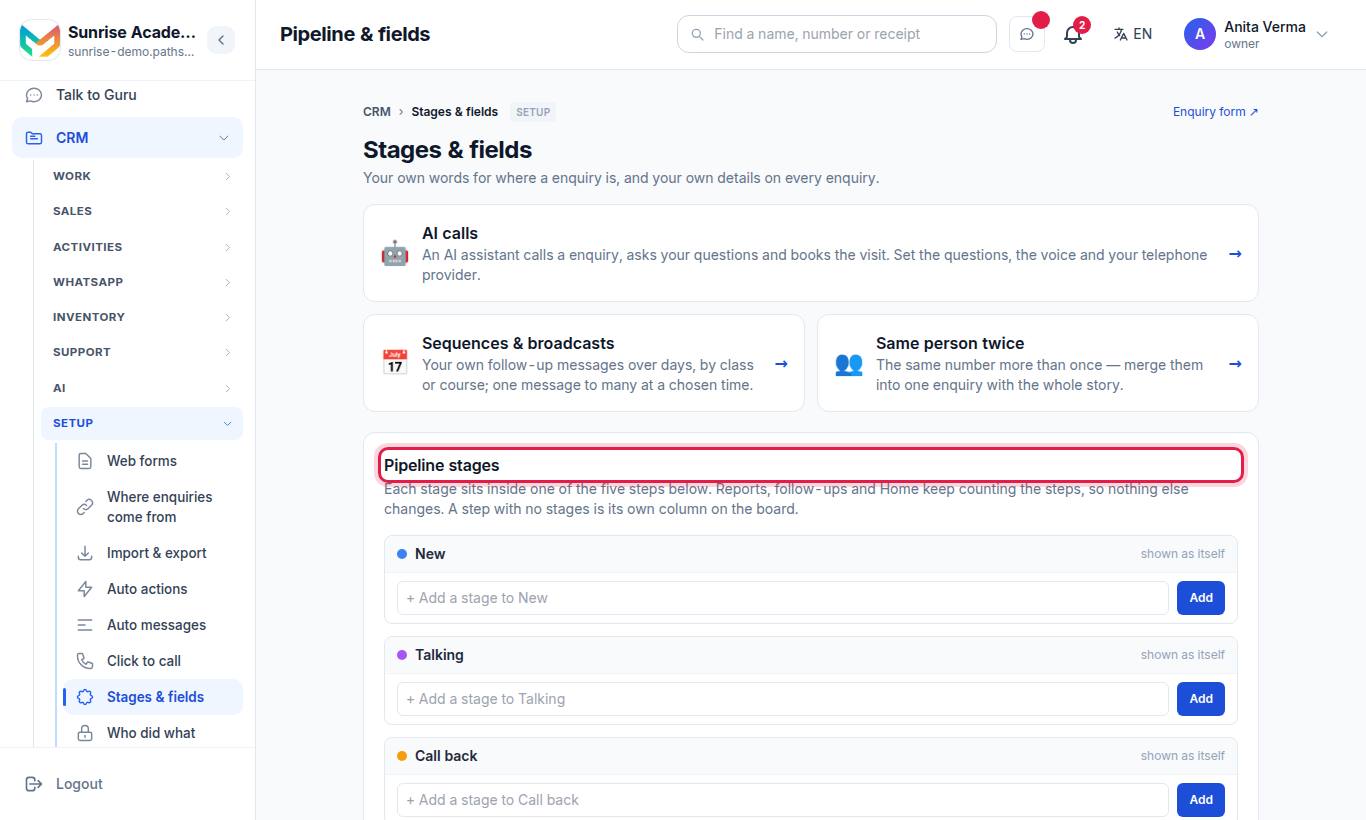
The page Stages & fields has two parts: Pipeline stages and Custom fields. It also links to AI calls, Sequences & broadcasts and Same person twice.
#The five steps
Every enquiry is always in one of five steps. Their names follow your kind of organisation:
| Step | School / college | Coaching / tuition / institute | Business |
|---|---|---|---|
| 1 | New | New | New |
| 2 | Talking | Talking | Talking |
| 3 | Call back | Call back | Call back |
| 4 | Admitted | Joined | Won |
| 5 | Not interested | Not interested | Not interested |
#How to add a stage
Stages are your own, finer steps — for example "Demo booked" and "Demo attended" inside Talking.
- Find the step the stage belongs to.
- Type the name in "+ Add a stage to …".
- Press Add.
| To… | Do this |
|---|---|
| Rename | Click the name, type, then press Enter or click away. "Renamed." |
| Reorder | Press ↑ or ↓ |
| Delete | Press Delete — "Delete this stage? Its leads stay in the same step and show in its first stage." |
Rules: up to 30 stages; a name up to 40 characters; no two stages with the same name ("You already have a stage called "…".").
#How to add a custom field
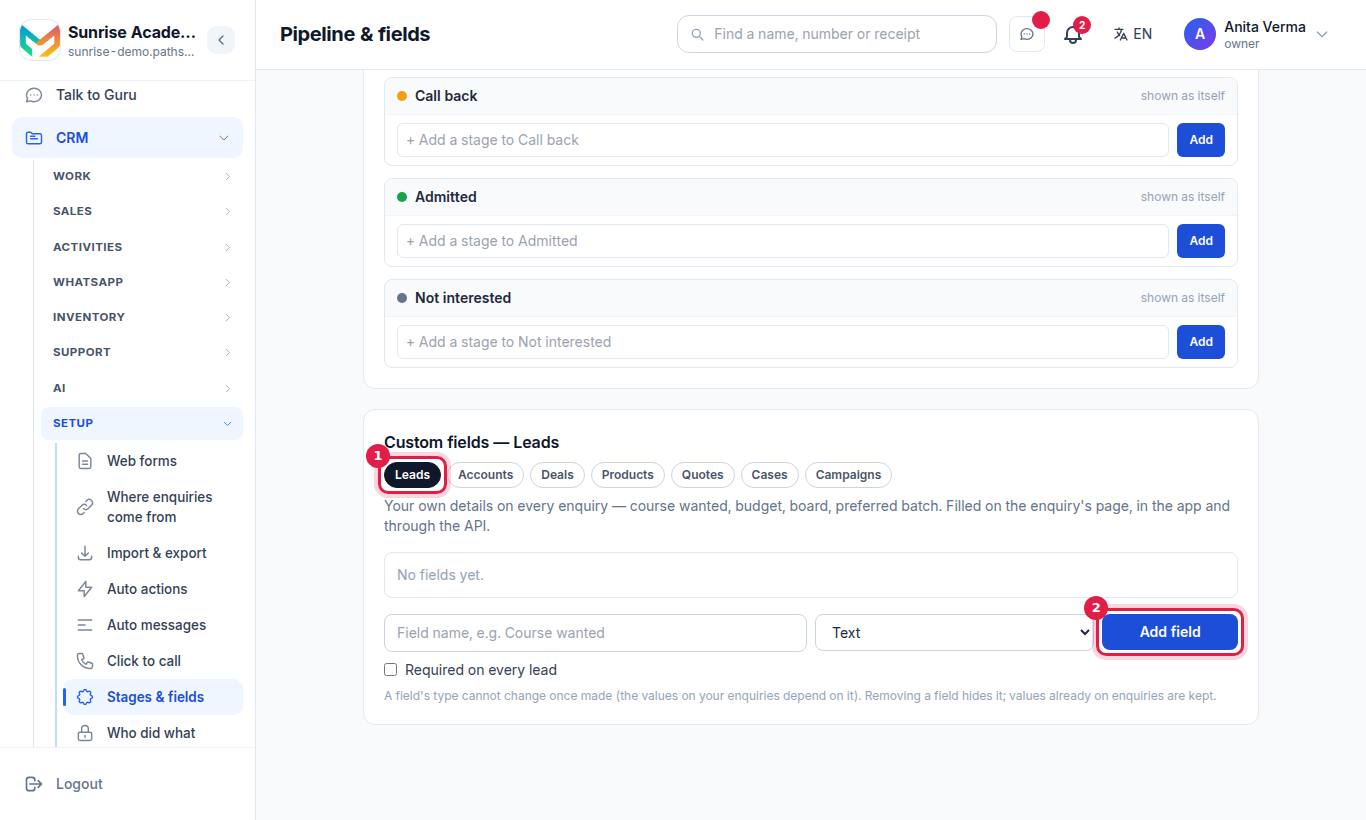
- Pick the module in the row of links: Leads, Accounts, Deals, Products, Quotes, Cases or Campaigns. (On a module's list page, the Fields button opens the same place.)
- Type the Field name, for example "Course wanted".
- Pick the type.
- For a Choice field, write the choices one per line.
- Tick Required on every … if it must always be filled.
- Press Add field.
| Type | Holds | Rule |
|---|---|---|
| Text | Any text | Up to 500 characters |
| Number | A number | Must be a number |
| Date | A date | Must be a date |
| Choice | One of your choices | 2 to 30 choices, each up to 60 characters |
| Phone | A phone number | 7 to 16 characters |
| An email address | Must look like an email |
Limits: up to 40 fields; a name up to 60 characters. Lead fields are filled on the enquiry's page, in the app and through the API. To remove one, press Remove — "Remove this field? Values already on leads are kept."
#The form builder
The form builder lays out your public enquiry form: your own sections, your own questions, any field renamed, made required or taken off — by drag and drop.
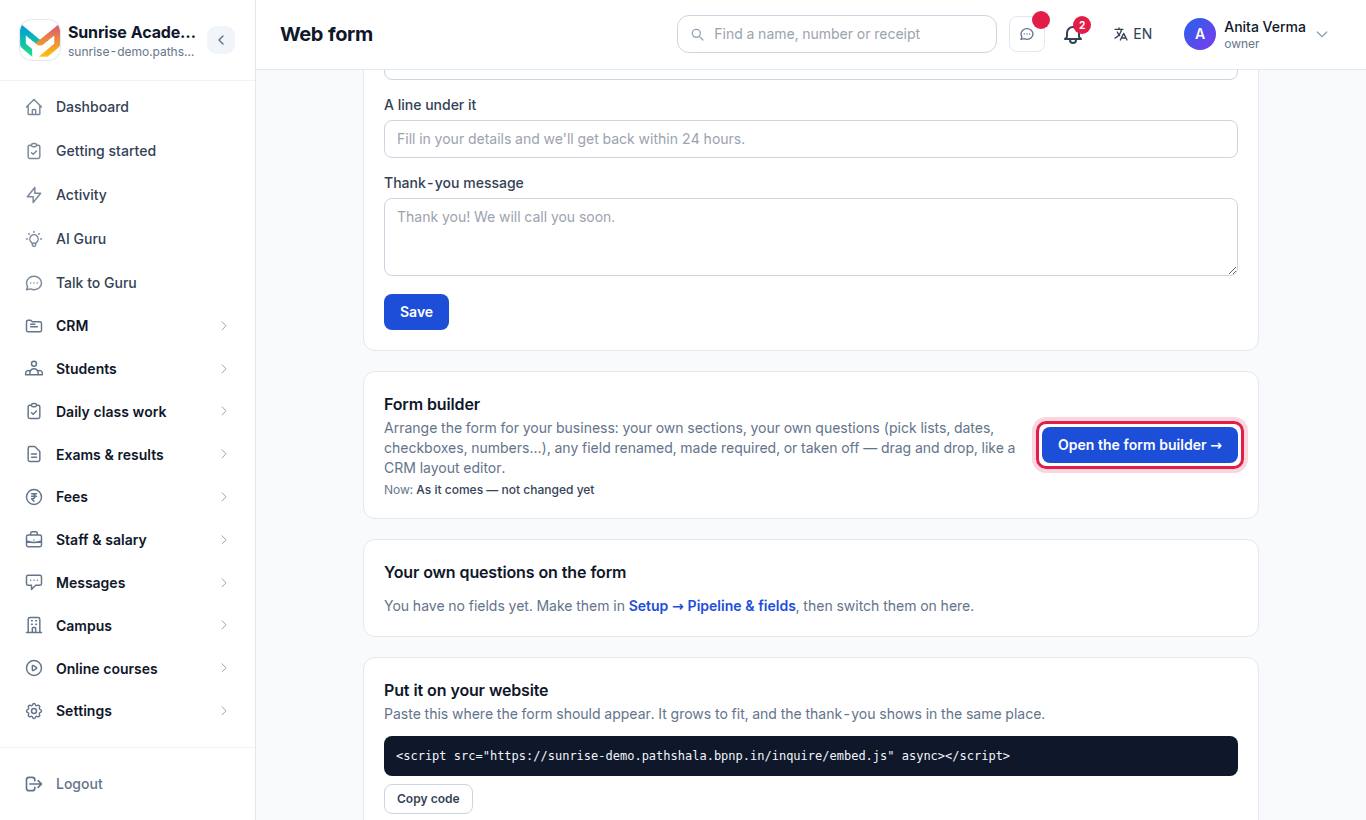
It opens on exactly what a visitor sees today, so nothing moves until you move it. For one of your other forms, open it on Web forms, press Edit, then Open the form builder →. See Web forms.
#Steps to build your form
- Open the form builder. The left side is The form; the right side has New fields and Unused items.
- To add a question, drag a field type from New fields into a section, or tap it to add it at the end ("Drag a field here, or tap a field type.").
- Click a field to set its Label, Hint inside the box, Required, and — for a pick list, radio buttons or multi-select — the choices, "One choice per line".
- To add a section, press + Add a section. Give it a Section heading and pick an icon (or "No icon"). Use the arrows to move a section up or down.
- To take a field off the form, drag it to Unused items ("Unused — take it off the form"). Drag it back, or tap Add, to put it back.
- Change the Message box label and hint, and the Button text, at the End of the form.
- Press Save the form.
- Press Preview ↗ to see it as a visitor does.
#Types of new fields
| Type | On the form |
|---|---|
| Single line | A short text box (up to 200 characters) |
| Multi-line | A large text box (up to 2,000 characters) |
| Number | A number |
| An email address | |
| Phone | A phone number |
| Date | A date picker |
| Pick list | A dropdown, one choice |
| Radio buttons | One choice, all shown |
| Multi-select | Several choices |
| Checkbox | One tick, with "Small line beside the tick" |
| Website link | A web address |
Answers to new fields are saved on the enquiry under its details. New fields work on every plan.
Your CRM fields (custom fields made on Stages & fields) can also be placed on the form — they are marked CRM. Their name, choices and required setting are set on Stages & fields. Placing one on the main form switches it on the form. CRM fields need MJX CRM Pro.
#Limits
| Item | Limit |
|---|---|
| Sections on one form | 8 |
| New fields on one form | 20 |
| Choices on one field | 30 (each up to 80 characters) |
| Label | 60 characters |
| Hint | 100 characters |
| Help line | 160 characters |
| Section heading | 60 characters |
| Button text | 40 characters |
A pick list or radio buttons need at least two choices; a multi-select at least one. The form needs at least one section.
#Fields you cannot remove
The person's name and phone are "Always on the form and always required — it is how you reach the person. You can rename it."
#Tips
- Keep the form short. Three or four questions get more enquiries than ten.
- Use a Pick list rather than free text when you want to filter or report on the answer later — or make it a CRM field (Pro) so you can filter every lead by it.
- Use stages for the steps your counsellors actually talk about ("Demo booked", "Fee discussed"), not for every small event.
#Questions people ask
Do custom stages break my reports?
No. Every stage sits inside one of the five fixed steps (New, Talking, Call back, Admitted/Joined/Won, Not interested). Reports, follow-ups and CRM home keep counting the steps.
Which plan do custom fields need?
Custom fields (and asking them on the form) come with MJX CRM Pro. Stages and the form builder's own new questions work on every plan.
Can I change a field's type later?
No. A field's type cannot change once it is made, because the values already saved depend on it. Remove it and make a new one.
What happens to answers when I remove a field?
Removing hides the field. Values already saved on enquiries are kept.
Can I make the phone number optional on the form?
No. The name and phone fields are always on the form and always required — they are how you reach the person. You can rename them.