
Users, roles and permissions
Every Pathshala role explained — owner, admin, staff and jobs like teacher, accountant or receptionist. Add staff, reset passwords, switch people off.
In Pathshala every person who signs in has one of three roles — Owner, Admin or Staff — and can also be given one or more jobs, such as Class Teacher, Accountant or Receptionist, that decide exactly which screens they can open. Parents, learners, job candidates and recruitment agencies sign in separately and never see your back office.
#What are the roles in Pathshala?
| Role | What they can do |
|---|---|
| Owner | Everything, including billing, WhatsApp settings and adding people. Never limited by jobs. |
| Admin | Everything day to day — students, fees, notices, homework (for a business: people, leave, attendance and payroll). |
| Staff | Daily work: mark attendance, set homework, look things up. Cannot change settings. (For a business: their own work — check in, apply for leave, see their payslips.) |
- The person who signs up is the first Owner. You can have more than one owner.
- A person with no job yet shows as Admin (as before) or Staff (as before).
- The screen words follow your organisation type — "students" may read "learners", "class" may read "batch".
#Who else signs in?
| Person | Where they sign in | How |
|---|---|---|
| Staff and employees | Your portal, yourname.pathshala.mjxtechnologies.com/login | Mobile number or email with a password, or Sign in with a code instead (code on WhatsApp and email) |
| Parents | MJX Parent app or /parent/login | Mobile number and a code on WhatsApp — no password. Children are linked by the parent's phone number. |
| Learners | MJX Learn app or /learn/signin | The mobile number the course link was sent to and a 6-digit code on WhatsApp. One device at a time. |
| Job candidates (MJX Hire) | /candidate/login | The email or mobile number they applied with and a code — no password |
| Recruitment agencies (MJX Hire) | /agency/login | The agency email you added and a code sent by email |
See Sign-in and security for the sign-in steps.
#How to add a staff member
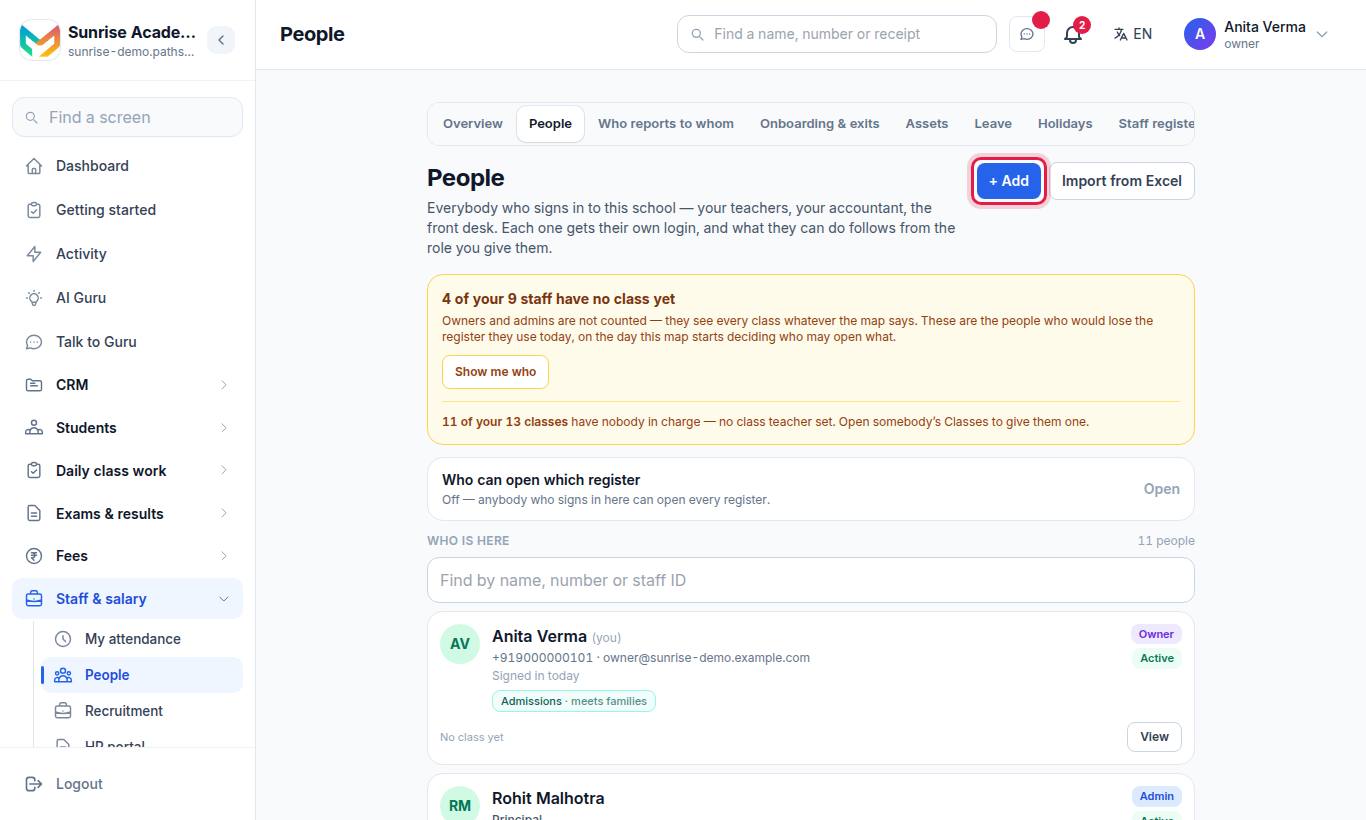
- Open People. (For a business the section is called Team & salary.)
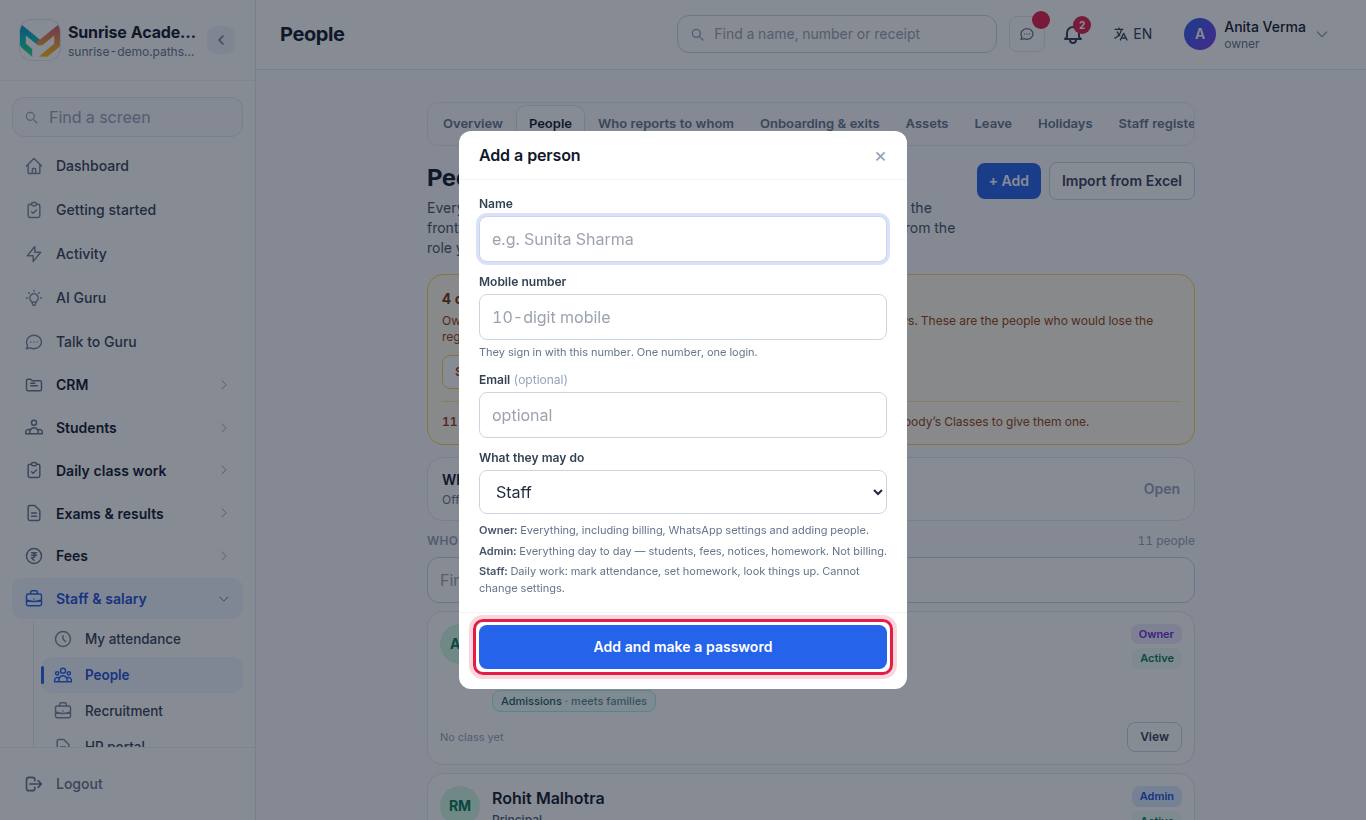
- Press + Add. The Add a person sheet opens.
- Fill in Name, Mobile number and, if you like, Email (optional). They sign in with this number — one number, one login.
- Under What they may do, choose Owner, Admin or Staff. The description of the role shows underneath.
- Press Add and make a password.
- A panel says Write this down now. Press Copy the whole message and paste it into WhatsApp to the person, or Copy password. Press Done.
#Adding many people at once
On People, use Import from Excel (/staff/import) to bring in a list.
#What if the person is already on the list?
You see "… is already on your staff with this mobile number. Open their row to change their details." If they were switched off, switch them back on instead of adding them again.
#How to change a role, reset a password or switch someone off
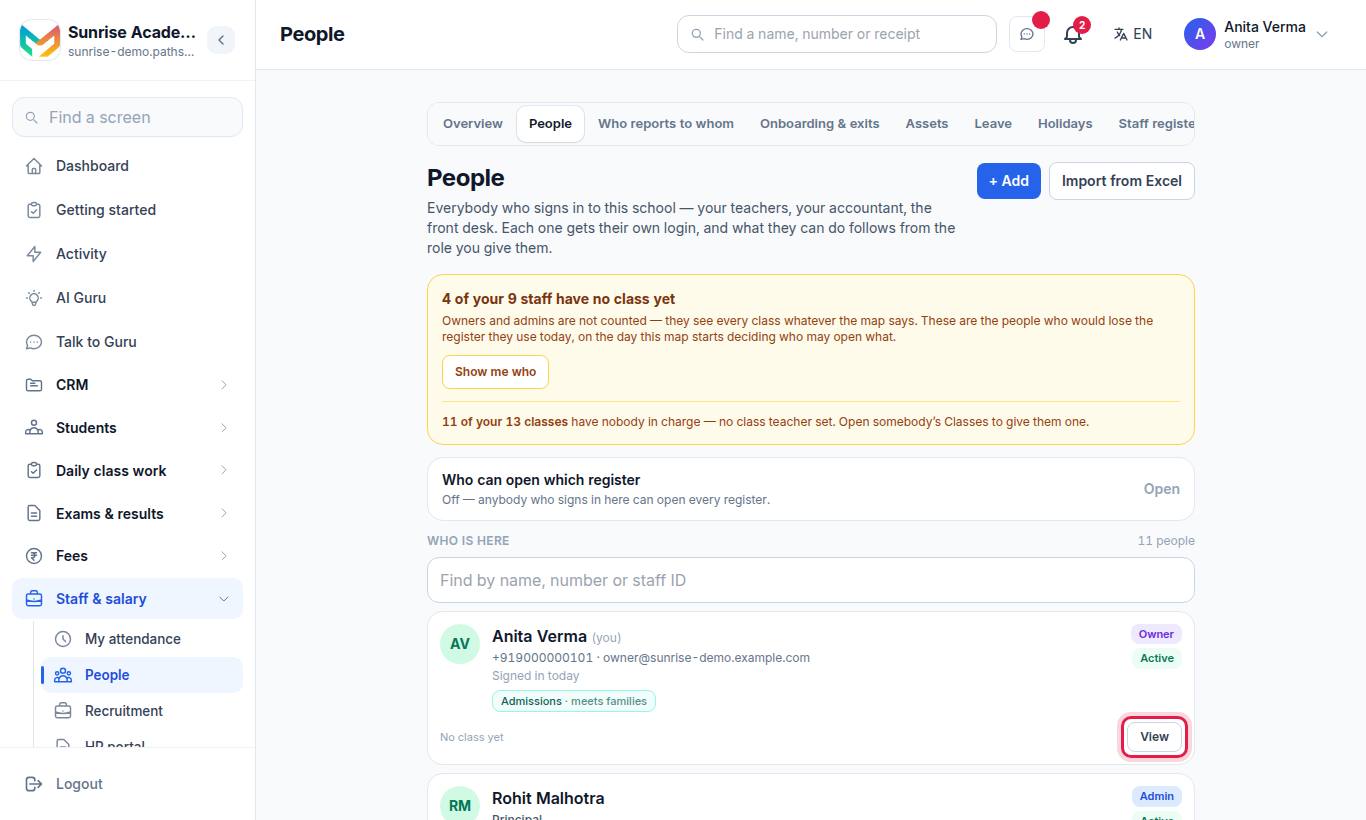
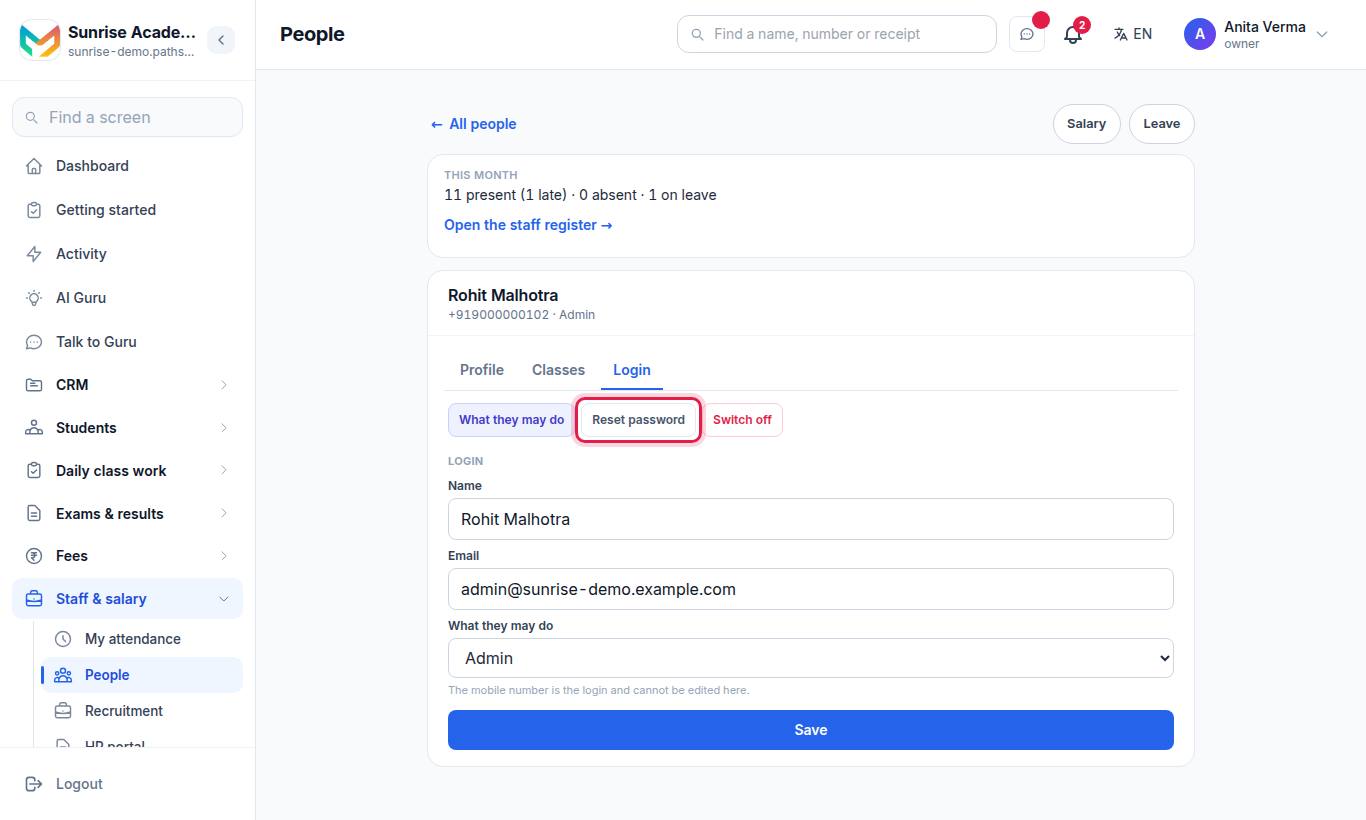
- On People, press View on the person's card. Their page has the tabs Profile, Classes (your word for it) and Login.
- On the Login tab:
- What they may do — give or remove jobs (not shown for owners).
- Reset password — makes a new password. Their current one stops working straight away, and they are signed out on every device and app.
- Switch off — they can no longer sign in. Everything they have done stays. Switch back on reverses it.
- To change their name, email or role, edit the form and press Save. The mobile number is the login and cannot be edited here.
Nobody is ever deleted. Somebody who has left is switched off and shows the badge Switched off; every receipt, register and notice they touched still says who did it.
#Rules owners and admins must know
| Rule | What you see if you try |
|---|---|
| Only an owner can add, change, switch off or reset an owner or an admin | Only an owner can add an owner or an admin |
| You cannot change your own role | You cannot change your own role. Ask another owner. |
| You cannot switch yourself off | You cannot switch your own account off |
| Change your own password in Settings | Change your own password in Settings, under Password |
| There must always be one owner | This is the only owner left. Make somebody else an owner first. |
#What are jobs, and how do I use them?
Jobs narrow what a person can open and change, beyond their role.
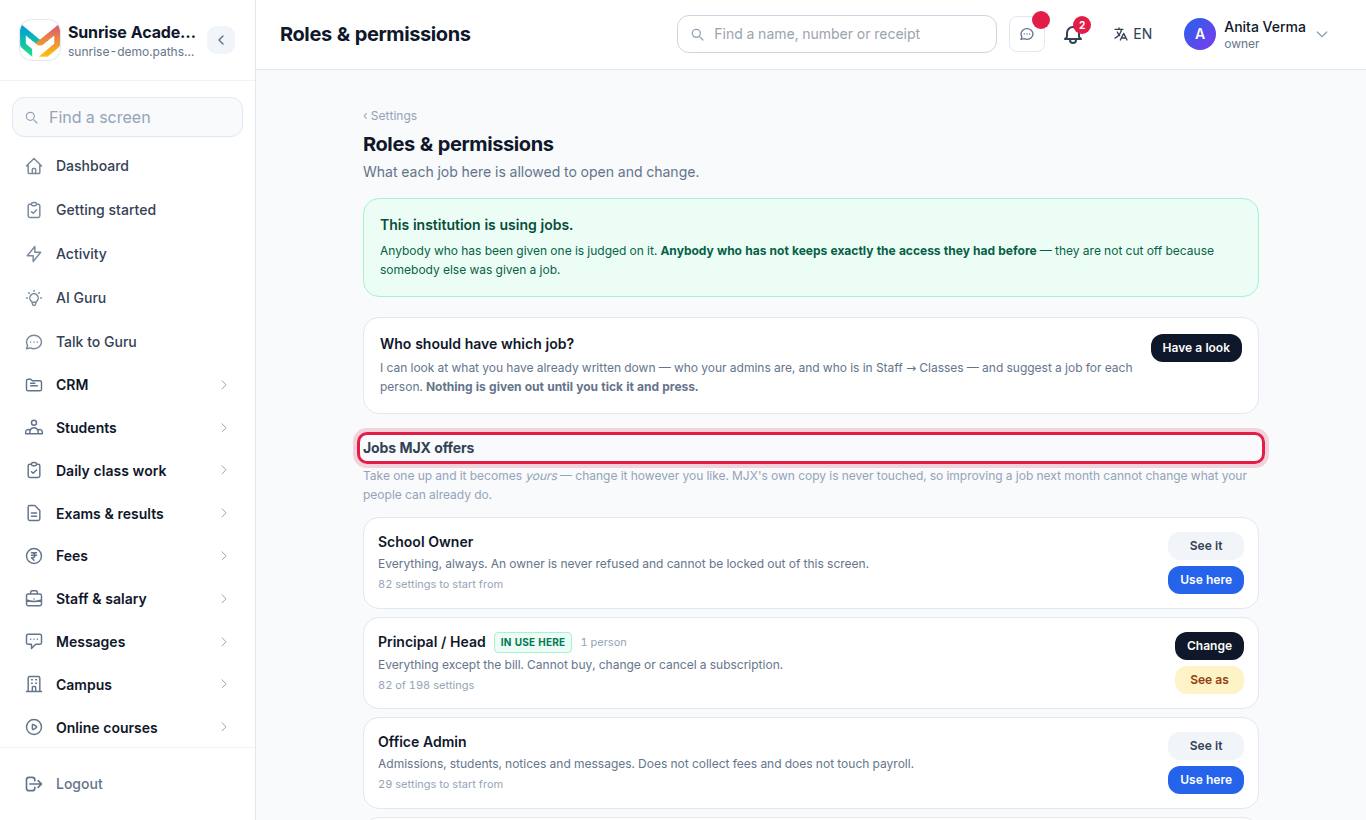
The Roles & permissions page shows What each job here is allowed to open and change.
#Jobs MJX offers
| Job | Job | Job |
|---|---|---|
| School Owner | Principal / Head | Office Admin |
| Academic Master | Exam Controller | Class Teacher |
| Subject Teacher | Accountant | Cashier |
| Receptionist | Librarian | Transport In-charge |
| HR |
Each job has a one-line description. For example, Cashier: "Takes money and prints the receipt. Cannot give a discount, cannot refund, and cannot change what a family owes."
#Steps: give a person a job
- Open Roles & permissions. Under Jobs MJX offers, press See it to see what a job allows, then Use here.
- Open People, press View on the person, open Login, and press What they may do.
- Under Their job(s) here, tick one or more jobs. Under Add or remove one setting, fine-tune single permissions if needed.
- Press Save.
#Make your own job
- On Roles & permissions, under Your own jobs, press Make a job.
- Enter Name (for example "Gate Keeper"), What is it, in one line, and choose Start from (a job to copy).
- Press Save, then Change to pick its settings. Use Find a setting… to search, and press Save.
You can Rename or Delete your own jobs (Delete only shows when nobody holds the job). MJX's jobs cannot be renamed or deleted, but you can change what they allow.
#Preview what a job sees
An owner can press See as on a job in use. A banner says "You are looking at Pathshala as … Nothing can be changed." Press Stop preview to return.
#Other helpful tools
- Who should have which job? (owner only): press Have a look for a suggestion, then Give these jobs.
- History in the job editor shows past changes.
- When MJX improves a job, the editor offers Add them or Not now — nothing you already chose is taken away.
#Settings only an owner can give
An owner can do everything, so owners are never given jobs. Some permissions can only be handed out by an owner, including Manage Subscription, Manage Roles, payment gateway settings, WhatsApp settings, approving a payroll run, setting salaries and increments, job offers, and integrations. Nobody can give away a permission they do not have themselves.
#What does each person see in the menu?
The menu shows one product at a time; Apps (top left) switches product. Each product menu has at most nine rows, with the rarer screens under that product's own Settings row. Rows a person cannot open are not shown, and a product with no row for them is not in their Apps list.
| Who | Products listed first in Apps |
|---|---|
| Owner and admin | All products in the normal order: School & Academics, Fees, MJX CRM, WhatsApp, MJX Learn, MJX People, Payroll, MJX Hire, MJX Library, Hostel, Transport |
| Class Teacher / Subject Teacher | School & Academics (class work first), then WhatsApp |
| Accountant / Cashier | Fees, then School & Academics |
| Receptionist | MJX CRM, School & Academics, WhatsApp |
Everybody's own attendance, leave, payslips, profile and password are under their name at the top right. Use Find a screen at the top of the menu to search every product.
#How many staff logins can I have?
| Plan | Staff logins |
|---|---|
| Forever Free | 1 (you included) — 5 for organisations on MJX HR, Payroll or Attendance |
| Trial and paid plans | No login cap unless the plan has its own (for example MJX Library Basic: 3 logins) |
| Per-employee products (HR, Payroll, Attendance) | One login per employee seat you pay for — see Sidebar › Settings › Billing › Subscription & billing › Employee seats |
When you reach the limit you see "You are on the Forever Free plan, which allows up to 1 staff login. Everything you already have stays — upgrade to add more." Switching a person back on counts against the same limit. See Plans and billing.
#Related
#Questions people ask
How do I give a teacher their own login?
Open People, press "+ Add", enter their name and mobile number, choose what they may do, and press "Add and make a password". Give them the password shown — it is shown only once.
Does Pathshala send the login to the new staff member?
No. Pathshala shows the password once. Press "Copy the whole message" and paste it into WhatsApp to send it yourself.
Can I delete a staff member who has left?
Nobody is ever deleted. Press "Switch off" on their Login tab. They cannot sign in any more, and every record they touched still shows who did it.
Can an admin add another admin?
No. An admin can add and manage staff only. Only an owner can add or change an owner or an admin.
How many staff logins does the free plan allow?
Forever Free allows 1 staff login, you included (5 for organisations using MJX HR, Payroll or Attendance). Paid plans allow more.
Can a teacher see fees?
It depends on the job you give them. Without jobs, staff logins can open the fee screens; give them the Class Teacher or Subject Teacher job to narrow what they see.