
Staff and roles in MJX Learn — owners, admins and teachers
Who can do what in MJX Learn — owner, admin and teacher — how to add teachers, put them on a course, and what each role sees on the web and app.
MJX Learn has three kinds of people who sign in to run an institute: the owner, admins and teachers (staff). Learners are separate — they sign in with their phone number and a code, and never see the staff screens.
#What each role can do
| Task | Owner / Admin | Teacher (staff) |
|---|---|---|
| Create courses, set prices, put on sale | Yes | No |
| Add and change topics and books | Yes | Yes, in the app, on their courses |
| Remove a topic or book, schedule a live class | Yes | No |
| Answer doubts | Doubts sent to them | Doubts sent to them |
| Mock tests, assignments, reviews | Every course | Courses they are on |
| Offline register, add books | Yes | Courses they teach |
| Give or take access, discount codes, refunds | Yes | No |
| Analytics, Who paid?, Possible account sharing | Yes | Some cards only |
| Getting paid & KYC, Billing, What you owe MJX | Yes | No |
| Terms & Privacy, Invoices & GST, App look, banners, notifications | Yes | No |
#How to add a teacher
On the web
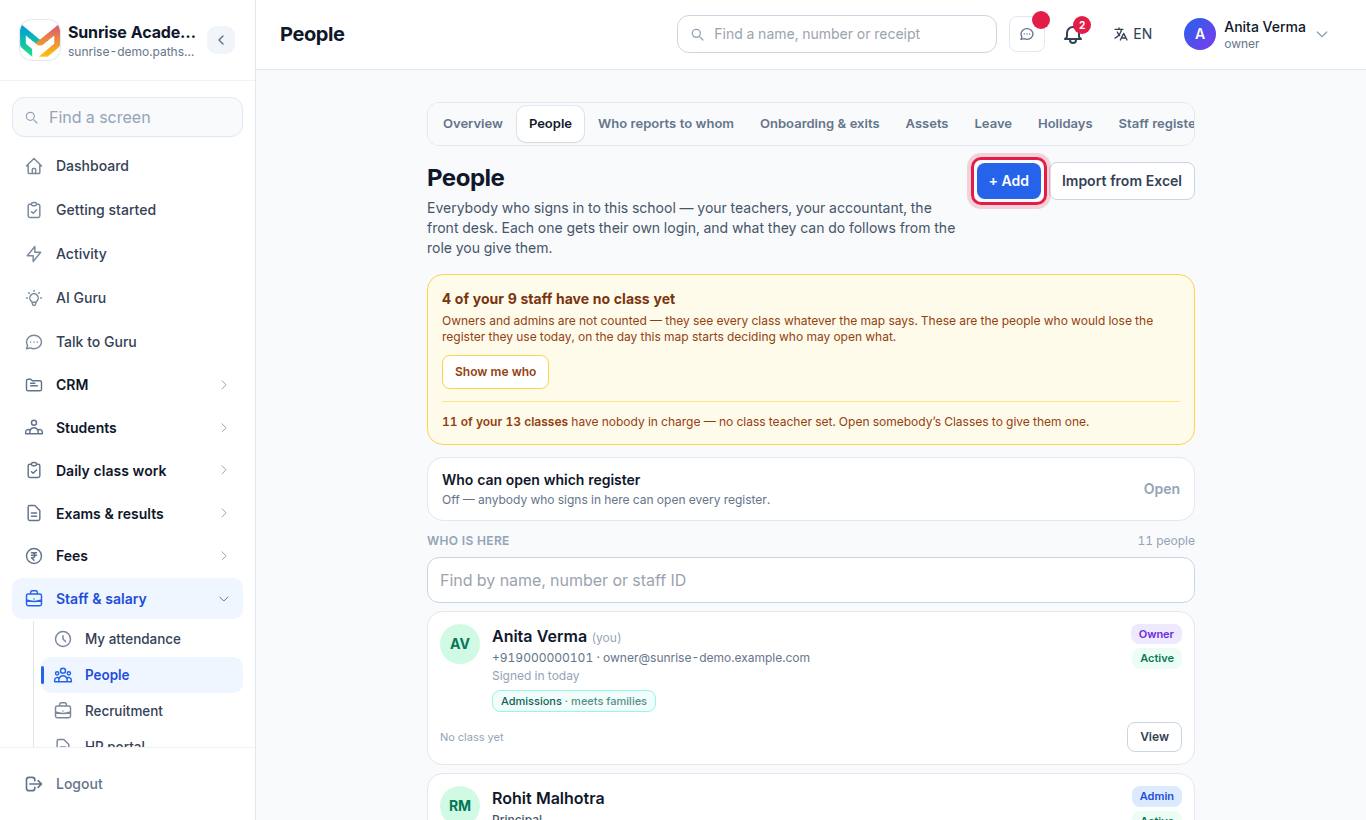
- Type Name, Mobile number and Email (optional).
- Choose What they may do.
- Save. Copy the password shown and give it to them.
In the app
- Type Name and Mobile number.
- The app shows "Give them these to sign in to the app:" — Institute code, Mobile number and Password. Copy password. "This password is shown only once. They will be asked to choose their own."
"They sign in with this number. They can see their classes and students — never the fees."
To stop someone signing in, use Switch off (left the institute); Switch back on reverses it.
#How to put a teacher on a course
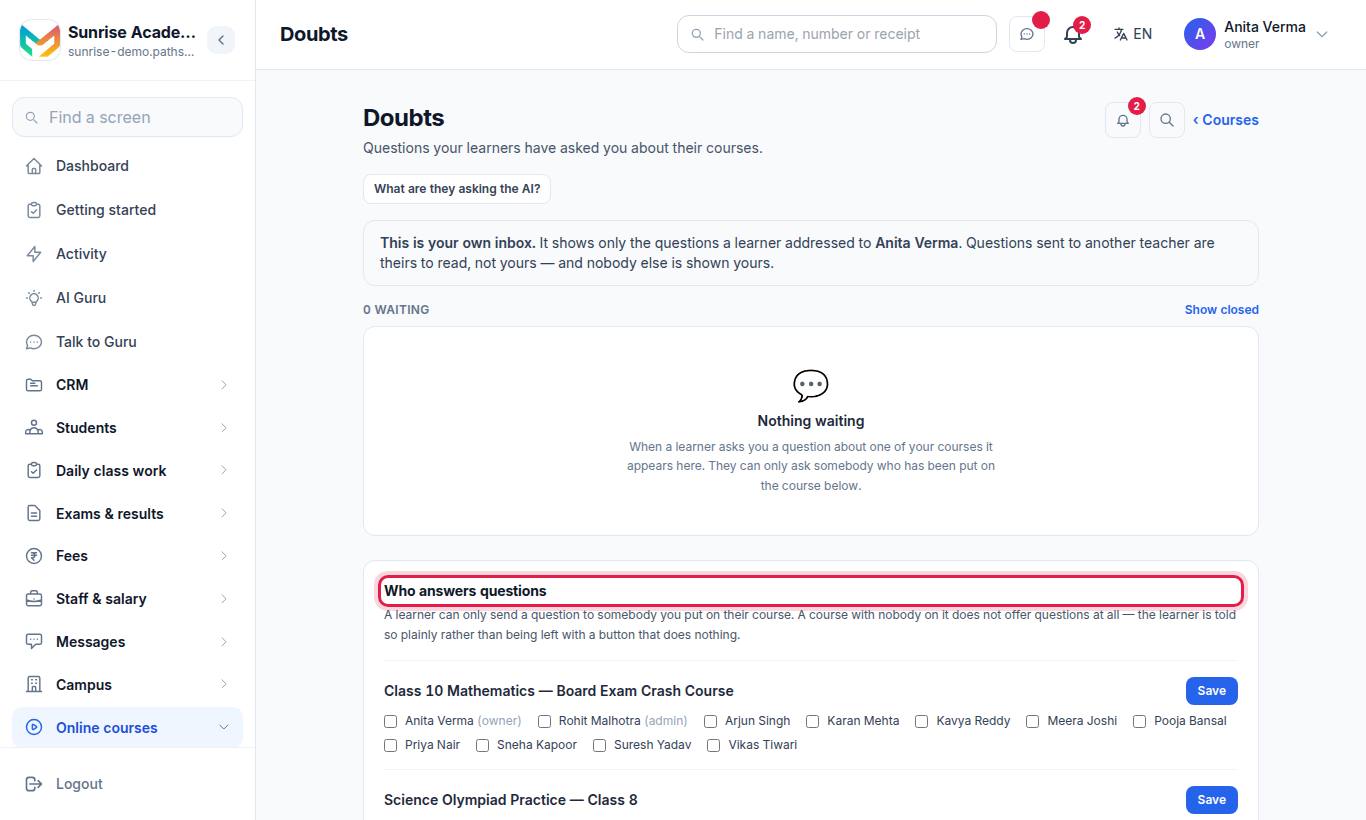
Tick the teacher under each course they teach and press Save. This is what makes a course "theirs": its doubts come to them, and they see its tests, reviews, assignments and AI topics. A teacher on no course sees empty screens that say so — for example "You are not on any course yet."
The course's Instructor (on the course form) is only the name shown on the public page.
#Staff attendance, leave and salary in the app
My staff (owner) has four tabs: People, Attendance (Mark everyone present, Save attendance), Leave (requests Waiting for your answer — Approve or Not approve) and Salary ("Tap a name to note the salary and whether it is paid").
Teachers see Myself: their Attendance, Leave (Apply for leave — Kind of leave, Half a day, Reason (optional), Send to the owner) and Salary. Some institutes also turn on My attendance for self check-in.
#Staff logins and your plan
Forever Free includes 1 staff login by default. When you reach your plan's limit you are told how many it allows; everything you already have stays. See Plans and billing.
#Who can use this?
| Who | Can |
|---|---|
| Owner, Admin | Add, switch off and assign staff; approve leave. |
| Teacher | See their own courses, doubts and Myself. |
| Plan | Every plan; the number of staff logins depends on the plan. |
#Questions people ask
How do I add a teacher?
On the web, Sidebar › People › + Add. In the app, Institute › My staff › Add a teacher. Give them the institute code, their mobile number and the one-time password shown.
How does a teacher get a course?
Tick them under Doubts › Who answers questions for that course. That decides which courses' doubts, tests, reviews, assignments and AI topics they see.
Can a teacher see fees and payments?
No. Teachers "can see their classes and students — never the fees". Getting paid & KYC and the numbers are owner and admin only.
How many staff logins do I get?
Forever Free includes 1 staff login by default (yours). Paid plans include more.