
Get started with MJX HR and staff attendance
Sign up, add your team, set leave days and switch on phone check-in — from zero to your first staff register in about 15 minutes.
This guide takes you from a new account to a working team in Pathshala: people added, leave days set, managers named and phone check-in switched on. It takes about 15 minutes.
#Create your account
Open the sign-up page for MJX HR (or for MJX Attendance). Under What Best Describes Your Business? pick Business if you are an office, shop, clinic or company — or School, Coaching, Tuition, College or Institute if you are one.
Fill in your organisation's name, Your Portal URL (the first part, such as sunrise, becomes your organisation code), city, state, Your Name, Phone Number (WhatsApp), Email and Password. Press Create and Get Portal.
#Open the HR portal
After you sign in, an owner or admin of an HR organisation lands on the HR portal (/hr). Its Set up HR card is your checklist: add your logo, joining dates, leave days, this year's holidays, your first policy, who reports to whom, and the email for letter verification.
#Add your team
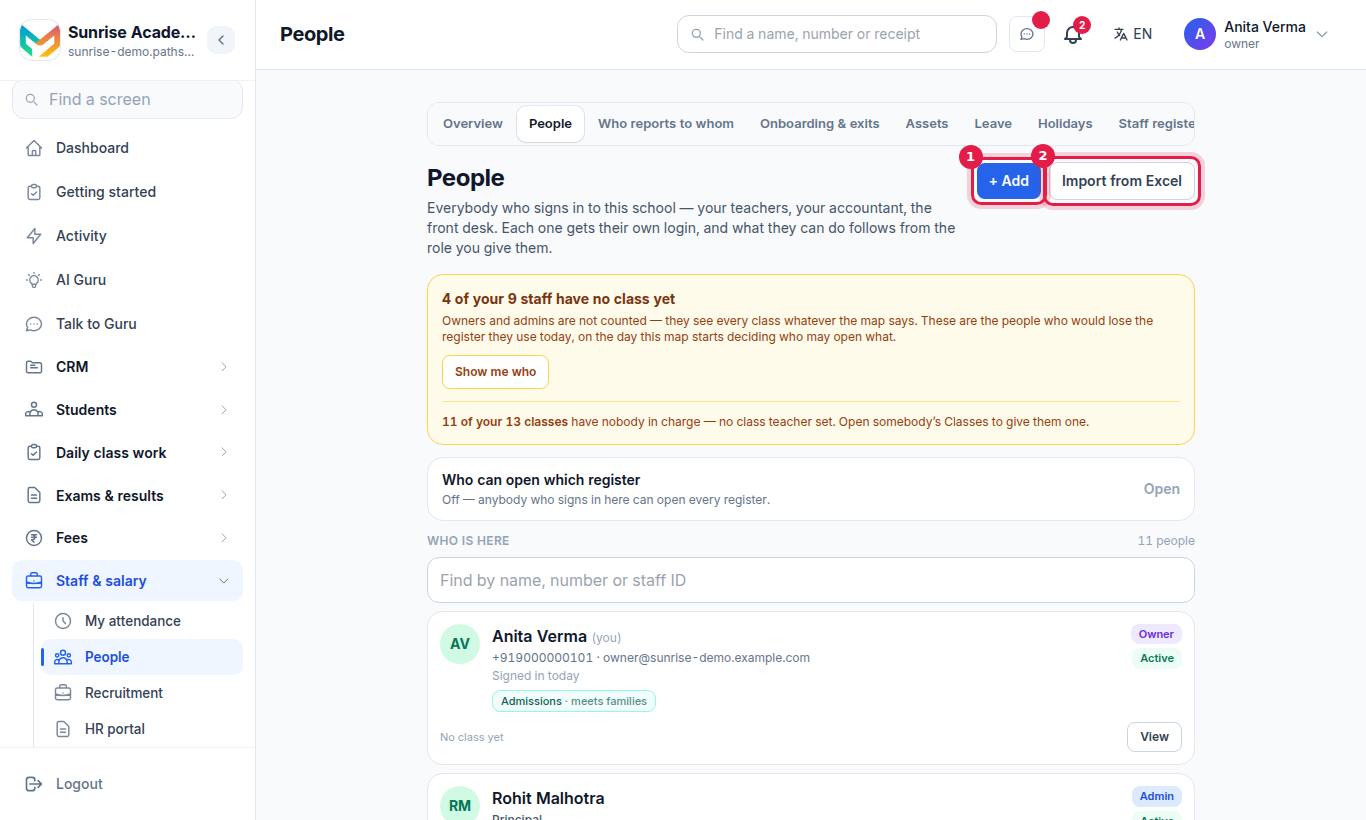
Press + Add for one person (Name, Mobile number, Email (optional), What they may do), then Add and make a password. For many people, press Import from Excel, Check the file, then Add people. See Employees.
#Set leave days
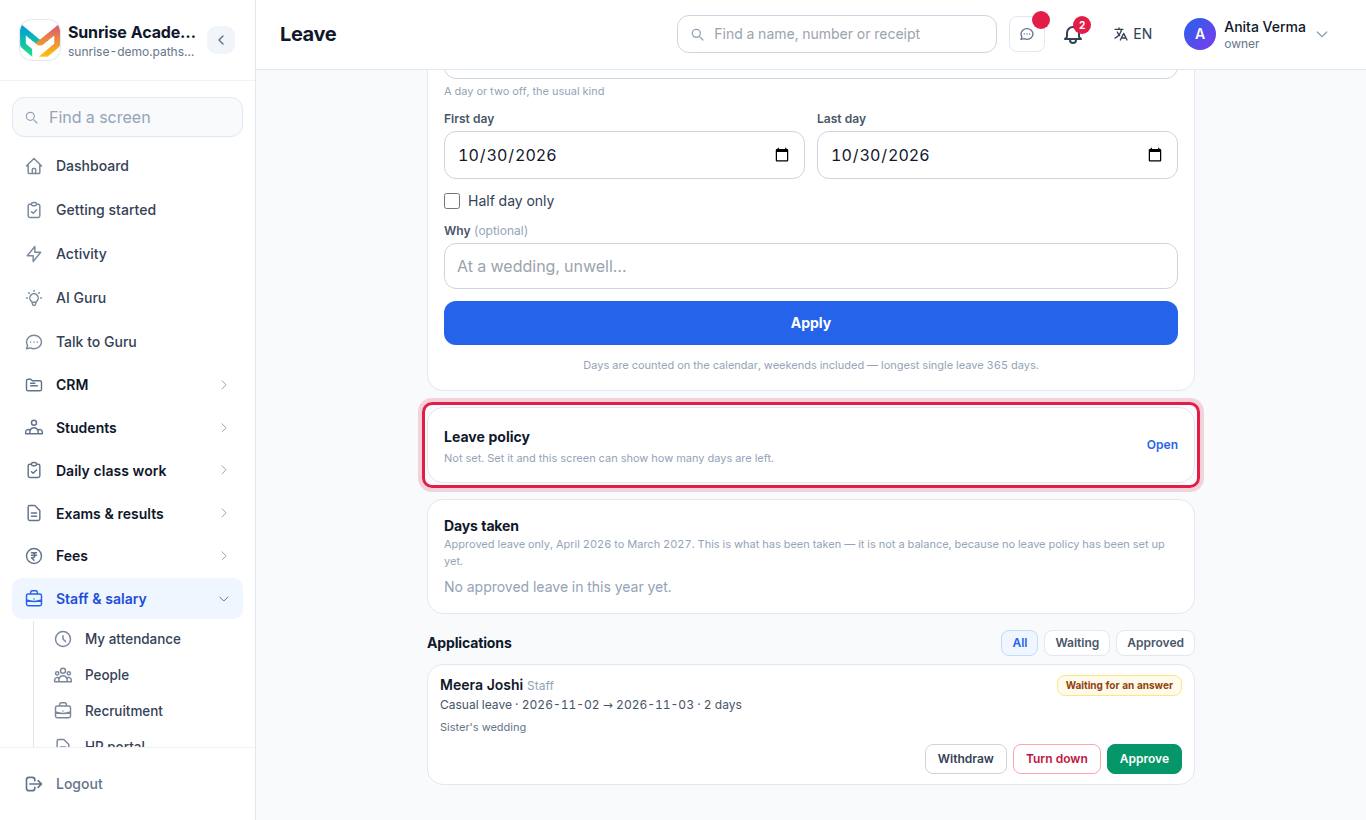
Under Leave policy, type the days a year you give for each kind of leave, and how many may carry over. Press Save policy. See Leave and holidays.
#Say who reports to whom
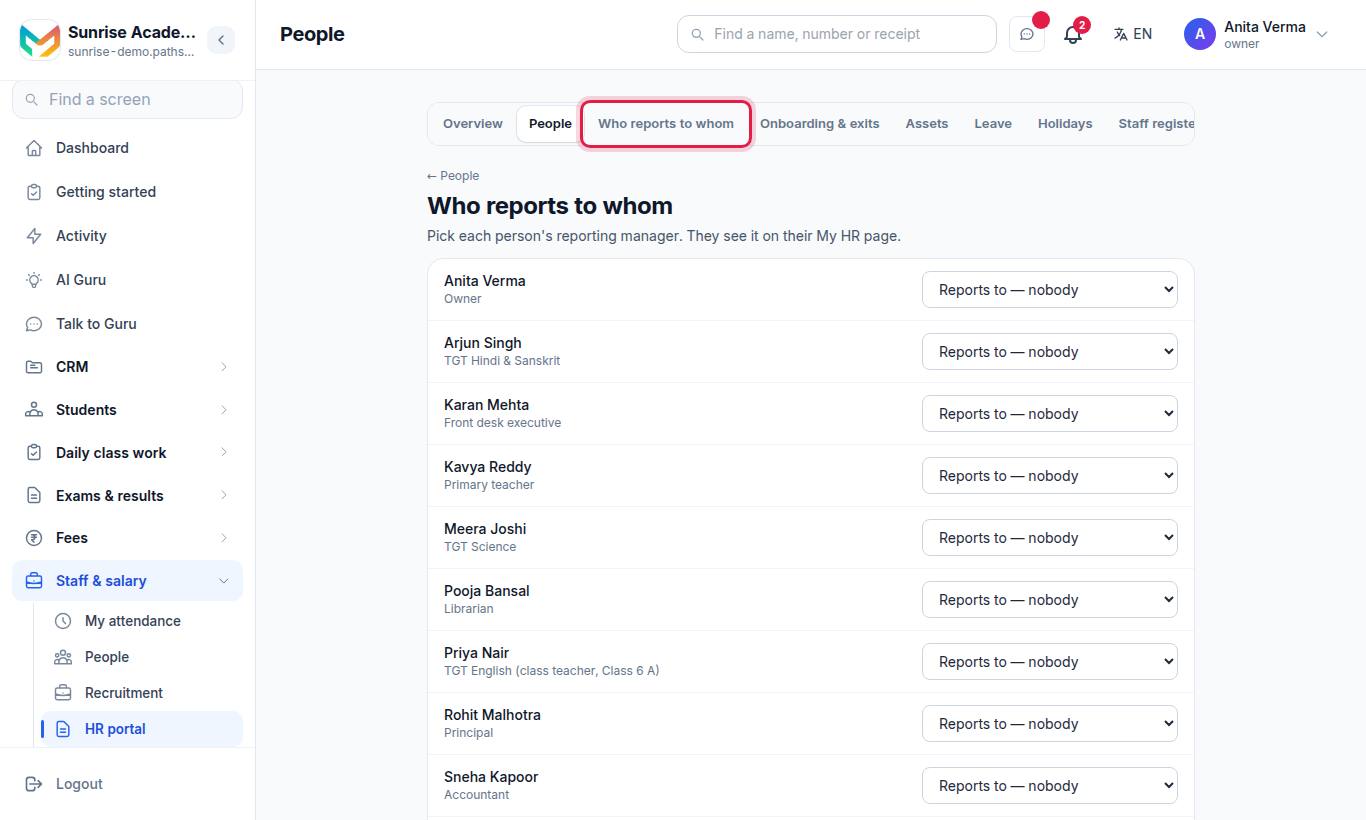
Pick each person's manager in Reports to. Managers can then approve their team's leave and attendance corrections.
#Switch on phone check-in
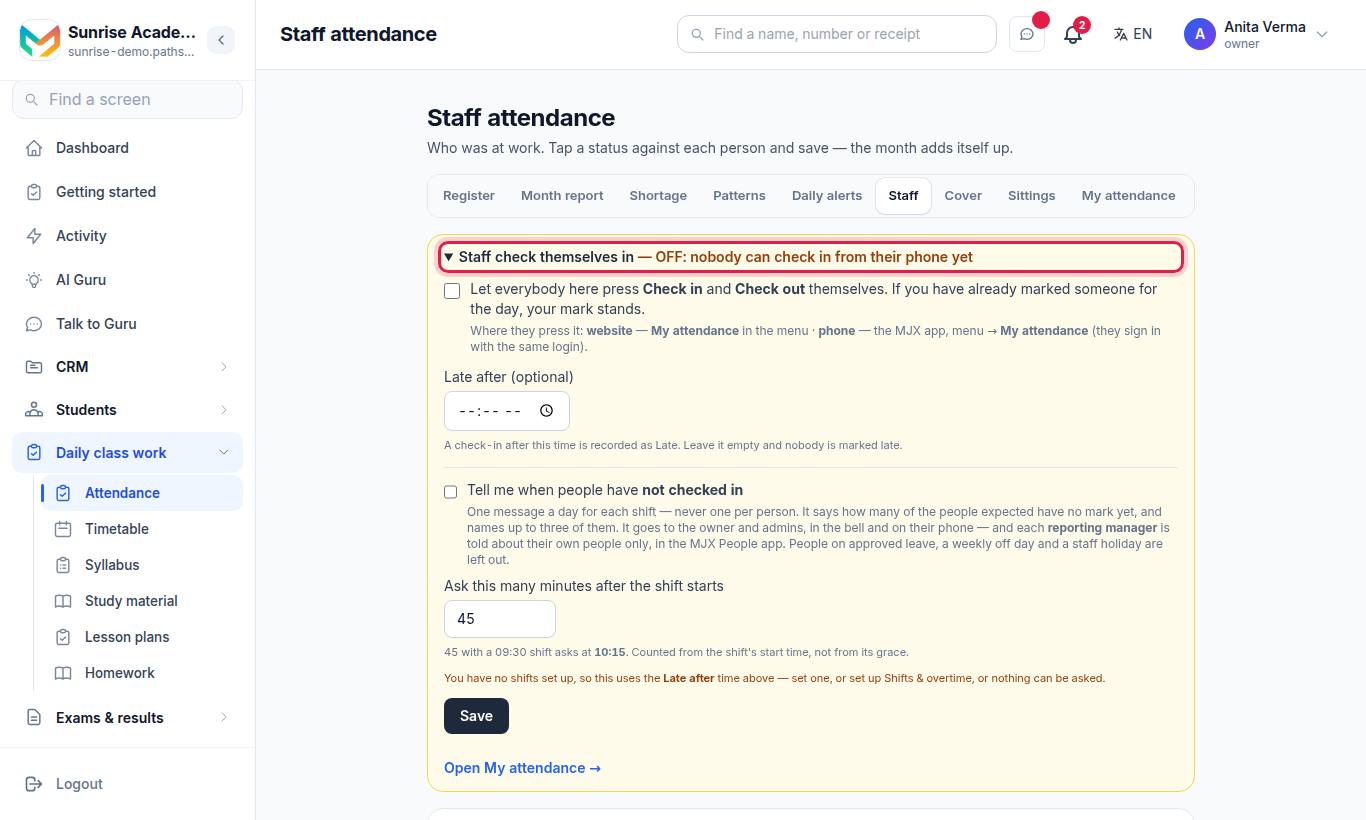
Tick Staff check themselves in, set Late after (optional) if you want late marks, and press Save. This needs MJX Attendance Basic or above. See Office attendance.
#Ask everyone to install the app
Each person installs the MJX People app, types the Organisation code (your portal's first part) and their mobile number, and signs in.
#What next?
- Publish a handbook: Policies
- Issue your first letter: HR letters
- Set shifts and overtime: Office attendance
- Connect a fingerprint machine: Biometric machines
- Pay salaries: the Payroll docs, starting at Payroll
#Where each person lands after signing in
| Who | Opens on |
|---|---|
| Owner or Admin (with MJX HR) | HR portal |
| Owner or Admin (MJX Attendance only, business) | Staff attendance |
| Employee (with MJX HR) | My HR |
| Employee (MJX Attendance only, business) | My attendance |
#Questions people ask
Do I need a card to start?
No. Every sign-up starts with a 14-day trial of every feature, with no card. After that the Forever Free plans keep working for up to 5 employees.
How do my staff sign in?
With their mobile number. They can use the password you give them, or press Sign in with a code and get a code on WhatsApp (and email, if you gave one).
We are an office, not a school. What should I pick at sign-up?
Pick Business (Office/Agency/Clinic/Shop). A business sees staff only — no students, classes or class register.
Can I change the organisation type later?
Yes. The owner can change it in Settings under What kind of organisation is this? Nothing you added is deleted either way.