
Print QR and barcode labels for library books
Number your book copies and print QR and barcode stickers on an A4 sheet, a roll sticker printer or a pocket Bluetooth printer.
MJX Library prints a sticker for every numbered copy: a QR code for phone cameras and a barcode for barcode guns, with the copy's number, the title and your library's name. Stick it inside the cover and every issue and return becomes one scan.
#How to open the label sheet
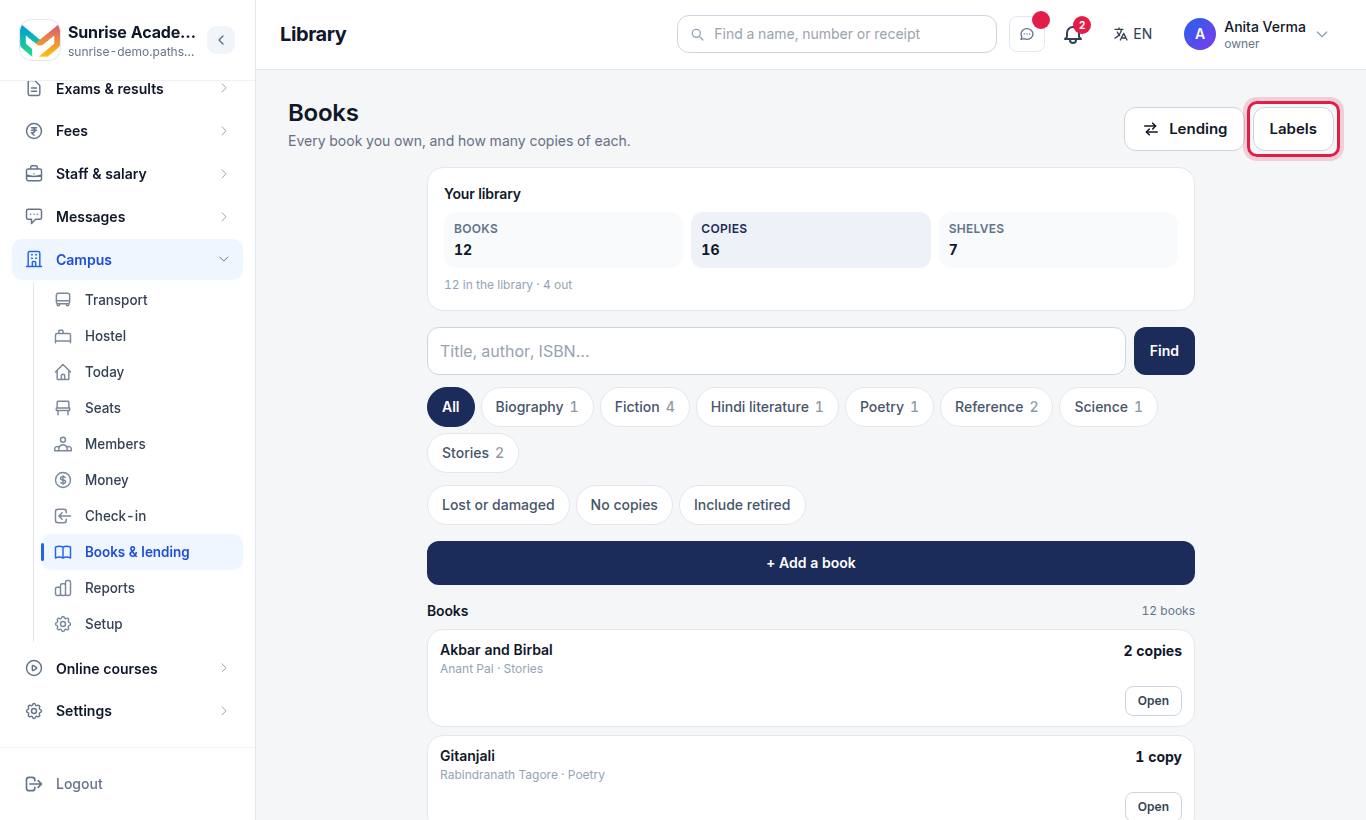
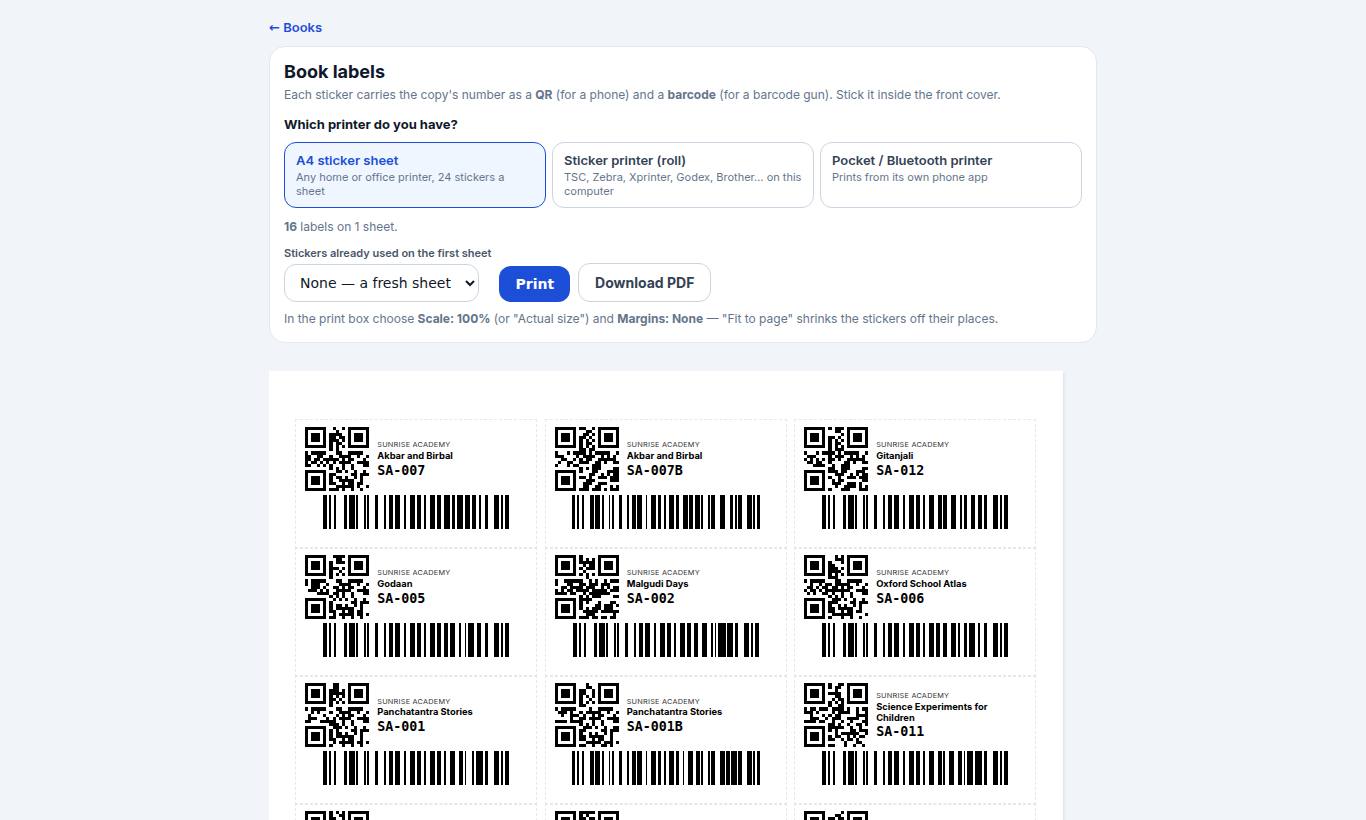
You can also open one book and press Print labels for this book for only its copies. Labels are for the owner and admins; anyone else is sent back to Books.
#Steps to number copies that have none
The page tells you how many copies have no number yet ("*12* copies have no number yet, so they get no label").
- Type Starts with (optional) — for example
A-. - Type the First number — for example
101, or0001to keep four digits. - Press Number them.
Copies are numbered in shelf order (by title). MJX Library never invents numbers on its own — you choose how they start.
#Steps to print labels
- Under Which printer do you have? pick one:
- A4 sticker sheet — any home or office printer, 24 stickers a sheet.
- Sticker printer (roll) — TSC, Zebra, Xprinter, Godex, Brother… on this computer.
- Pocket / Bluetooth printer — prints from its own phone app.
- For a roll or pocket printer, pick the Sticker size on your roll (see the table), or Another size — type it and enter Width (mm) and Height (mm).
- On an A4 sheet you have partly used, set Stickers already used on the first sheet.
- Press Print — or Download PDF (the main button for pocket printers).
#Sticker sizes offered
| Size | Notes |
|---|---|
| A4 sheet of 24 stickers | Any printer |
| 50 × 25 mm | The usual sticker roll |
| 38 × 25 mm | |
| 40 × 30 mm | |
| 2 × 1 inch | |
| 50 × 30 mm | Pocket printers |
| 60 × 40 mm | |
| 30 × 15 mm | Small pocket printers — QR only, no barcode |
| Another size | Type width and height in millimetres |
If a number is too long, or the sticker too small, for a barcode a gun can read, that sticker gets the QR only and the page tells you.
#Printer settings that matter
- Roll printer: choose your sticker printer, then Margins: None and Scale: 100%. Each sticker is its own page. If the printer asks for a paper size, make the same size once in its settings (Printer properties › Paper / Stock).
- Pocket printer on a phone: press Download PDF, then Share › your printer's app. Choose the same sticker size in the printer's app.
#Printing from the MJX Library app
In the app, tap More and, under Desk, Print labels (or open a book and press Print labels). Choose All your books or one book, then Your printer and sticker size. Press Share as PDF or Share as pictures and pick your printer's app — most take the PDF, some only pictures. The app can number copies too: Starts with (optional), e.g. A- and First number, e.g. 101, then Number them. Already-used numbers are refused, never skipped.
#Who can use it?
Owner and admin, on every plan.
#Questions people ask
What is printed on each label?
The copy's accession number as a QR code (for a phone camera) and a barcode (for a barcode gun), with the number in large print, the book's title and your library's name.
Which printers work?
Any home or office printer with A4 sticker sheets of 24, a roll sticker printer on a computer (TSC, Zebra, Xprinter, Godex, Brother and others), or a pocket Bluetooth printer through its own phone app.
Why does a copy have no label?
A label carries the copy's number. A copy with no accession number gets no label until you number it.
My stickers print shrunk or out of place. Why?
The print box was set to Fit to page. Choose Scale 100% (or Actual size) and Margins None.
I have used some stickers on an A4 sheet. Can I use the rest?
Yes. Set Stickers already used on the first sheet and printing starts after them.