
Fee discounts, concessions and sibling discounts
Create discount types like sibling, staff ward or scholarship, give them to students with approval, and see them applied on every fee invoice.
In Pathshala a discount (or concession) is set up in two steps. First you make a discount type — for example Sibling Discount, Staff Ward or Merit Scholarship — once for the institute. Then you give it to a student. From then on, every invoice for that student takes the discount off by itself, and the bill shows it line by line.
#Who can use this?
| Action | Who |
|---|---|
| Open the Discounts screen, see a student's discounts | Owner, Admin, or staff with Manage Discounts (Accountant) |
| Create, edit, delete discount types | Owner, Admin, or a role with Manage Discounts |
| Give a discount to a student | Owner, Admin, or a role with Manage Discounts who may also edit student records (the discounts are on the student's Edit details page) |
| Approve a pending discount, or tick Auto-approve | Owner or Admin (or a role given Approve a Discount) |
| Expire or remove a student's discount | Owner, Admin, or a role with Manage Discounts |
Discounts are in MJX Fees Management Basic and above. On Forever Free the Discounts row shows a padlock.
#How to create a discount type
#Steps
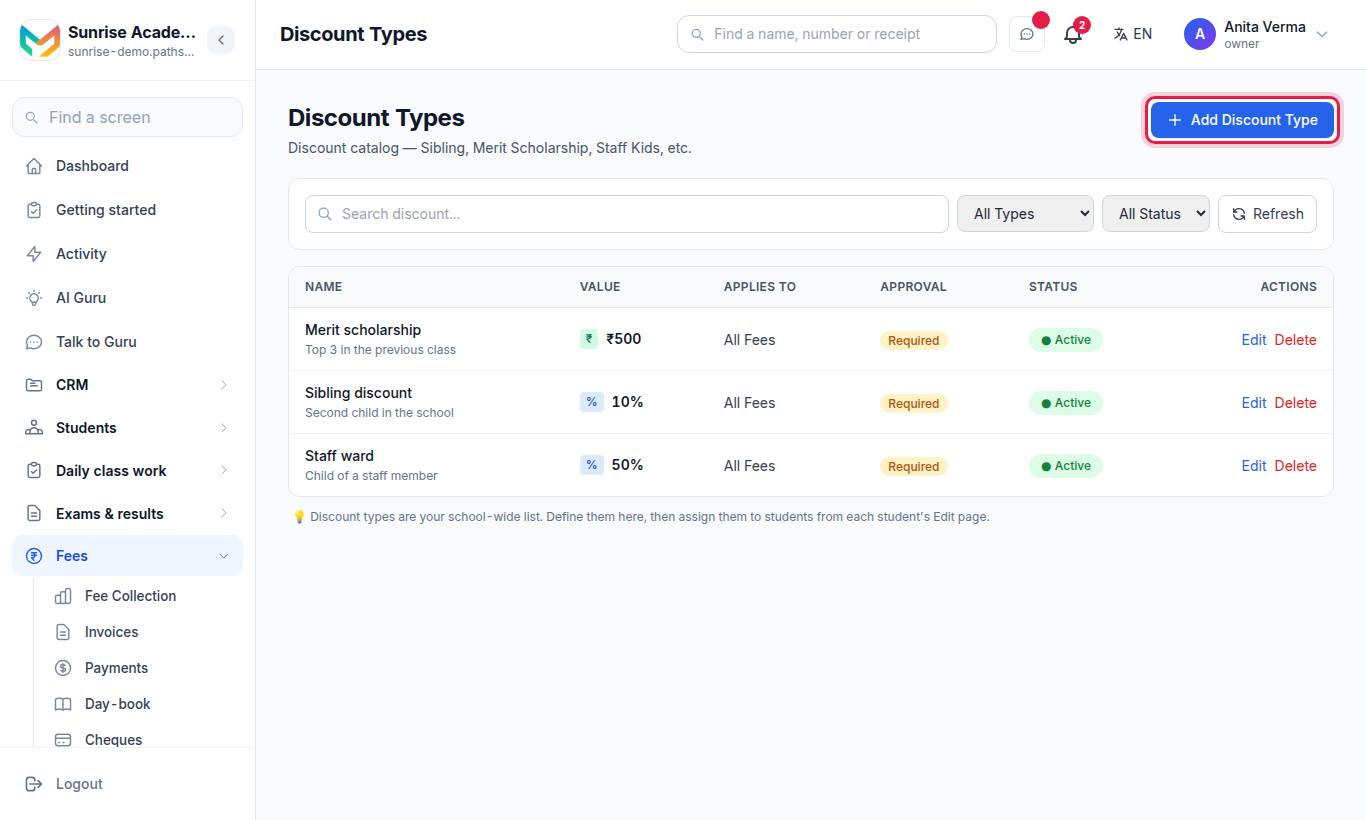
- Press Add Discount Type.
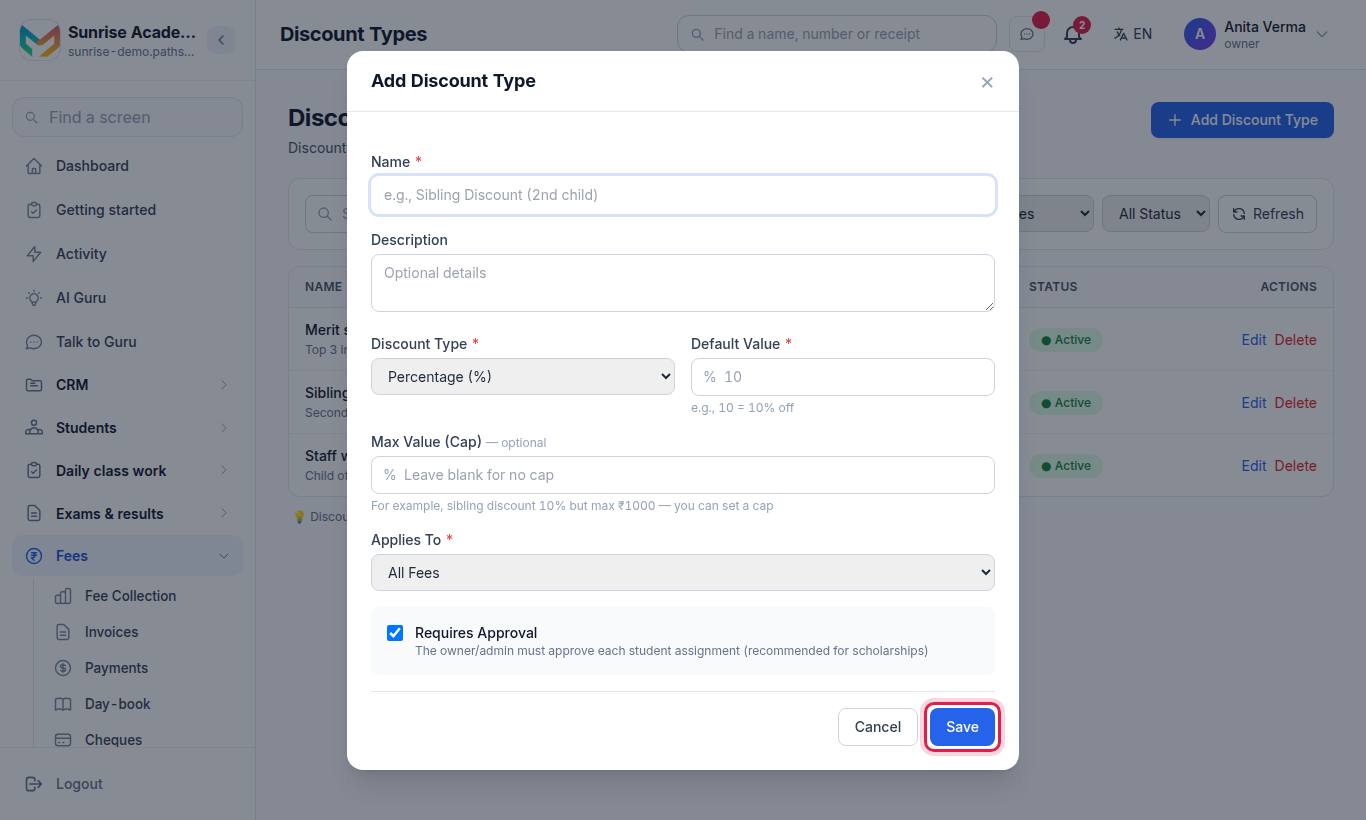
- Type the Name, for example Sibling Discount (2nd child), and an optional Description.
- Choose the Discount Type: Percentage (%) or Fixed Amount (₹).
- Type the Default Value — for example 10 means 10% off, or 500 means ₹500 off.
- Optionally type a Max Value (Cap). Nobody can give this discount above the cap.
- Choose what it Applies To:
- All Fees — the whole bill before discount;
- Tuition Only — the tuition line only (the head coded
TUITIONor with "tuition" in its name); - Specific Fee Heads — tick the heads it covers.
- Leave Requires Approval ticked if every use must be approved by the owner or an admin, with no way to skip it (recommended for scholarships).
- Press Save.
| Control | What it does |
|---|---|
| Search, All Types / Percentage / Fixed Amount, All Status / Active / Inactive | Filter the list |
| Edit | Change the type |
| ● Active / ○ Inactive | Switch it on or off. An inactive type cannot be given to new students |
| Delete | Deletes a type never used. A type already given to students can only be made inactive |
#How to give a discount to a student
#Steps
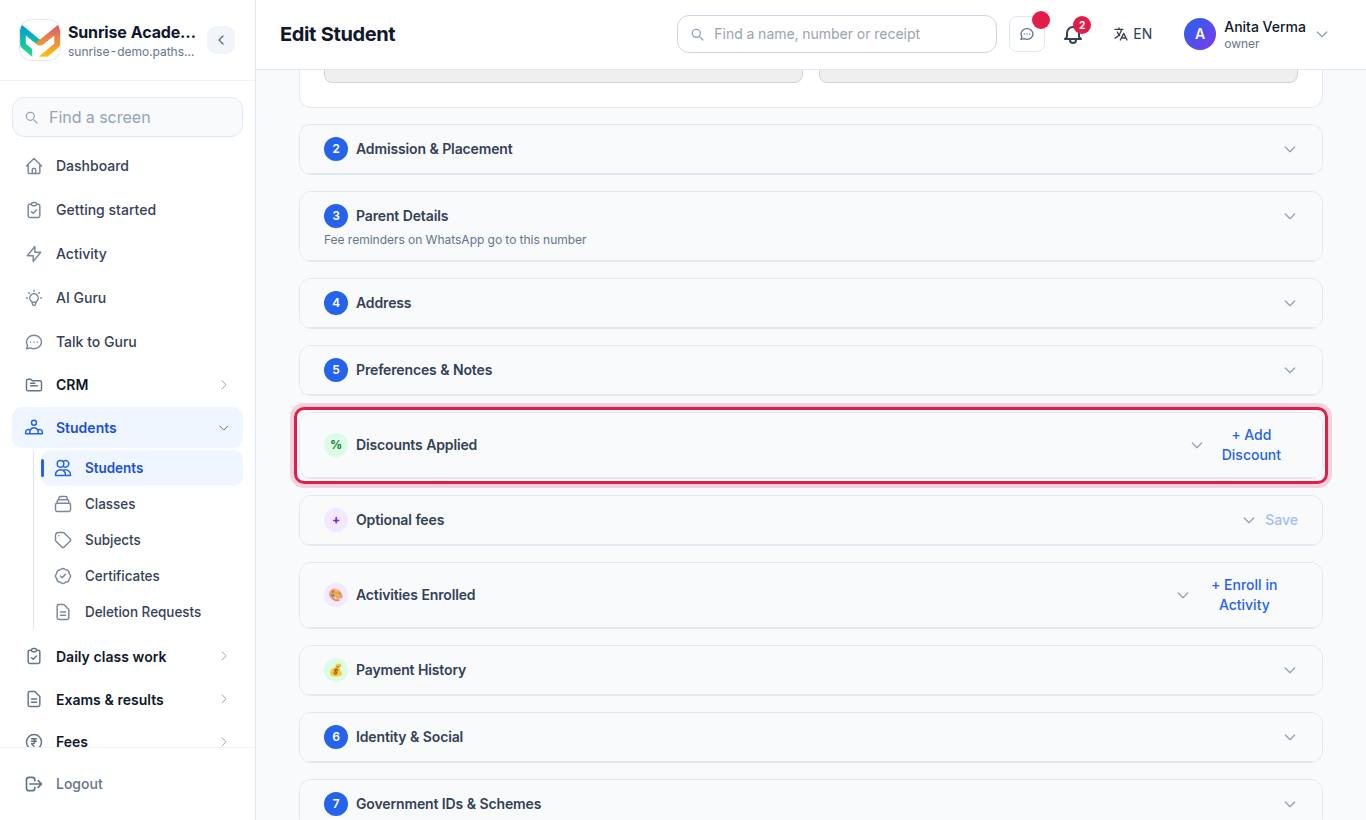
- Open the student and press Edit details.
- Scroll to Discounts Applied and press + Add Discount.
- Choose the Discount Type. Its details appear below it.
- Type a Value, or leave it empty to use the type's default value.
- Set Valid From (today by default) and, if it should end, Valid Until.
- Type a Reason — it is kept for the audit trail.
- Every new discount starts as Pending. Owners and admins can tick Auto-approve to approve it at once — but not for a type that Requires Approval; a note on the form says so.
- Press Add Discount.
#Approving, expiring and removing
Each discount in Discounts Applied has buttons for what can be done with it:
| Button | Shown when | What it does |
|---|---|---|
| Approve | The discount is Pending | Makes it count on new invoices |
| Expire | The discount is Approved | Opens Expire Discount: set the Valid Until date (suggested: the end of the last bill it was used on) and a reason. It stops after that date |
| Remove | Always | Deletes it — refused if it was already used on an invoice; use Expire instead |
#How discounts reach the invoice
When an invoice is generated, Pathshala takes every discount of the student that is:
- Approved,
- in the student's current academic year,
- valid on the first day of the bill's period.
For each one it works out the amount on the lines it applies to — a percentage of those lines, or the fixed amount — and never more than those lines add up to. The invoice preview lists them under Applied Discounts with a Discount Total, and the invoice shows a Discount column per line.
On a single student's invoice you can tick Override discount amount, type the new figure and a reason before you press Confirm & Generate. The change is written into the invoice notes.
#Sibling discounts
Pathshala does not decide by itself who is a sibling. To give a sibling concession:
- Create a discount type such as Sibling Discount (2nd child) (for example 10%, Tuition Only).
- Give it to the second (and third…) child of the family from their Edit details page.
#Examples
#Tips
- Keep Requires Approval on for anything above a small amount. The owner's Worth a look page flags a concession far above your institute's usual.
- Always write a reason. It is shown in the audit trail and helps when a parent asks.
- One-off waivers of a late fee are done on the invoice itself (Waive off / adjust late fee), not with a discount type.
#Questions people ask
Does Pathshala give a sibling discount automatically?
No. Create a discount type such as "Sibling Discount (2nd child)" and give it to the second child. From then on it is applied to every invoice for that child while it is valid.
Why is a discount not on the invoice?
A discount is used only when it is Approved, its Valid From date is on or before the start of the bill's period, its Valid Until date (if any) is not before it, and it is in the student's current academic year.
Who approves a discount?
The owner or an admin (or a role given Approve a Discount). A new discount waits as Pending until they approve it. They can skip that step with Auto-approve, but only for a type that does not have Requires Approval ticked.
Can a discount be more than the fee?
No. A discount is never larger than the amount it applies to, and a cap (Max Value) on the type stops anyone giving more than that value.
How do I stop a discount that was already used?
Press Expire and choose the last date it should apply. Remove is refused once a discount has been used on an invoice, so the old bills stay correct.