
Import students from Excel or CSV
Bring your whole student register into Pathshala from an Excel or CSV file in four steps — upload, map columns, check, import.
In Pathshala you can bring an existing register in from an Excel or CSV file instead of typing each student. The import checks every row before anything is saved and shows you exactly which rows have problems.
#Before you start
- Add your classes on Apps › School & Academics › School settings › Classes first. The class names in your file must match them.
- Download the sample template from the import page if you are building the file fresh.
#Steps to import students
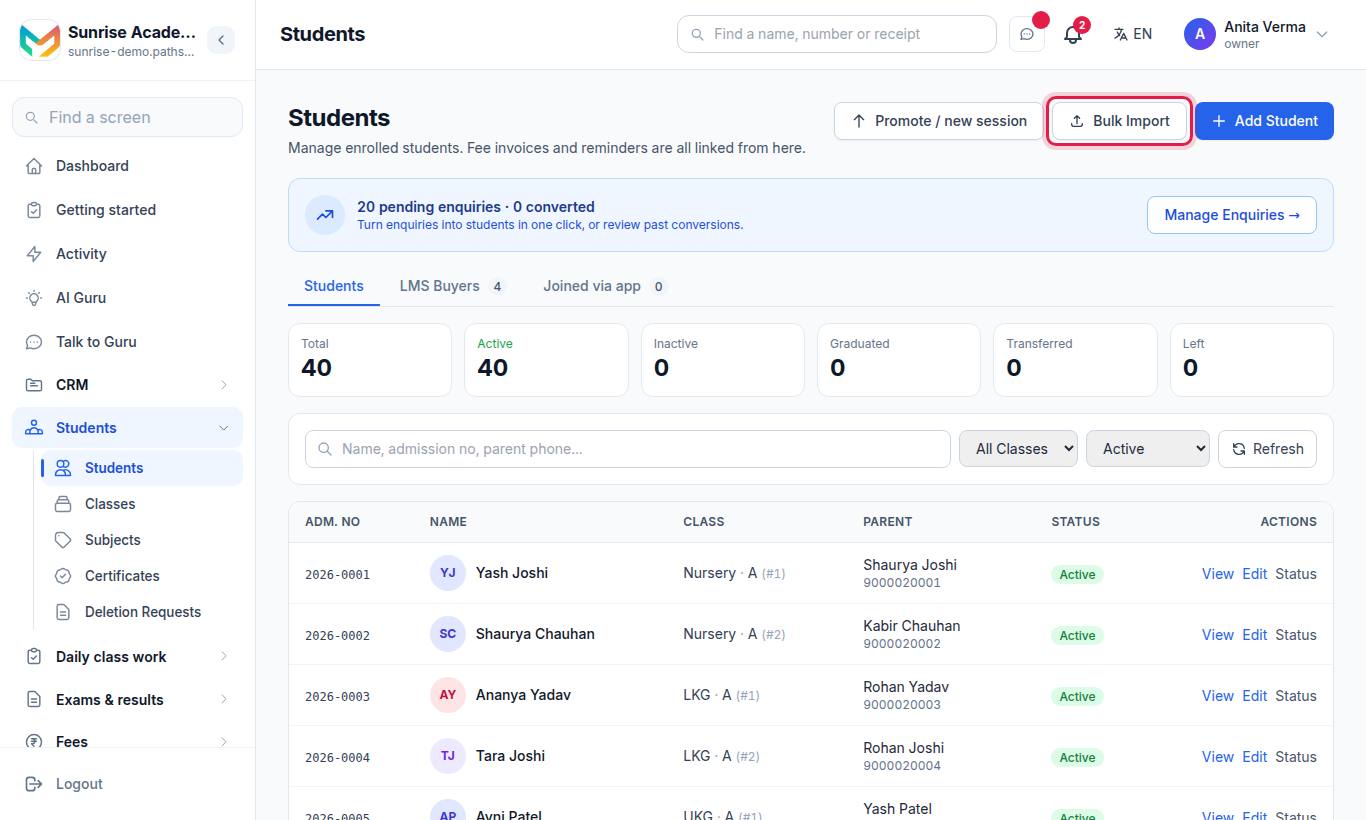
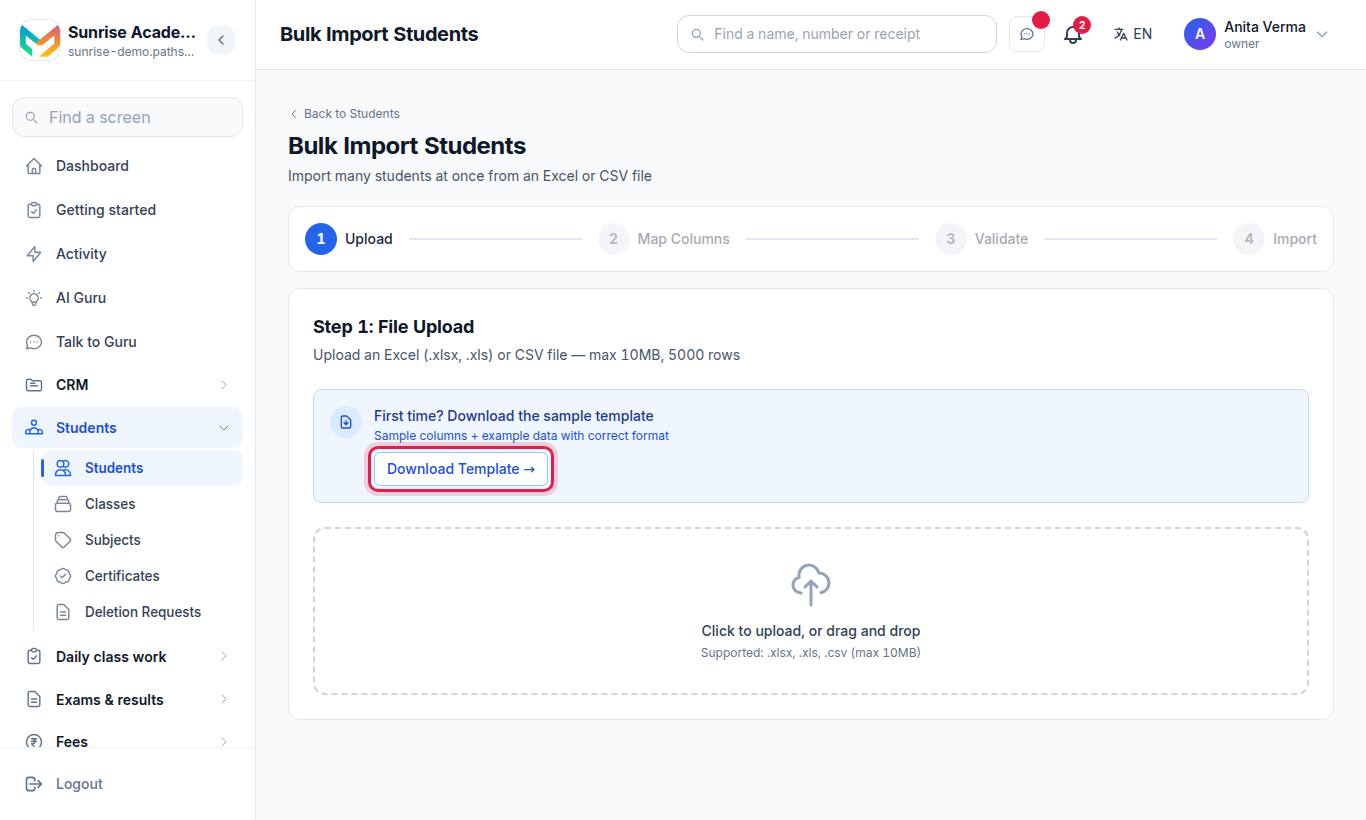
#Upload
Press Download Template → the first time for a sample file with example rows. Then drag your file onto the box, or click to choose it. Supported: .xlsx, .xls, .csv, up to 10 MB and 5,000 rows.
#Map Columns
Each of your columns is shown with its sample data. Pick the Pathshala field it Maps to, or choose — Skip this column —. First Name must be mapped. Press Validate & Preview →.
#Validate
You see Total Rows, Valid, Warnings and Errors, with filters for each. Read the Issues column for any row that is not valid.
#Import
Press Import Valid Only to bring in clean rows, or Import Valid + Warnings to include rows that only have warnings. When it finishes, press View Students or Import More.
#Which fields can be imported?
| Field | Notes |
|---|---|
| First Name | Required |
| Last Name, Admission Number, Roll Number | Admission numbers must be unique |
| Date of Birth, Gender, Blood Group | |
| Class, Section | Class must exist; a new section name is created |
| Parent/Guardian Name, Parent Phone (WhatsApp), Parent Email, Parent WhatsApp (if different) | The parent phone is used for reminders and alerts |
| Father Name, Mother Name, Guardian Relation | |
| Address, City, State, Pincode | |
| Preferred Language, Notes |
More fields from the student form (category, house, government IDs and others) are offered in the mapping list too.
#Errors and warnings
Errors stop a row from being imported. Warnings let it through if you choose Import Valid + Warnings.
| Kind | Problem | Fix |
|---|---|---|
| Error | First name is empty | Fill it in |
| Error | The admission number is already in Pathshala, or appears twice in the file | Make it unique, or leave it blank |
| Error | The class name is not found (the message lists the classes you have) | Rename it in the file to match, or add the class |
| Error | The roll number is already taken in that class, section and year, or repeats in the file | Fix it, or use the option below |
| Warning | The date of birth or admission date could not be read | Use a clear date such as 2015-06-14 |
| Warning | Gender, phone, email or pincode looks wrong | Check the value |
| Warning | Parent phone is missing | Add it, or reminders cannot reach the family |
| Warning | Category or House not found | Add it in Settings, or leave it blank |
#Who can import?
Owners and Admins by default. The owner can give the import permission to someone else under Sidebar › Settings › People & roles › Roles & permissions.
#Related
#Questions people ask
How big can the file be?
Up to 10 MB and 5,000 rows, in .xlsx, .xls or .csv format.
Do my column names have to match Pathshala's?
No. In the Map Columns step you connect each of your columns to a Pathshala field, and anything you do not need can be skipped. Common names like "Name", "Class" or "Std" are matched for you.
Which column is required?
Only First Name. Everything else is optional, but give the class and the parent phone if you want the register and WhatsApp reminders to work.
What happens to rows with errors?
They are not imported. You can import the valid rows now and fix the rest in your file to upload again.
Do the classes need to exist first?
Yes. A class name in the file must match a class on your Classes screen, or that row shows an error.