
Pathshala quickstart — sign up and set up your institute
Create your Pathshala portal, sign in for the first time, add your team and get your first student, fee or lead — step by step.
This quickstart takes you from nothing to a working Pathshala portal: sign up, sign in for the first time, add your team, and get your first real result — a student enrolled, a fee collected or an enquiry answered. Sign-up takes one form and needs no card.
#Open the sign-up page
Go to pathshala.mjxtechnologies.com/signup. If you came from a product page (for example MJX CRM), the page already shows You are signing up for with that product.
#Choose what describes you best
Under What Best Describes Your Business? pick one card:
| Card | For |
|---|---|
| School | K-12 |
| Coaching | JEE/NEET/CAT |
| Tuition | Home/Local |
| College | UG/PG |
| Institute | Skills/Training |
| Business | Office/Agency/Clinic/Shop |
Pathshala adapts its labels, fields and workflows to your choice — for example a coaching centre sees "Batch" where a school sees "Class". Business is for organisations with staff only: it has no students, and leads take their place.
#Fill in your organisation's details
- School Name (the word follows your type — "Coaching Centre Name", "Business Name" and so on).
- Your Portal URL — the first part of your address, for example
sunriseforsunrise.pathshala.mjxtechnologies.com. Use 3–30 small letters, numbers or hyphens. You see ✓ Available! when it is free. - PIN code — type it and the City and State fill in by themselves.
#Choose your plan
Leave Free trial — 14 days selected (marked RECOMMENDED): full access, no credit card. You can also pick a bundle, or press Only want one module? Pick it from the catalogue → to sign up for one product only.
#Enter your own details
Under Your Details (Owner / Principal):
- Your Name
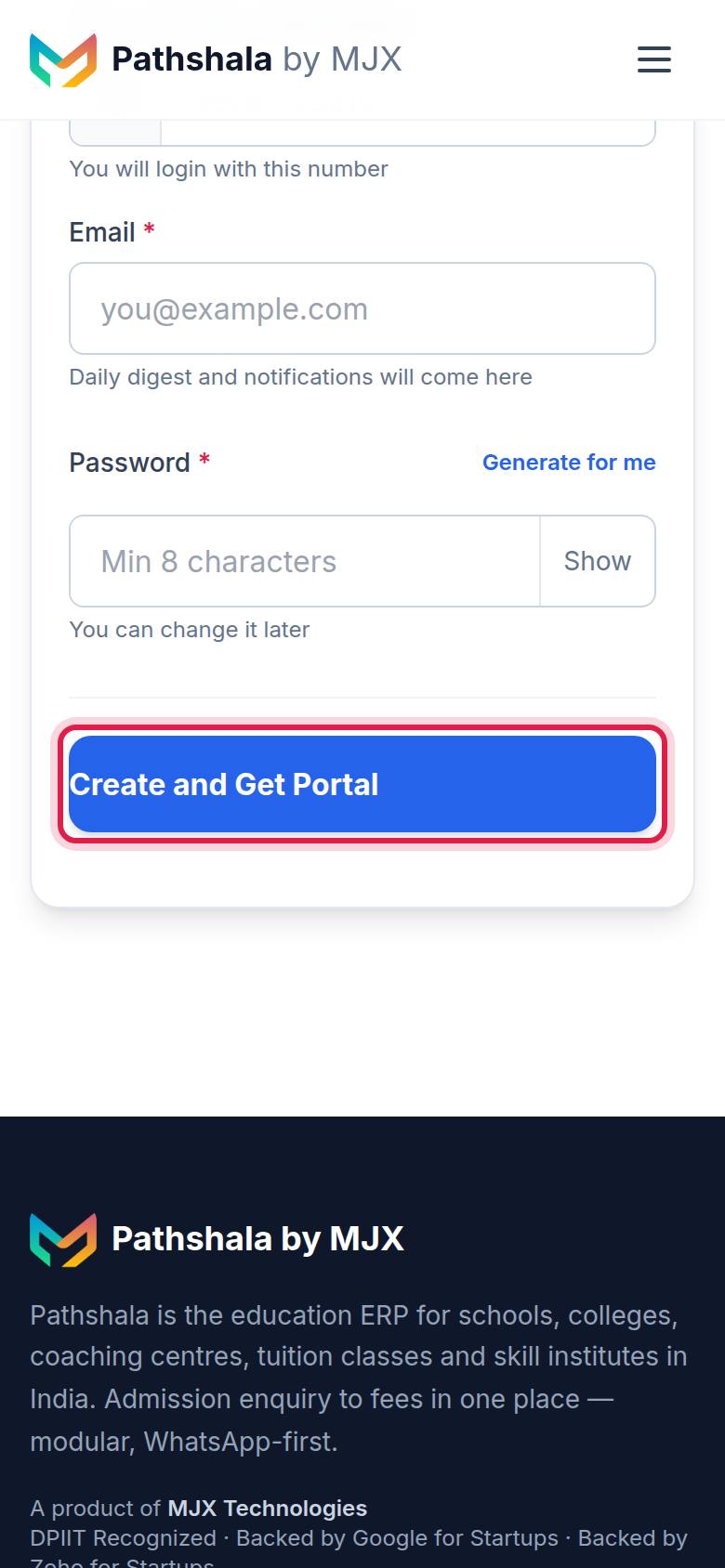
- Phone Number (WhatsApp) — pick the country code (India is already chosen) and type the number. You will login with this number.
- Email — daily digest and notifications come here.
- Password — at least 8 characters. Press Generate for me for a strong one and Show to see it.
Press Create and Get Portal.
#Open your portal
The welcome page says Welcome to Pathshala! and shows Your Portal URL. Press Copy URL to save it, then Go to Your Portal.
#Sign in for the first time
On your portal's login page (yourname.pathshala.mjxtechnologies.com/login), enter your Phone Number or Email and Password and press Login. You can also press 📱 Sign in with a code instead to get a 6-digit code on WhatsApp and email.
Pathshala then asks you to Set a new password, because your first password was sent to you on WhatsApp and email. Enter The password we sent you, a New password twice, and press Save new password.
#What does the dashboard show first?
- A welcome banner with your latest enquiries and a See all → link (when you have MJX CRM).
- A row of quick actions — one-tap links to the screens you use most, handy on a phone where the menu is behind the ☰ button.
- Needs you now — the to-do list for your job. Teachers also see Your periods today, with a link to the Timetable.
- The Finish setting up card, until every step is done.
- The latest activity across your institute.
#Work through the Getting started list
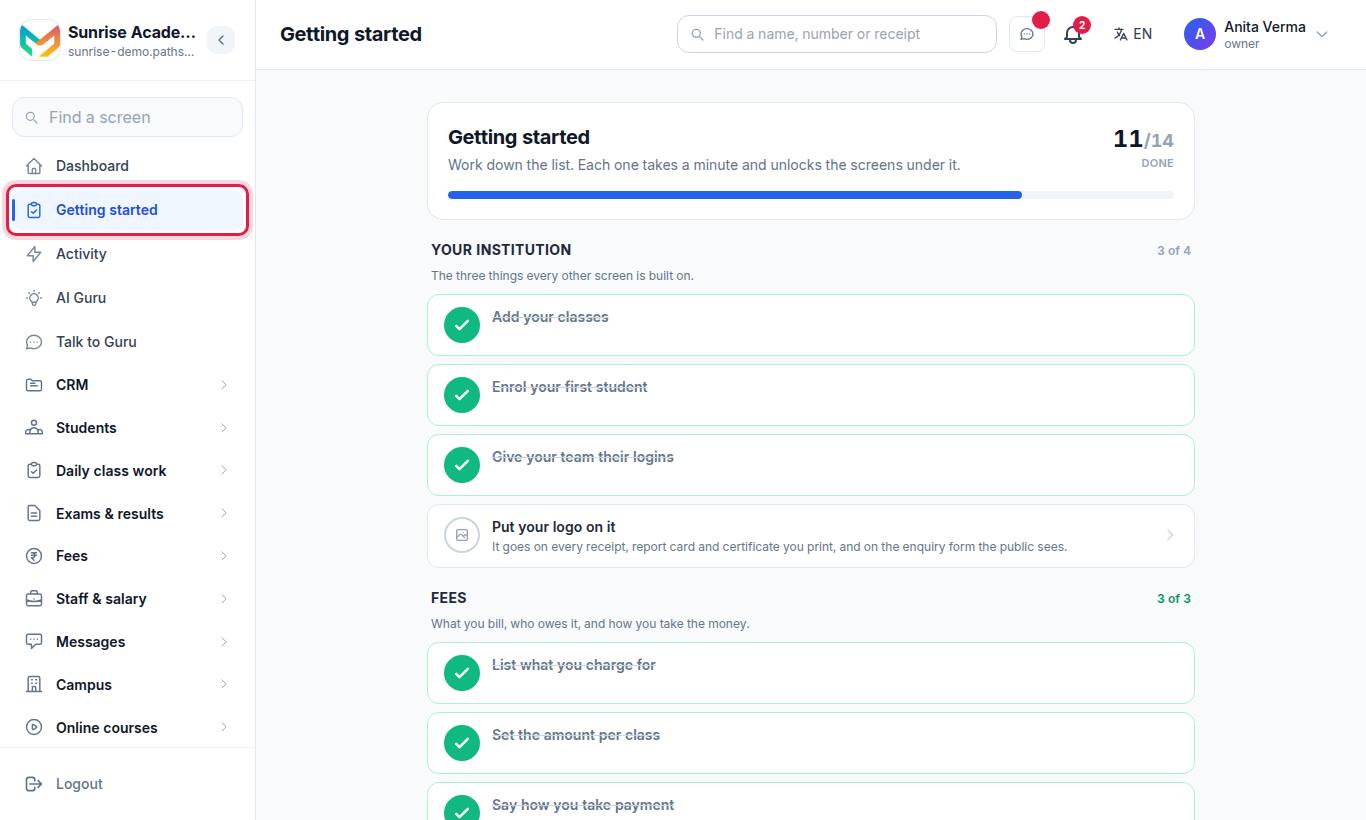
The Getting started page (/setup) says: "Work down the list. Each one takes a minute and unlocks the screens under it." You only see the groups for the products on your plan.
| Group | Steps |
|---|---|
| Your institution | Add your classes · Enrol your first student · Give your team their logins · Put your logo on it |
| Fees | List what you charge for · Set the amount per class · Say how you take payment |
| Academics | Add your subjects · Mark a register once |
| Online courses | Create your first online course · Say who answers questions |
| Messaging | Connect your own WhatsApp number · Publish your first notice |
| Admissions | Share your enquiry form |
A Business or WhatsApp-only account gets its own list: Your account, Your WhatsApp number, Your leads, What it answers with and Going live — with steps such as Get one message template approved, Connect your website, Get your first lead in and Replace the sample answers with your own.
When everything is done the page says You are set up. The list stays in the sidebar so you can check it again later.
#Invite your staff
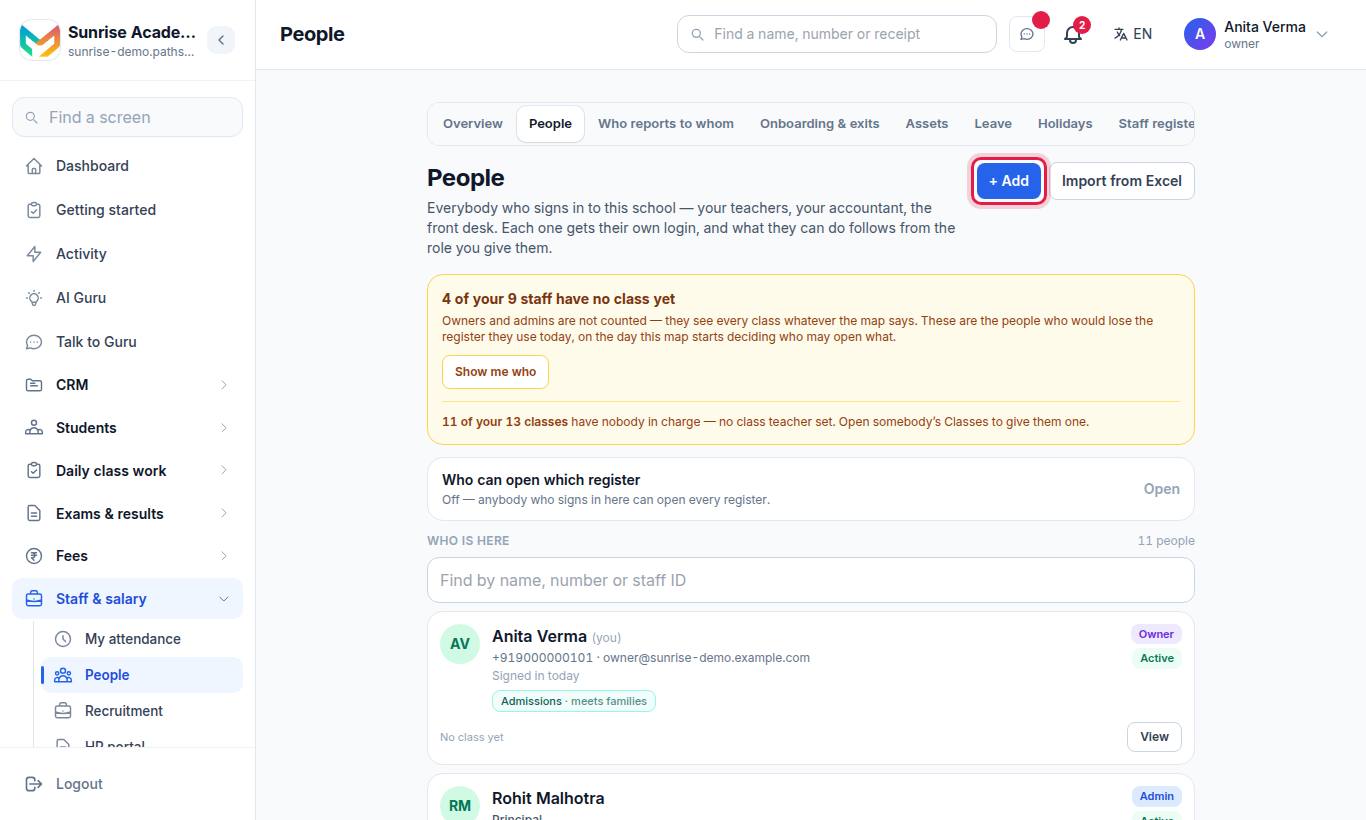
- Press + Add.
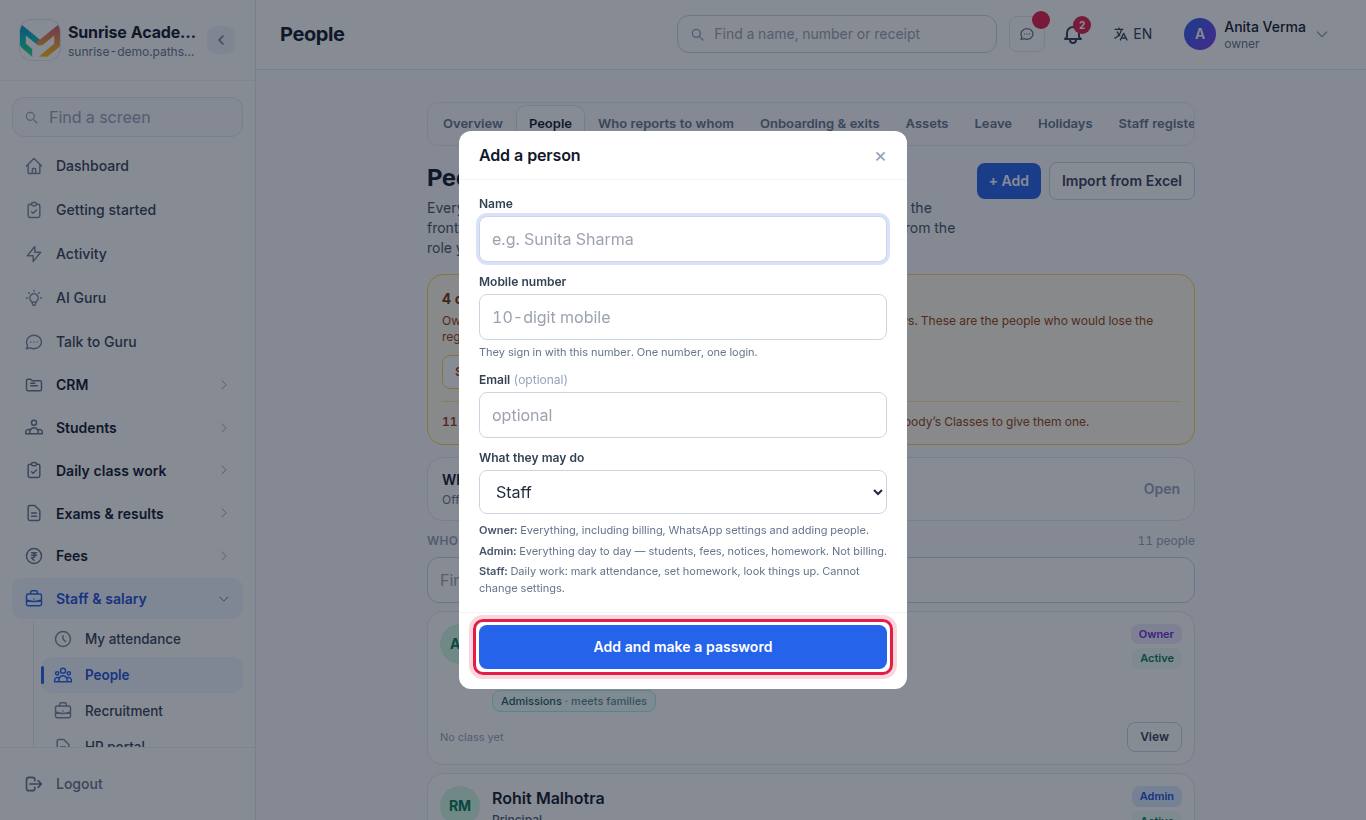
- Enter Name, Mobile number and Email (optional), and choose What they may do — Admin or Staff.
- Press Add and make a password.
- Press Copy the whole message and send it to them on WhatsApp. The password is shown only once.
Each person signs in as themselves, so every screen knows who did what. To narrow what someone can open (for example a teacher or accountant), give them a job in Sidebar › Settings › People & roles › Roles & permissions. See Users and roles.
#Get your first result
Pick the one that matches why you signed up:
#Finish your profile
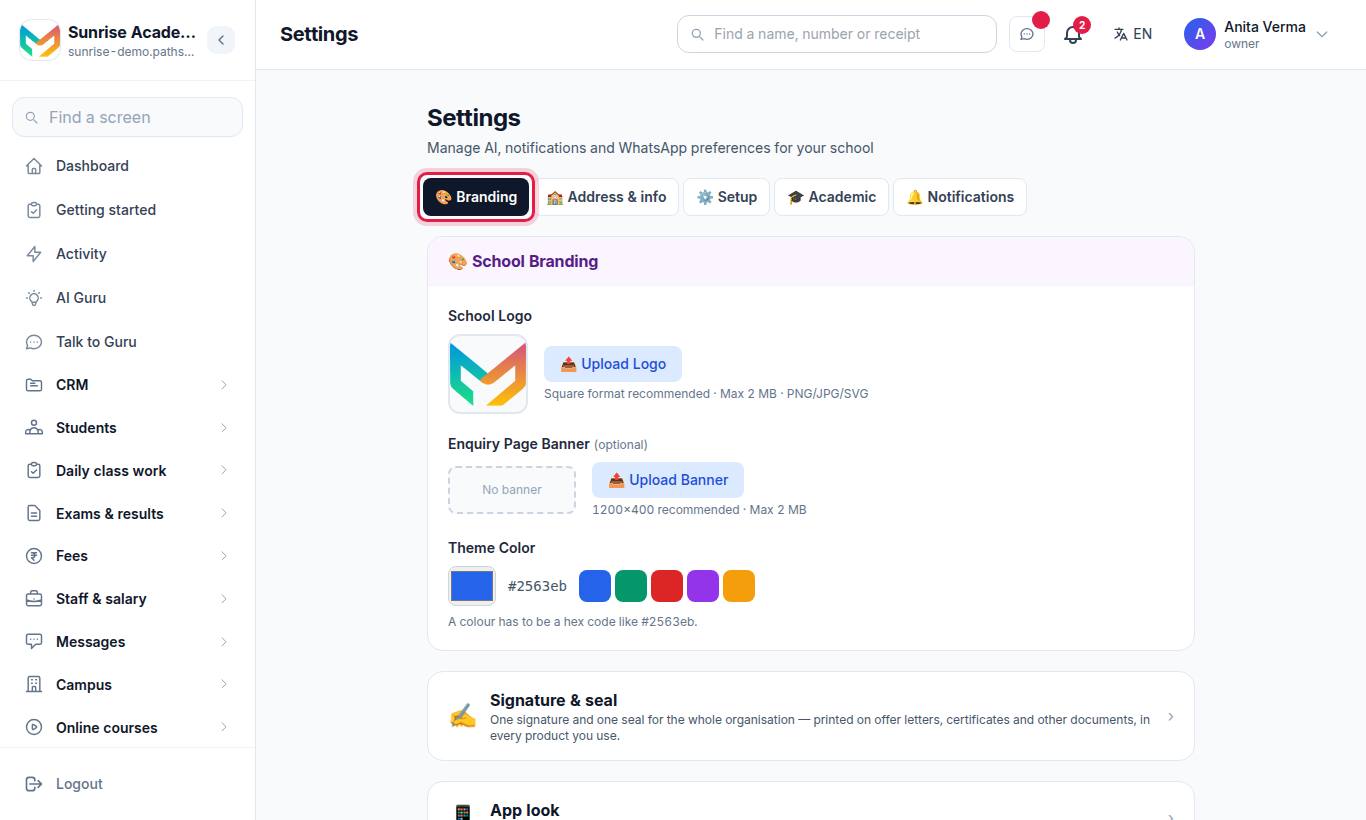
Upload your logo, pick a theme colour, and fill in your address and contact phone on the Address & info tab. Your logo goes on every receipt, report card and certificate, and on the enquiry form the public sees. See Organisation settings.
#If something goes wrong
| What you see | What to do |
|---|---|
| This mobile number is already registered. Sign in, or use another number. | You already have an account. Sign in on your portal, or use another number. |
| That code is already taken. Please choose another one. | Choose another Your Portal URL. |
| Type a valid 10-digit Indian mobile number. or Enter a valid mobile number for (country). | Check the country code next to the box, then type the number without the country code or a leading 0. |
The /login page on the main site does not open | Sign in on your own portal address, yourname.pathshala.mjxtechnologies.com/login. |
More in Troubleshooting. For setup help, WhatsApp +91 79968 37555 — onboarding, data import and staff training are free.
#Questions people ask
Do I need a card to sign up?
No. Sign-up is free, starts a 14-day trial with no card, and then moves you to the Forever Free plan by itself.
Is there an OTP at sign-up?
No. You fill in one form and your portal is created. Your password is then sent to you on WhatsApp and email, and you are asked to change it the first time you sign in.
Which number do I sign in with?
The WhatsApp mobile number (or the email) you gave at sign-up, on your own portal's /login page.
Can I change the business type later?
Yes. The owner can change it in Settings, on the Address & info tab, under "What kind of organisation is this?".
Can I change my portal address later?
The portal address (subdomain) is shown read-only in Settings. Choose it carefully at sign-up, or ask MJX support.