
MJX Teacher app for schools and colleges
Take the register, give homework, write lesson plans, enter marks, release results and take fees from the MJX Teacher app.
MJX Teacher is the staff app for schools, colleges and coaching centres on Pathshala. A teacher sees today's periods from the timetable, takes the register in a few taps, gives homework, writes lesson plans and enters marks; the principal and the office also approve leave, release results, send notices and take fees — each person seeing only what their job allows.
#Who sees what
The app's bottom bar is kept short, and the server decides which tabs a person gets. When the bar is full, Leave moves to the top of Me — one tap away, never gone.
| Person | Bottom bar |
|---|---|
| A teacher | Home · Today · Classes · Leave · Me |
| A teacher who also handles fees | Home · Today · Classes · Fees · Me (Leave inside Me) |
| Principal, owner or admin | Home · Today · Classes · Fees · Approvals · Me (Leave inside Me) |
| Staff who teach nothing (an accountant, a driver) | Home · Fees (if they handle fees) · Check in · Leave · Me |
The Classes tab uses your institute's word: Classes in a school, Target Exams in a coaching centre, Grades in a tuition centre, Branches in a college, Courses in a skill institute.
#How to install and sign in
#Steps to sign in
- Install MJX Teacher from ~/app/teacher or Google Play (package
com.mjxtechnologies.app.teacher). - In Organisation code, type your institute's code — the first part of its web address (for
sunrise.pathshala.mjxtechnologies.com, typesunrise). - In Mobile number or email, type the number or email your office has for you.
- Tap Send me a code. The code comes on WhatsApp and by email.
- Type it in Code and tap Sign in.
If you already have a password for the website, tap Use a password instead and sign in with it. If your institute uses two-step sign-in, the app tells you what to do.
#The Home grid
Each tile opens a screen that is also reachable from the bar or from Me — Home just makes it one tap.
| Tile | Opens |
|---|---|
| Check in | Your own check-in and check-out |
| Attendance, Lesson plan, Homework, Students | Your classes, to pick one |
| My week | Your timetable, day by day |
| Class tests / Test with AI | Your papers, to write questions |
| Marks | Exam papers to enter marks for |
| Results | Results and report cards |
| Approvals | Leave and correction requests to answer |
| Notices | The school's notices to families |
| Reports | Attendance month, shortage list, fee summary |
| Fees / Class fees | Fees at the counter, or your class's dues |
| Leave, Payslips, Holidays | Your own leave, payslips, and the office's notices and holidays |
#Today: periods, register, homework
Today shows your own check-in on top, then each of today's periods from the timetable — the time, class, section and subject are already filled in. Use the arrows to see the day before or after, and Back to today to return.
Each period card shows the register's state ("Attendance not marked yet", "Attendance: 12 of 30 marked", "Attendance done · 2 absent") and whether homework was set for that subject. It has up to three buttons: Take attendance (or Edit attendance), Homework and Lesson plan. A period covered for a colleague says Cover for ….
For the principal, owner and admins, a School today card sits above the periods: staff in, late, on leave and not checked in; registers not taken yet, each with Remind; and fees collected today.
#Steps to take the register
- On Today, tap Take attendance on the period (or open the class from Classes and tap Register).
- The register opens blank. Tap P or A for each child. Use ⋯ for Late, Half day or On leave. Search with Find by name or roll number.
- To mark everyone left as present, tap Rest present (n) and confirm with Mark Present.
- Tap Save. Save works only when every child is marked — until then it says Save (mark all first).
#Steps to give homework and tick off what you taught
- On the period card, tap Homework.
- Type What is the homework? (for example "Exercise 4.2, questions 1 to 10") and, if you like, Anything else to say.
- The due date is filled in from the timetable — the next day this class has this subject — with the reason shown. Tap it to change.
- Optional, with MJX Academic Pro: tap Draft with AI, pick the chapter and how long the work should take. The boxes fill in; nothing is saved yet.
- Tap Give it to the class to publish it to families, or Keep it as a draft.
- Under What I taught, tap each chapter you covered. The chapter you are probably on is marked for you.
#Steps to write a lesson plan
- On the period card (today or a coming day), tap Lesson plan.
- Choose the chapter, then fill What is this lesson about? and the optional boxes: By the end, the class can…, How it will be taught, What to bring, Homework line.
- Optional, with MJX Academic Pro: Draft with AI fills the boxes (it uses 1 of the month's AI uses; nothing is saved).
- Tap Save. After the class, tap Mark taught.
A day that has passed opens read-only. My week lets you write plans ahead for coming days.
#Classes and students
Classes lists what the office assigned you (class teacher first, then each subject) and what you are covering today. The owner and admins see every class. Each class has Register and a Students button.
The Students list is searchable by name, roll number or admission number. A child's card is read-only and shows roll number, admission number, date of birth, blood group, this month's attendance with the days absent, and Call home with Call for each contact on record.
#Marks
#Steps to enter marks
- Open Marks. Each of your papers shows how many marks are entered (for example "10 of 15 entered").
- Tap a paper. Children are in roll order, one box each. Next on the keyboard jumps to the next child.
- Tap AB for a child who was absent (absent is not zero). ⋯ gives Not taking it (exempt) and Clear.
- Tap Save. A partial save is fine — only the changed boxes are sent.
A mark over the paper's maximum turns red and Save waits. With no internet, marks are saved on the phone and sent later. The clock icon shows History — who changed which mark, from what to what, and when.
Who may change marks: the class teacher, the subject teacher, today's cover teacher, the principal, the owner or an admin. Once results are out, a teacher's marks are read-only: "Results are out — you can look, not change."
#Results and report cards
Results lists each exam with "Results are out" or "Results not out yet", and each class-section with how many marks are entered.
- Report cards opens the class-section's report cards as a PDF, with Share. A teacher can open only the classes they are class teacher of; the office can open any.
- Release results / Take results back — owner and admin only. Families see the marks in MJX Parent once released.
- Class teachers can Publish this section (or Publish this class) and Take back for their own section.
- Send to parents — owner and admin, after release: the list shows who will get a WhatsApp message and who cannot and why; then Send to n and confirm.
#Class tests with AI
Class tests lists your papers for the classes and subjects assigned to you. Open one and tap Write with AI — choose From chapters (tick the chapters) or From the book (a book and a page range, up to about 15 pages). Keep the questions you like; take any off with Take it off the paper. Then Share paper, Share answer key (staff only — the app warns you) or Enter marks.
Writing with AI comes with MJX Academic Pro. Without it the button says Write with AI (Pro) and you can still open and share your papers.
#Notices to families
School notices (owner and admin, as on the website):
- Tap Write a notice. Give it a title and What do you want to say?
- Under Who is it for?, pick Everyone, one class or one section.
- Tap Keep as draft or Publish. Published notices show in MJX Parent.
- To also message families, open the notice and tap Also send on WhatsApp. The app first shows how many it will reach; tap Send to n to send.
Each notice can also be taken down (Take it down) or moved back to drafts.
#Reports
Read-only, from Reports:
- Attendance month — each child's present, absent and late for one of your classes, with the percentage.
- Shortage list — everyone under the school's attendance line, lowest first, plus children not marked at all (not marked is not absent).
- Fee summary — for people with fee reports access: what is outstanding and who is likely to pay late, and why.
#Fees at the counter
The Fees tab appears for the owner, admins and anyone whose job includes fees. A class teacher may instead see My class's fees — read-only dues for their class.
#Steps to take a fee payment
- Open Fees and search by Name, admission no. or parent's phone.
- Tap the student. Bills show oldest first, each with what is left.
- Tap Take payment, enter the amount and mode, and confirm. The confirm screen shows the amount in figures and in words.
- The receipt number and the receipt PDF appear, with Share and a WhatsApp resend.
Other parts of the Fees tab, each shown only if your job allows it: My collection today, Who owes (with reminders for owner/admin), Bills by class, Cheques, Fee set-up and Parents' payment claims (confirm an "I have paid" from a parent). Cancelling a bill or payment, or giving money back, needs a typed reason and a second confirm. Fees never work offline. See Fees for the office side.
#Approvals and cover (principal)
Approvals lists leave applications and attendance corrections waiting for your answer. Tap Approve or Not approved (with a line saying why — the person reads it). For an approved teacher leave, tap Arrange cover, pick a free teacher ("Free then — the best match first") and confirm with Yes, arrange it.
#Your own check-in, leave and payslips
- Check in — Check in and Check out for the day, with your shift and late time if set. A selfie may be asked for if your institute switched it on. Ask for a correction fixes a day you forgot.
- Leave — Apply for leave, see your balance and My applications, and Withdraw.
- Me — My attendance, My week, Marks, Results, School notices, Reports, Class tests, My payslips, Notices and holidays, Offers & news, and Sign out.
#Troubleshooting
| Message | What it means | What to do |
|---|---|---|
| "MJX Teacher is for schools and colleges. Your organisation uses the MJX People app." | Your organisation is set up as a business. | Install MJX People. |
| "Nothing is assigned to you yet. Ask your office to give you a class or a job." | No class or job is linked to you. | The office gives you a class under People. |
| "Not assigned to you — ask the office." | A period on the timetable is not yours. | Ask the office to fix the timetable or class assignment. |
| "Nobody is on this register yet. Ask your office to add the students." | The class has no students. | The office adds them under Students. |
| "Your institute's server is being updated…" | The institute's server is older than the app. | Wait and tap Try again. |
| "Your session has ended. Please sign in again." | Your sign-in ran out. | Sign in again with a code. |
#Related guides
#Need help?
WhatsApp or call MJX support on 7996837555, or email info@mjxtechnologies.com.
#Questions people ask
Who can sign in to MJX Teacher?
Anyone the institute has added under People on the website. What they see depends on their job — a teacher sees their classes, the office sees fees, the principal sees approvals and results.
Why does the app say nothing is assigned to me?
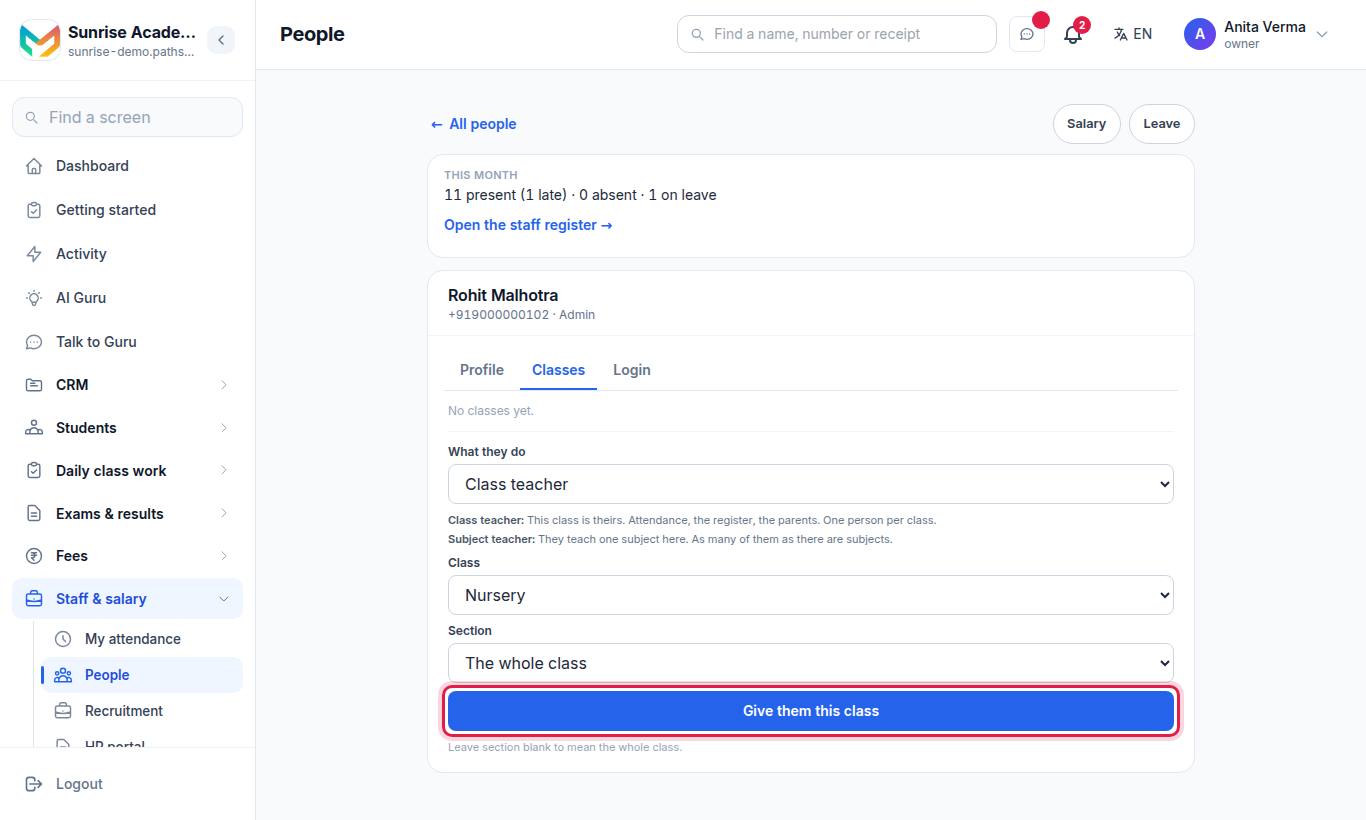
The office has not given you a class yet. On the website, under People, they open your record and give you a class (and optionally a section and subject).
Can I take the register without internet?
Yes. A register saved with no internet stays on the phone and is sent by itself when you are back online. You can also tap Send now on Today.
Can I change yesterday's register?
No. A teacher can take or change only today's register. Past days open to look at only.
Is MJX Teacher for offices too?
No. MJX Teacher is for schools and colleges. An office or business uses the MJX People app.
Does the AI write the homework or the test for me?
With MJX Academic Pro, Draft with AI fills the boxes from a chapter of your syllabus, but nothing is saved until you read it and press the button yourself.