
Create an online course — chapters, videos, PDFs and notes
Add a course in MJX Learn, group topics into chapters, add YouTube or uploaded videos, PDF books and notes, quizzes and day-by-day release.
In MJX Learn a course (also called a batch) is a list of topics — videos, PDFs or written notes — optionally grouped into chapters. You build it once on the website or in the app; learners who have access study it on your own page or in the MJX Learn app.
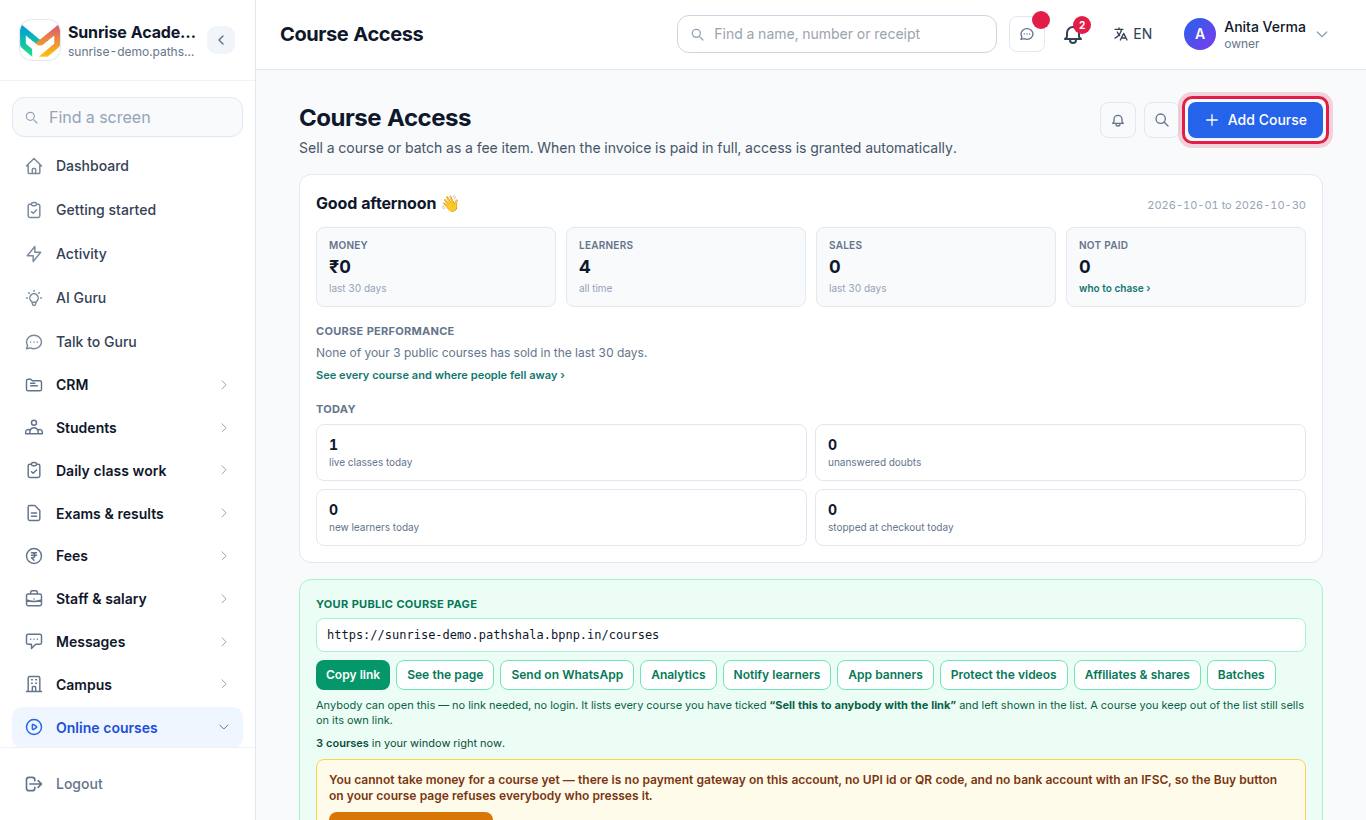
The Courses page is headed Courses. If you cannot take money yet, a card at the very top says what is missing and has one button to fix it. Then the Your public course page card (your store link, Copy link, Send on WhatsApp, See the page), and every course as a card — its name, whether it is on or off, its price when it is on sale, its counts on one line, and Videos & access, Edit and Switch off. Your money, learners and sales figures are on Apps › MJX Learn › Analytics.
#How to add a course
- Press Add Course. The form runs in four steps: Basic information, Curriculum, Pricing and access, Check and publish.
- Fill in Course or batch name and, if you like, What the learner gets (optional) and a Cover picture (optional) — paste a link that starts with
https://; pictures are not uploaded here. - Choose How is it taught?
- Online — learners buy and study in the app
- Offline — taught in person at the institute (see Tuition and in-person classes). An offline course cannot be made online later.
- Optionally choose What kind of course is it? — Live course, Recorded course, Test series, Notes & books, Bundle — several courses, one price or Monthly membership — chosen courses, month by month. This lets visitors filter your public list.
- Under About the course set Category, Level (Beginner, Intermediate, Advanced) and Language.
- Pick an Instructor from your staff, or type a name under Or type it yourself. Tick Show this teacher's photo on the public page if you want it shown.
- Press Next through the steps and Create course at the end.
#Settings on the course form
| Setting | What it does |
|---|---|
| How long does access last? | Days of access. Leave it empty and access never expires (the default). |
| Keep this course after the live class is over | For a Live course with no topics of its own. Unticked, it leaves the learner's list once every class has finished. |
| Offer automatic renewal on this membership | For a monthly membership: members are offered a standing instruction on UPI or card. Press Check automatic renewal is ready to test it. |
| Give a certificate for finishing it | Ticked by default. See Certificates. |
| Sell this to anybody with the link | Puts the course on sale. See Sell your courses. |
| Which fee item is it billed as? | Usually leave it on Make one automatically for this course. It cannot be changed after the course is created. |
#How to add topics
Press Videos & access on the course card (or Open the curriculum editor in the form).
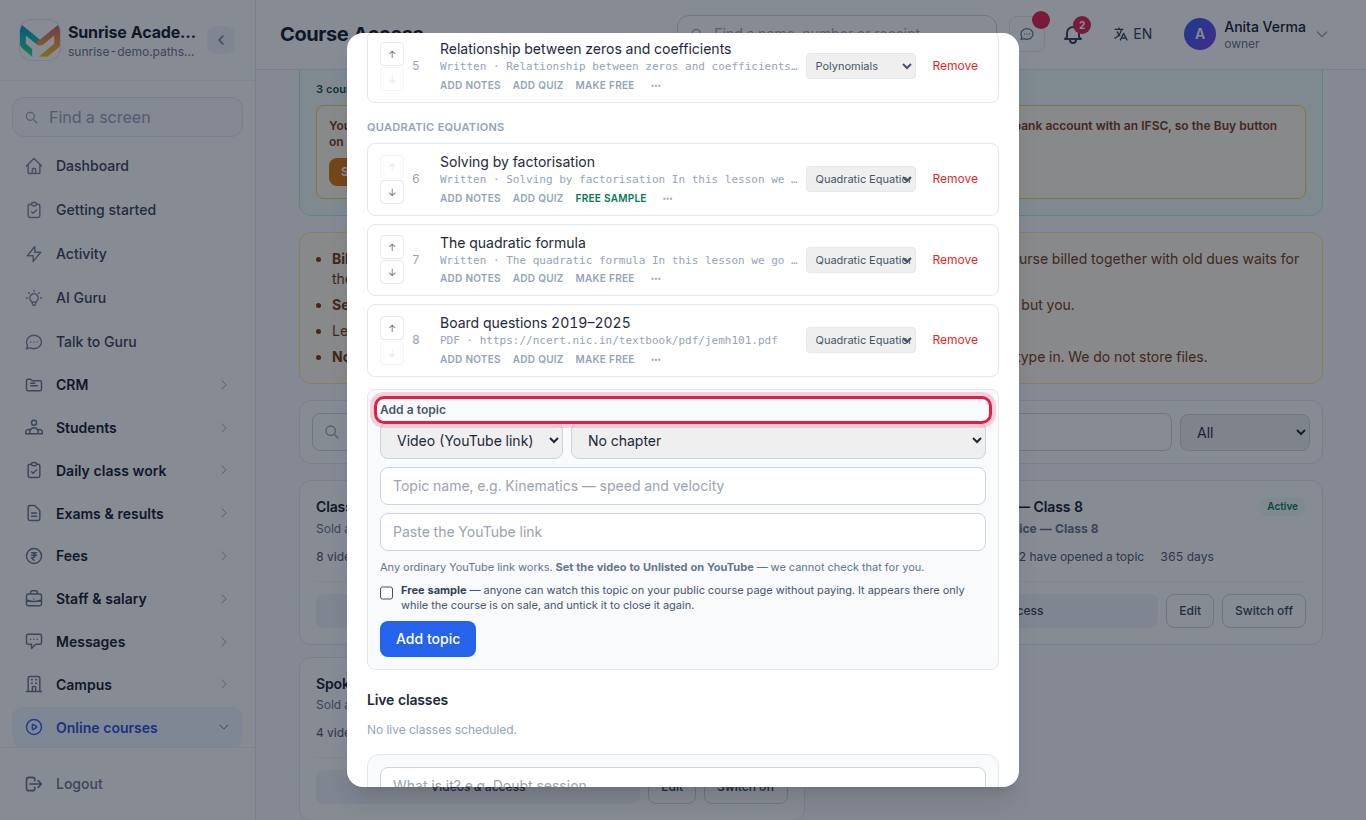
- Choose what the topic is:
- Video (YouTube link) — paste any ordinary YouTube link. Not on YouTube yet? Press How do I get a YouTube link? under the box, or see Put your lesson video on YouTube as Unlisted.
- Video (upload a file) — press Choose a video file (MP4, MOV, MKV or WebM, from your computer or phone). This needs the paid MJX Protected Video add-on — see Uploading your own video.
- PDF link — paste a link to the PDF, e.g. from Google Drive. Once PDF uploads are on for your account this reads PDF (link or upload) and you can choose Upload a PDF instead — see Uploading a PDF.
- Written topic — type the text.
- Pick a chapter (or No chapter) and type the Topic name.
- Tick Free sample — anyone can watch this topic if it should be open on your public course page without paying.
- Press Add topic.
#What each topic row offers
| Button | What it does |
|---|---|
| Make free / Free sample | Opens or closes the topic as a free sample on your public page. |
| Add notes / Notes draft / Notes live | Opens the notes and quiz panel for the topic. |
| Add quiz / Quiz draft / Quiz live | Same panel — the quiz part. |
| ⋯ | The menu with Edit, Preview, Duplicate and Upload a video / Replace the video. |
Edit keeps the topic and everybody's progress on it. Remove deletes the topic and every record of who watched it.
Preview opens the topic exactly as it will play, on a page only staff can open, marked Free sample or part of the paid course. On a computer the topic sits beside a card with its type, who can open it, the PDF's page count (once known), the instructor and what is in the course (topics, chapters, videos, PDFs, written topics and free samples), with Back to Courses under it.
#Uploading a PDF
Once PDF uploads are switched on for your account, a PDF topic offers two buttons: Paste a link and Upload a PDF.
- Choose PDF (link or upload), then press Upload a PDF.
- Press Choose a PDF file and pick the file from your computer or phone (a .pdf file, up to 50 MB). The topic name is filled in from the file name if the box is empty.
- Pick a chapter, check the Topic name, and press Add topic. A bar shows the file being sent.
The topic row then reads PDF · Uploaded: name.pdf (2.8 MB). To change it, open ⋯ › Edit on the row: Replace sends a new file at once, and Remove lets you paste a link instead — the uploaded file is deleted when you save. Removing the topic deletes its file too.
In the app, the same Upload a PDF button appears in Add topic and Edit for a PDF topic.
#Uploading your own video
Uploading your own video file is the paid MJX Protected Video add-on. Without it, Video (upload a file) and ⋯ › Upload a video show a padlock and say: "Uploading your own video is a paid add-on: MJX Protected Video…" with a button to get it, and Use a free YouTube link instead. Videos you already uploaded keep playing either way.
With the add-on, the topic shows Hidden till ready while the video is prepared, and learners see it only when it is ready. You can leave the page while it is prepared. Every upload is compressed to 720p to save space; the box shows how much storage your protected videos use. If secure video is not ready for your account, you will see: "Secure video is not switched on yet. MJX has to finish setting up the video storage before you can upload your own videos here." Your YouTube topics keep playing in the meantime. See Protect your videos.
#How to use chapters
Chapters are optional headings — a short course with no chapters is a flat list, and that is fine.
- Type a name under Chapter name, e.g. Mechanics and press Add chapter.
- Use the arrows to reorder; Rename and Remove sit on each row. Removing a chapter never removes its topics.
Build the chapters from your syllabus (AI draft): paste your unit or topic list and press Draft the chapters. Tick the headings you want, choose Where should they go?, then press Add the ticked chapters (or Discard). Nothing is saved until you press Add. This needs the AI course and test builder (Pro).
#Release chapters day by day (drip)
Each chapter shows From day 1 or ⏱ After N days. Press it and type how many days after a learner joins it should open (0 = from day one). To space every chapter out at once, press ⏱ Open one chapter every … days.
A learner who opens a locked chapter sees Not open yet. In a batch, days are counted from the batch's start day, so everybody moves at the same pace.
#PDFs open as a book
A PDF topic opens in the book reader: swipe or tap a side to turn the page, drag the corner to curl it, double-tap or pinch with two fingers to zoom, and use the slider to jump to a page. There is no download button, and the pages are marked for the learner who opened them. If a document cannot be drawn as a book, the learner sees This one opens as a plain document with Open the document.
#Notes and quizzes with AI
Open Add notes on a topic.
- Under What you teach in this topic, paste the material and press Save material. Learners never see this — notes are never written from the topic name alone.
- Press Write notes with AI, edit the result under The notes — yours to change, press Save, then Publish to learners.
- For a quiz, press Write a quiz with AI, read every question, then Publish to learners.
Nothing reaches a learner until you press Publish. Editing published notes or a quiz takes them off the learner's page until you publish again. Use Take down or Remove notes / Remove quiz to withdraw them. More in Mock tests and quizzes.
#Bundles and memberships
For a Bundle or Monthly membership course, the course window shows Courses in this bundle / membership. Tick the courses it gives and press Save bundle. A monthly membership lasts 30 days and is renewed by paying again — nothing is charged automatically unless the member agrees to automatic renewal.
#Switching a course off
Press Switch off on the course card. A switched-off course is not offered to anybody; a learner who opens its link sees Not available now — This course is not available right now. Please contact the office. Press Switch on to bring it back.
#In the app
In MJX Learn, open My batches, tap a course, and use Add topic / Add chapter, Edit or upload a video, Open chapters day by day, Schedule live class and Publish & price. For a tuition class the words are Add subject and Add book. See Educator app.
#Who can do this?
| Who | Can |
|---|---|
| Owner, Admin | Everything on this page. |
| Teacher (staff) | In the app, add and change topics on courses they are on. Only the owner can remove a topic, set a price or schedule a live class. |
| Plan | Courses and topics: every plan (Forever Free allows 2 courses by default). AI chapter outlines: Pro. |
#Questions people ask
Do I have to upload my videos?
No. A topic can be an unlisted YouTube link (free, as many as you like), a PDF link or text you type. Uploading your own video file (MP4, MOV, MKV or WebM) is the paid MJX Protected Video add-on.
Can I release chapters week by week?
Yes. Each chapter has a "From day 1" button — set how many days after a learner joins it opens, or press "Open one chapter every … days" to space them all out.
Does editing a topic reset learners' progress?
No. Editing keeps the topic and everybody's progress on it. Removing a topic deletes it and every record of who watched it.
How does a PDF open for learners?
As a book. Pages turn with a swipe or a tap, pinch to zoom, and there is no download button. Every page carries your institute's name, and the learner's name and number when the name-and-number watermark is on.
Can I upload a PDF instead of pasting a link?
Yes, once PDF uploads are switched on for your account — choose Upload a PDF (up to 50 MB). The file is kept privately in MJX's storage, learners read it in the book reader, and it is never a public link.
Can teachers build courses?
In the app, a teacher on the course can add and change topics. Only the owner (or an admin) can remove a topic, set a price or schedule a live class.