
Sell your courses online — price, sale page and discount codes
Put a course on sale in MJX Learn — set a public price, share its sale page or course store, add discount codes, bundles and memberships.
In MJX Learn you sell a course by ticking Sell this to anybody with the link and setting a price. The course gets its own sale page that you can share on WhatsApp, Instagram or a poster, and it can appear on your course store — a page that lists every course you have on sale. When somebody pays, access opens by itself.
#How to put a course on sale
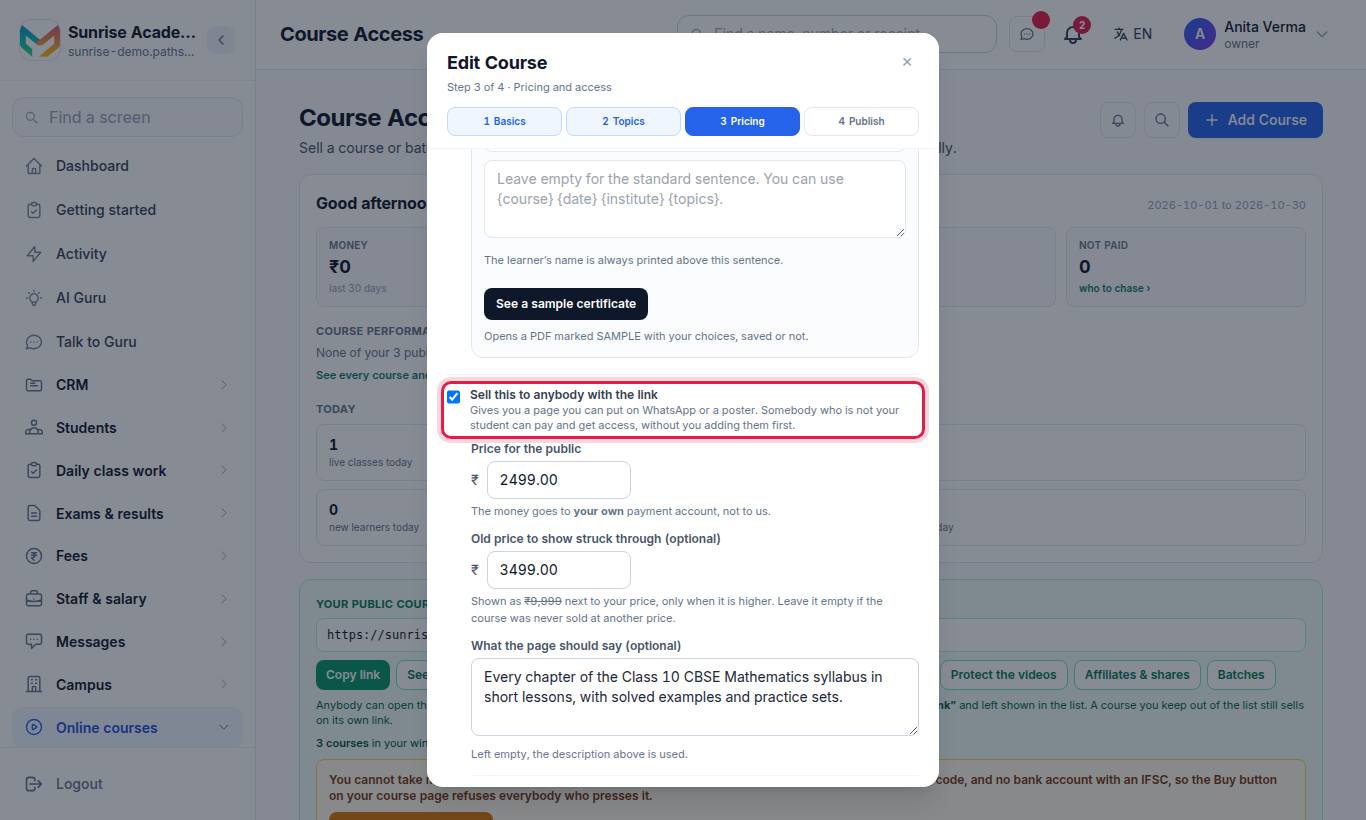
- Tick Sell this to anybody with the link. Somebody who is not your student can then pay and get access, without you adding them first.
- Type the Price for the public (₹).
- Under Fees on online sales: what the buyer pays, tick who pays (see below).
- Optionally set Old price to show struck through (optional) — shown next to your price only when it is higher.
- Optionally fill What the page should say (optional). Left empty, the course description is used.
- Leave Show it on my public course page ticked to list it on your store, or untick it to keep the course link-only.
- Press Create course (or Save changes when editing).
#Who pays the online fees
| Tick | Ticked | Not ticked |
|---|---|---|
| Gateway & transfer charges | The buyer pays it on top. | It comes out of your earnings. |
| MJX fee (when shown) | The buyer pays it on top. | It comes out of your earnings. |
Under the ticks the form works an example out for you, e.g. "For example, on a ₹999 course the buyer pays …" followed by the gateway, transfer and MJX lines and what you receive. The percentages shown are the ones that apply to your account.
#How to share a course
Open the course with Videos & access. The top shows On sale to the public with the course link and three buttons:
- Copy link
- Send on WhatsApp
- See the page
Below them, What you will learn, requirements, FAQ › opens the Sales page details editor (see below).
#Your course store
At the top of the Courses page, the Your public course page card has the link to your store (~/courses) and a line saying how many courses are in your window right now. Its buttons are Copy link, Send on WhatsApp and See the page; for owners and admins, More opens Notify learners, App banners, Protect the videos, Affiliates & shares and Batches. Your sales figures are on Analytics (the link under the page title).
How selling works (folded under the buttons — tap to open) explains the rules: anybody can open the store — no link needed, no login — and it lists every course you have ticked Sell this to anybody with the link and left shown in the list; bill a course on its own invoice; set the video to Unlisted on YouTube; learners watch inside Pathshala; nothing is uploaded here.
The store is headed Courses you can join. Visitors can Search courses, filter by kind (All, Live course, Recorded course, Test series…), open View & enrol, or Try a free topic first. If nothing is on sale, visitors see No courses are open right now.
Each course on your store also has a readable address (/courses/<name>), and your home page (/) lists your courses with a Book a free demo button. To get these found on Google and by AI assistants, fill in your public page.
#What buyers see on the sale page
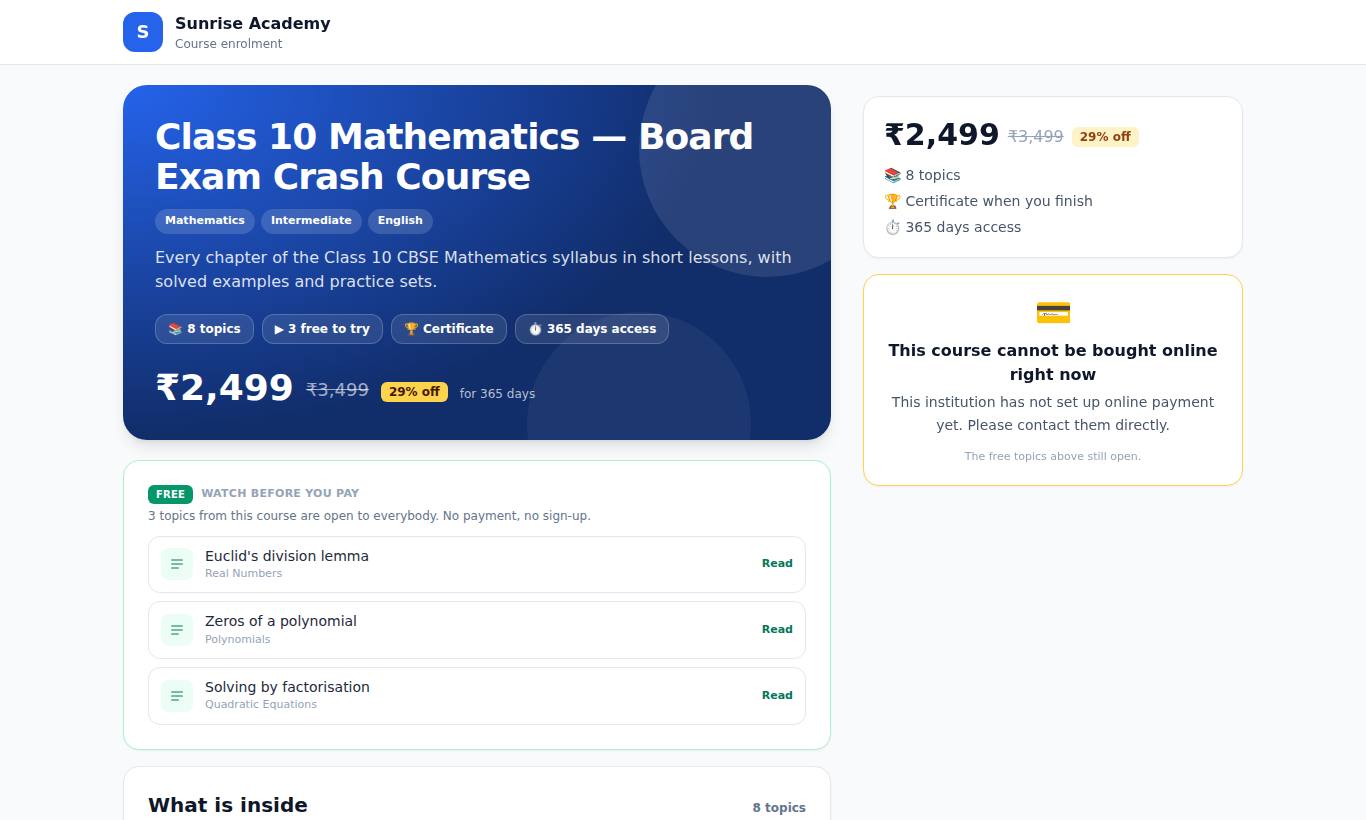
The course page (/courses/<name>, or /course/… for a course you sell by link only) shows, when you have filled them in:
- the name, price, struck-through price and % off, topic count, free to try, Certificate, access days or lifetime access;
- What's included, What you will learn, What you need first;
- Watch before you pay — your free sample topics ("No payment, no sign-up"). On a computer a free sample opens beside a card with the price, See the full course, what is in the course and your instructor; a PDF sample opens with Open the book;
- What is inside — the chapter and topic list;
- Finish it and get a certificate with your name on it, with a sample;
- Your instructor, What learners said (see Reviews) and Questions people ask;
- the buy box: Your name, Mobile number, a batch to choose (if you run batches), I have a discount code, and the Pay ₹… button.
The buyer is told: "Your course link and the one-time code are sent to this number, so please get it right." After paying they get Open the course and the link on WhatsApp.
#How to write the sales page details
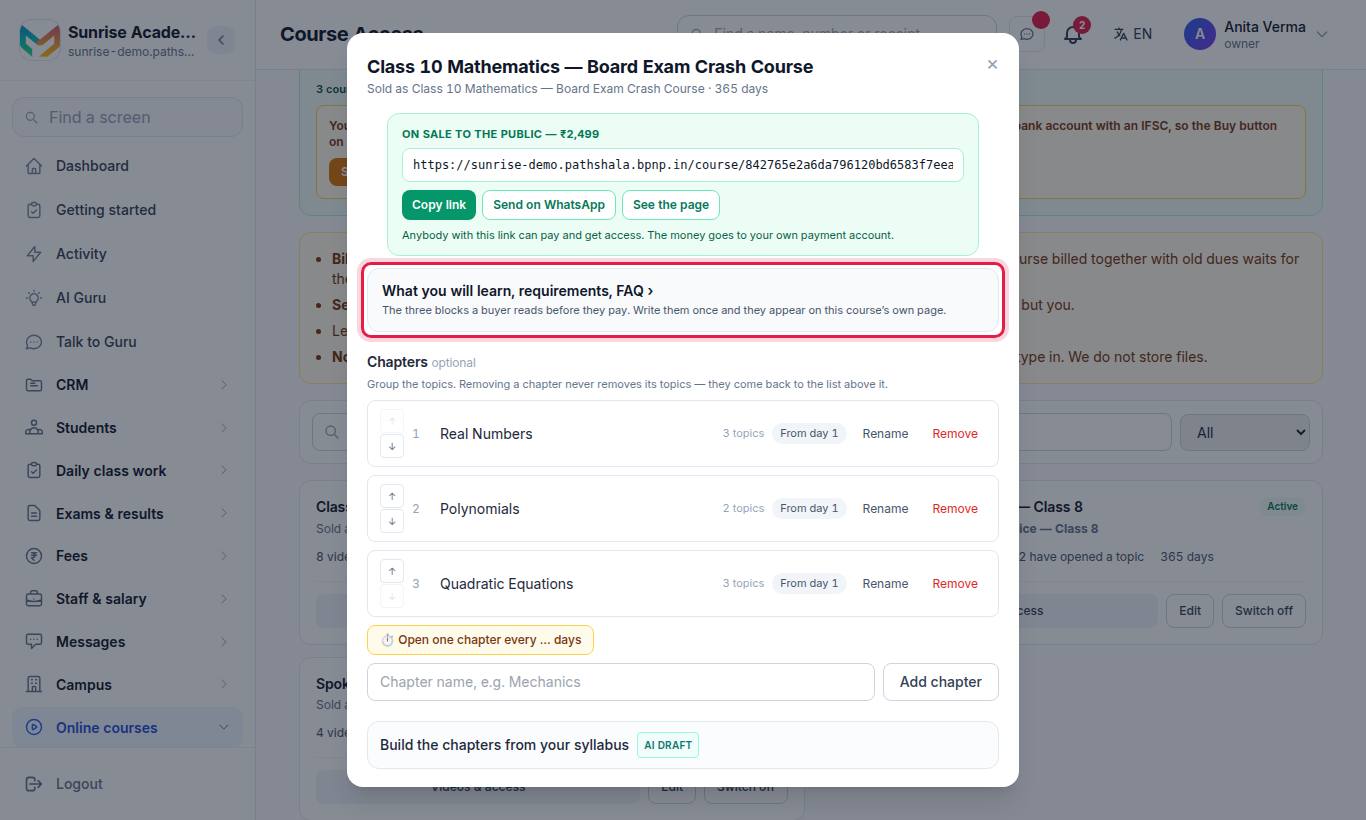
The Sales page details page holds the three blocks a buyer reads before they pay: what you will learn, what they need first, and questions people ask. Add a line, move it up or down, edit or remove it. Each line is live as soon as you add it. You can write these before the course is on sale.
#How to create discount codes
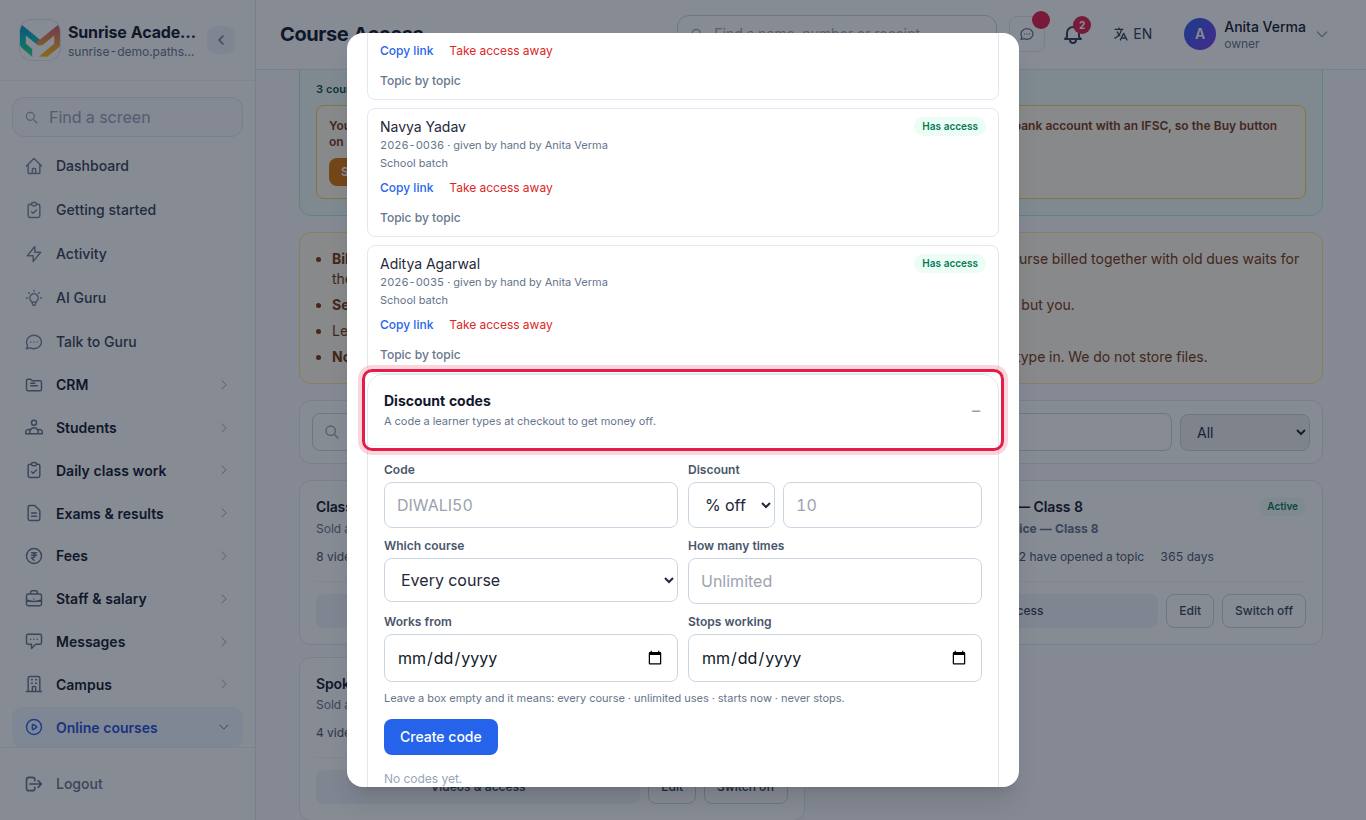
Open any course with Videos & access and expand the Discount codes box ("A code a learner types at checkout to get money off"). A code can still apply to Every course.
- Type the Code, e.g.
DIWALI50. - Choose Discount: % off or ₹ off, and the amount.
- Choose Which course (or Every course).
- Optionally set How many times, Works from and Stops working.
- Press Create code.
An empty box means: every course · unlimited uses · starts now · never stops. To stop a code, switch it off — codes cannot be deleted because a used code is on somebody's receipt. In the app: Money › Discount codes.
Discount codes need the Coupons feature (Basic plan and up).
#Bundles and monthly memberships
Choose Bundle — several courses, one price or Monthly membership — chosen courses, month by month under What kind of course is it?, then tick the courses it includes under Courses in this bundle / membership and press Save bundle. Buying it gives the learner every ticked course.
A monthly membership lasts 30 days and is renewed by paying again. Tick Offer automatic renewal on this membership to offer members a standing instruction on UPI or card; it is always the member's choice and they can turn it off later. In the app learners see Join — ₹… / month, Renew for another month and Turn off automatic renewal.
#Who paid?
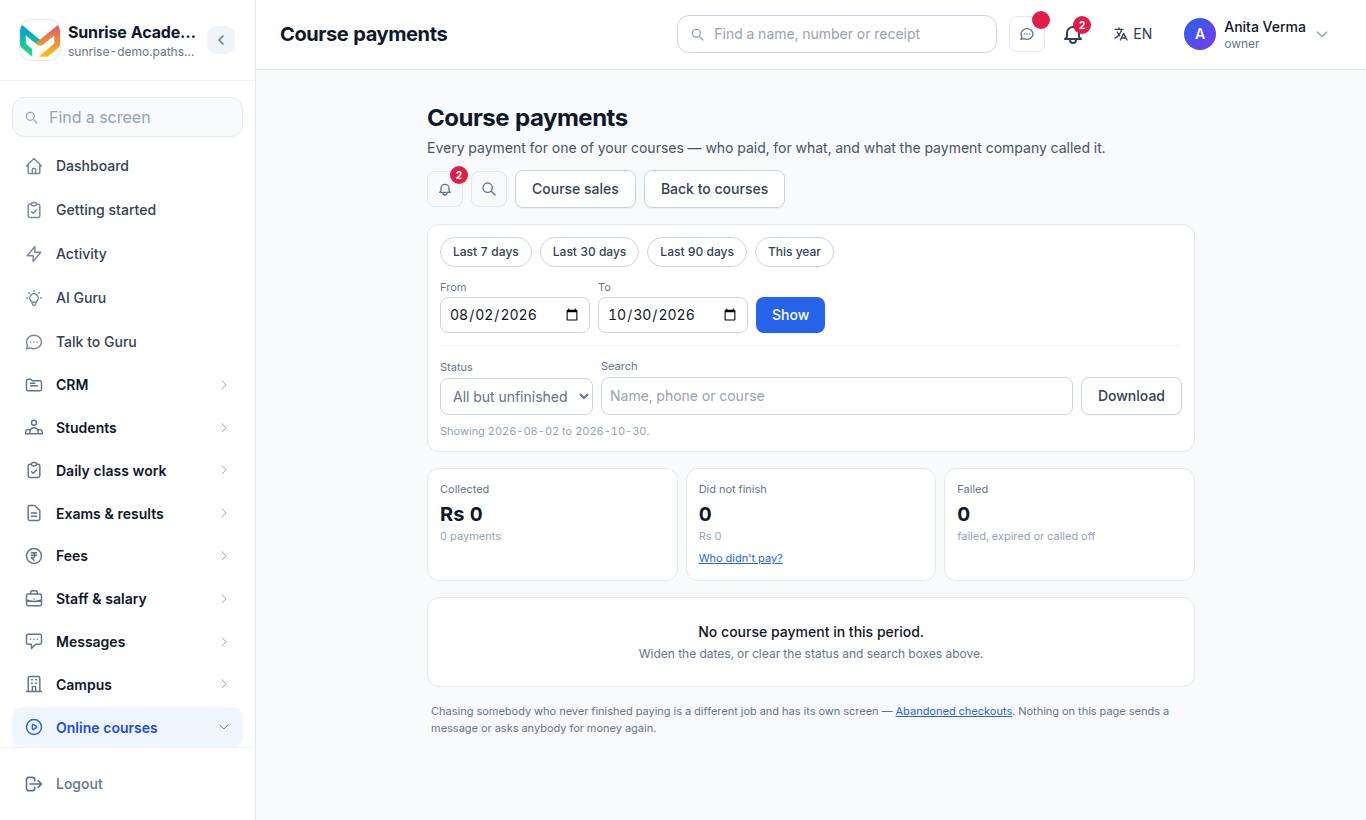
The Course payments page lists every payment for a course — who, for what, and the payment reference. Filter by Last 7 days, Last 30 days, Last 90 days or This year, and by status: All but unfinished, Paid, Did not finish, Failed, Expired, Cancelled, Free with a code. Chasing people who never finished paying is on Grow your sales.
#Who can use this?
| Who | Can |
|---|---|
| Owner, Admin | Price and publish courses, discount codes, sales page details. |
| Teacher | Cannot set a price (the app says only the owner can). |
| Plan | Selling: every plan. Discount codes: Basic and up. |
#Questions people ask
Where does the money go?
To your own share. MJX collects the payment and sends your share to the bank account you verified on Getting paid & KYC. The course page says "The money goes to your own payment account, not to us."
Can I sell a course without listing it on my store?
Yes. Untick "Show it on my public course page". It still sells to anybody you send its link to.
Can a discount code make a course free?
Yes. A code worth the full price shows "Get it free" instead of Pay, and the learner gets access without paying.
Can I delete a discount code?
No — a used code is on somebody's receipt. Switch it off instead; it stops working at once.
Who pays the payment gateway charges?
You choose per course. Tick "Gateway & transfer charges" (and "MJX fee" where shown) to make the buyer pay them on top; leave them unticked and they come out of your earnings.