
Notices and messages to parents
Publish school notices to every family's app for free, send them on WhatsApp when needed, and see who has read each one.
Notices are how your institution tells families things. In Pathshala you write a notice once and every family it is meant for reads it in the parent app — no message cost, and it stays there. When something cannot wait, the same notice can also go out on WhatsApp, and you can see who has seen it.
#Where to find it
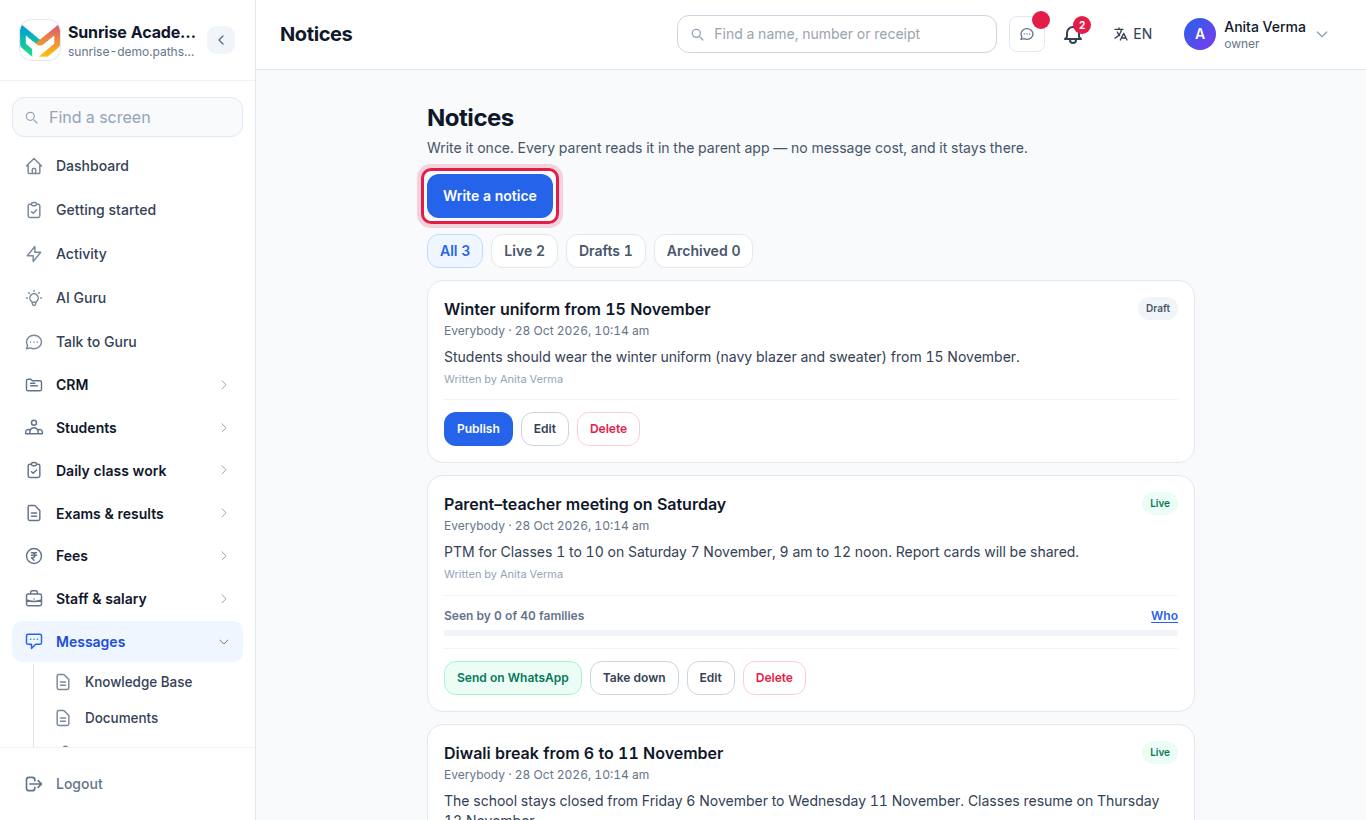
Notices need the Communication module. It is included in MJX ONE and in MJX Academic plans.
#Steps to write and publish a notice
- Press Write a notice.
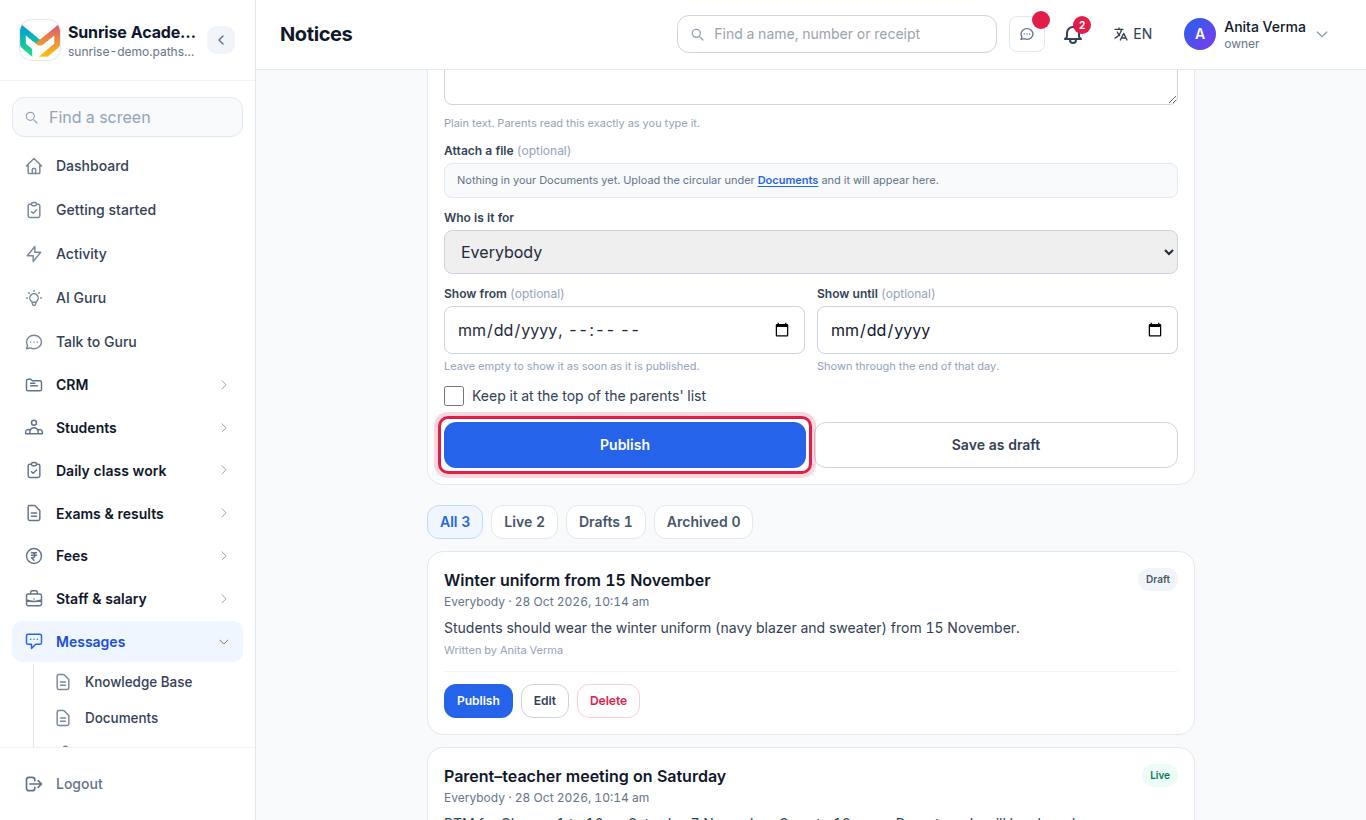
- Fill in the New notice form:
| Field | What to put |
|---|---|
| Title | A short heading, such as "School closed on Monday" |
| Notice | Plain text. Families read it exactly as you type it. |
| Attach a file (optional) | Pick a file from your Documents, or press Add a file to upload one there first |
| Who is it for | Everybody, One class or One section, then choose which |
| Show from (optional) | Leave empty to show it as soon as it is published |
| Show until (optional) | Shown through the end of that day |
| Keep it at the top | Pins it to the top of the families' list |
- Press Publish, or Save as draft to finish later.
#Find, edit and take down notices
The list has tabs All, Live, Drafts and Archived, each with a count. On a notice you can:
| Button | What it does |
|---|---|
| Edit | Opens Edit notice |
| Who has seen it | Lists who has seen it and who has not yet |
| Send on WhatsApp / Send again on WhatsApp | Sends it as a WhatsApp message |
| Take down | Stops showing it; it moves to Archived |
| Delete | Removes it |
#How to send a notice on WhatsApp
- Open a live notice and press Send on WhatsApp.
- Pathshala tells you how many families it will reach and shows the message.
- Confirm. The notice shows Sending now, then Sent on WhatsApp with the date.
Good to know:
- A long notice is shortened to fit a WhatsApp template; the message tells families the full text is in the app.
- The attached file is not sent on WhatsApp. Families open it in the app, and that opening is recorded too.
- Families with no mobile number on file are listed as no mobile on file.
- Sending needs an approved notice template on your own WhatsApp number. If it is missing, press Create it on my number to submit it to Meta. Approval usually takes about a day.
#Other messages that reach families
| Message | Where it is sent from |
|---|---|
| Absent and late alerts, shortage alerts | Student attendance |
| Fee reminders and receipts | Fees |
| Datesheets and results | Exams and marks |
| Certificates | Certificates |
| Holidays and events (no message, on the app's calendar) | Calendar |
| Replies, broadcasts, templates and the inbox |
Nothing on these screens sends by itself — a person always presses Send.
#Who can do what?
| Action | Default roles |
|---|---|
| Open the Notices screen | Owner, Admin, Staff |
| Write, publish, edit, take down, send on WhatsApp | Owner, Admin |
#Tips
- Use One section for class-level news, so other families' apps stay quiet.
- Put the PDF of a circular in Documents once and attach it to the notice.
- Check Who has seen it the next morning and call only those who have not.
#Troubleshooting
| What you see | What it means |
|---|---|
| "Only the owner or an admin can write or publish a notice." | Your role can read notices only. |
| "No classes set up yet, so a notice can only go to everybody." | Add classes first if you want to aim notices. |
| "Nobody in this notice's audience has a WhatsApp number on file" | Add phone numbers on the students' records. |
| "This cannot be sent on WhatsApp yet." | No WhatsApp number is connected, or the template is not approved. |
| "The file this notice pointed at is no longer in your Documents." | Re-upload the file and attach it again. |
#Related
#Questions people ask
Does publishing a notice cost anything?
No. A published notice appears in the families' app at no message cost. Only sending it on WhatsApp is billed, as WhatsApp usage.
Can I send a notice to one class only?
Yes. Under "Who is it for" choose Everybody, One class or One section.
How do I know who read it?
Open the notice's "Who has seen it" list. "Seen" means the notice was on that family's screen in the app.
Can I attach a circular PDF?
Yes. Upload it once under Documents, then pick it in "Attach a file". Families get a link to it under the notice.
Who can write notices?
The Owner and Admins by default. Staff can open the Notices screen and read it.