
Connect your own WhatsApp Business number
Connect your own WhatsApp Business number to Pathshala with Facebook sign-in or by entering the details, and get it ready to send.
Connecting your own number means parents and customers see your number, name and display picture, you can create your own templates (they go straight to Meta) and send broadcasts, and your quality rating is yours alone. Both need your own number — the shared MJX number cannot request templates or send broadcasts. In Pathshala you connect it from WhatsApp Settings in one of two ways: Connect with Facebook (recommended) or by entering the details yourself.
#What you need before you start
- The Pro plan of WhatsApp Automation (or a product plan that includes your own number).
- An owner or admin login in Pathshala.
- A Facebook account that will own the WhatsApp Business number. Facebook asks you to pick or create a Meta business (business portfolio) during sign-in.
- A phone number not registered on the WhatsApp app. It can be a mobile or a landline, but it must be able to receive a verification code by SMS or phone call during setup.
- A display name — the name people will see. Meta reviews it. It should match your institute or business name (as on your signboard, website or documents). Avoid generic words alone, and avoid other brands' names.
#How to connect with Facebook
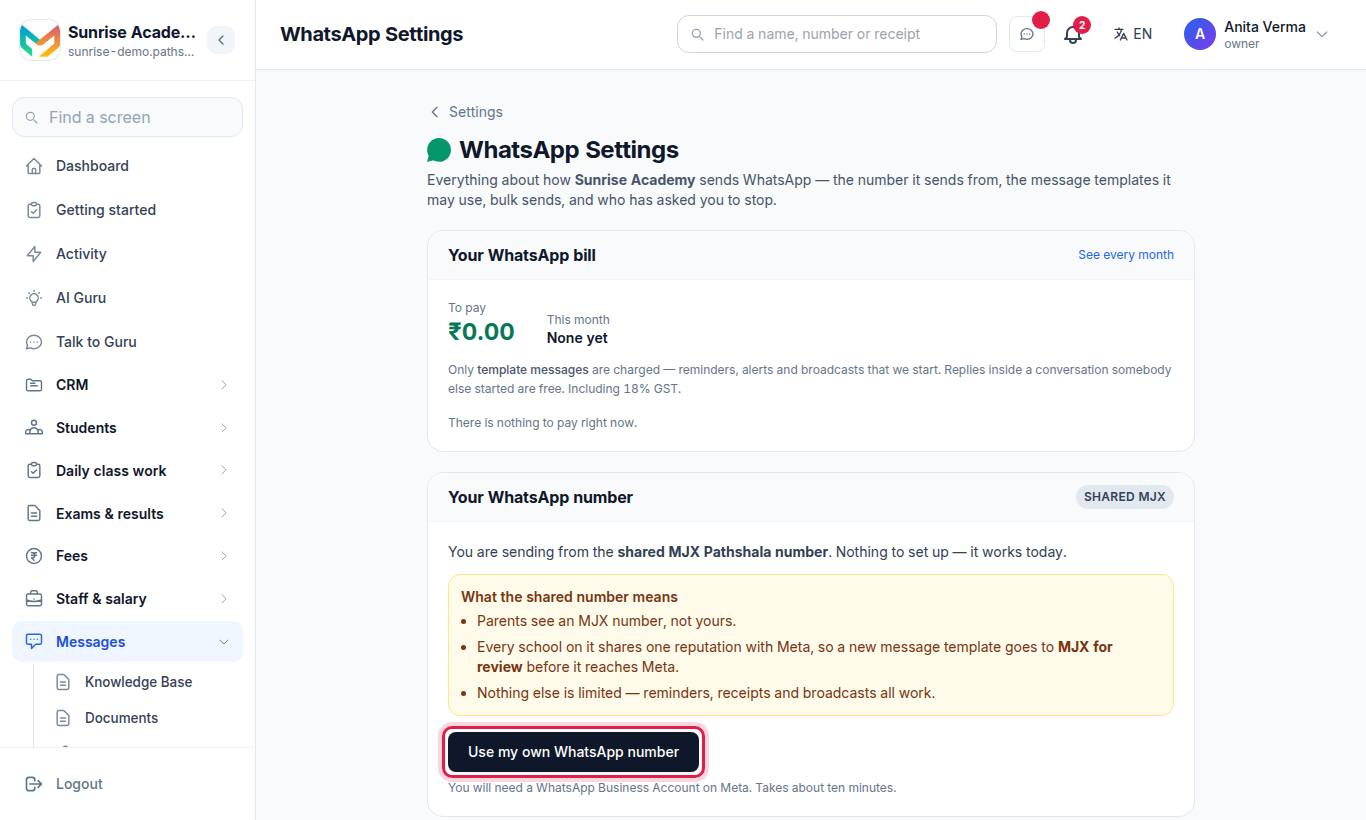
- Press Use my own WhatsApp number. (If your account has no number yet, the button is Connect your WhatsApp number.)
- The sheet Connect your WhatsApp number opens. Press Connect with Facebook.
- A Pathshala page opens on the main Pathshala address: Connect your WhatsApp number — for your institute. Press Continue with Facebook.
- Facebook's own window opens. Log in with the Facebook account that will own the number, then follow Facebook's screens:
- choose or create your Meta business,
- choose or create a WhatsApp Business account,
- enter your display name and business details,
- add your phone number and enter the code Meta sends by SMS or call.
- When Facebook finishes, Pathshala shows "Connecting your number…" and takes you back to WhatsApp Settings.
The connect link lasts ten minutes and works once. If it expires you see "That connect link had expired" — press Connect your own number again. If you close Facebook early you see "That sign-in did not finish" and nothing is changed.
#How to connect by entering the details yourself
Use this if the Facebook window does not work for you. You copy three values from Meta.
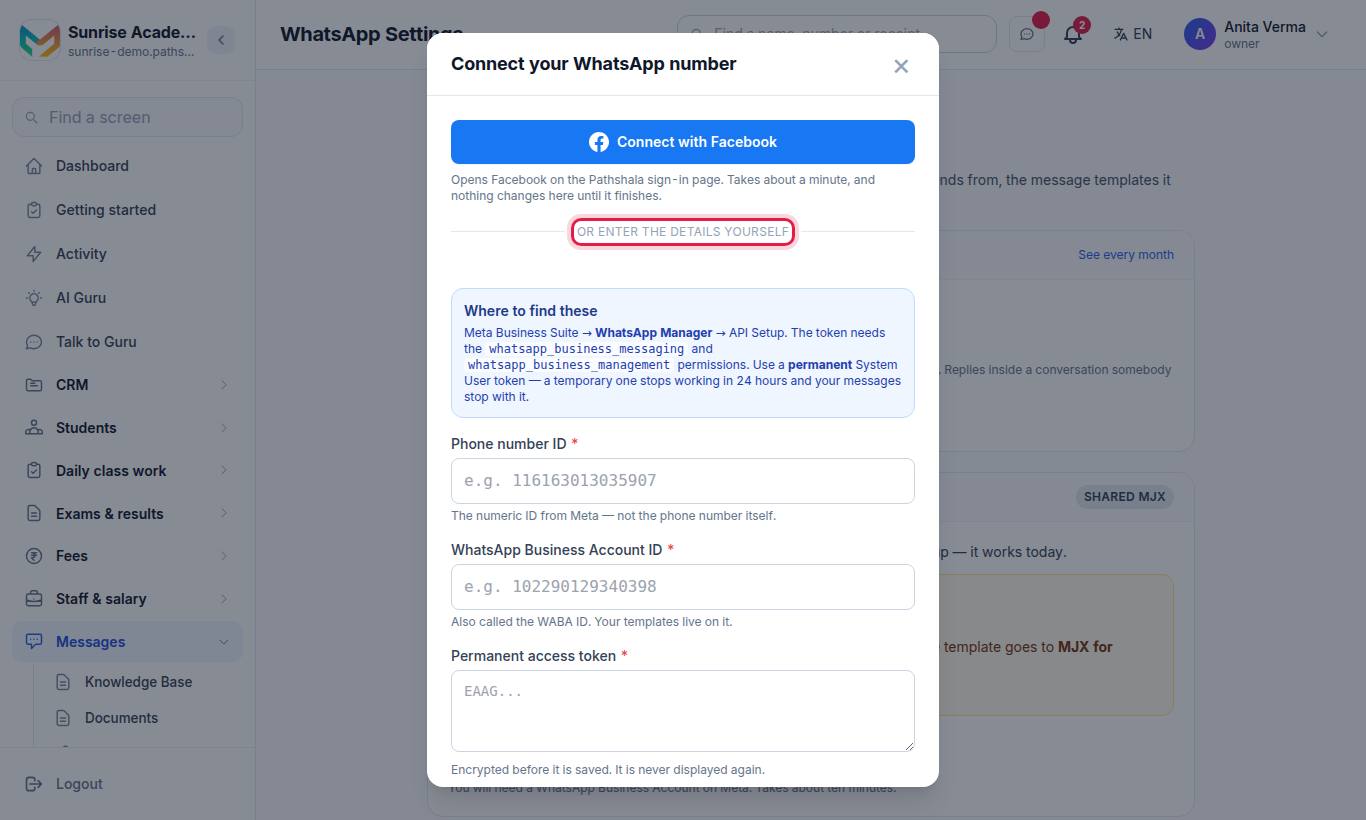
- In Meta Business Suite, open WhatsApp Manager › API Setup.
- In the sheet, under or enter the details yourself, fill in:
| Field | What to enter |
|---|---|
| Phone number ID | The numeric ID from Meta — not the phone number itself |
| WhatsApp Business Account ID | Also called the WABA ID. Your templates live on it. |
| Permanent access token | A permanent System User token with the whatsapp_business_messaging and whatsapp_business_management permissions. A temporary token stops working in 24 hours. |
- Press Test without saving. Pathshala checks with Meta and shows "Works. This is your number … Press Connect to start using it."
- Press Connect this number.
If the details do not work, nothing is stored and you stay where you were.
#Then switch on incoming messages (manual connections only)
A number connected by hand can send but may hear nothing back — no replies, no delivery reports and no STOP — until Meta is told to send its events to Pathshala. The card Receiving replies below your number shows what to do:
- If you see Incoming messages may not be switched on, press Switch incoming messages on. It is safe to press more than once.
- Or, under Paste these into Meta, copy the Callback URL and Verify token into Meta Business Suite › WhatsApp Manager › your app › Configuration › Webhook › Edit, and tick messages under subscribed fields.
A number connected through Facebook is wired up for you: the card says There is nothing to set up here.
#What happens after you connect?
- Standard templates are sent to Meta automatically. A template lives on one number, so the copies approved on the Pathshala number do not come across. Pathshala submits them for your number the moment you connect.
- The card Ready to send lists each template by module (Fees, Admissions / Enquiry, Attendance, Notices / Circulars, Exams & Results, Certificates & Documents, Courses (MJX LMS), Payroll) with a status:
| Status | Meaning | What to do |
|---|---|---|
| Ready | Approved on your number | Nothing |
| With Meta | Waiting for Meta | Wait — this page updates by itself |
| Turned down | Meta rejected it; its reason is shown | Press Get my number ready |
| Failed to send | Could not reach Meta | Press Get my number ready |
| Stopped by Meta | Paused or disabled by Meta | See troubleshooting |
| Not created | Not on your number yet | Press Get my number ready |
- All modules — fee reminders, receipts, absence alerts, notices, AI replies — now go out from your number.
- The Automatic replies & booking card appears (own number only). See Automatic messages.
#How to check, replace or disconnect the number
On the Your WhatsApp number card (owner or admin):
| Button | What it does |
|---|---|
| Check it still works | Asks Meta again; shows "Still connected and working." |
| Replace credentials | Opens the connect sheet to paste new details or connect a different number. It releases the old number in the same step. |
| Disconnect | Messages go out from the shared MJX number again, and your saved access token is deleted. Shown only if your account may use the shared number. |
#Who can connect a number?
Only an owner or admin, on a plan that includes Your own WhatsApp number (WhatsApp Automation Pro, or another product plan that includes it). Other staff can open WhatsApp Settings and see the number, but not change it.
Related: Using the shared MJX number · Templates · Troubleshooting
#Questions people ask
Can I use a number that already has WhatsApp on it?
It has to be a number that is not currently registered on the normal WhatsApp or WhatsApp Business app. Most institutes use a fresh SIM. If you want to reuse a number, delete its WhatsApp account on the phone first.
How long does connecting take?
The Facebook sign-in takes about a minute once your number is ready. Meta then reviews your message templates, which Pathshala submits for you — usually within minutes, sometimes a day or two.
Do my approved templates move to my new number?
No. A template lives on one WhatsApp number. Pathshala sends its standard templates to Meta for your number automatically when you connect.
Do I need my own number to create templates and send broadcasts?
Yes. On the shared MJX number you cannot request templates or send broadcasts. Connect your own number to do both. Automatic messages such as fee reminders and sign-in codes work on either number.
Which plan do I need?
Your own number comes with the Pro plan. On other plans the button is replaced by "Your own number comes with Pro" and an Upgrade link.
Is my access token safe?
It is encrypted before it is stored and is never shown again, not even to you. Pathshala never sees your Facebook password.