
Your name, logo, banners and notifications in the app
Put your institute's name, logo, colour and splash picture in the MJX Learn app, add home-screen banners, and send notifications to learners.
Three owner/admin screens control what learners see in the MJX Learn app: App look (your name, logo, colour and splash picture), App banners (pictures across the top of the home screen) and Notify learners (messages under the bell and on the phone).
#App look
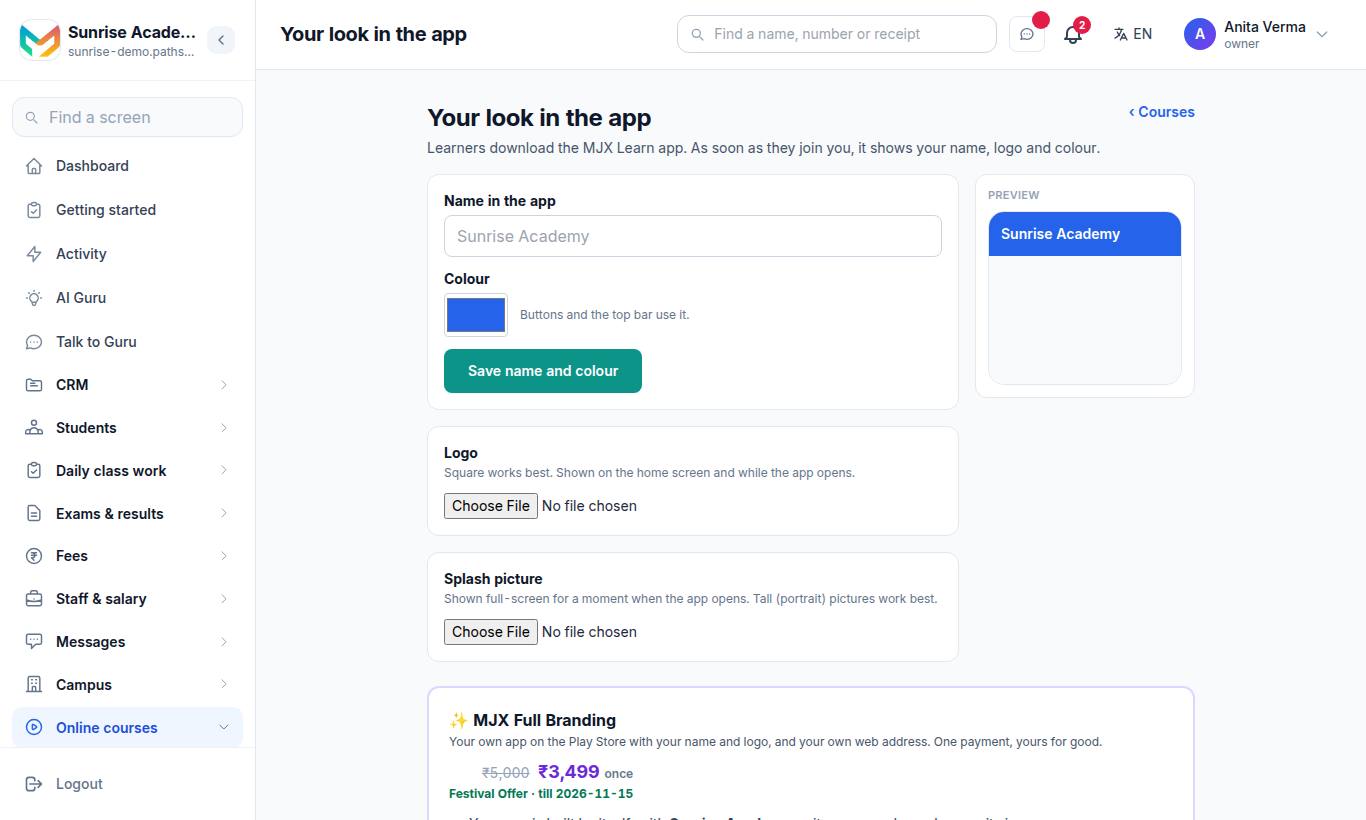
The page is App look: "Learners download the MJX Learn app. As soon as they join you, it shows your name, logo and colour." In the app: Institute › App look.
#Steps
- Type the Name in the app.
- Pick a Colour — buttons and the top bar use it.
- Press Save name and colour.
- Upload a Logo — "Square works best. Shown on the home screen and while the app opens."
- Upload a Splash picture — "Shown full-screen for a moment when the app opens. Tall (portrait) pictures work best."
Images can be JPG, PNG or WebP. Use Remove to take one off. A Preview shows how it will look.
#MJX Full Branding — your own app
"Your own app on the Play Store with your name and logo, and your own web address." The card shows one of:
- ✓ Included in your MJX LMS Pro plan with Build my app;
- Upgrade to Pro, or Pay and build my app for a one-time price.
Your app is built with your name and logo as its icon and goes on the Play Store under your own Google Play account — MJX sets up the listing for you. Type Your Play developer account email, add MJX to it, and press Done — I added MJX. Every update after that reaches your app by itself. Questions? Press Ask MJX to call me.
#App banners
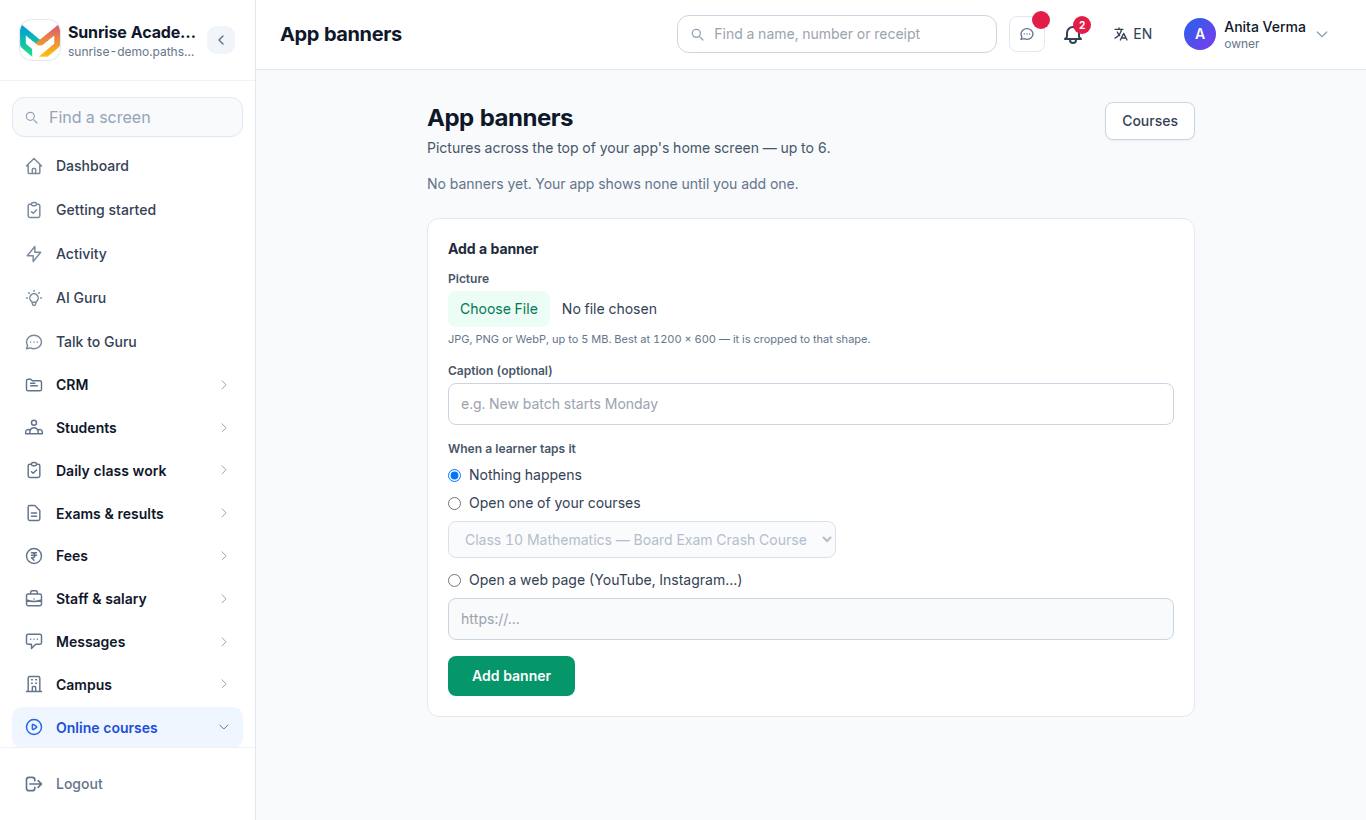
"Pictures across the top of your app's home screen — up to 6." In the app: Institute › App banners.
- Choose a Picture — JPG, PNG or WebP, up to 5 MB. Best at 1200 × 600; it is cropped to that shape.
- Add a Caption (optional), e.g. "New batch starts Monday".
- Choose When a learner taps it: Nothing happens, Open one of your courses, or Open a web page (YouTube, Instagram…).
- Press Add banner.
Reorder or remove banners from the list. With 6 banners the button reads "You have 6 banners — remove one to add another".
#Send a notification to learners
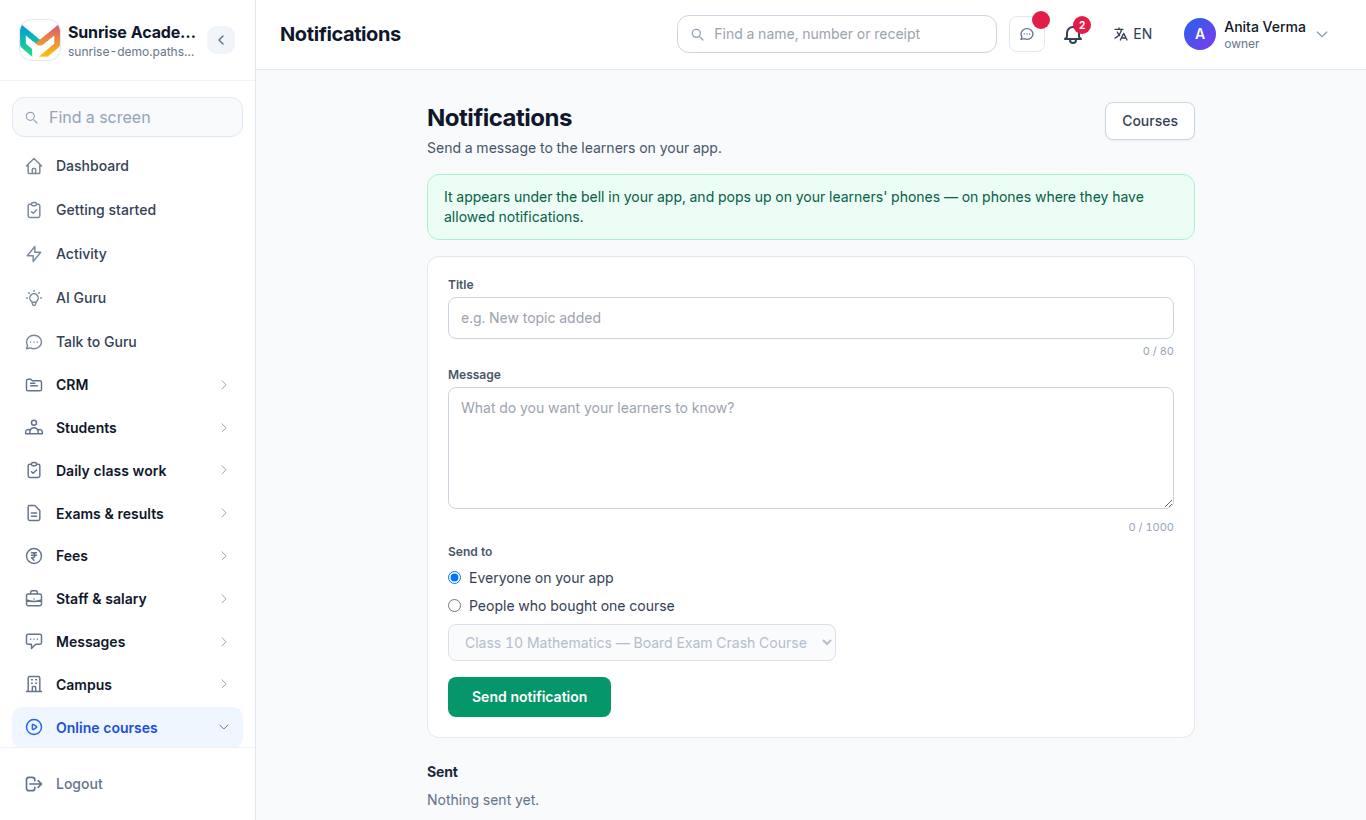
"Send a message to the learners on your app." In the app: Teaching › Send a notification.
- Type a Title (e.g. "New topic added") and the Message.
- Choose Send to: Everyone on your app or People who bought one course (pick the course).
- Press Send notification.
It appears under the bell in your app, and pops up on learners' phones where they have allowed notifications. The Sent list shows each message with when and who sent it, and "from the app" for ones sent from your phone.
#Who can use this?
| Who | Can |
|---|---|
| Owner, Admin | App look, App banners, Notify learners, Full Branding. |
| Teacher | No. |
| Plan | Saved on every plan; learners see your look on paid plans. Full Branding: included in Pro, or paid once. |
#Questions people ask
Do my learners need a separate app with my name?
No. Learners download the MJX Learn app; as soon as they join you, it shows your name, logo and colour.
Why do learners still see MJX's look?
On the Forever Free plan learners see MJX's look in the app. What you set is saved and shows the moment you upgrade.
Can I have my own app on the Play Store?
Yes, with MJX Full Branding — your own app with your name and logo, on your own Google Play account, with MJX setting up the listing. It is included in MJX LMS Pro, or can be paid for once.
How many banners can I add?
Up to 6. Remove one to add another.
Do notifications pop up on learners' phones?
Yes, on phones where the learner has allowed notifications. Every notification also stays under the bell in the app.