
CRM tasks, school visits, demo classes and meetings
Give your team tasks with due times, and book school visits, demo classes or meetings on an enquiry with WhatsApp invites and reminders.
In MJX CRM, Tasks are the to-dos of your team (call back, send fee details, send brochure), and Meetings are the visits, demo classes and call-backs booked with an enquiry. Both can be linked to an enquiry (lead, for a business) and both show on CRM home and My work.
The Meetings menu row uses your organisation's word: School visits for a school, Campus visits for a college, Demo classes for coaching, tuition and institutes, and Meetings for a business.
#Tasks
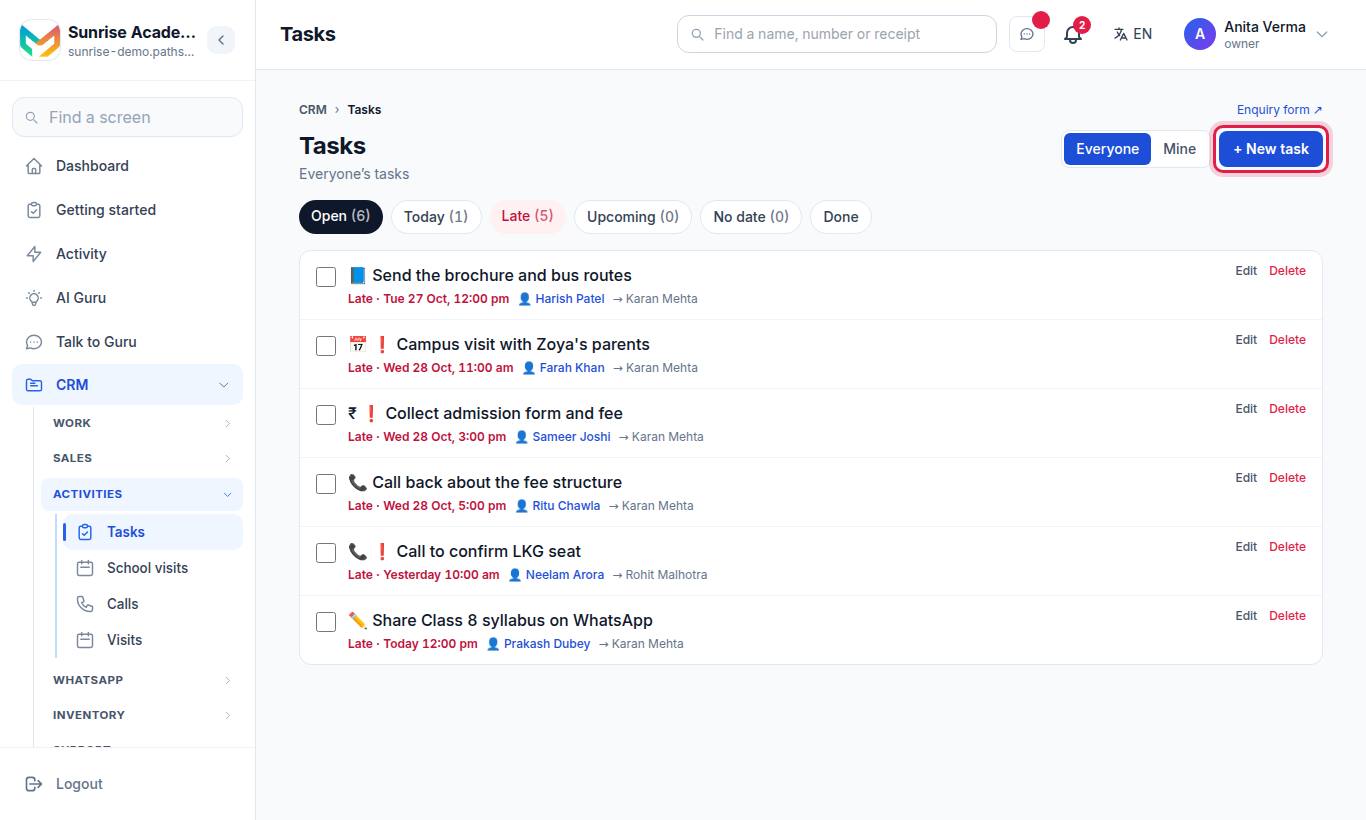
#Views
| Tab | Shows |
|---|---|
| Open | Every task not done |
| Today | Due today |
| Late | Past their due time |
| Upcoming | Due on later days |
| No date | Open tasks with no due date |
| Done | Finished tasks |
Use Everyone (owner, admin) or My team (staff) and Mine to switch whose tasks you see. Staff see their own tasks, tasks they created, and the team's unassigned ones.
#How to add a task
- Press + New task (or add one from an enquiry's page).
- Pick What it is: Call, Send proposal, Send fee details (Send price details for a business), Send brochure, Book a school visit / Book a demo class / Book a meeting, or Other.
- Under What needs doing, keep the suggested title or write your own, e.g. "Call Meena back about the fee".
- Set Due — or use a quick time: In 1 hour, Today 12:00 pm, Today 5:00 pm, Tomorrow 10:00 am.
- Choose Priority: Normal or ❗ High.
- Under Give it to, pick a person, or Nobody yet (team).
- Add Details (optional) and press Save.
#Rules
| Rule | Detail |
|---|---|
| Title | Up to 200 characters ("Write what has to be done." for Other) |
| Details | Up to 2,000 characters |
| Who may change it | The person it is given to, its creator, or an admin |
| Who may delete it | Its creator or an admin |
| Staff giving tasks | "You can give a task only to yourself. Ask an admin to give it to someone else." |
Some tasks are made for you: a missed call on a missed-call number makes a high-priority call-back task due in 30 minutes, and a no-show makes a "Rebook" task.
#Meetings, visits and demo classes
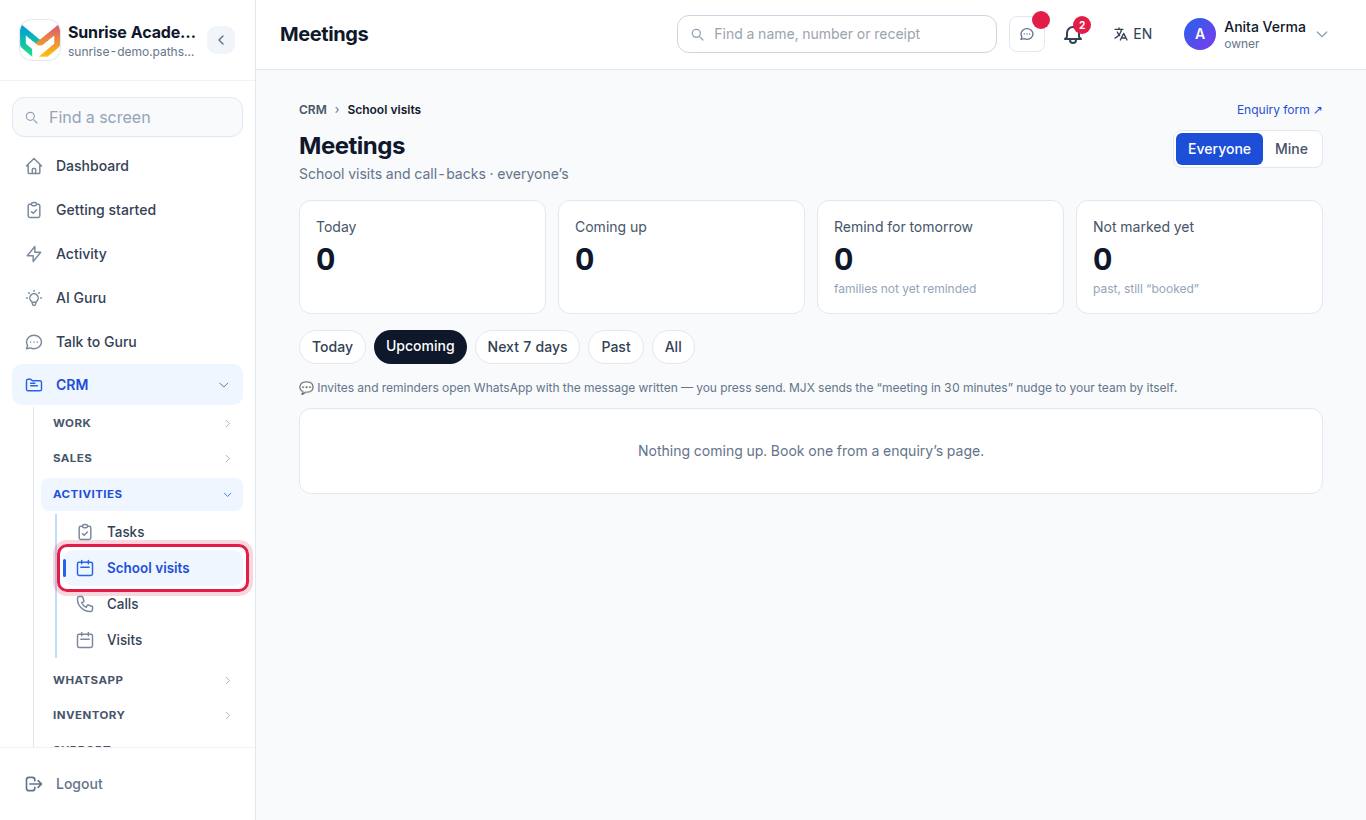
(The row reads School visits, Campus visits, Demo classes or Meetings.)
#How to book a meeting on an enquiry
- Open the enquiry and press the booking button (for example Book a school visit or Book a demo class).
- In Book a meeting, pick the kind: 🏫 Visit, 🎓 Demo class or 📞 Call-back.
- Set When and How long (15 min, 30 min, 45 min, 1 hour, 1½ hours).
- Choose In person or Online. For online, pick Make a Google Meet link, Use your saved link or Paste a link.
- Owner and admin: choose With — Me or Nobody yet.
- Add a Note (optional), e.g. "Bring last year's marksheet", and press Book.
If another meeting is already booked at that time, you see "Another meeting is already booked at that time (1). Book anyway?" — press Book anyway to keep both.
#The Meetings page
| Tab | Shows |
|---|---|
| Today | Today's bookings |
| Upcoming | Coming up |
| Next 7 days | The coming week |
| Past | Earlier meetings, including those still marked "booked" |
Each meeting card has:
| Button | What it does |
|---|---|
| Send invite on WhatsApp | Opens WhatsApp with the invite written; once pressed it reads "Invite sent ✓ — again" |
| Send tomorrow’s reminder | The day-before reminder; then "Reminder sent ✓" |
| Came / ✗ Did not come / Cancel | Marks how it went |
| Move it | Reschedule to a new date and time |
| ↻ Rebook | Book again after a no-show |
| 📅 Calendar file · Google Calendar ↗ · Join link ↗ | Add it to a calendar (an .ics file), or open the online link |
#Rules
| Rule | Detail |
|---|---|
| Phone needed | "This lead has no phone number — add one before booking." |
| Time | Not in the past ("That time has already gone.") |
| Staff | Can book only for themselves; see meetings given to them, booked by them, or not given to anyone |
| Owner, Admin | Book for anyone and see every meeting |
| Who may change it | The person it is with, who booked it, or an admin |
| Google Meet | Only from your own connected Google account (Settings) |
#Who can use it?
Tasks and meetings are part of MJX CRM on every plan. Anyone with access to the CRM can use them for the enquiries they can see.
#Tips
- Give every open enquiry one task with a due time, so nothing waits without an owner.
- Send the reminder the evening before a visit — fewer families forget.
- Check Past each week for meetings still marked "booked" and mark how they went.
- See everything due today in one list on My work.
#Questions people ask
Does the parent get the meeting invite automatically?
No. Invites and reminders open WhatsApp with the message already written, and you press send. The screen records that it was sent.
Does my team get a reminder before a meeting?
Yes. MJX sends a "meeting in 30 minutes" alert to the bell and to the phones of the person it is with, by itself.
What happens when someone does not come?
Mark "Did not come". A task "Rebook …" is made for the person the meeting was with, due the next morning.
Can staff give tasks to other people?
Staff can give a task only to themselves. The owner or an admin can give a task to anyone.
Can I make a Google Meet link?
Yes, when your organisation's own Google account is connected in Settings. Otherwise paste a link or use your saved online link.