
Accounts, deals, products, quotes, cases and promotions in MJX CRM
Keep organisations, deals, your product list, priced quotes sent on WhatsApp, support cases and campaigns in MJX CRM, linked to your enquiries.
Besides enquiries, MJX CRM keeps six more kinds of records: Accounts, Deals, Products, Quotes, Cases and Campaigns (shown as Promotions at a school, college or institute). In Pathshala they all work the same way: a list with search and filters, a record page with details, notes and linked records, and a + New button.
#What is each module for?
| Sidebar row and page title (school) | Sidebar row and page title (business) | What it holds |
|---|---|---|
| Organisations | Companies | The company, shop or family behind your leads and deals |
| Admissions | Deals | A sale you are working on: how much, which stage, when it should close |
| Classes | Products | What you sell, with its price and tax — quotes are built from this list |
| Fee quotes | Quotes | A priced offer to a lead or an account, sent on WhatsApp |
| Cases | Cases | A complaint, request or question after the sale |
| Promotions | Campaigns | A push for leads — a hoarding, an ad, an event |
The sidebar words follow your kind of organisation. A coaching centre, tuition centre or skills institute sees Enrollments for deals; a college sees Admissions. Products read Courses for a coaching centre, college or institute and Subjects for a tuition centre. Quotes read Fee quotes for every education type.
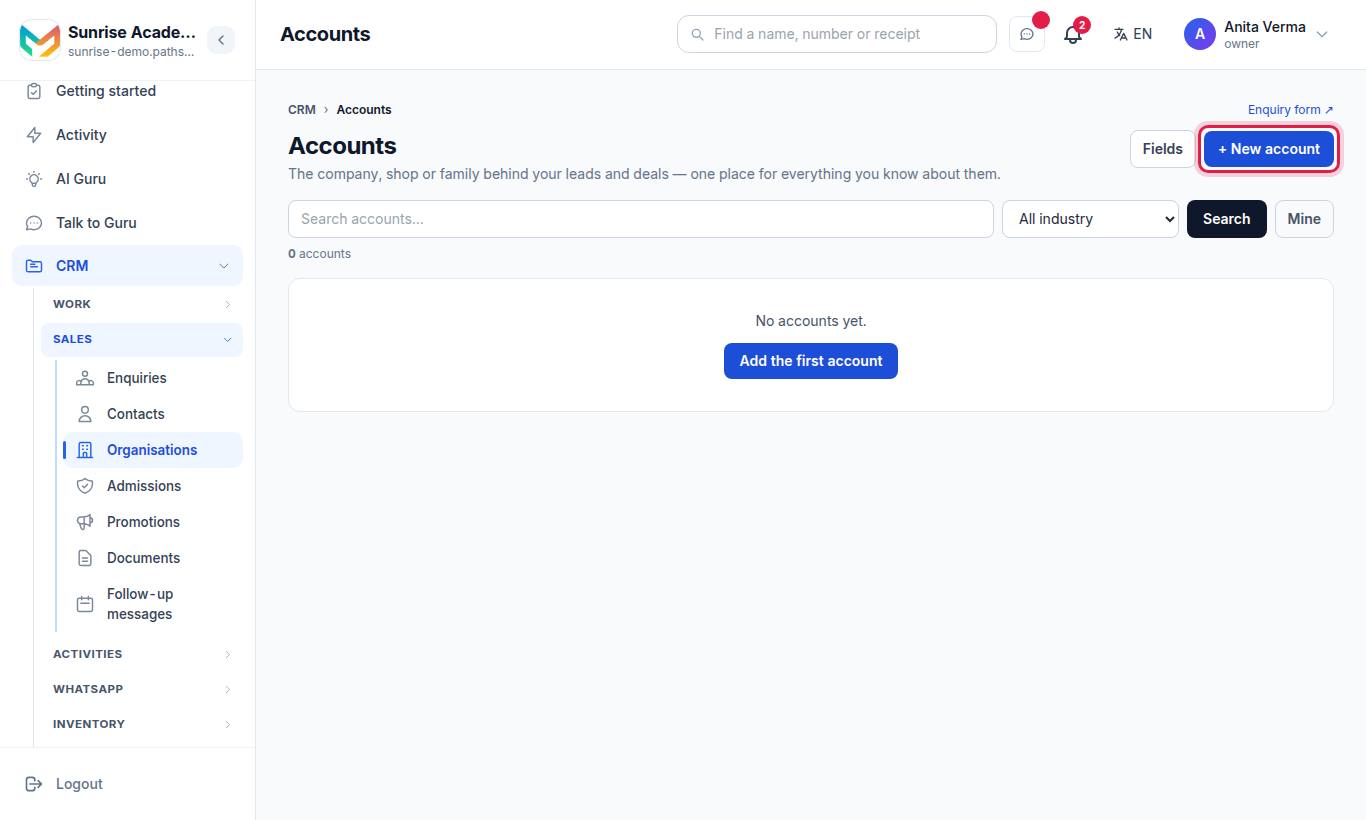
All six are under CRM settings at the foot of the CRM menu. A business also has Companies and Deals in the menu itself.
#How to add a record
- Open the module from CRM settings in the CRM menu.
- Press + New account (or + New deal, + New quote and so on). With an empty list, press Add the first account.
- Fill the form. Fields marked required must be filled. A lookup field (Account, Lead, Deal) searches as you type ("Type to search…").
- Press Save.
#The fields in each module
| Module | Fields |
|---|---|
| Accounts | Name (required), Phone, Email, Website, Industry, City, GSTIN, Address, Owner, Notes |
| Deals | Deal name (required), Amount, Stage, Probability %, Expected close, Account, Lead, Owner, Why lost, Notes |
| Products | Name (required), Code / SKU, Category, Unit (e.g. month, piece, sq ft), Unit price (required), Tax % (default 18), On sale, Description |
| Quotes | Title (required), Status, Lead, Account, Deal, Valid until, Total (worked out), Owner, Terms / notes |
| Cases | Subject (required), Status (Open, Waiting on customer, Solved), Priority (Low, Normal, High), Lead / customer, Account, Owner, Details |
| Campaigns | Name (required), Channel, Status (Planned, Running, Done), Starts, Ends, Budget, Notes |
Industry choices: Education, Retail, Manufacturing, Real estate, Healthcare, IT & software, Media & advertising, Hospitality, Finance, Logistics, Government, Non-profit, Other.
Campaign channels: WhatsApp, Website, Google Ads, Meta Ads, Hoarding, Print, Referral, Event, Email, SMS, Other.
Your own fields appear in the form under Your own fields. See Custom fields and the form builder.
#Finding records
On every list page:
- Search box — searches the main text fields (for example name, phone, email and city on Accounts).
- Filter lists — such as "All industry", "All stage", "All status", "All priority", "All on sale". Picking one filters at once.
- Mine — only records you own (or, for products and campaigns, that you created).
- Click a column heading to sort by it; click again to reverse.
- Long lists show 100 at a time with ← Previous and Next →.
On a phone, the table becomes a list of cards.
#Deals: board and stages
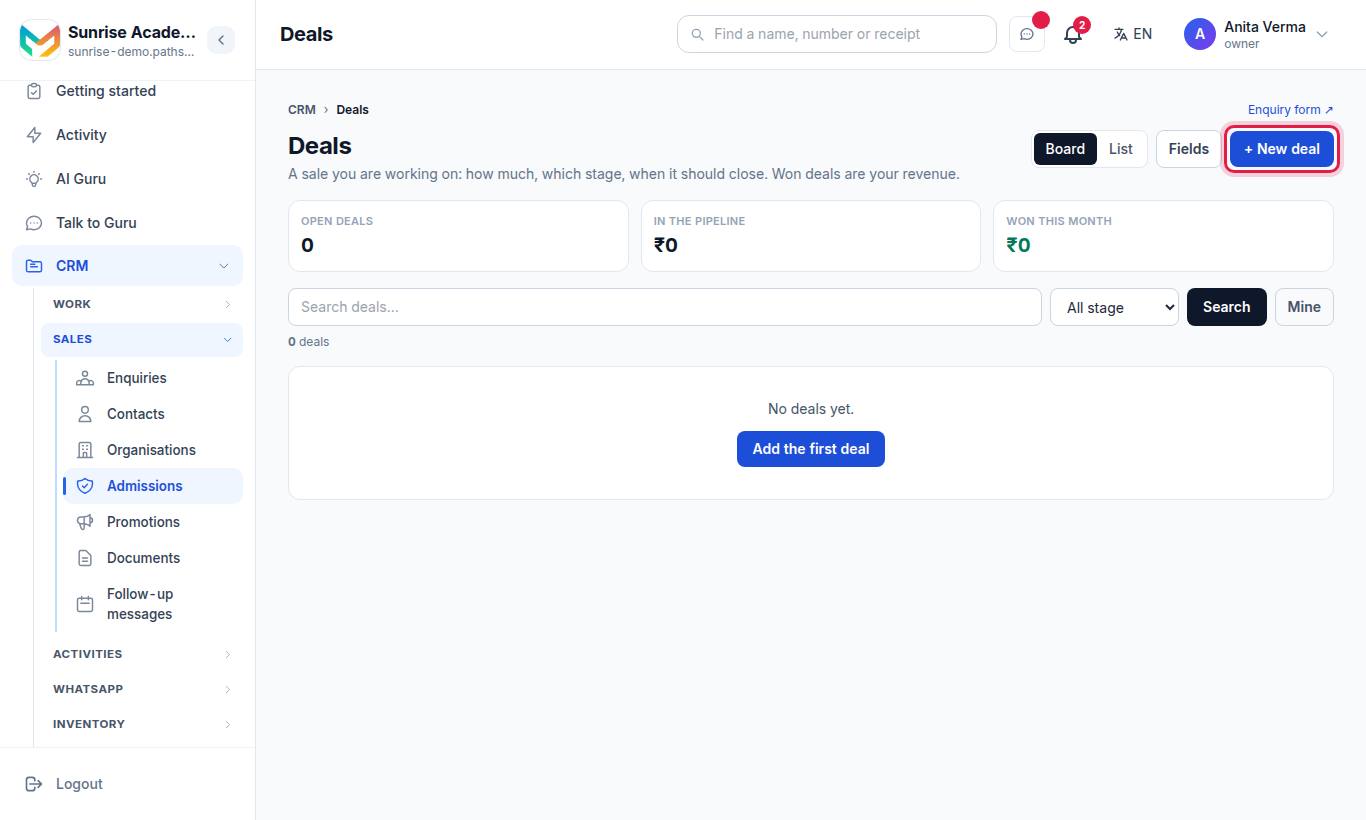
Deals open as a Board with one column per stage, each showing the count and the total amount. Switch to List with the toggle at the top. Three tiles show Open deals, In the pipeline (the amount of open deals) and Won this month.
| Stage | Probability set |
|---|---|
| Qualification | 10% |
| Proposal | 40% |
| Negotiation | 70% |
| Won | 100% |
| Lost | 0% |
On a deal's page, press a stage button to move it. Choosing Lost asks "Why was it lost? (optional)". The deal remembers when it was won or lost.
#Quotes: lines, status and WhatsApp
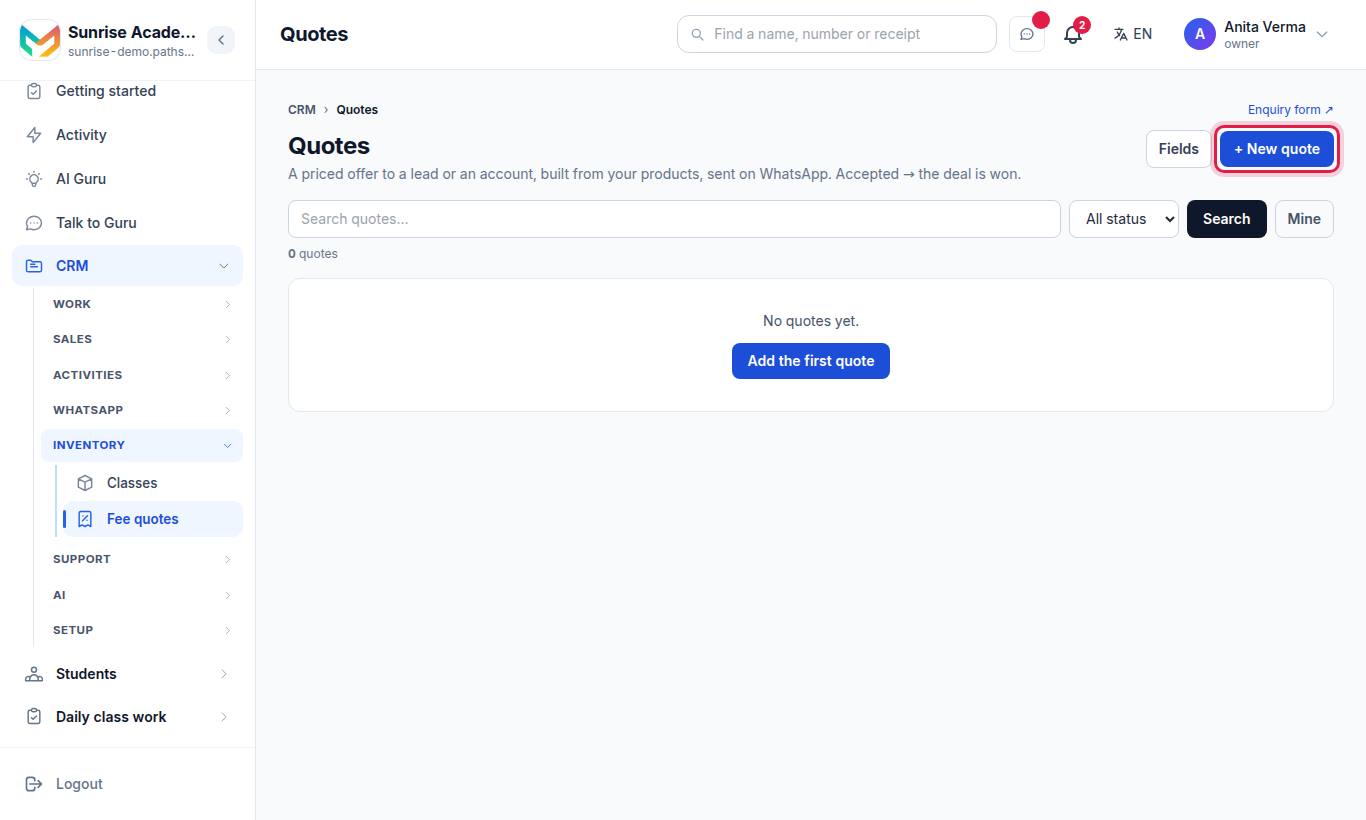
Each quote gets a number (#1, #2 …). On the quote's page:
#Steps to build and send a quote
- Under Lines, press + Add a line.
- Type in Description — pick a product from the suggestions to fill its price and tax — then Qty, Price and Tax %.
- Press Save lines. You see "Lines saved. Total …" with the Subtotal, Tax and Total.
- Press Send on WhatsApp. The quote goes as a WhatsApp text to the lead's phone, or the account's phone if there is no lead.
#Quote status
| Button | What it does |
|---|---|
| Mark sent | Marks it Sent without sending (for example if you sent it another way) |
| Accepted | Marks it Accepted. If it is linked to a deal the button reads "Accepted → deal won", and the deal becomes Won with the quote's total. |
| Declined | Marks it Declined |
An accepted quote cannot be changed: "An accepted quote is not changed — make a new one." A quote needs at least one line before it can be accepted or sent on WhatsApp. A quote holds up to 50 lines.
#The record page
Every record page shows:
- Details — all fields, with Edit to change them.
- Notes — write in "Write a note…" and press Add.
- Linked records — an account lists its Leads, Deals, Quotes and Cases; a deal lists its Quotes; a campaign lists its Leads.
- Delete (owner and admin only) — asks "Delete this record? It goes out of every list."
#Who can do what?
| Action | Who |
|---|---|
| See records | Owner and Admin: all. Staff: records they own, created, or that have no owner. Products and Campaigns: everyone with CRM access. |
| Add a record | Anyone with CRM access |
| Change a record | Owner, Admin, the person who created it, or its owner |
| Give a record to somebody else | Owner or Admin — "Only the owner or an admin can give this to somebody else." |
| Delete | Owner or Admin only |
| Add your own fields (Fields button) | Owner or Admin |
These modules are part of MJX CRM on every plan.
#Common messages
| Message | What to do |
|---|---|
| "Add at least one line first." | Add a line and save the lines before sending on WhatsApp |
| "No phone number on the lead or the account to send it to." | Link a lead or account that has a phone number |
| "Line 2: quantity must be more than 0." | Fix that line's quantity |
| "Only the owner, an admin, the creator or the record's owner can change it." | Ask the record's owner or an admin |
| "Could not send on WhatsApp: …" | Check your WhatsApp connection under Settings › WhatsApp |
#Questions people ask
Why does the sidebar say "Organisations" but the page says "Accounts"?
The sidebar uses your organisation's own words (Organisations for a school, Companies for a business). The page itself uses the standard CRM name. They are the same screen.
What happens when a quote is accepted?
Its status becomes Accepted and its lines can no longer be changed. If the quote is linked to a deal, the deal is marked Won with the quote's total as its amount.
Can staff see every deal and account?
No. Staff see the records they own, the ones they created, and the ones nobody owns yet. Products and promotions are shared lists everyone in the CRM can see. The owner and admins see everything.
Who can delete a record?
Only the owner or an admin. A deleted record leaves every list.
Can I add my own fields to deals or accounts?
Yes. The owner or an admin presses Fields on the list page to add custom fields for that module.