
Sign in, passwords and two-factor security
How to sign in to Pathshala with a password or a WhatsApp code, reset a forgotten password, and turn on two-factor sign-in with an authenticator app.
In Pathshala staff sign in on their own institute's portal with their mobile number or email and either a password or a 6-digit code sent on WhatsApp and email. Owners and staff can add two-factor sign-in with an authenticator app, so a stolen password is not enough to reach your students' data.
#Where do I sign in?
| Who | Address |
|---|---|
| Owner, admin, teachers and other staff | yourname.pathshala.mjxtechnologies.com/login |
| Parents | yourname.pathshala.mjxtechnologies.com/parent/login, or the MJX Parent app |
| Learners (online courses) | /learn/signin, or the MJX Learn app |
| Job candidates (MJX Hire) | /candidate/login |
| Recruitment agencies (MJX Hire) | /agency/login |
#How to sign in with a password
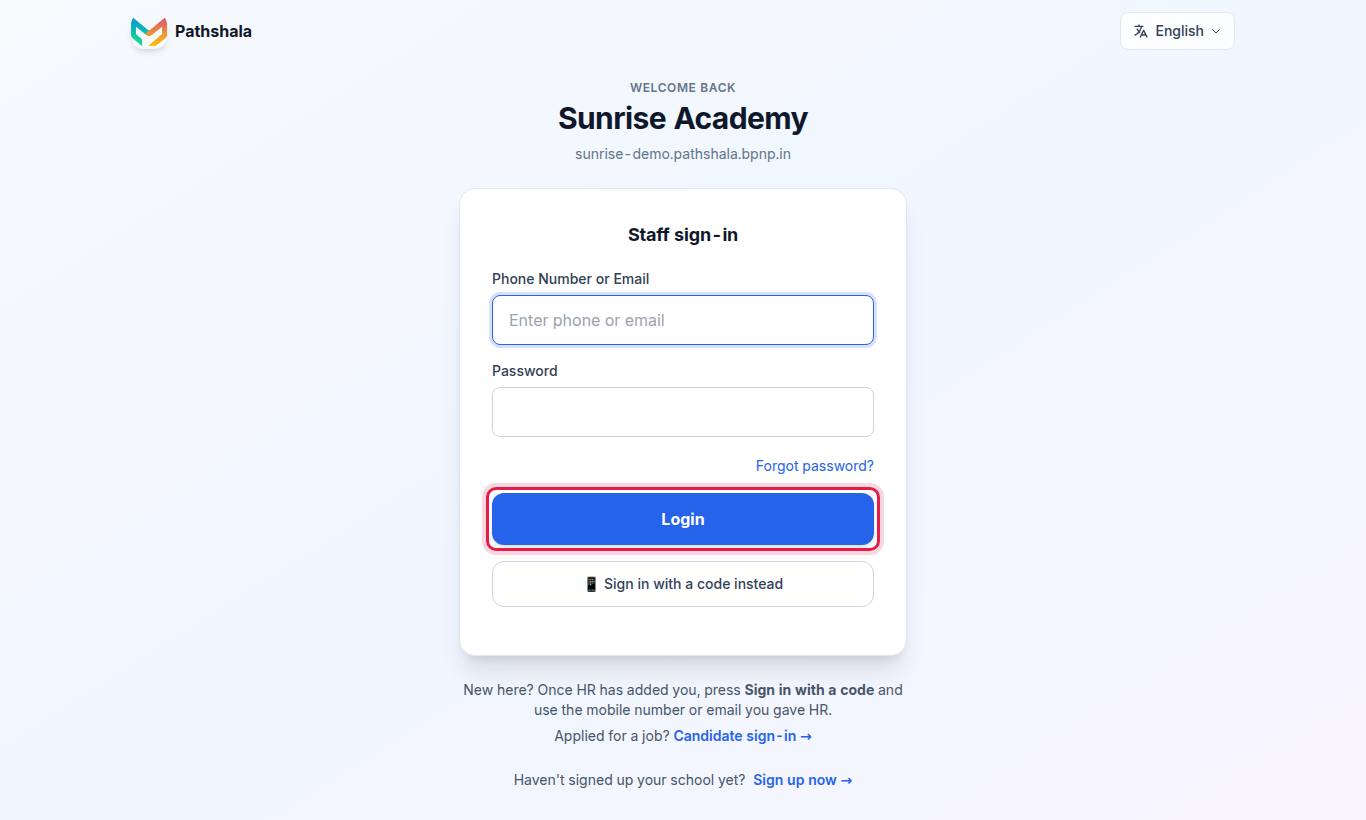
- Enter Phone Number or Email and Password.
- Press Login.
- If two-factor sign-in is on, enter the 6-digit code from your authenticator app (see below).
Organisations that use MJX HR or Payroll see the heading Staff sign-in instead.
After 10 wrong passwords for one account within 15 minutes, password sign-in for that account pauses for 15 minutes — "Too many sign-in attempts for this account. Please try again in 15 minutes, or sign in with a code." Signing in with a code still works.
#How to sign in with a code (no password)
- On the login page, type your mobile number or email in Phone Number or Email.
- Press 📱 Sign in with a code instead.
- Pathshala sends a 6-digit code on WhatsApp and email — for example "Code sent to WhatsApp on 98••••10 and email at r••••@gmail.com."
- Enter the code and press Sign in.
| Code rule | Value |
|---|---|
| Length | 6 digits |
| Valid for | 10 minutes |
| Tries per code | 5 |
| Wait before a new code | 60 seconds |
People added in MJX People without a password always use Sign in with a code — "New here? Once HR has added you, press Sign in with a code and use the mobile number or email you gave HR."
#Phone numbers from any country
Pathshala takes a mobile number from any country, not only India.
- Wherever you type a phone number, press the country code button next to the box (it shows a flag and a code like +91). Search for the country by name or code and pick it, then type the number.
- The box starts on India, or on the country you are visiting from when we can tell.
- On the staff sign-in page, the candidate sign-in page and anywhere one box takes "Phone or email", type a number from outside India with its country code — for example +44 7400 123456. A 10-digit number without a code is read as an Indian mobile, as before.
- Sign-in codes go on WhatsApp, which works in every country. Pathshala does not send codes by SMS.
- Phone calls placed by Pathshala (the CRM dialer and AI calls) can only reach Indian numbers for now. For a number in another country, send a WhatsApp message instead.
#How to reset a forgotten password
- On the login page, press Forgot password?
- Under Reset your password, enter your mobile number or email and press Continue. A code is sent on WhatsApp and email.
- Enter the code. Under Choose a new password, fill in New password (min 8 characters) and Repeat the new password.
- Press Save password.
You see "Password changed. Please log in with your new password." and go back to the login page. The reset must be finished within 10 minutes. A reset signs the account out everywhere, including the MJX apps — sign in again with the new password.
#How to change your password
Go to /settings/password — Change your password.
- Enter your Current password.
- Enter a New password (at least 8 characters) and Repeat the new password.
- Press Save new password.
You stay signed in on this browser. Every other browser and the MJX apps are signed out and need the new password — useful if a phone or laptop is lost.
The first time you sign in with a password that was sent to you (at sign-up, or when someone added you), Pathshala takes you to Set a new password before anything else. Enter The password we sent you and your new one.
#How to turn on two-factor sign-in (2FA)
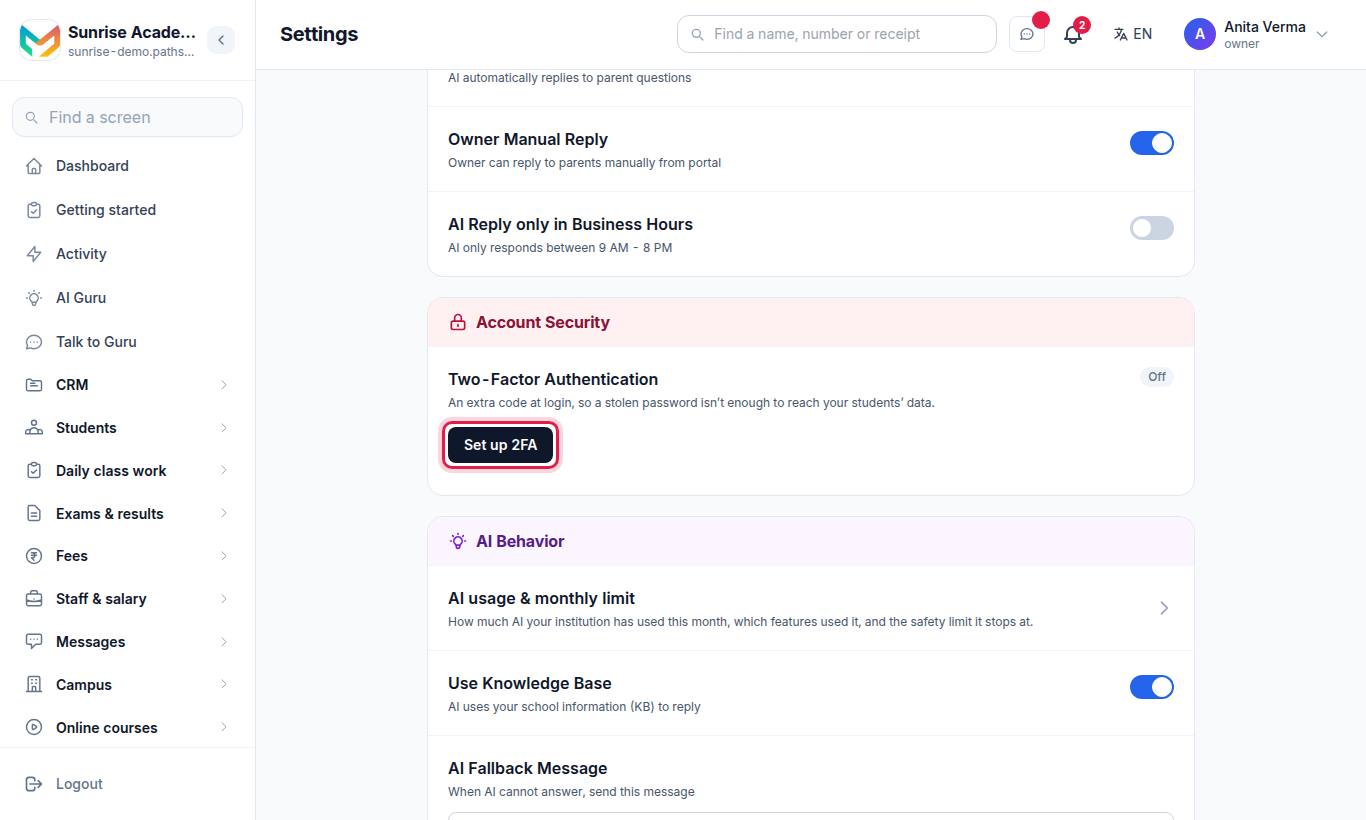
- Under Two-Factor Authentication, press Set up 2FA.
- Scan the QR code with Google Authenticator, Authy or any TOTP app. If you cannot scan, type the key shown under Can't scan? Enter this key manually.
- Enter the 6-digit code from the app and press Verify & Enable.
- Save your 8 recovery codes now. Each works once, and they are the only way in if you lose your phone. They are shown only this once — press Copy all and keep them safe.
Every user can turn on 2FA for their own login.
#Signing in with 2FA
After your password or code, the Two-Factor Verification screen asks for the 6-digit code from your authenticator app. Press Verify. You can also:
- press 💬 Send a code to my WhatsApp for a code valid for 10 minutes, or
- enter one of your recovery codes.
You have 5 minutes to finish this step; after that you see "Session expired. Please log in again." After 10 wrong codes in 15 minutes the step pauses for 15 minutes, and WhatsApp codes can be asked for 5 times in 15 minutes.
#How to turn 2FA off
- In Account Security, enter your Current password under Confirm your password to turn it off.
- Press Disable and confirm.
To move 2FA to a new phone, turn it off first (this asks for your password), then set it up again.
#How long do I stay signed in?
| Sign-in | Stays signed in |
|---|---|
| Staff (password or code) | 30 days |
| Staff with 2FA | 7 days |
| Parents | 30 days |
| Learners | 30 days, on one device at a time |
To sign out, press Logout at the bottom of the sidebar. There is no list of devices for staff. To sign out everywhere else, change your password.
#Learners: one device at a time
MJX Learn and the course pages allow one device per learner, and ask for location at sign-in to stop a course being shared. A learner signed in elsewhere sees "This account is signed in on another device. Sign that device out and continue here?"
#Security tips
- Turn on 2FA for every owner and admin.
- Give each staff member their own login — never share one.
- Switch off people who leave, the same day.
- Keep your recovery codes somewhere other than your phone.
- Never share a sign-in code. MJX will never ask you for it.
#Related
#Questions people ask
Where do I sign in?
On your own portal address — yourname.pathshala.mjxtechnologies.com/login. Parents use /parent/login on the same address; learners use /learn/signin or the MJX Learn app.
Is the sign-in code sent by SMS?
No. Staff codes are sent on WhatsApp and email. Parent and learner codes are sent on WhatsApp.
How long does a code last?
10 minutes. Each code allows 5 tries, and you can ask for a new one after 60 seconds.
I lost my phone with the authenticator app. How do I sign in?
Use one of your recovery codes on the Two-Factor Verification screen, or press "Send a code to my WhatsApp".
How long do I stay signed in?
30 days. With two-factor sign-in on, you stay signed in for 7 days.
Can I see and sign out my other devices?
There is no device list for staff. To sign out every other browser and app, change your password — the browser you change it in stays signed in. Learners in MJX Learn can be signed in on one device at a time.