
Automatic WhatsApp follow-ups, sequences and broadcasts
Set the days and WhatsApp messages every new enquiry gets, build your own multi-day sequences, and schedule one message to many leads.
MJX CRM can keep in touch with every new enquiry (lead, for a business) on WhatsApp without anyone remembering to write. There are three tools: Follow-up messages for every new enquiry, Auto messages (sequences) for chosen groups, and Broadcasts for one message to many at a set time.
| Tool | What it does | Plan |
|---|---|---|
| Follow-up messages | The same plan of up to 6 messages for every new enquiry that does not reply | MJX CRM Basic |
| Auto messages — Sequences | Your own named series of up to 12 messages over up to 90 days | MJX CRM Pro |
| Auto messages — Broadcasts | One WhatsApp message to everyone at a step or with a tag, at a time you choose | MJX CRM Pro |
#Follow-up messages
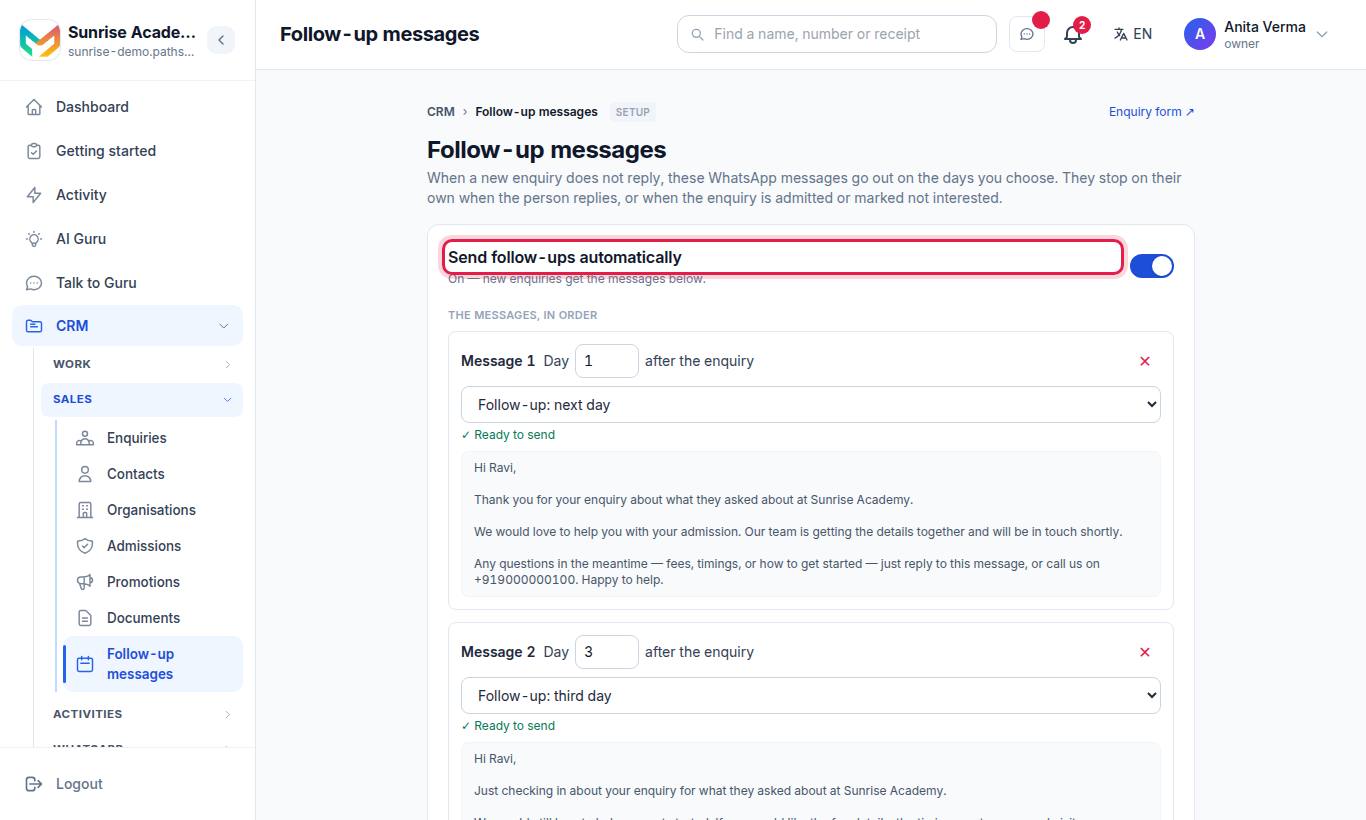
When a new enquiry does not reply, these WhatsApp messages go out on the days you choose. They stop on their own when the person replies, or when the enquiry is admitted (joined, won) or marked not interested.
#How to set your follow-up plan
- Sign in as the Owner or an Admin.
- Turn on Send follow-ups automatically.
- Under The messages, in order, set each message's Day … after the enquiry and pick its message from the list.
- Press + Add a message for another step (up to 6). Press ✕ to remove one.
- Press Save.
To undo your changes, press Back to the default and confirm "Go back to the default messages and days?".
#The default plan
Every organisation starts with three messages on day 1, day 3 and day 7. Schools, coaching and tuition centres, colleges and institutes get the messages from the group Written for admissions; a business gets those Written for a business. In the list, your own approved templates appear under Your own approved templates.
#Rules
| Rule | Detail |
|---|---|
| Days | "Day 3" means three days after the enquiry arrived, at about the same time of day |
| Order | One message per day, in day order |
| What fills the message | The person's name, what they asked about, your organisation's name, and your contact number (set in Settings) |
| Message choices | Messages written for admissions, messages written for a business, or your own approved templates (made on Message templates) |
| Not approved yet | The step waits — nothing goes out in the wrong words |
| Switched off | No follow-ups go out; enquiries already waiting keep their place |
Leads added through the API, a lead source address or a connector are not put on this plan automatically. See Lead sources and connectors.
#Auto messages: sequences
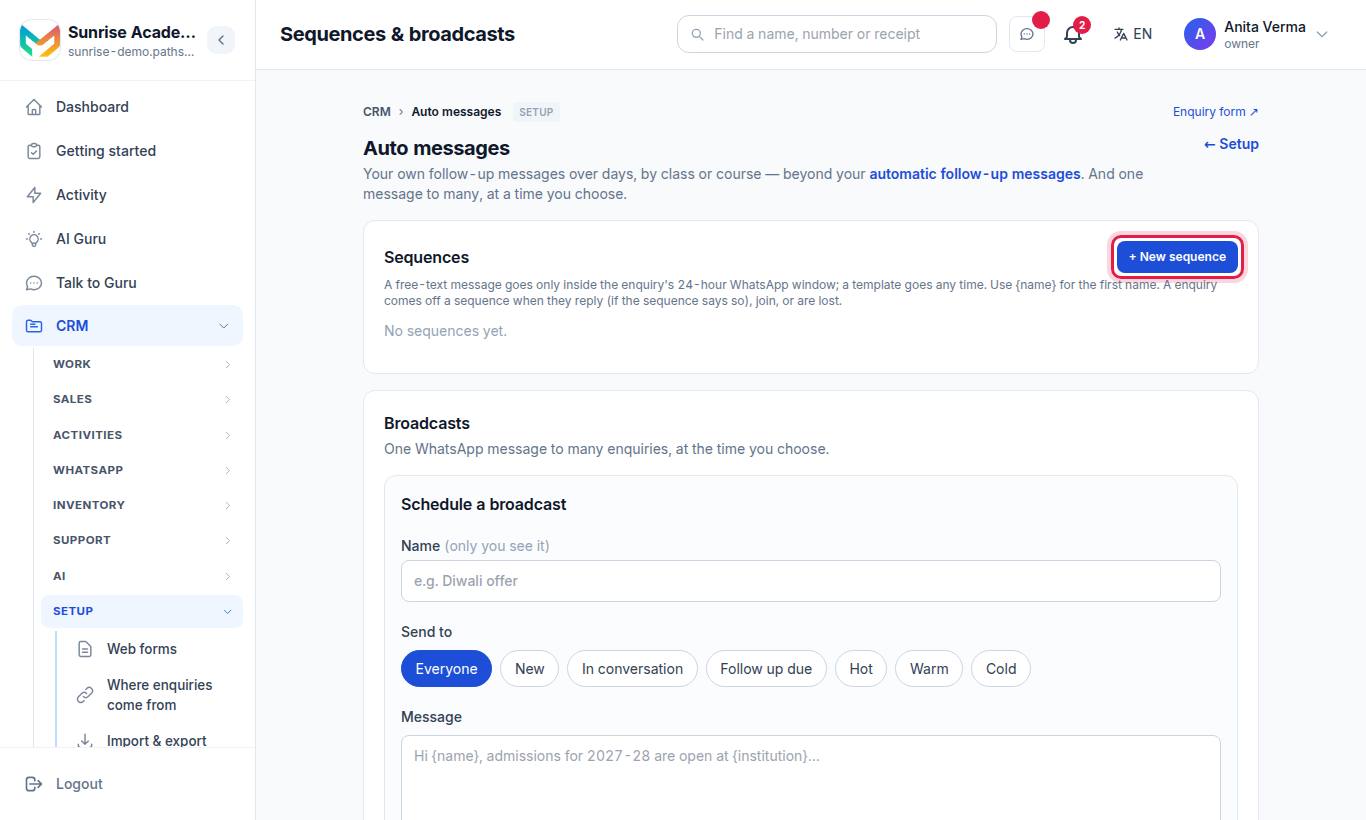
A sequence is your own series, for example "Admission season — Class 1" with five messages over three weeks.
#How to make a sequence
- Press + New sequence.
- Give it a Name (under 80 letters).
- For each message, set the Day (0 to 90) and choose Free text (in the window) or Template (any time).
- Type the message (use
{name}for the first name) or pick an approved template. - Press + Add a message for more (up to 12).
- Choose whether it should stop when the person replies.
- Press Save.
A step due "on day N" goes at 10:00 India time that day. Day 0 goes straight away when it is already past 10:00.
#How to put enquiries on a sequence
- From the list of enquiries, select them and use the bulk action.
- On the sequence card, press Put a tag's enquiries on it and pick a tag ("Put every open lead with which tag on …").
- With an Auto action whose action puts the lead on a sequence.
An enquiry is skipped when it has no phone number, is already admitted or lost, is already on that sequence, or is looked after by someone else and you cannot see it.
#When does a lead come off a sequence?
- They reply (if the sequence says to stop on reply).
- They are admitted (joined, won) or marked not interested, or the lead is deleted.
- The sequence is switched off.
- Someone stops the run on the lead.
Each card shows how many are on it and how many finished, and has Edit, Switch off / Switch on and Delete. You can have up to 20 sequences.
#Auto messages: broadcasts
One WhatsApp message to many enquiries, at the time you choose. Broadcasts need your own WhatsApp number: on the shared MJX number scheduling one is refused with "Broadcasts cannot be sent from the shared MJX WhatsApp number. Connect your own WhatsApp number to create templates and send broadcasts." See Connect your own number.
#How to schedule a broadcast
- On Auto messages, go to Schedule a broadcast.
- Type a Name (only you see it), for example "Diwali offer".
- Under Send to, pick a step: New, In conversation, Follow up due, Hot, Warm or Cold.
- Under Only those with a tag (optional), pick a tag or leave Any tag.
- Under Message, choose Type a message or Approved template.
- Set the date and time under When (India time).
- Check the summary line (it counts who will get it) and press Schedule.
A waiting broadcast can be stopped with Cancel.
#Who can use it?
| Action | Who | Plan |
|---|---|---|
| Change follow-up messages | Owner, Admin | CRM Basic ("Automatic follow-ups come with MJX CRM Basic and above") |
| Make, edit, switch off sequences; schedule broadcasts | Owner, Admin | CRM Pro ("Sequences and broadcasts come with MJX CRM Pro.") |
#Tips
- Keep the first message friendly and short; give the real details in a call.
- Make your own templates on Message templates and get them approved before a season starts.
- Add a phone call to the plan with AI calls.
#Questions people ask
When do the automatic follow-ups stop?
As soon as the person replies, or when the enquiry is marked admitted (joined or won) or not interested.
How many follow-up messages can I set?
Up to six, each on its own day between day 1 and day 60 after the enquiry, in day order.
Why does a step say "Waiting"?
Its WhatsApp template is not approved on your number yet. That step sends nothing until it is approved, or until you pick another message.
What is the difference between follow-up messages and Auto messages?
Follow-up messages are one plan for every new enquiry (CRM Basic). Auto messages are your own named sequences that you put chosen leads on, plus scheduled broadcasts (CRM Pro).
Can a follow-up be a phone call?
Yes. The AI caller can ring a lead a few hours after a message that got no reply. See AI calls.