
MJX Learn app for students — join, watch, ask and test
How learners use the MJX Learn app — join an institute with a code, sign in with a password or a WhatsApp code, buy and watch courses, download videos, ask doubts and sit tests.
MJX Learn is the app your coaching centre, tutor or school uses to give you your courses. You join your institute once, sign in with your password or a code on WhatsApp, and then watch lessons, read books and notes, join live classes, ask doubts, sit tests and download your certificates — all in one place.
#How to install MJX Learn
- Android: get it on Google Play (app id
com.mjxtechnologies.app.lms). - iPhone: "Coming soon on the App Store". Use the course link in your browser meanwhile.
- Any browser: your institute's learner pages at
~/learncan also be installed on your home screen.
#How to join your institute
#Choose "Join My Institute"
On the first screen ("Learn from your institute, or run your own.") tap Join My Institute — "I am a student. I have a code from my coaching centre or school."
#Type the institute code
Type Your institute code. "Ask your coaching centre or school for this."
#Type your mobile number
Type Your mobile number and tap Continue.
#Your password — or a code
Type Your password and tap Sign in. No password yet (the first time, always)? Tap Use a code on WhatsApp instead. If you are new, type Your name.
#Enter the code
"Enter the 6-digit code we sent to your WhatsApp" and tap Sign in.
#Set a password
After a code sign-in the app shows Set a password first, so next time you can sign in without WhatsApp. Tap Save password, or Skip for now.
Forgot your password? Tap Forgot password? on the password screen. Type the code from WhatsApp and a New password, then tap Set password and sign in. Your other devices are signed out. To change your password while signed in, open Profile › Password.
Your code comes from your institute's own WhatsApp number when it is connected; otherwise — or if that number cannot send just then — from MJX's WhatsApp number.
If the account is already open on another phone, you see Signed in on another device and can tap Sign it out and continue.
#What is in the app
The bottom bar has five tabs:
| Tab | What you find |
|---|---|
| Home | Banners from your institute, Next live class, Live now, live and recorded courses, and Continue where you left off. |
| Courses | Every course your institute offers, with FREE topics you can open before buying. |
| My Learning | The courses you hold. In-person classes show In person · books and notes. |
| Doubts | Your questions and Ask a doubt. |
| Profile | My details, picture and notifications, Attendance, Class fees and payments, Payments (with receipts), Certificates, Event photos, Refer a friend, Terms and Privacy, and Sign out. |
The side menu has Home, Offers & news, Notifications, Switch institute and Sign out.
#How to buy a course in the app
- Open the course and tap Buy this course — ₹… (or Buy the bundle, Join — ₹… / month for a membership, Book my place for a live class).
- Type Your name, for the receipt.
- If the course runs batches, Choose your batch.
- Have a code? Tap I have a discount code, type it and tap Apply.
- Choose How do you want to pay? and tap Pay ₹… (or Get it free if your code covers the full price).
#How to study
- Videos play inside the app. While one of your institute's own videos is playing, screenshots and screen recording are blocked on Android; on iPhone the video is hidden while a recording runs ("Screen recording detected. The course is hidden while it runs.").
- PDFs open as a book: swipe to turn pages, pinch to zoom.
- Notes and quizzes appear under a topic once your teacher publishes them.
- Locked chapters say Opens … — your institute releases them day by day.
- Assignments show on the course; hand in photos or a PDF.
#Download to watch offline
If your institute allows it, the course shows Videos. Tap Download to watch offline on a video; when done it says Saved on this phone. Tap Remove download to free space.
- "Saved on this phone. You can watch it with no internet."
- Every 30 days the app needs to check in: "Connect to the internet once to keep watching your saved copy."
- Downloads are removed if your access ends or you get a refund.
#Live classes, tests, doubts and certificates
- Live classes — the Join button appears ten minutes before the class starts.
- Mock tests — Tests on a course: Start test, Resume test, See result.
- Doubts — ask your teacher (with a picture or PDF) or the AI on one topic.
- Certificates — Profile › Certificates › Get certificate after you finish every topic.
- Reviews — tap Rate on a course once you are 20% through.
#Notifications
Your institute's messages appear under Notifications (the bell) and as phone pop-ups if you allowed notifications. Turn kinds of message on or off in Profile › My details, picture and notifications.
#Using a browser instead
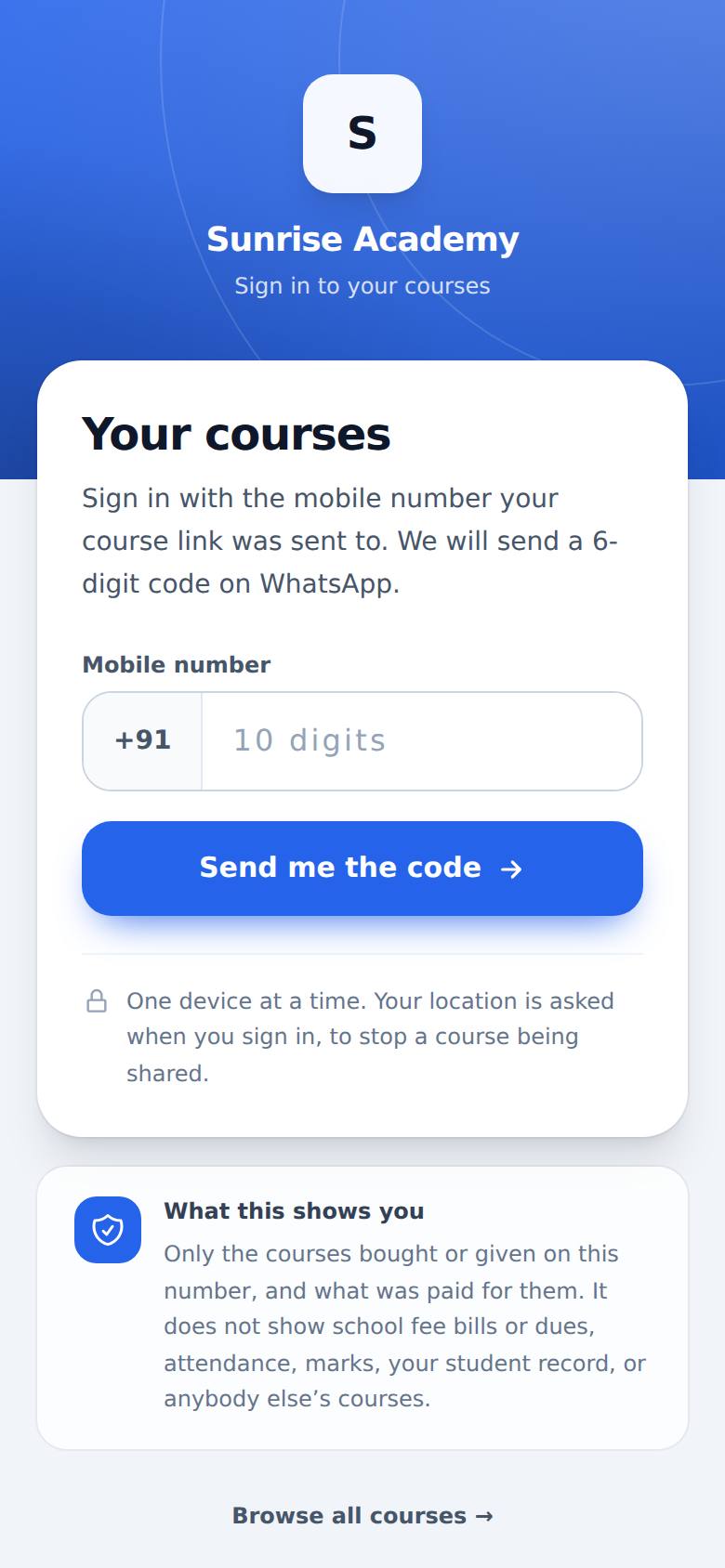
| Page | Address |
|---|---|
| Sign in ("Your courses") | ~/learn/signin — Mobile number, Continue, Password, Sign in — or Use a code on WhatsApp instead, Enter the code, Sign in; Forgot password? |
| Set or change your password | ~/learn/password (also Profile › Set a password / Change password) |
| Home | ~/learn/home |
| My Learning | ~/learn/my |
| Live classes | ~/learn/live |
| Doubts | ~/learn/doubts, ask at ~/learn/ask |
| Payments and receipts | ~/learn/payments |
| My profile | ~/learn/me |
A course link from WhatsApp opens the course directly: tap Send me the code, type the 6-digit code, and tap Open the course. The code is good for 10 minutes.
#Need help?
Contact your institute first — they manage your courses and payments. For app problems, see Troubleshooting.
#Questions people ask
Where do I download MJX Learn?
From the Google Play Store (search "MJX Learn") or from the link your institute sends. The iPhone version is listed as coming soon on the App Store; until then you can use the course pages in a browser.
Do I need a password?
Not to start. The first time, you sign in with your mobile number and a 6-digit code sent to your WhatsApp. The app then asks you to set a password, so next time you can sign in without waiting for WhatsApp. You can skip it, and a WhatsApp code always works.
I forgot my password. What do I do?
On the password screen tap "Forgot password?". A code goes to your WhatsApp; type it with a new password and you are signed in. Your other devices are signed out.
Which number sends my code?
Your institute's own WhatsApp number when it is connected. Otherwise, or if that number cannot send just then, MJX's WhatsApp number sends it — so it still arrives.
Can I use my course on two phones?
One device at a time. Signing in on a new phone asks "Sign that device out and continue here?"
Why does the app ask for my location?
Location is asked when you sign in, to stop a course being shared. Without it you cannot sign in.
Can I watch without internet?
Yes, for your institute's own uploaded videos, if your institute allows downloads. Tap "Download to watch offline". Connect to the internet at least once every 30 days to keep the copy working.
I paid but my course is not showing. What do I do?
Pull down on My Learning to refresh. If you paid, your course opens in a minute. If it still does not show, contact your institute.