
MJX Parent app for families
Install MJX Parent, sign in with the school code and a WhatsApp code, and see attendance, homework, fees, notices and results for every child.
MJX Parent is the family's app for a school or coaching centre that uses Pathshala. In one app a parent sees whether the child was marked present, what was taught today, the homework, the school's notices, the fees to pay and the results — for every child on that phone number.
#What the parent sees
The app opens on the child's name at the top and five tabs at the bottom.
| Tab | What is on it |
|---|---|
| Home | Today at a glance: present or absent today, homework due, the latest notice, the fees to pay and the newest result. Each card opens its page. |
| Attendance | One month as a calendar. Each day is coloured Present, Absent, Late, Half day, On leave or Holiday, with the month's percentage. |
| Homework | Taught today (each period's lesson and homework), then Homework to do with due dates and files, then Checked by the teacher. |
| Fees | To pay with the total, Bills to pay with Pay on each, Payments made with receipts, and Paid bills. |
| More | Notices, Results, Exams, Study material, Calendar, Offers & news, the children on this number, and Sign out. |
#How to install MJX Parent
#Steps to install the app
- Open ~/app/parent on the phone, or scan the school's MJX Parent QR code.
- Tap the Google Play button. You can also search Google Play for MJX Parent (package
com.mjxtechnologies.app.parent). - Install and open the app.
#How to sign in
Signing in needs only three things: the school code, the phone number the school has for you, and a code sent to that number on WhatsApp.
#Steps to sign in
- In School code, type the code the school gave you. It is the first part of the school's web address — for
sunrise.pathshala.mjxtechnologies.comthe code issunrise. - In Mobile number, type the number the school has for you. For a number outside India, pick its country code first (on the web page, press the country code button; in the app, type it with the code, like +44).
- Tap Send me a code. A code arrives on WhatsApp.
- Type it in Code from the message and tap Sign in.
If the code does not arrive, tap Send the code again (wait one minute between codes). To use another number, tap Change the number.
#How to switch between children
- Tap the child's name and photo at the top of any tab.
- In Whose page?, tap the child.
Every tab reloads for that child. The More tab also lists Children on this number, with the class, admission number and roll number of each.
#How attendance shows
The Attendance tab shows one month. Use the arrows to go back or forward a month.
- The ring shows the month's percentage. It turns red and says Attendance is short when the child is under the school's attendance line.
- The line under it says how many school days were marked, for example "18 of 20 school days marked · 2 not yet marked".
- A square with no colour is a day the register was not marked, or a holiday.
On Home, the first card says Present today when nothing needs flagging, or names the problem (for example Absent or Late) and the register it came from.
#How homework and "taught today" show
The Homework tab shows:
- Taught today — each period's subject, the lesson title, the teacher, what to read, and the homework line the teacher gave in class.
- Homework to do — subject, title, details, who set it and when, and a tag: Due today, Due with the date, or Overdue.
- Checked by the teacher — homework the teacher has marked.
A homework file opens in the app if it is a PDF, or in the phone's share sheet otherwise.
#How to pay a fee
#Steps to pay a bill
- Open the Fees tab. Each bill shows its number, items, total, what is paid and the Balance.
- Tap Pay on the bill.
- Check the Amount (it starts at the balance; you can pay part).
- Pay in one of the ways your school has set up:
- Pay online — tap Pay with … to open the school's payment page outside the app.
- Pay by UPI — tap Open my UPI app, copy the school's UPI id, or scan the QR code shown.
- If you paid by UPI or bank transfer, tap I have paid — tell the school, pick how you paid, type the Reference / UTR number from your payment app or bank message, and tap Send to the school.
| What you see | What it means |
|---|---|
| "A payment of ₹… is waiting for the school to confirm." | You already told the school about a payment; the office has not confirmed it yet. |
| "Card and net-banking payments for this school are taken on the school's parent web page." | Use the parent web page for card or net banking; UPI still works in the app. |
| "This school takes fees at the office." | The school has no online payment set up. Pay at the office, then tell them. |
#Notices, results, exams, study material and calendar
All are on the More tab.
| Page | What is on it |
|---|---|
| Notices | What the school has said. Pinned notices come first and unread ones say New. Tap one to read it in full and open its attachment. |
| Results | Each exam whose results are out. Tap one for the total, percentage and grade, Marks by subject, and Open the report card (a PDF). |
| Exams | The datesheet: each exam tagged Upcoming, On now or Over, and each paper's date, time and marks. |
| Study material | Books, notes and chapters the teacher shared, filtered by subject. A PDF opens with Read in the app; a web page opens outside. |
| Calendar | One month of events, exams, notices and homework due dates, listed by date. |
| Offers & news | Offers and news from MJX, not from the school. |
#How to sign out
- Open More and tap Sign out at the bottom.
- Confirm with Sign out.
You will need a new code from WhatsApp to sign in again.
#The parent web page (no install)
Families who do not want to install anything can use the school's parent web page in any phone browser. It is at the school's own address with /parent at the end, for example sunrise.pathshala.mjxtechnologies.com/parent, and the short link pathshala.mjxtechnologies.com/p/sunrise opens it too (use your school code in place of sunrise). It can be added to the phone's home screen.
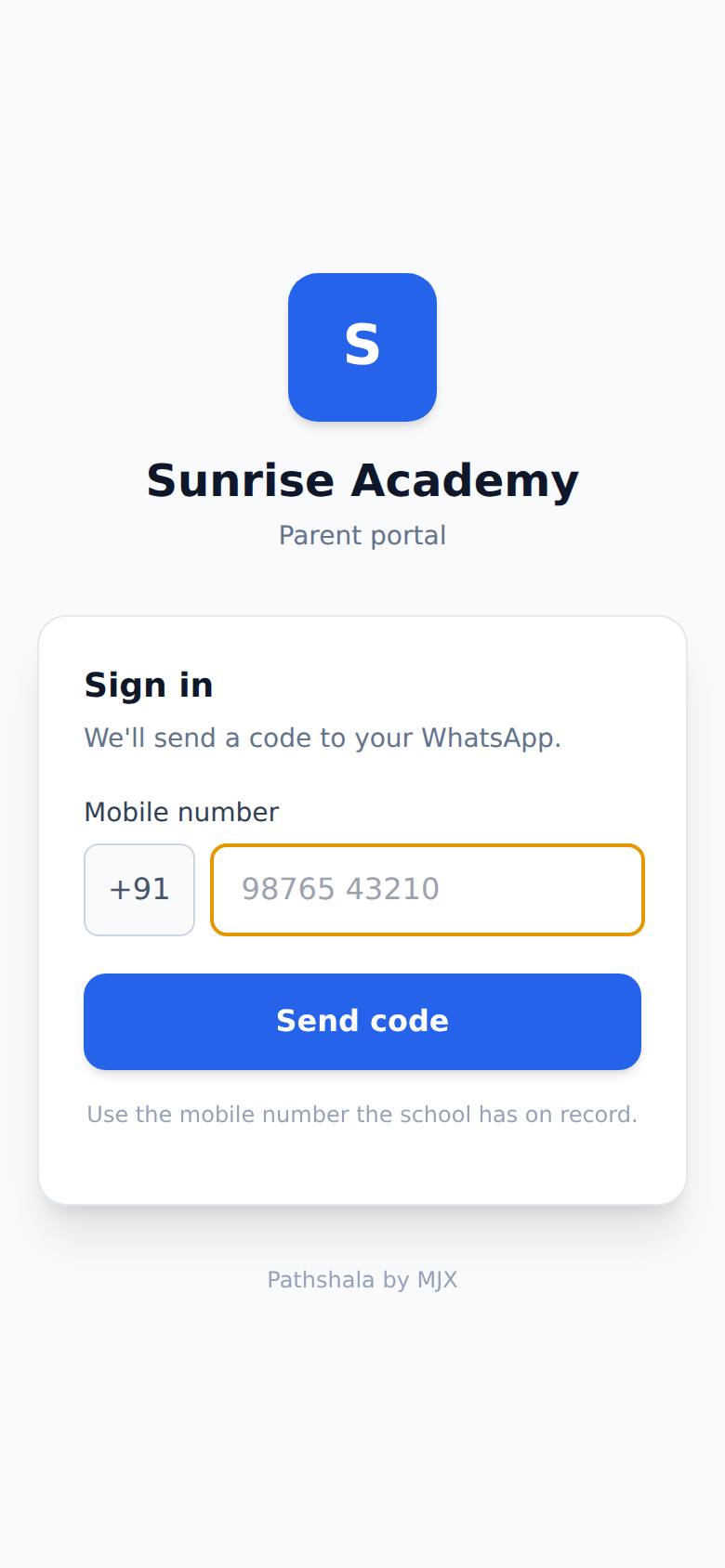
The web page uses the same sign-in (phone and a WhatsApp code) and the same data, with these differences:
| MJX Parent app | Parent web page | |
|---|---|---|
| Install | Google Play | None — opens in the browser |
| Card and net-banking payment | Opens the school's payment page outside the app | Paid on the page itself |
| AI Guru (ask about attendance, fees and homework) and Talk to Guru | Not in the app | On the page |
| Tabs | Home, Attendance, Homework, Fees, More | One tab per part your school uses, such as Fees, History, Receipts, Calendar, Attendance, Homework, Notices, Exams, Results, Material |
#Who can use MJX Parent?
- Parents and guardians whose phone number is the Primary Phone — WhatsApp on a child's record at that school.
- The school needs nothing extra to switch it on. What the app can show depends on what the school uses: attendance with MJX Attendance or MJX Academic; homework, exams, results and study material with MJX Academic; notices with the communication module; fees with MJX Fees Management.
- At a skill institute where learners are adults with no parent on record, the learner's own number is used instead.
#Troubleshooting
| Message | What it means | What to do |
|---|---|---|
| "No student found for this number. Please check with the school office." | No child at this school has that number on record. | Ask the office to save your number on the child's record. |
| "A code was just sent. Please wait a minute before asking for another." | Codes are limited to one a minute per number. | Wait a minute, then tap Send the code again. |
| "That code is not correct. Please check and try again." | The code was typed wrong. | Type the latest code from WhatsApp. |
| "That code has expired. Please request a new one." | The code is too old. | Tap Send the code again. |
| "Too many codes asked for this number. Please try again in 15 minutes." | Five codes were asked for in 15 minutes. | Wait 15 minutes. |
| "No child is linked to this number yet." | You signed in, but no child is linked now. | Ask the office to add your number to your child's record. |
| "Your sign-in has ended. Please sign in again." | The 30-day sign-in ran out. | Sign in again with a new code. |
#Tips for schools
- Print the ~/app/parent QR code and your school code together on the admission form.
- Check Primary Phone — WhatsApp on every child's record before term starts — it is the only number that can sign in.
- Publish notices and release results on the website; families see them in the app at once. See Communication and Report cards.
#Need help?
WhatsApp or call MJX support on 7996837555, or email info@mjxtechnologies.com.
#Questions people ask
Does the parent need a password?
No. The parent types the school code and their mobile number, and a sign-in code is sent to that number on WhatsApp. There is nothing to remember.
It says no child is found for my number. What do I do?
The school has a different number on your child's record. Ask the office to put your number in Primary Phone — WhatsApp on the child's record, then try again.
I have two children at the same school. Do I need two accounts?
No. Every child whose record has your number appears in the app. Tap the child's name at the top to switch.
Can I pay fees in the app?
Yes, when the school has set up UPI or an online payment gateway. You can also tell the school you have paid with I have paid — tell the school, and the office confirms it.
Why can I not see my child's marks?
Marks appear only after the school releases the results. Until then the Results page says no result has been published yet.
How long do I stay signed in?
About 30 days. After that the app asks you to sign in again with a new code.