
Set up lead connectors — Facebook, Instagram, Google Ads, LinkedIn, IndiaMART
What you must create on Meta, Google Ads, LinkedIn, IndiaMART, JustDial and Plivo so their leads flow into MJX CRM, with one-click and by-hand routes.
MJX CRM can collect leads from ad platforms and marketplaces by itself. This page lists what you (the owner, an admin or your developer) must create on each platform. Most take a few minutes and need no code.
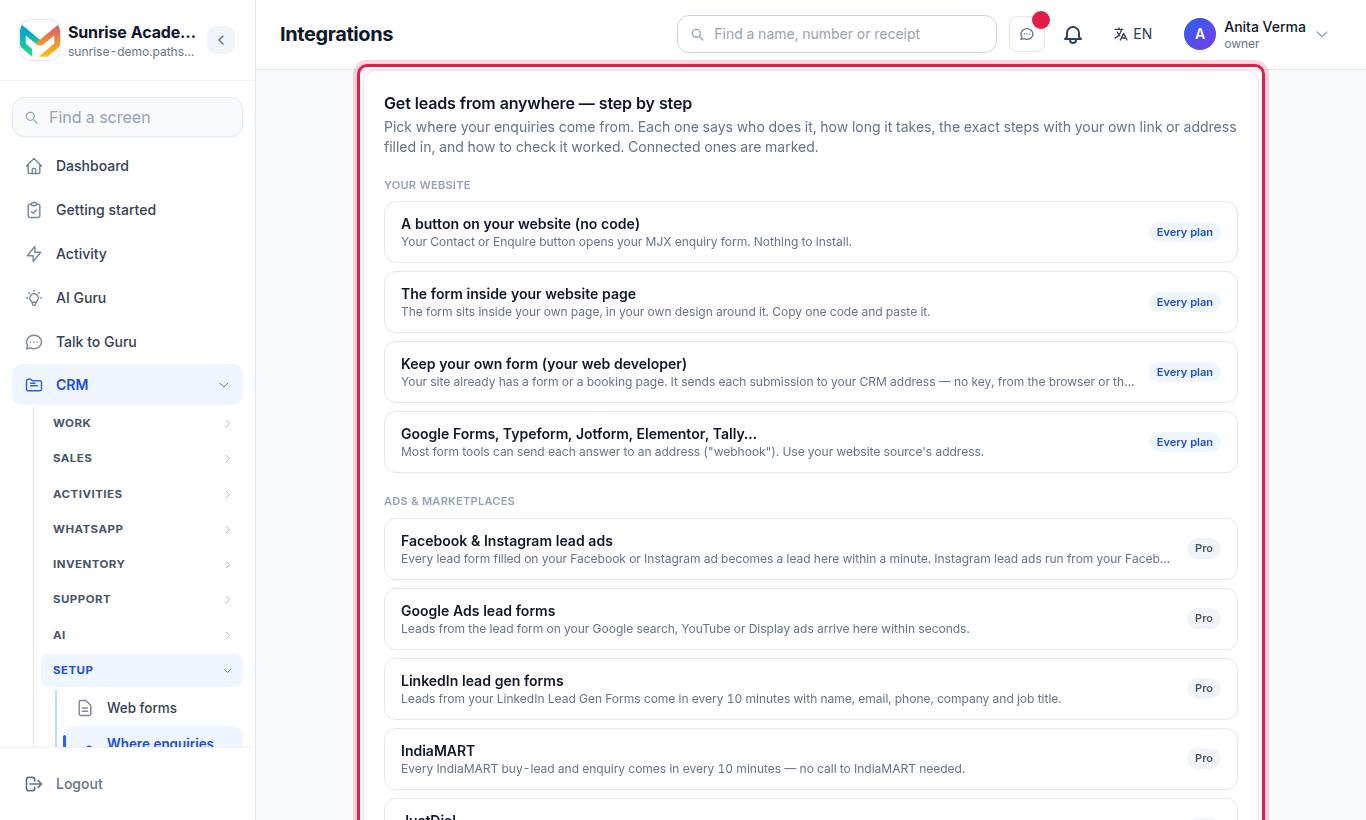
Each channel has a card that says Who does it, the time it takes, the exact steps with your own address filled in, and Check it works. Connected channels are marked.
#At a glance
| Channel | Route | What you create | Plan |
|---|---|---|---|
| Facebook & Instagram lead ads | Connect Facebook (one click) | Nothing — sign in and pick the Page | Pro |
| Facebook & Instagram lead ads | Set up by hand instead | Your own Meta app with a Page webhook, and a page access token | Pro |
| Google Ads lead forms | Address + key | A webhook on the lead form | Pro |
| LinkedIn lead gen forms | Connect LinkedIn (one click) | Nothing — sign in and pick the ad account | Pro |
| LinkedIn lead gen forms | Make.com or Zapier | A scenario / zap posting to the source address | Pro |
| IndiaMART | Pull (CRM key) | A CRM key from the seller panel | Pro |
| IndiaMART | Push API | Paste the address in IndiaMART | Pro |
| JustDial | Address | Ask JustDial to send leads to it | Pro |
| Missed call | Plivo answer URL | A Plivo XML application | Pro |
#Facebook and Instagram lead ads
Instagram lead ads run from your Facebook Page, so one connection covers both.
#One click: Connect Facebook
- On the Facebook & Instagram lead ads card, press Connect Facebook.
- Sign in with the Facebook account that is an admin of your business Page. Allow every permission it asks for: the Page list, Page engagement, Page settings, leads retrieval, Page ads and business management.
- Pick the Page your ads run from. Connect each Page if you have more than one.
If the button says "One-click Facebook is not switched on by MJX yet.", use the by-hand route or contact MJX.
#By hand: your own Meta app
Use this only when one-click is not available.
- Add a source of the kind Meta lead ads (Facebook / Instagram). Optionally paste the page access token in the box "Meta page access token (from Business Settings → the page → Lead Access)" before pressing Add source.
- The source row shows its address and a Verify token.
- On developers.facebook.com, create an app (type Business) and add the Webhooks product.
- Choose the Page object › Subscribe: Callback URL = the source's address; Verify token = the verify token from the row. Meta checks it at once.
- Subscribe to the field leadgen, and subscribe your Page to the app.
- Get a page access token with the
leads_retrievalpermission. On the source row press Set page token and paste it.
The row shows "page token saved" when done, or "no page token yet". Without the token, leads cannot be read: "No page access token on this Meta source — paste it in Integrations."
#Google Ads lead forms
- Add a source with the button Add Google Ads source. The row shows an address and a Key for Google Ads.
- In Google Ads: Campaigns › open the campaign › Assets › Lead forms › edit your lead form.
- Scroll to "Export leads from Google Ads" (or "Lead delivery option") › Webhook integration.
- Paste the address into Webhook URL and the key into Key.
- Press "Send test data", then save the form.
If the key is wrong, Google gets 403 and the source shows "google_key did not match this source's key".
#LinkedIn lead gen forms
#One click: Connect LinkedIn
- Press Connect LinkedIn.
- Sign in as a LinkedIn member who is an Account Manager (or higher) of the ad account in Campaign Manager. Allow access.
- Pick the ad account. Leads from the last 24 hours come first, then every 10 minutes, source "LinkedIn", with name, email, phone, company and job title.
If the sign-in lapses, the source asks you to press Connect LinkedIn again.
#Without the button: Make.com or Zapier
- Press Add LinkedIn source (Make / Zapier) and copy the address.
- Make.com (the free plan works): new scenario › "LinkedIn Lead Gen Forms › Watch Form Responses" (sign in, pick the ad account and form) › "HTTP › Make a request": URL = the address, Method
POST, Body type Raw, Content type JSON, withfirstName,lastName,emailAddress,phoneNumber,companyName,jobTitlemapped from the form › Run once › switch the schedule on. - Zapier (LinkedIn needs a paid plan): trigger "LinkedIn Ads › New Lead Gen Form Response", action "Webhooks by Zapier › POST", URL = the address, payload type JSON.
#IndiaMART
#Pull with a CRM key (recommended)
- Press Add IndiaMART source.
- On seller.indiamart.com (or the IndiaMART Seller app): Lead Manager › the three-dot menu or Settings › CRM Integration (sometimes "Import / Export leads" or "API") › Generate CRM Key › copy it.
- Paste the key in the source row's box ("Paste your IndiaMART CRM key to pull enquiries every 10 minutes") and press Save key.
Enquiries from the last 24 hours come first, then every 10 minutes, source "IndiaMART". IndiaMART allows one pull every 5 minutes and a 7-day window; the CRM keeps to that by itself. A key that looks wrong is refused: "That does not look like an IndiaMART CRM key — copy it again from Lead Manager."
#Push API
In the same CRM Integration screen, choose Push API and paste the source address. If Push is not offered, ask IndiaMART support to enable Push API for that address.
#JustDial
- Press Add JustDial source and copy the address.
- Send it to your JustDial account manager (or JustDial support from the JD Biz app › Help): "Please send my JustDial leads to this webhook URL: <address>".
- They usually send a test lead when they switch it on (often 1–3 days).
#Missed call → lead (Plivo)
- You need a Plivo phone number — the same account as Click to call (CRM › Setup › Click to call).
- Press Add missed-call source, write what callers hear, and copy the address.
- Plivo console › Voice › Applications › New (XML) › Answer URL = the address, method
POST› Save. Then Phone Numbers › your number › Application = the one you made › Update.
Each call costs what Plivo charges for a short incoming call. See Lead webhooks for what happens on each call.
#Channels with no lead API: tracked links
Google Maps (Business Profile), Instagram bio, Facebook page button, WhatsApp status, QR posters and YouTube descriptions cannot send leads by themselves. Press Make my Google Maps link, Make my Instagram link or Make my QR link (or Make my link) and the CRM makes a web form stamped with that source. Put the link where people will see it. These work on every plan.
#Managing a source
Each source row shows its hits and leads made, and buttons Switch off / Switch on and Remove ("Remove this source? Its address stops working at once."). A switched-off source answers 410.
#Questions people ask
Do I need my own Facebook developer app?
Not when the "Connect Facebook" button is shown — MJX's own Meta app is used. Only the "Set up by hand instead" route needs your own Meta app.
Are old leads fetched when I connect?
No. Only new leads arrive. Download older ones from Meta, Google Ads or LinkedIn as a sheet and use Import & export.
How often do IndiaMART and LinkedIn leads arrive?
Every 10 minutes. The first pull brings the last 24 hours.
Which plan do the connectors need?
Facebook and Instagram, Google Ads, LinkedIn, IndiaMART, JustDial and missed-call sources come with MJX CRM Pro. Your website and tracked links work on every plan.