
Raise fee invoices for a student or a whole class
Generate fee invoices in Pathshala for one student or a whole class, by month or by instalment, with discounts and late fees worked out for you.
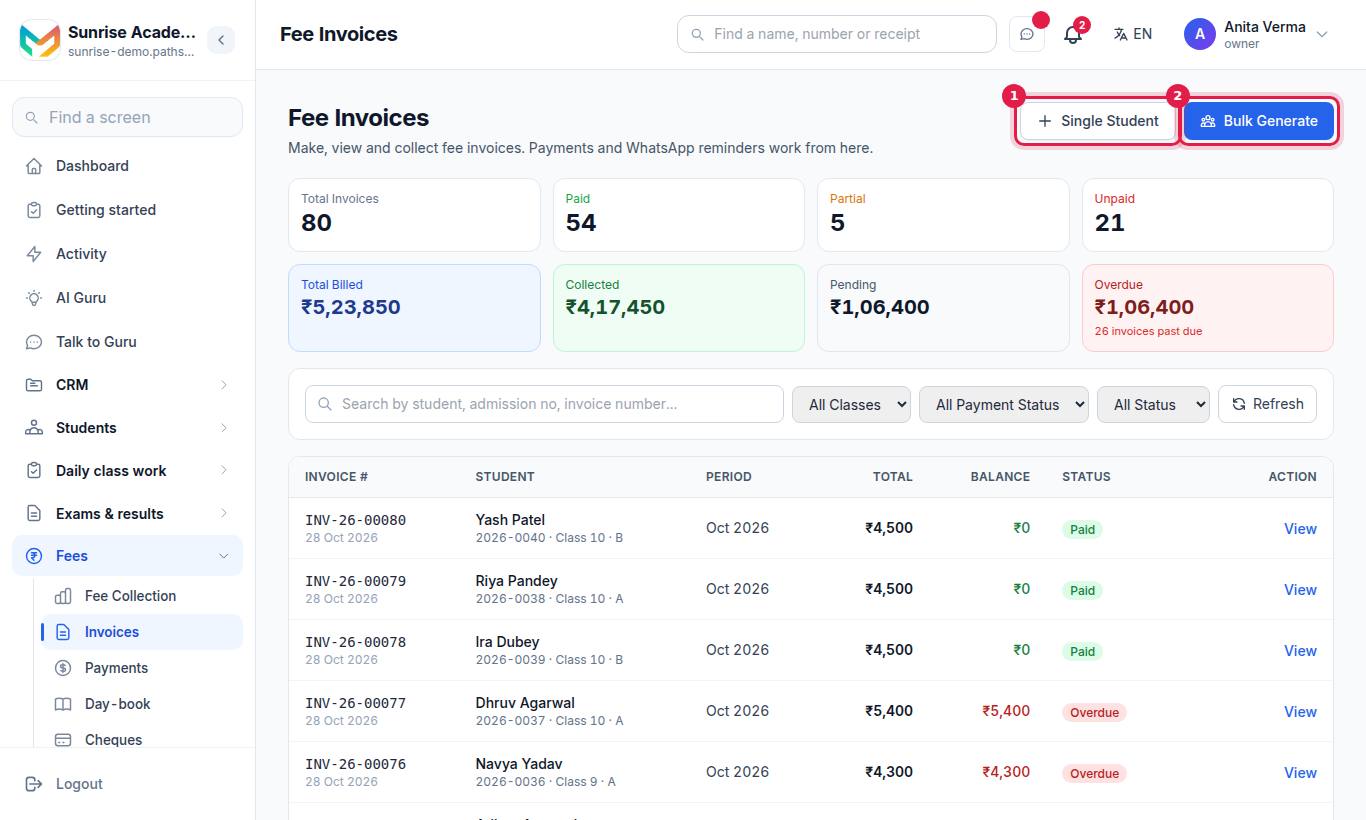
An invoice is the bill that says what a student owes for a period. In Pathshala you raise invoices on the Invoices screen with Single Student (one student) or Bills for a whole class (every active student of a class at once). There is no Generate Invoice section on the student's Edit page. Each invoice reads the class's fee structure, adds the student's activities and approved discounts, and adds a late fee if it is already past due.
Which fee heads go on the bill: every mandatory head with an amount in the class's structure, for every active student; an optional (opt-in) head only for the students ticked for it. See Optional (opt-in) fee heads.
#Who can use this?
| Action | Who |
|---|---|
| See invoices | Owner, Admin, or staff with View Invoices (Accountant, Cashier) |
| Generate, send or cancel invoices | Owner, Admin, or staff with Create Invoice (Accountant). A Cashier cannot — taking money and deciding what is owed are kept apart |
Invoices are on every plan. Sending an invoice on WhatsApp needs Basic or above.
#Before you start
- The student must be active, with a class and an academic year set (edit the student if not).
- The class needs a fee structure for that year — see Fee heads and structures.
- A current academic year must be set in Sidebar › Settings › Organisation › Organisation details › 🎓 Academic.
#How to raise an invoice for one student
#Steps
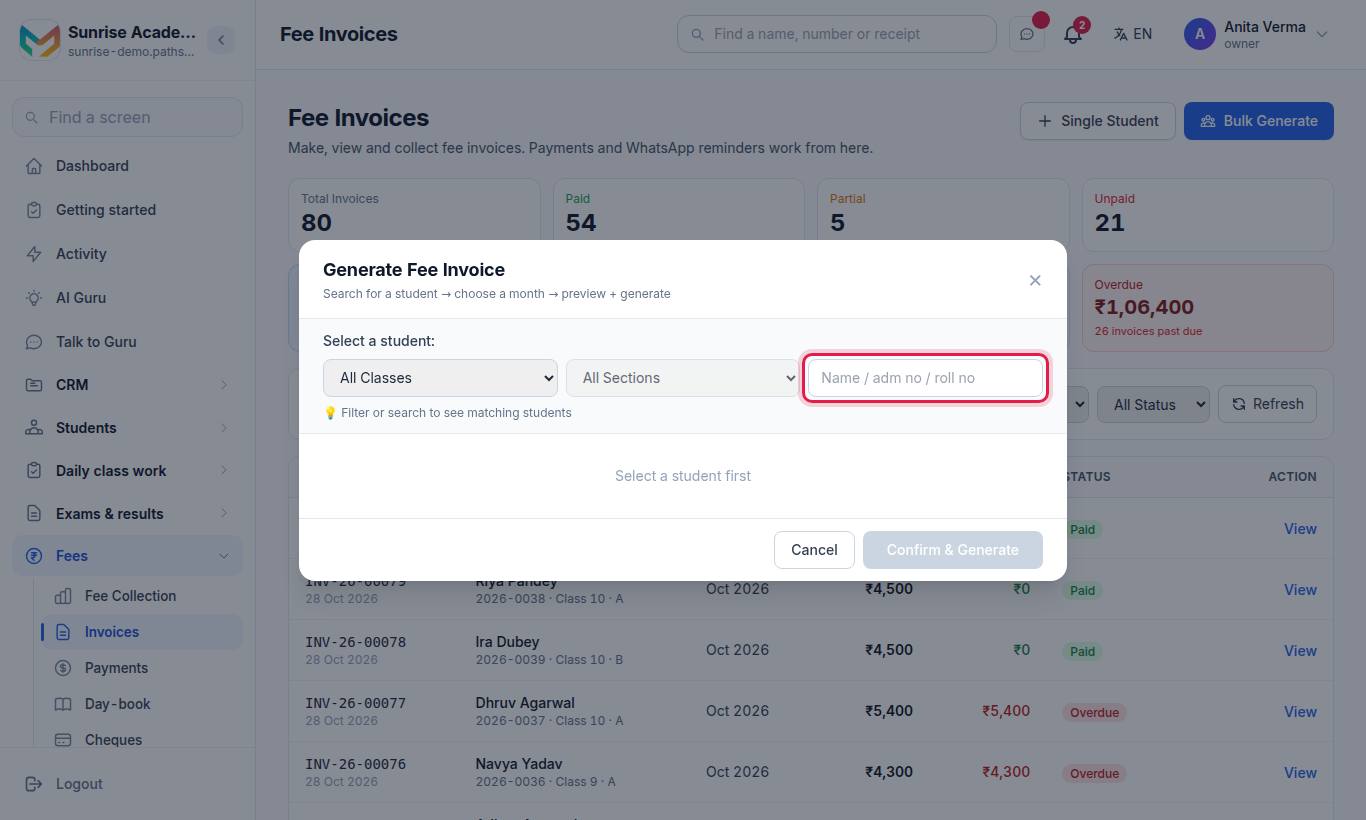
- Press Single Student.
- Find the student: filter by class and section, or type a name, admission number or roll number. Tap the student.
- Choose the Month and press Load Preview.
- Check the preview: the Line Items (each head with its frequency and amount), the Applied Discounts, any Late Fee, the Due date and the Total.
- If needed:
- tick Override discount amount, type the new discount and a reason;
- tick Waive off / adjust late fee, type the new late fee (0 to waive) and a reason;
- add a note.
- Press Confirm & Generate.
What the preview may tell you instead
| Message on the preview | Meaning |
|---|---|
| Invoice already exists for this period | This student already has a bill for that month. Press View → to open it. |
| A list of months already billed | Another bill already covers some of these months. Cancel the old bill, or choose a period that does not overlap. |
| No charge applicable for this period | Every head was already billed in its frequency window, or nothing applies this month. |
| Skipped items (n) | Heads left out, each with the reason (for example, a quarterly head billed last month, or Optional fee — not opted in). |
#How to raise invoices for a whole class
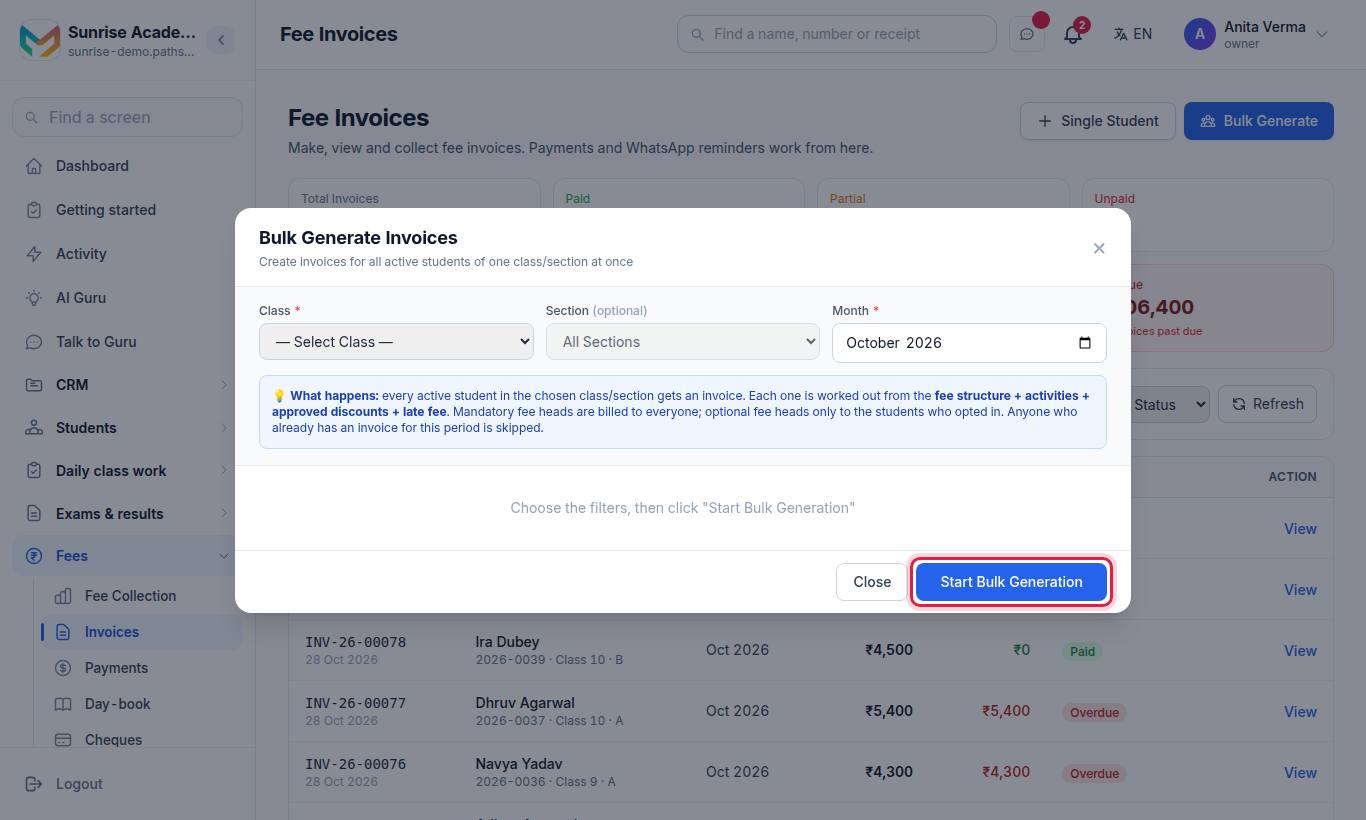
Press Bills for a whole class. Choose the Class and, if you want, one Section (or leave All Sections). Then choose how to bill.
#Steps — by month
- Keep By month selected.
- Choose the Month.
- Press Start Bulk Generation and confirm.
#Steps — by instalment
By instalment appears when the class has a collection plan.
- Press By instalment. The plan's instalments are listed with their due date, the months they cover, the amount, and how many students are already billed.
- Press Generate on the instalment you want, and confirm.
Only one instalment is billed at a time. Bills that already exist are not made again and are not changed. If a family wants to pay the whole year at once, you can generate a later instalment early.
#What you see when it finishes
Bulk generation can take 10–30 seconds for a large class. Then you see a summary — Total Students, ✓ Success, Already exists, No charge, ✗ Failed — the due date(s) used, and Total Billed (new invoices). Tabs list the students in each group: Success, Existed, No Charge, Failed. Tap a name to open that invoice.
#The invoice list
At the top are counters: Total Invoices, Paid, Partial, Unpaid, Total Billed, Collected, Pending and Overdue.
| Filter | Options |
|---|---|
| Search | Student name, admission number or invoice number |
| Class | All Classes or one class |
| Payment status | All Payment Status, Unpaid, Partial, Paid |
| Status | All Status, Pending, Partial, Paid, Overdue, Cancelled |
Each row shows Invoice #, Student, Period, Total, Balance, Status and a View button. Status chips are Unpaid, Partial, Paid, Overdue, Partial · Overdue and Cancelled.
#Inside an invoice
Press View to open it. You see the Invoice Date, Due Date, Period and Academic Year, the Line Items (Amount, Discount, Net), the totals (Subtotal, Discount, Late Fee, Total, Net Paid, Balance Due), the Transaction History of payments and refunds, and who generated it.
| Button | What it does | Shown when |
|---|---|---|
| Opens the invoice as a PDF | Always | |
| Send to Parent | Sends the invoice PDF on WhatsApp (Send to Parent again after the first time) | The invoice is not cancelled |
| + Record Payment | Takes a payment against it — see Collect a fee | There is a balance |
| Cancel invoice | Cancels the bill after you type a reason | No money has been paid against it |
The Invoice on WhatsApp box shows the delivery record, for example Delivered and read by the parent, Delivered to the parent's phone, Sent — waiting for WhatsApp to confirm delivery, Not delivered (with Meta's error code), or Not sent — this parent replied STOP to WhatsApp messages. It also shows whether it went from your own number or the MJX number.
#Invoice numbers
Invoices are numbered INV-YY-00001, INV-YY-00002… where YY is the year. The count starts again at 00001 each calendar year, and is separate for every institute.
#Tips
- Raise bills on the same day each month, after any new admissions are entered, so nobody is missed.
- Check one student's preview before a bulk run when you have changed a structure.
- Per-student charges (optional fee heads, activities) and discounts are taken from the student's record — see Optional (opt-in) fee heads, Discounts and concessions and Activities.
- Changed a head to optional? Tick its students first, then generate — otherwise nobody is billed for it.
- The Fees tab on a student's profile shows their bills, payments and discounts in one place.
#Questions people ask
Are invoices made automatically every month?
No. Pathshala makes a bill only when someone presses Generate on the Invoices screen. This keeps a mistake in the fee structure from billing every family.
Can I make the same bill twice by mistake?
No. If a student already has a bill for that period, or a bill that covers the same months, Pathshala refuses and shows the existing invoice instead.
How do I fix a wrong invoice?
Cancel it with a reason and make a new one. An invoice that already has a payment cannot be cancelled until that payment is cancelled or refunded.
Why is Transport missing from some students' invoices?
Transport is probably marked Optional (Opt-in) on Fee Heads. An optional head is billed only to students ticked for it. Tick them under Students on the head's row, or under Optional fees on the student's Edit details page, then make the invoice.
Can a parent pay the whole year in advance?
Yes, if you use a collection plan. You can generate a later instalment's bill early for that student or class and take the payment.
Can I send the invoice to the parent?
Yes. Open the invoice and press Send to Parent. It goes on WhatsApp as a PDF (Basic and above), and the screen shows whether it was delivered and read.