
Manage learners — give access, take it back, track progress
Add a learner to a course by hand, see every buyer and app joiner, take access back with a reason, and download progress sheets in MJX Learn.
Most learners arrive by paying on your course page — access opens by itself. This page covers everything else: giving access by hand, the lists of buyers and app joiners, a learner's profile, taking access back and reading progress.
#Where are my learners?
| List | Where | Who is on it |
|---|---|---|
| Who has access | Courses › Videos & access on one course | Everyone who can open this course. |
| LMS Buyers tab | Sidebar › Students (your word for learners) › LMS Buyers | "People who hold a course but are not on your roll" — most paid on your public page; the rest were added by hand. |
| Joined via app tab | Sidebar › Students › Joined via app | "People who signed in to your app." Those marked No course yet are people you can follow up. |
| My learners | App bottom bar | Everyone who signed in to your app, with Bought a course, In a class, No course yet filters. |
#How to give access by hand
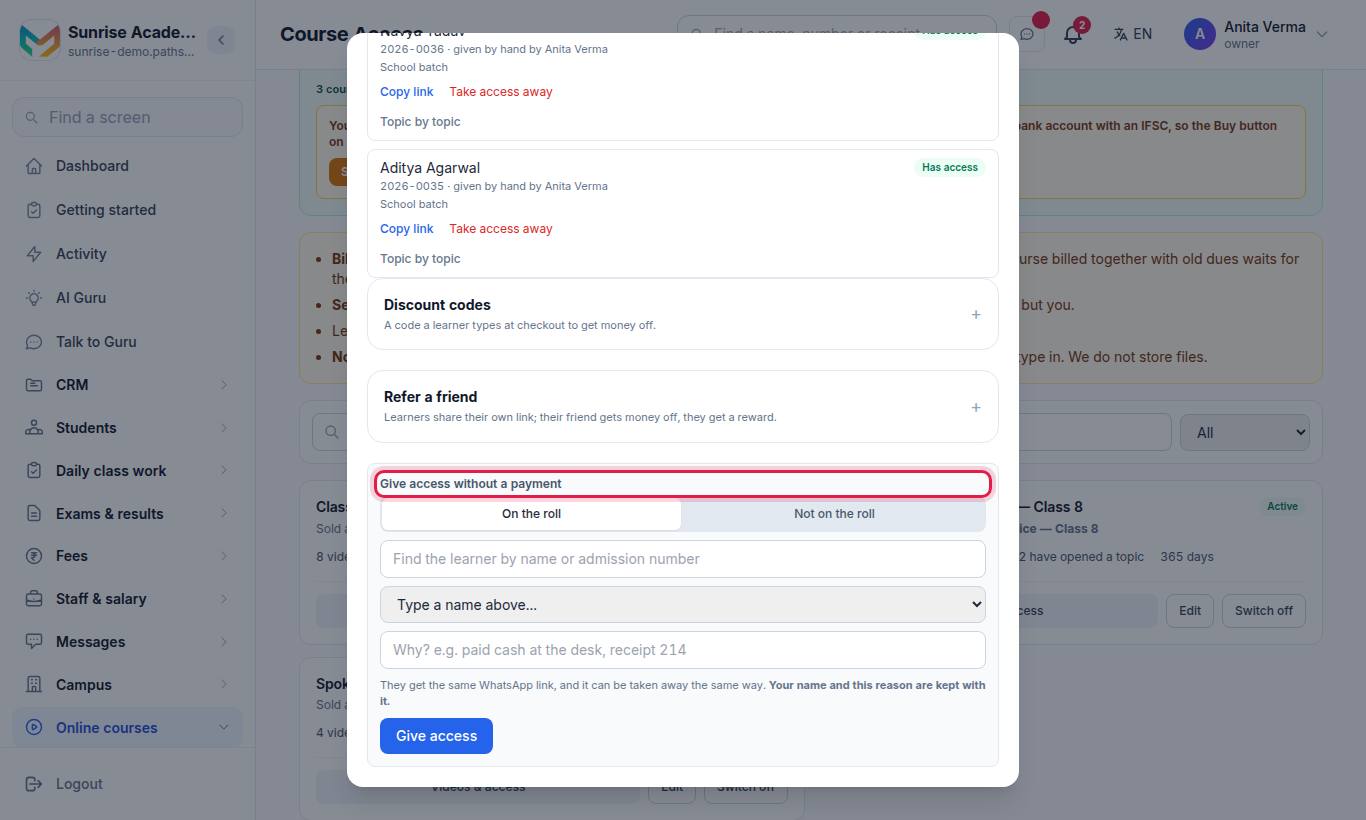
- Choose On the roll (a student already in your register) or Not on the roll (anybody else).
- On the roll: type in Find the learner by name or admission number and pick them. Not on the roll: type Their name, a mobile number — pick the country code if it is not Indian (it must be the one they use on WhatsApp — the link goes there) and Email (optional).
- Type why under Why? e.g. paid cash at the desk, receipt 214. Your name and this reason are kept with it.
- Press Give access.
They get the same WhatsApp link a buyer gets, and it can be taken away the same way. You can also add someone from Apps › School & Academics › Students › LMS Buyers › Add — "For somebody who paid you directly and is not on your roll."
#How to take access away
- Open the course with Videos & access and find the learner under Who has access.
- Press Take access away.
- Type the reason when asked: "Why is this access being taken away? The office will see this later."
The learner's link stops working at once and their course page says "Access to this course has been withdrawn." Downloaded videos are deleted from their phone.
#How to see a learner's progress
- On Who has access, press Topic by topic next to a learner to see each topic they opened or finished.
- Press Download the sheet for a CSV: "One row per learner, one column per topic — including every topic nobody has opened."
- Click a learner on the LMS Buyers tab to open their profile: the courses they hold, when they bought and what they paid, progress and completed topics, when they were last seen in a lesson, and their doubts, certificate and refund status.
#How learners sign in
Learners sign in with the mobile number their course link was sent to (on the website at ~/learn/signin, or in the MJX Learn app).
- They type their number and tap Continue.
- They type their Password and tap Sign in — or tap Use a code on WhatsApp instead and type the 6-digit code.
- After a code sign-in, a learner with no password sees Set a password first ("So next time you can sign in without WhatsApp"). They can tap Skip for now.
- Forgot password? — a code on WhatsApp plus a New password signs them in; their other devices are signed out.
- Change password — in their Profile. It needs the current password and signs out their other devices.
- A password needs at least 8 characters, not only numbers, and not their mobile number. It is stored only as a one-way hash, so nobody — including you — can read it.
- After 5 wrong passwords in 15 minutes, that number must use a code on WhatsApp. A wrong number and a wrong password get the same answer: "Wrong mobile number or password."
#Sign-in codes and the resend clock
- A new code can be asked for 30 seconds after the last one, and up to 5 codes in 10 minutes. The screen shows Resend code in 0:25 and counts down; after the fifth code the clock runs to when the next one can go ("Too many codes for this number. Please try again in 8 minutes.").
- The latest two codes both work until they expire (10 minutes each), so a code that arrives late still signs the learner in. Each code allows 5 tries.
- A code that could not be sent is not counted. The learner sees "We could not send the code just now. Please try again." and can try again at once.
#Which number sends the code
| Your WhatsApp | The code comes from |
|---|---|
| Your own number connected (Settings › WhatsApp Settings) | Your own number. If that send fails, it is sent once more from MJX's WhatsApp number. |
| Not connected, or still being set up | MJX's WhatsApp number. |
| WhatsApp bill overdue | Nothing is sent. The learner is told your institute must clear the bill. |
Sign-in codes are free — paid by MJX — whichever number sends them. They are counted on Settings › Billing › Subscription & billing › WhatsApp usage but not added to your bill.
#Siblings on one phone number
Many families use one phone. For in-person classes, adding a learner whose name is different from the one already on that number makes a separate learner — the first child is not renamed. Each child then has their own attendance, books and fees.
#Where learners are from
The dashboard at the top of Analytics shows Where my learners are from, By city and By country — "Counted from each learner's most recent sign-in." The app shows the same under Analytics.
#Possible account sharing
Analytics › Possible account sharing flags accounts used from several devices or cities recently. "A flag is a hint, not proof." To stop sharing, take that course's access away. See Protect your videos.
#Batches and in-person classes
- To place learners in a group that starts together, see Live classes and batches.
- For tuition and in-person classes (register, books, fees), see Tuition and in-person classes.
#Who can use this?
| Who | Can |
|---|---|
| Owner, Admin | Give and take access, download progress, see buyers and app joiners. |
| Teacher | See learners on their own courses in the app; cannot give or take paid access. |
| Plan | Every plan. Forever Free allows up to 50 learners by default — see Plans and billing. |
#Questions people ask
Can I give a course to somebody who paid cash at the desk?
Yes. Open the course, use "Give access without a payment", and type why (for example "paid cash at the desk, receipt 214"). They get the same WhatsApp link a buyer gets.
Does adding a learner by hand cost anything?
When MJX collects payments for that course, yes — MJX's fee on the course price is billed to you and taken from your next sale. The form shows the amount before you press Give access.
Can two children share one phone number?
Yes, for in-person classes. Adding a second child with a different name on the same number makes a separate learner, so the first one is not renamed.
What does a learner see when access is taken away?
Their course page says "Access to this course has been withdrawn. Please contact the office if you think this is a mistake."
Can learners sign in with a password?
Yes. After their first sign-in with a WhatsApp code, a learner is asked to set a password (they can skip it). Next time they type their number and password; "Use a code on WhatsApp instead" is always there, and "Forgot password?" sets a new one with a code.
Which WhatsApp number sends a learner's sign-in code?
Your own WhatsApp number when it is connected in Settings › WhatsApp Settings. If it is not connected — or a send from it fails — MJX's WhatsApp number sends the code instead, so the learner still gets it. If your WhatsApp bill is overdue, no code is sent and the learner is told to ask you to clear it.
Where can I see which cities my learners are from?
On Analytics (Apps › MJX Learn › Analytics) under "Where my learners are from", by city or by country, counted from each learner's most recent sign-in.