
Get started with MJX Library
Sign up for MJX Library, set up your seats and shifts in one minute, and take your first admission with a receipt on WhatsApp.
In MJX Library you can go from sign-up to your first paid admission in about five minutes: create the account, tell it your seats and shifts once, then take a New admission at the counter. This page walks you through it.
#Create your account
Open the MJX Library product page and press Start free or Start 14-day trial. Both open the sign-up form with MJX Library already chosen (~/signup?modules=library). Under You are signing up for you will see MJX Library.
Fill in:
- What Best Describes Your Business? — pick the one closest to you. (The phone app signs a library up as Institute.)
- The name of your library, and Your Portal URL — the web address your library will use.
- PIN code (the city and state fill in by themselves), City and State.
- Your Name, Phone Number (WhatsApp) — you will sign in with this number — Email and Password.
Press Create and Get Portal.
#Set up seats and shifts — one screen
The first time you open Apps › MJX Library › Today you see Set up your library — 1 minute.
- How many seats? Type the number of seats (up to 300) and a Letter. The preview shows what you will get, for example "Your seats: A1, A2 … A40 (40 seats)".
- Your shifts and monthly fee — four shifts are ready and ticked: Morning 06:00–12:00 ₹500, Afternoon 12:00–18:00 ₹500, Evening 18:00–22:00 ₹400 and Full day 06:00–22:00 ₹900. Change the name, From, To and Fee ₹ of each, untick the ones you do not run, or press + Add another.
Press Start using my library.
#Take your first admission
On Today press New admission (on a phone, the + button, then New admission). It has three steps:
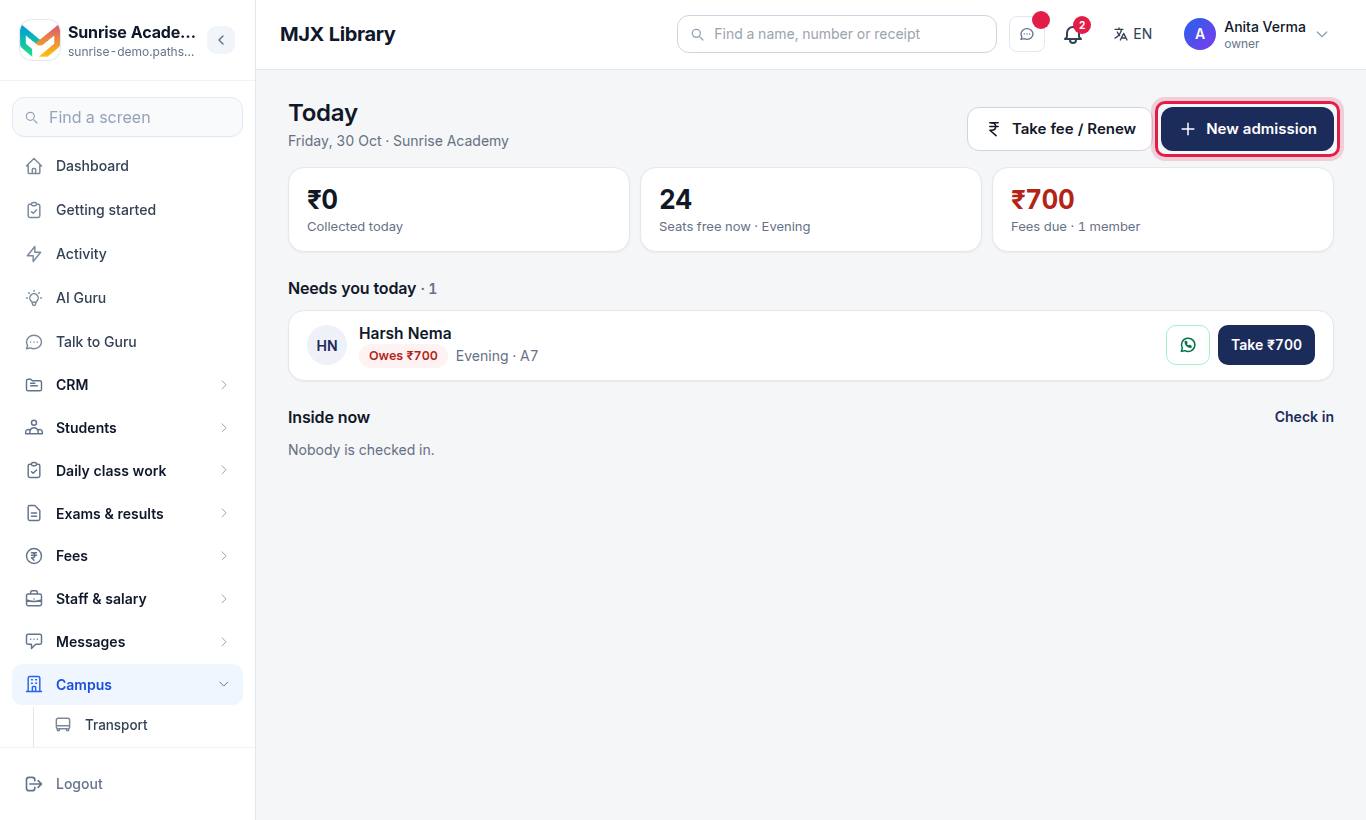
- Who — Name and Mobile (for WhatsApp). + More details adds gender, what they are preparing for, guardian's mobile, email, ID type with only the Last 4 of the ID, and address.
- Seat & time — tap a Shift, choose How many months (1, 3, 6 or 12), and tap a free seat (or No fixed seat). + Discount or locker adds a discount, locker number and locker fee.
- Payment — Received now (₹), Paid by (Cash, UPI or Card) and an optional reference number.
Press Next at each step, then save.
#Send the receipt
The last screen says "*Name* is in." Press Send receipt on WhatsApp to open WhatsApp with the receipt written for you, or Print receipt.
#Add your counter staff (optional)
Add the people who work at your counter under Sidebar › Team › People with the role Staff. They can take admissions, fees and check-ins, but never see the library's totals. See who can do what.
#Put the app on the counter phone
Install MJX Library on Google Play and sign in with the same number and password. See the MJX Library app.
#What to do next
#Questions people ask
Do I need a card to start?
No. Every sign-up starts with a 14-day free trial of every feature, with no card. After it you stay on MJX Library Forever Free until you pay.
Can I sign up from the phone app instead?
Yes. Open the MJX Library app and tap Create my library. It makes the same account the website does.
What if I only lend books and do not rent seats?
Go straight to Books & lending and add your books. Today keeps showing the one-minute setup until the library has at least one seat and one shift, but lending works without them.
Can I change the seats and shifts later?
Yes, any time, under Setup. Shifts are switched off rather than deleted, so old bookings keep their history.