
Question bank for schools and coaching centres
Keep your own questions by class, subject and chapter — MCQ, short, long and match the column — and import them from Excel or CSV.
The Question bank in Pathshala is your institution's own collection of questions, filed by class, subject and chapter. Everyone who teaches can add to it, and the question paper builder draws from it.
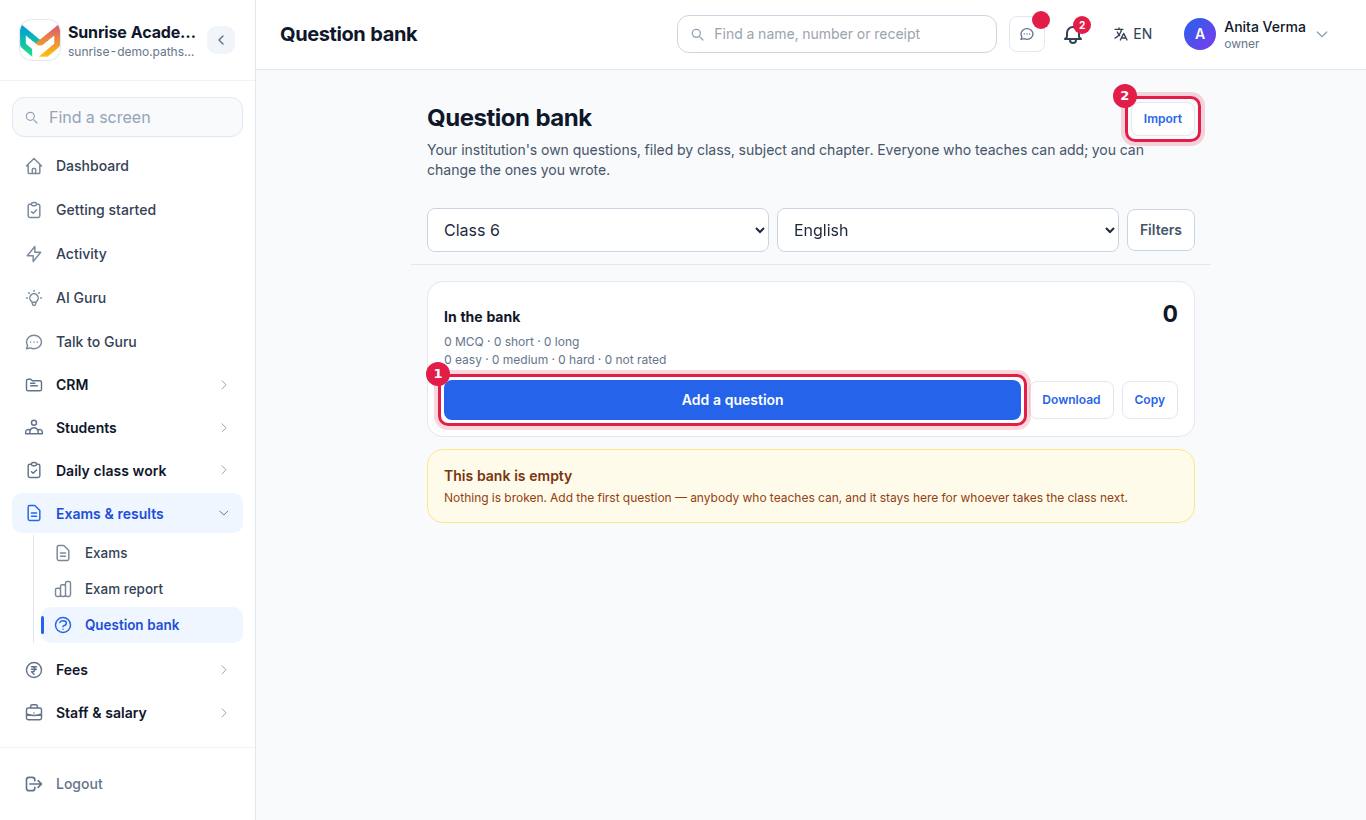
#How to add a question
- Open Question bank and choose the Class and Subject.
- Press Add a question.
- Under What kind?, choose Multiple choice, Short answer, Long answer or Match the column.
- Type The question (for example "What is the additive inverse of -7?").
- For multiple choice, type The choices (one per line) and tick the right one. For match the column, type The pairs — each left item with the one it matches; the paper mixes up the right column and prints the key.
- Optionally fill Answer or marking note, Marks, Source (for example "CBSE 2019"), How hard? (Easy, Medium, Hard or Not rated) and Chapter.
- Press Save.
#Finding and reusing questions
- Filters: Any chapter, Any kind (MCQ, Short, Long, Match), Any level, Not rated, Mine.
- Search box: searches the question or its source.
- Show choices, Show pairs or Show answer reveal a question's key.
- Download exports the bank. A file the bank produced imports straight back in.
- Copy copies questions into another class and subject: tap the questions, choose Into class… and Into subject…, then press Copy. Copies arrive unfiled, because a chapter belongs to one class and subject.
#How to import questions from Excel or CSV
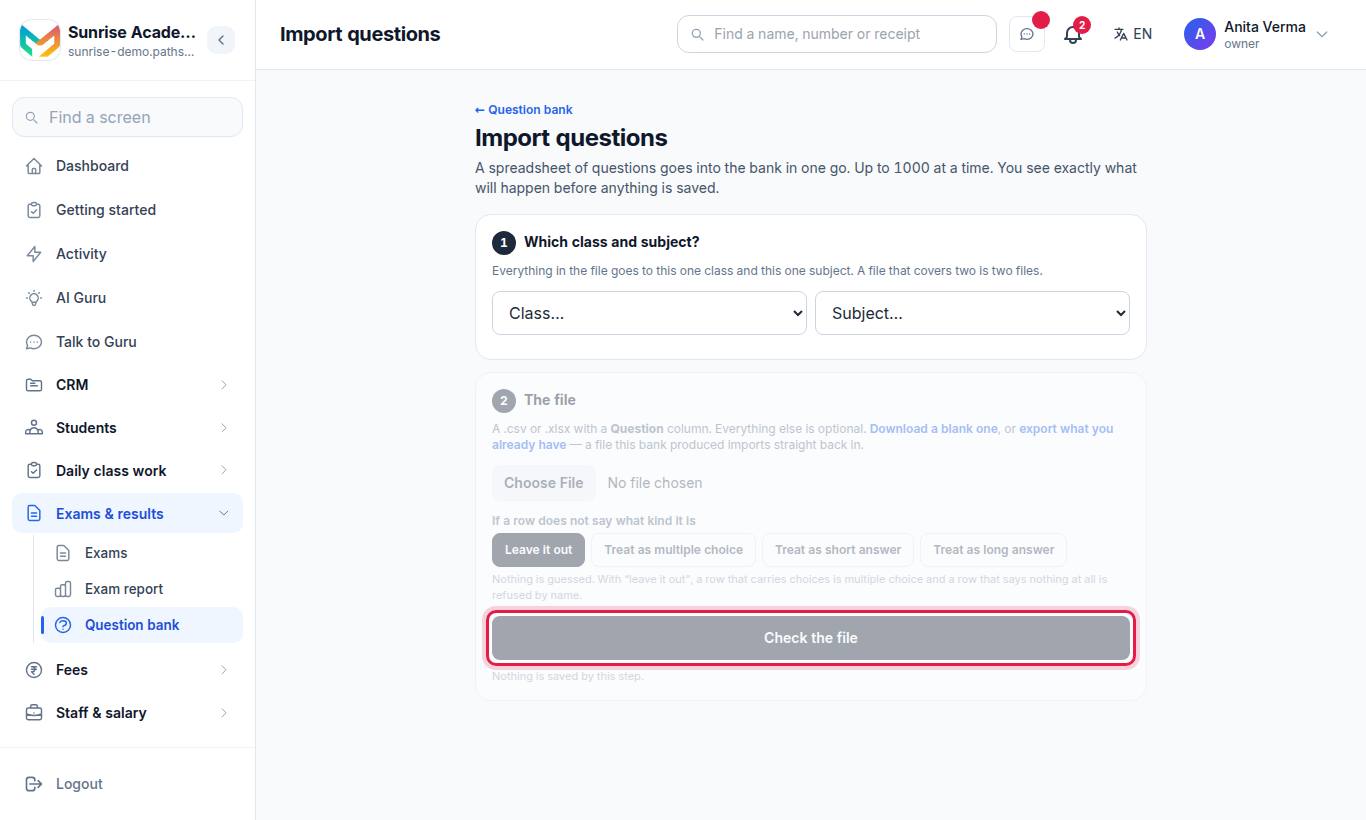
- Press Import on the Question bank.
- Choose the Class and Subject. Everything in the file goes to this one class and subject — a file that covers two is two files.
- Choose your file: a .csv or .xlsx with a Question column. Press Download a blank one for the template.
- Under If a row does not say what kind it is, choose Leave it out or "Treat as …" one kind.
- Press Check the file. Nothing is saved by this step.
- Read What will happen: how many will be added, are already there, or are refused, and why.
- Press Import.
The template's columns are: Question, Kind, Marks, Difficulty, Chapter, Choices, Correct, Answer / key, Source.
#Who can use the question bank?
| Task | Who |
|---|---|
| See questions | Owner, Admin, Staff |
| Add, import, copy questions | Owner, Admin, Staff |
| Change a question | The person who wrote it |
Plan: MJX Academic Pro. On Basic, the Question bank row shows a padlock.
#Tips
- Type the syllabus first so every question can be filed by chapter. Without it, "questions here will simply be unfiled".
- Add the source and difficulty. They make it quick to draw a balanced paper later.
- New questions can also be written by AI from your chapters — see AI in academics.
#Questions people ask
Who can add questions?
Anyone who teaches can add questions. You can change the ones you wrote.
Which question types are there?
Multiple choice (MCQ), Short answer, Long answer and Match the column.
Can I import questions from Excel?
Yes. Use Import with a .csv or .xlsx file that has a Question column. Up to a fixed number of rows at a time, shown on the screen.
Will importing overwrite questions already in the bank?
No. A question already filed under the same class and subject is left exactly as it is.
Is the question bank in every plan?
No. It is part of MJX Academic Pro.