
Tuition and in-person classes — register, books and monthly fees
Run tuition or offline classes in MJX Learn — daily attendance register, study books on the student's phone, fee plans, monthly fees and payments.
MJX Learn is not only for selling online. A course set to Offline — taught in person is a class that meets at your institute: you keep the daily register, add study books and notes that students read on their phone, set a fee plan or monthly fee, and record what they paid. Students see their attendance, books and payments in the MJX Learn app.
#What changes for a tuition class?
If you chose Tuition when you signed up, the app uses tuition words and new courses default to in-person:
| Coaching / institute | Tuition |
|---|---|
| Batch | Class |
| Chapter | Subject |
| Topic | Book |
| Learner | Student |
#How to create an in-person class
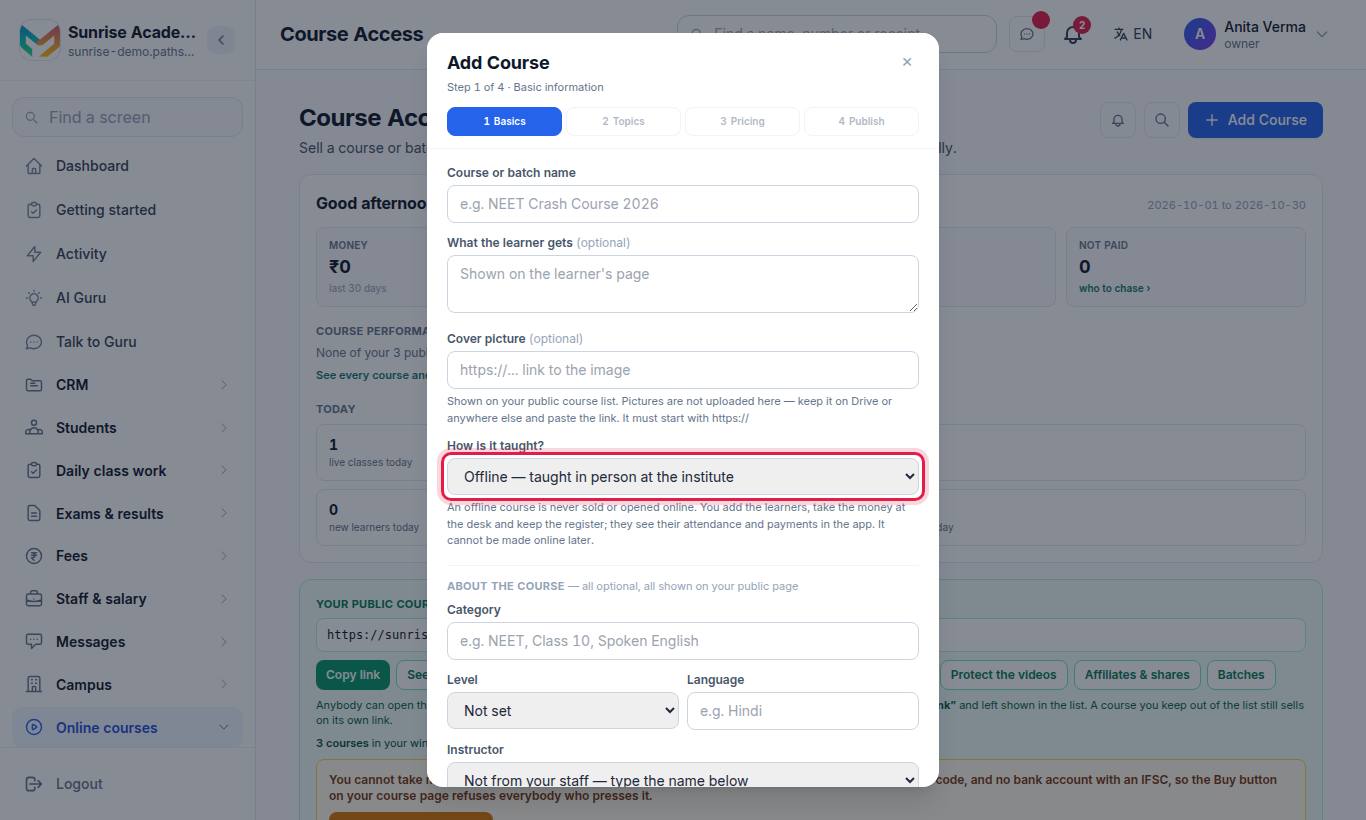
- Type the name.
- Under How is it taught? choose Offline — taught in person at the institute.
- Press Create course.
In the app: My batches (or My classes) › Add … › Offline — "Taught in person. You keep the register, note the fees and add the books. It is never sold online."
#Open the class register
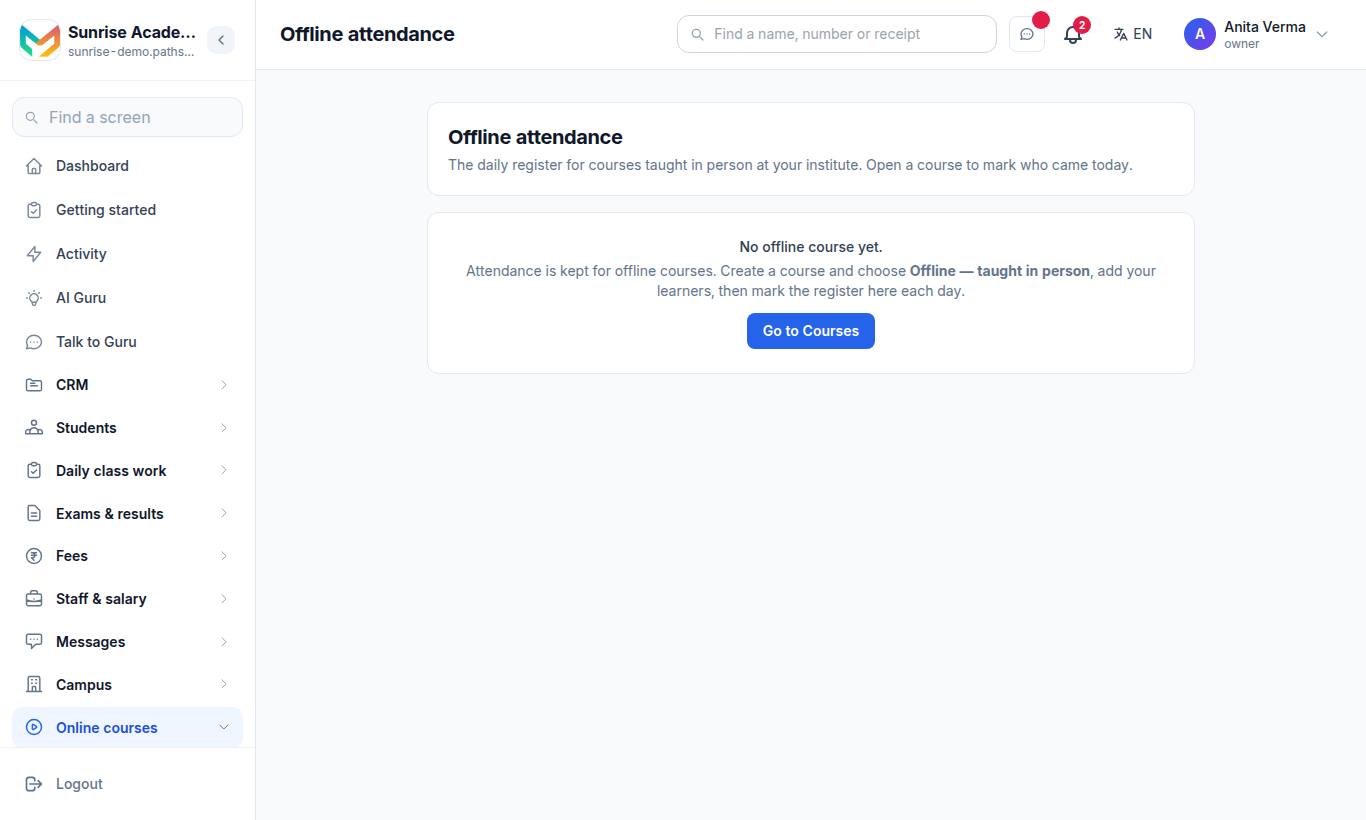
The Offline attendance page lists every in-person course: how many learners, when it was last marked, and Today done or Today not marked. Press Take attendance →. A course's own page has five tabs: Register, Books, Fee, Payments and Learners.
#Steps to mark attendance
- Open the Register tab and pick the Date.
- Tap each name for present, absent, late or leave — or press All present.
- Press Save register.
In the app: tap the class › Register — mark attendance, then Save. You see "Register saved for …".
#How to add learners to a class
On the Learners tab, under Add a learner, type the Name and Mobile number and press Add learner. "They sign in to the app with this number to see their attendance and payments."
Two children on one phone number are kept apart: a different name on the same number becomes a separate student. See Learners.
#How to add books and notes
On the Books tab, under Add a book:
- Type the Name — e.g. Maths Chapter 4 and, optionally, a Subject.
- Choose A PDF (paste its link) or A note I write here.
- For a PDF, paste the Google Drive link. In Google Drive: Share → "Anyone with the link" → Copy link. A link only you can open will not open for your learners.
- Press Add book.
Students open books in the app under Books and notes, as a page-turning book. Nothing here is sold or shown online. Teachers can add and change books; only the owner can remove one.
#How to set fees
#A fee plan (one-time or instalments)
On the Fee tab, under Fee plan: one line for a one-time fee, or one per instalment. Each is due on a date, or a number of days after the learner joins (0 = on joining). Press + Add instalment and Save fee plan.
A new learner gets a copy of the plan; changing the plan later never changes what an existing learner owes. The tab shows Unpaid (due) and Upcoming, with totals.
#A monthly fee (app)
In the app open Money › Payments › Monthly fee:
- Choose the Class.
- Type the Fee every month and pick Due on, every month.
- Press Save monthly fee.
"Set it once. Every student of the class is asked for it each month, and Unpaid shows who has not paid." It starts from this month — nothing is asked for earlier months. Use Stop the monthly fee to end it.
#How to record a payment
On the Payments tab, under Record a payment, choose the learner, type the Amount ₹, date and mode, add a Note (receipt no., month…) — optional, and press Record payment. A payment recorded by mistake can be cancelled.
In the app's Payments screen the tabs are TRANSACTIONS, STUDENTS, UNPAID and UPCOMING; modes are Cash, UPI, Bank, Cheque and Other. Payments you take yourself show "Collected by you — … No MJX fee on money you collect yourself."
#What students see
In the MJX Learn app, an in-person class shows In person · books and notes. Inside:
- Books and notes — what your teacher added.
- Attendance — "Present, absent and leave, month by month", with Overall attendance.
- Class fees and payments — Fee, Paid, Balance, the next instalment and My payments.
If a student opens an in-person course from a web link they see: "This course is taught in person at the institute, so it does not open online. Your attendance and payments are in the app."
#Who can use this?
| Who | Can |
|---|---|
| Owner, Admin | Everything: create classes, fees, payments, register, books. |
| Teacher | Mark the register and add or change books on classes they teach. "Ask the office to add you as a teacher of the offline course." |
| Plan | Offline attendance is part of "Live classes, mock tests and certificates" — Basic and up. Book limits per class depend on your plan. |
#Questions people ask
Can an offline course be sold online?
No. An offline course is never sold or opened online. You add the learners, take the money at the desk and keep the register; they see their attendance and payments in the app. It cannot be made online later.
Do students need to pay MJX for an in-person class?
No. You record what they paid you (cash, UPI, bank, cheque). There is no MJX fee on money you collect yourself.
How many books can one class hold?
It depends on your plan. Forever Free allows a small number of books per in-person class (5 by default); paid plans allow more. When the limit is reached you are told how many your plan allows.
Can students ask doubts about an in-person class?
Yes. In-person classes can be asked about, to the teacher only.
Why does the app say "Class", "Subject" and "Book"?
Because your institute type is Tuition. A tuition class sees Class, Subject, Book and Student where a coaching centre sees Batch, Chapter, Topic and Learner.